Unlock the full potential of your Nintex K2 List Views.
LEARN / CONFIGURE / TRANSFORM
Transform an ordinary K2 ListView, one capability at a time. This developer learning portal follows a real Purchase Order Register from its original state to an advanced business grid.
What you will learn
By the end of this course, you will be able to connect K2 Advanced Grids to your own standard ListView, configure its capabilities step by step, and build a richer business register while retaining native K2 rules. You will learn how to deploy and maintain the shared JavaScript engine, and how to use the following capabilities:
The register uses a SQL-backed SmartObject, a non-editable ListView and a standard K2 form. No K2 deployment package or access to a remote demo server is required.
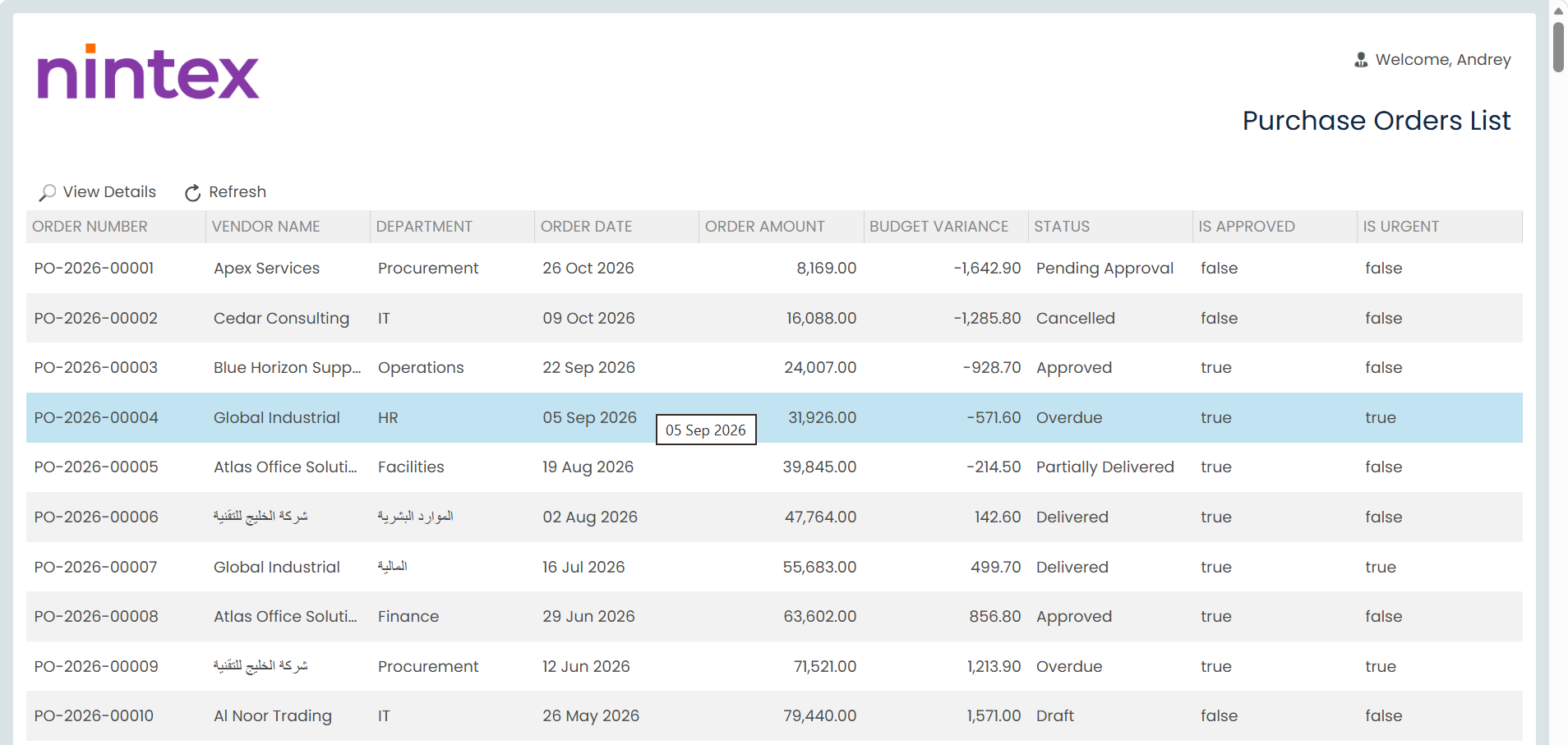
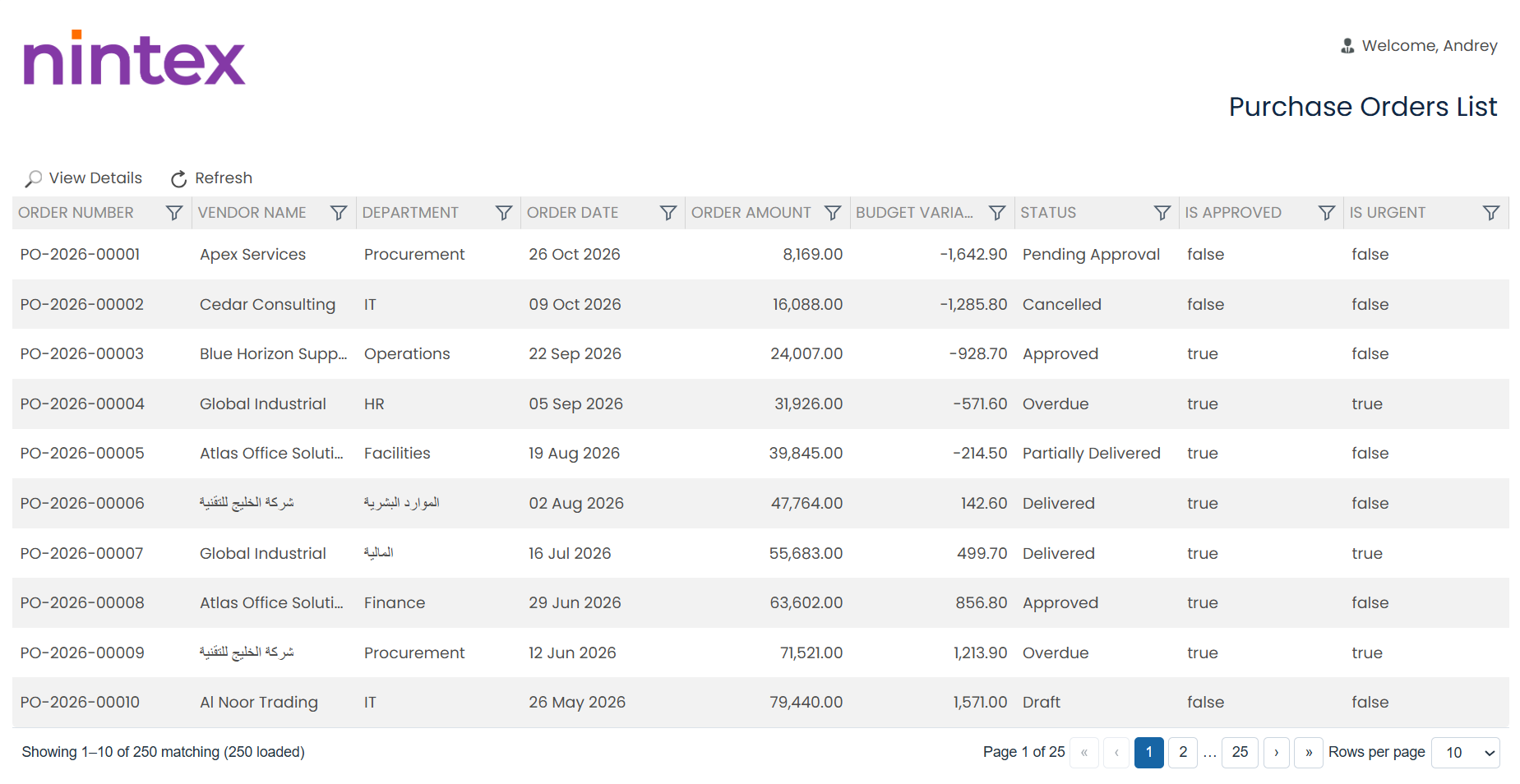
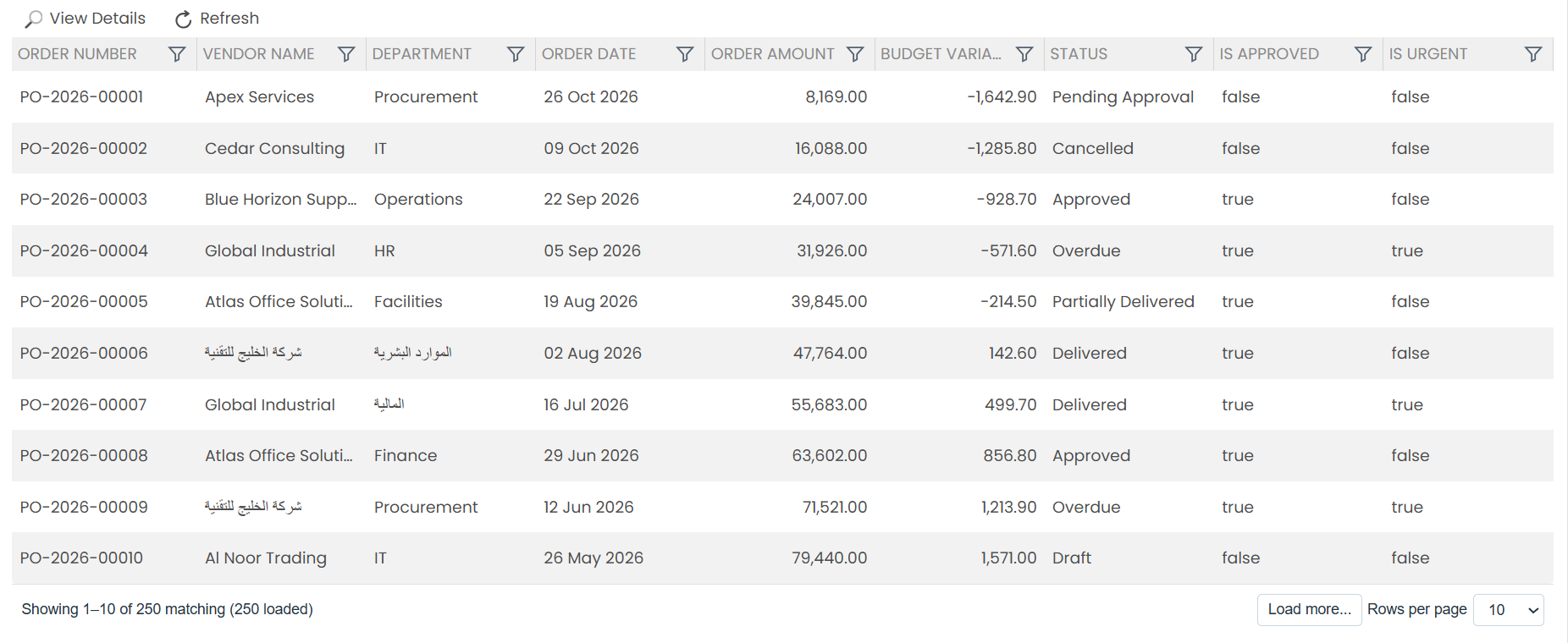
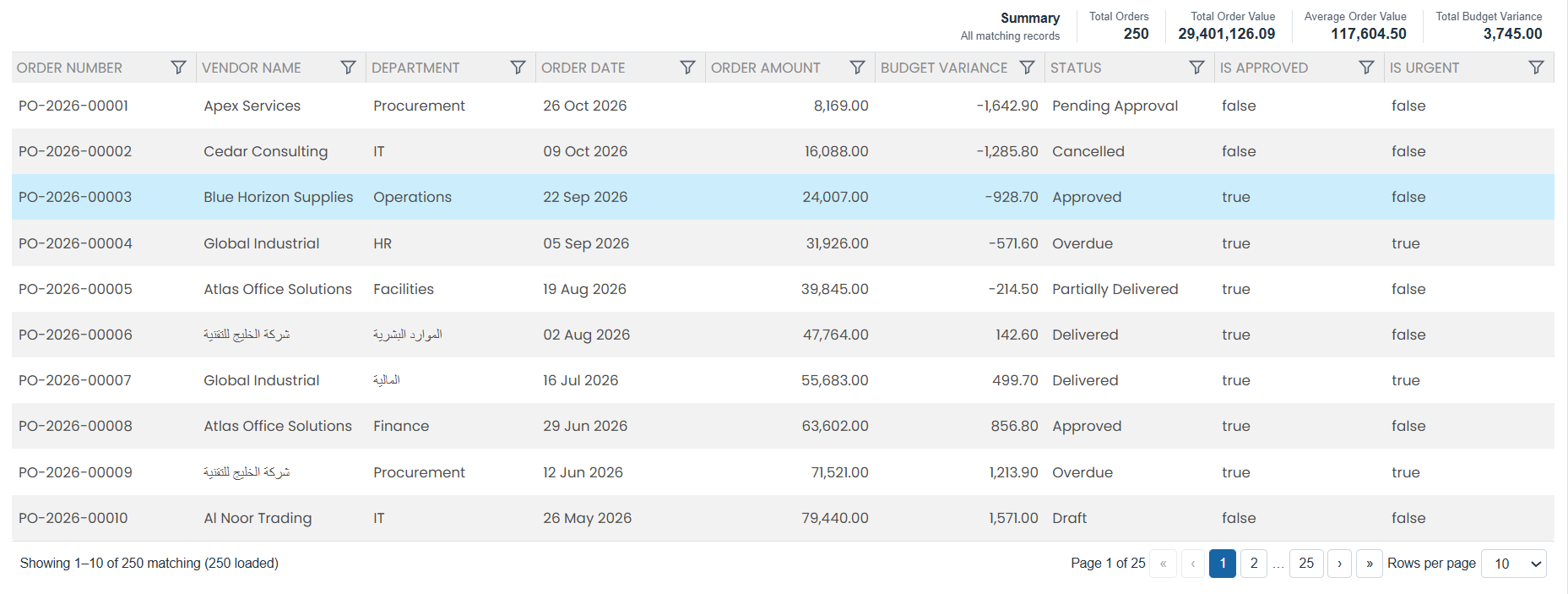
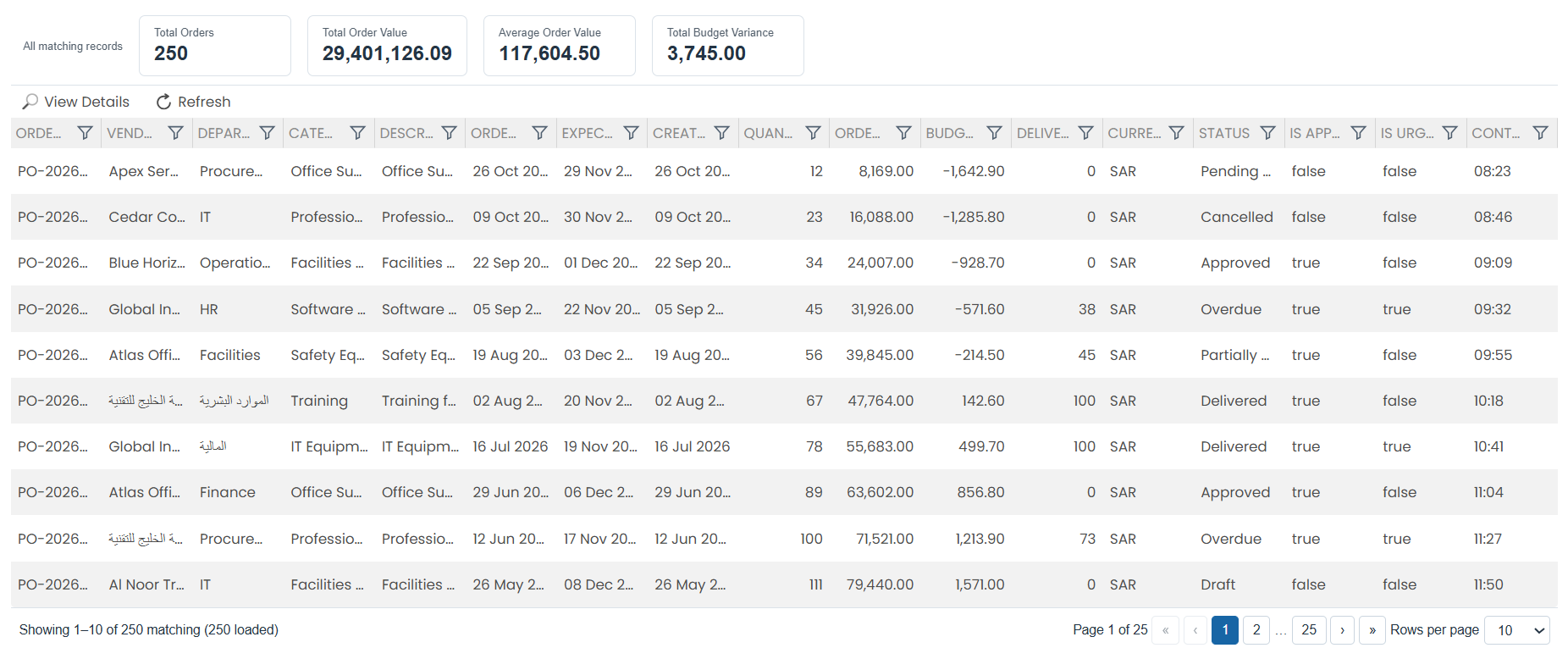
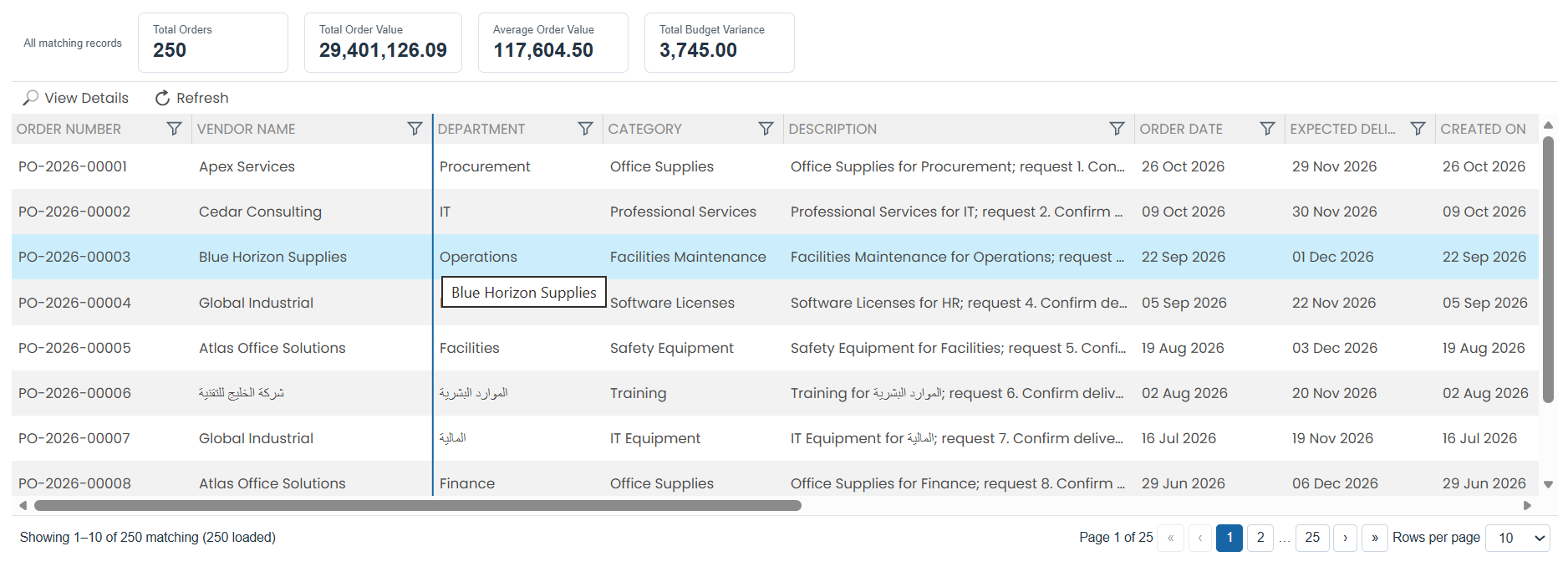
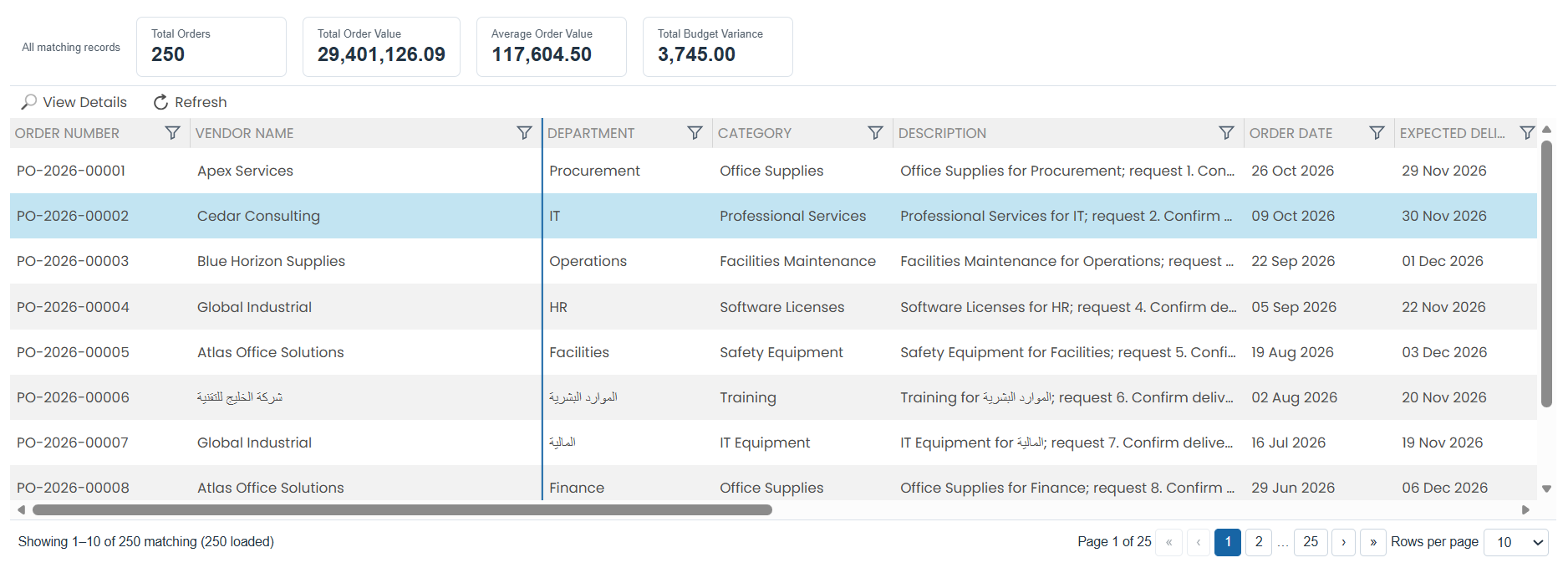
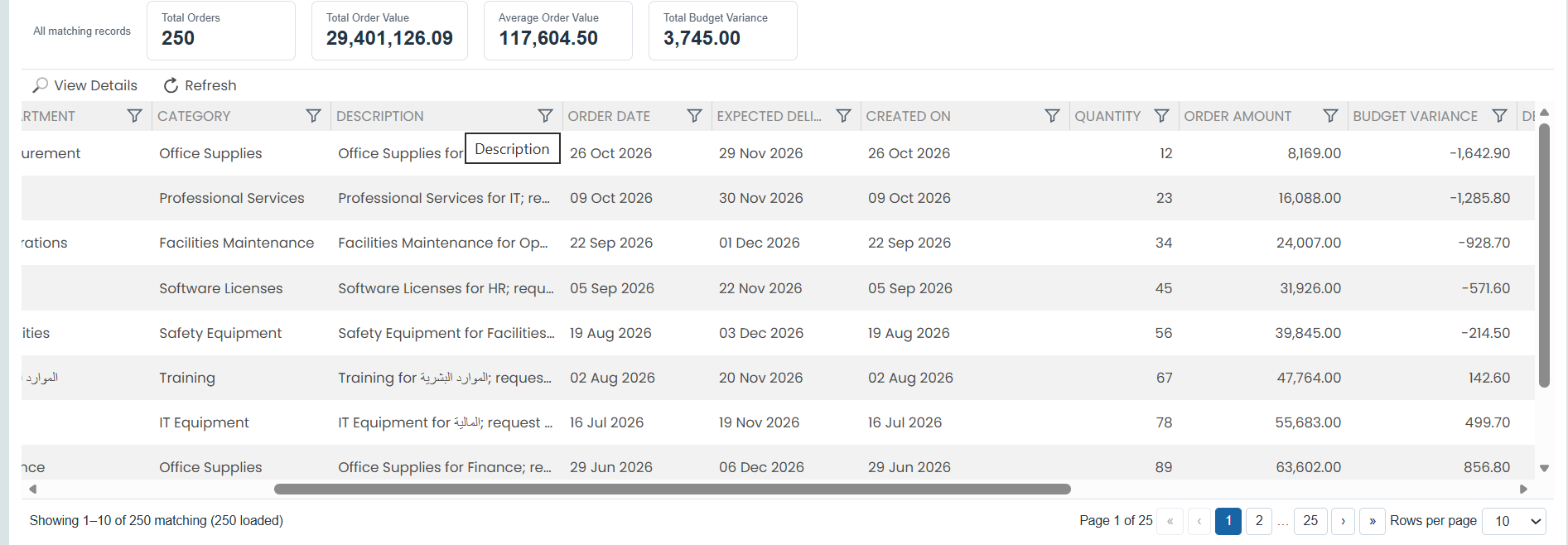
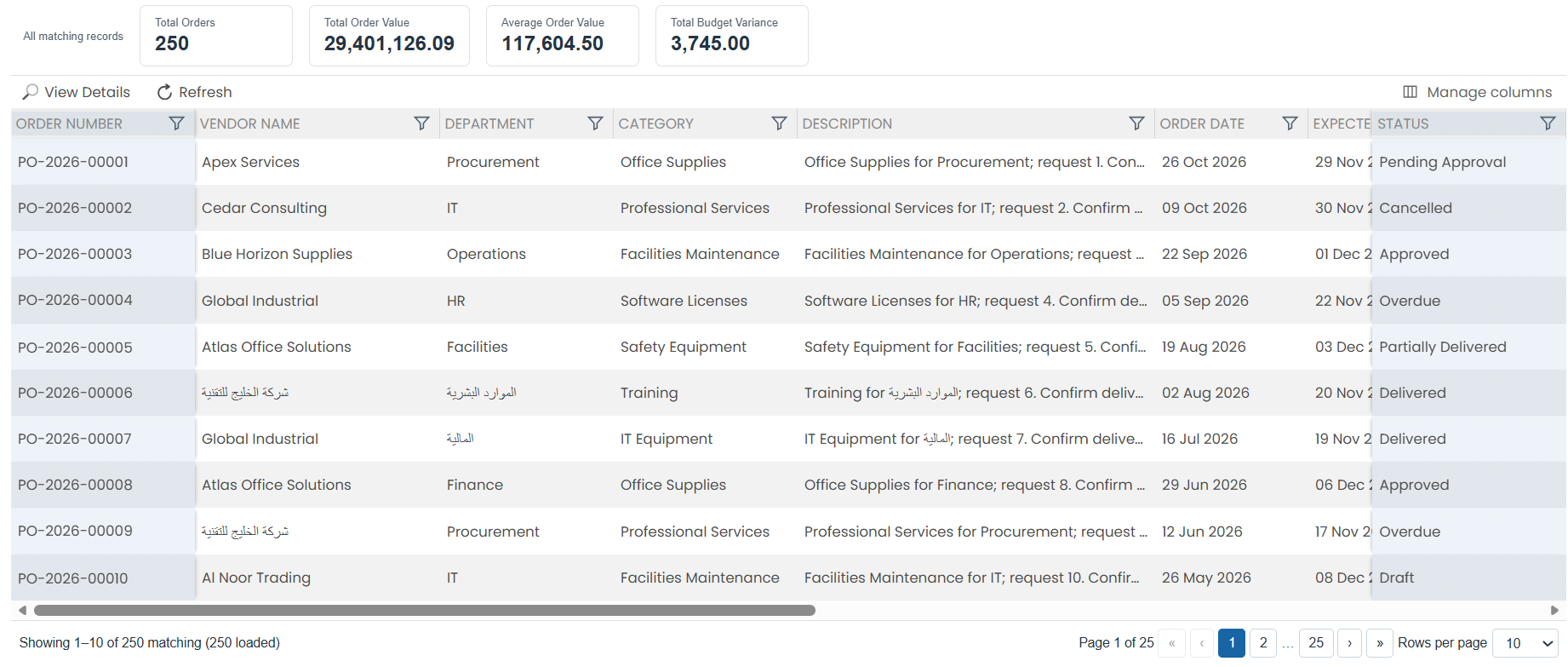
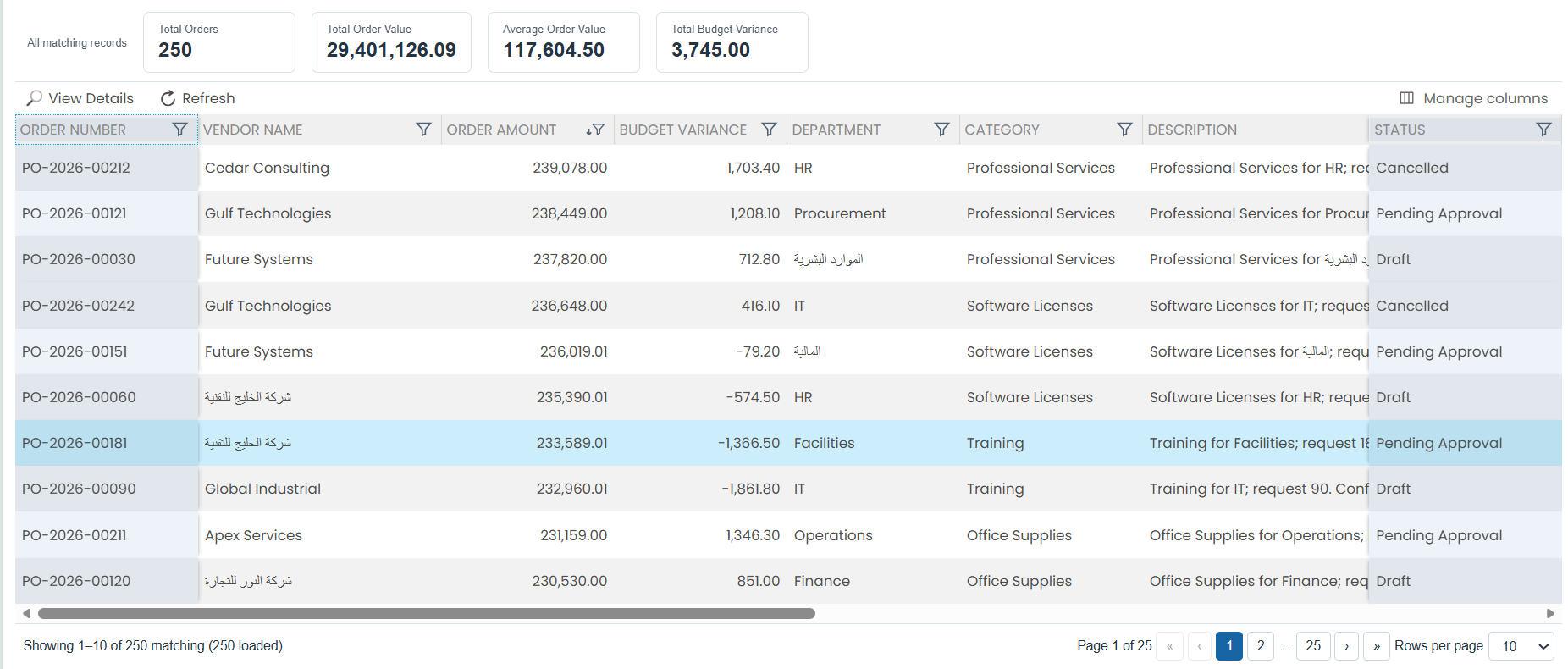
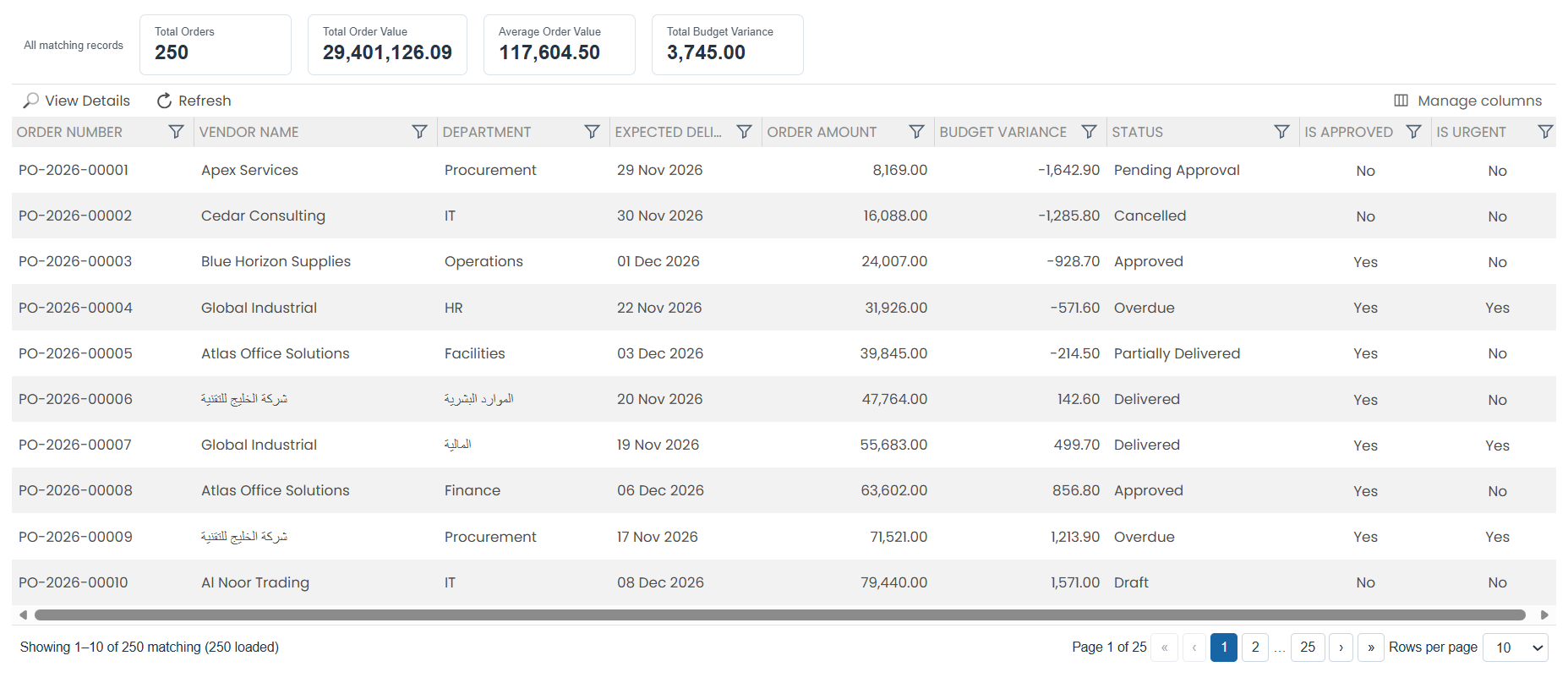
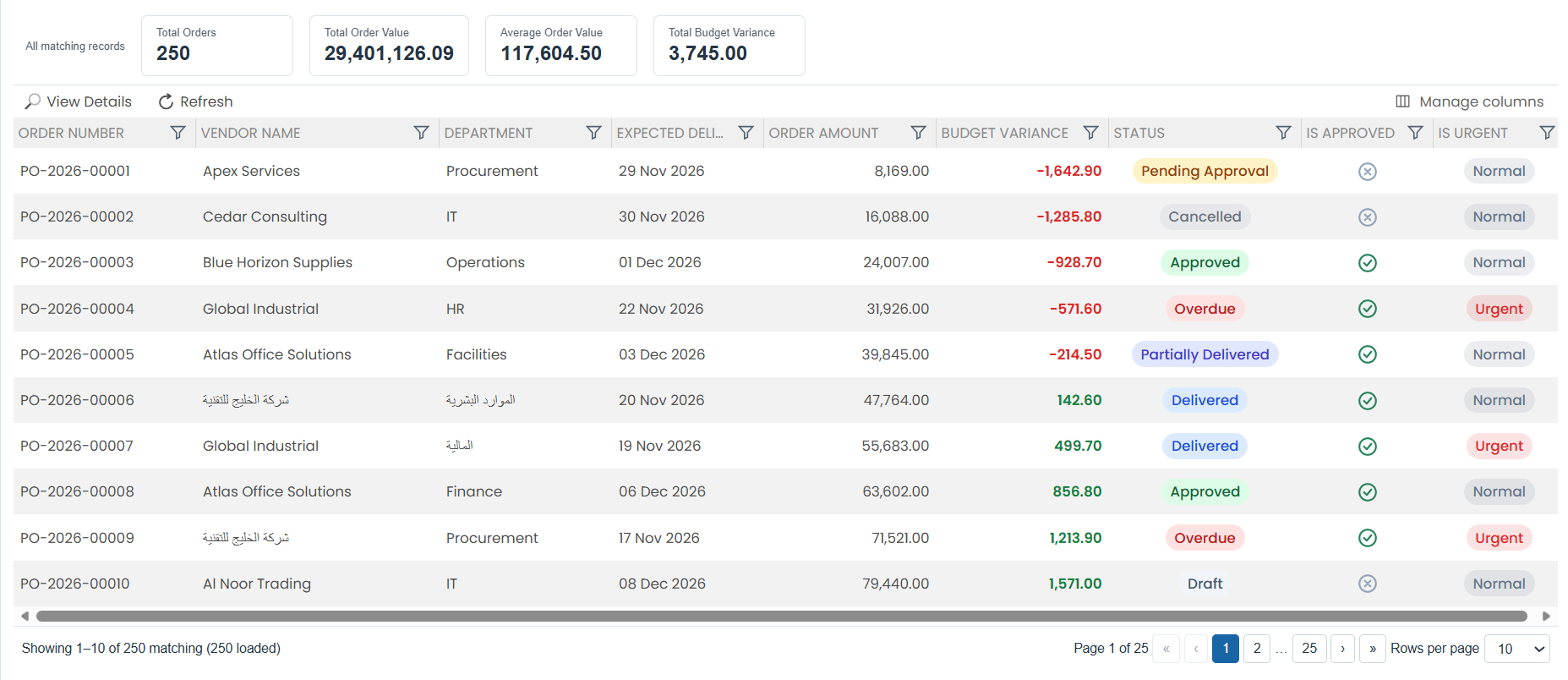
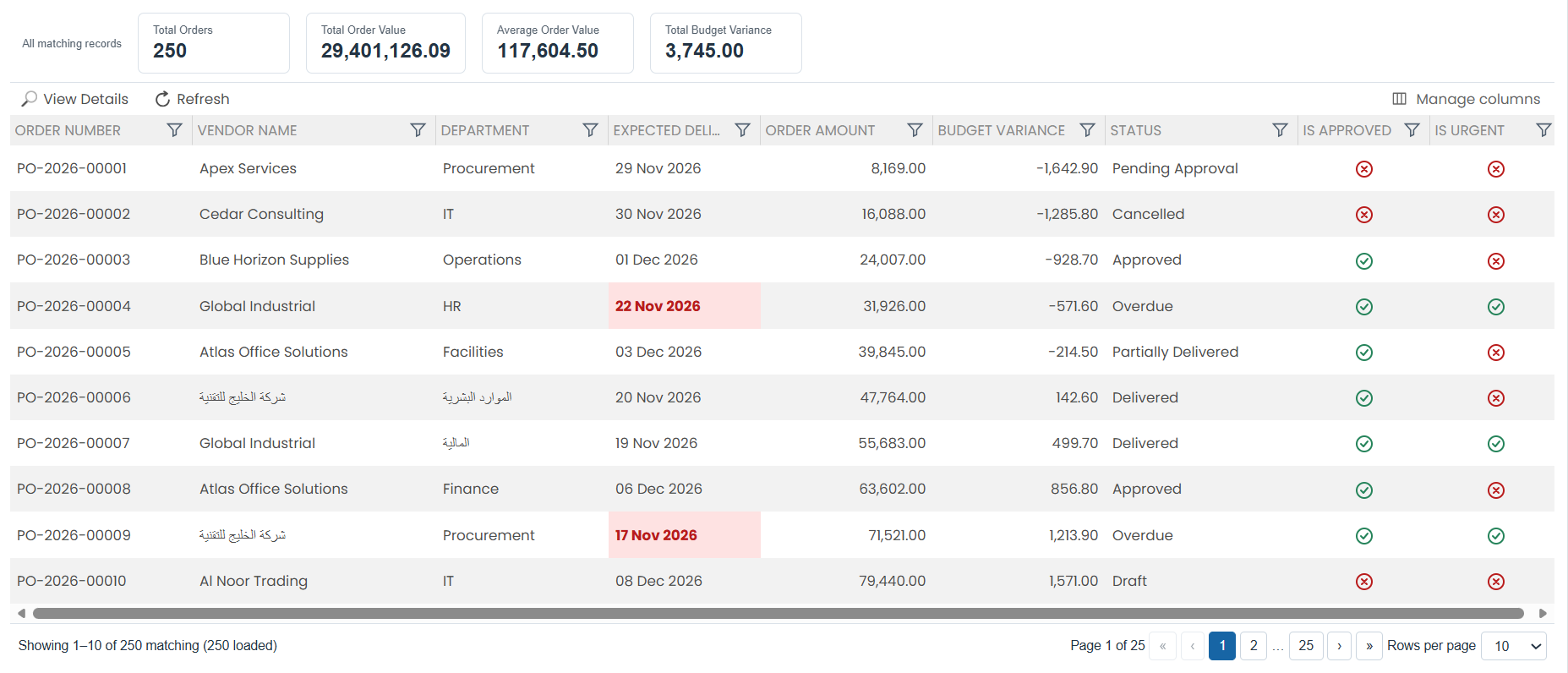
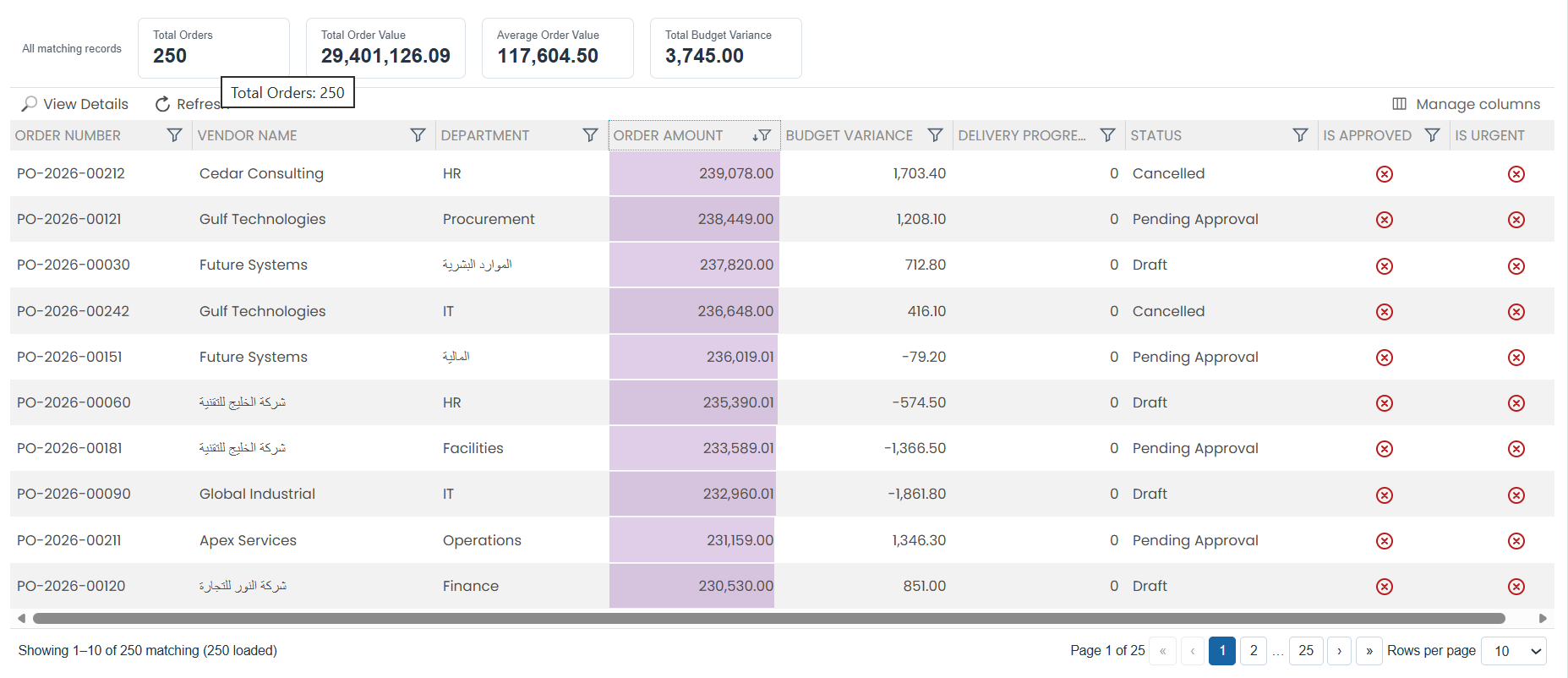
Figure 01 · Standard Purchase Orders List, before Advanced Grids · Actual K2 Runtime capture
Learning path
Begin with installation and filtering; then introduce paging, summary, layout and presentation features. Later lessons expand the register from nine to seventeen displayed columns. Unfinished articles are marked Planned.
Local storage is unavailable; progress is retained only until this page closes.
Mark lessons as completed at the end of each article. A stage is completed when all its lessons are marked. Progress is stored locally where supported; moving or extracting the portal to another folder may reset it. Select a stage to open its article.
This is an independent extension; no claim of official Nintex support is made.
Already familiar with K2 Advanced Grids?
You do not need to complete the training course to get started. Visit Downloads for the runtime package, configuration templates and other development resources.
Register a SQL Service Instance, create a SmartObject with List and Get methods, then create a standard non-editable ListView and place it on a form.
Disable native pagination for this client-side demonstration. Load 250 records. Keep View Details and Refresh toolbar buttons.
Keep OrderID available for native rules; do not display it as a column.
Displayed header
Property
Order Number
OrderNumber
Vendor Name
VendorName
Department
Department
Order Date
OrderDate
Order Amount
OrderAmount
Budget Variance
BudgetVariance
Status
Status
Is Approved
IsApproved
Is Urgent
IsUrgent
Runtime requirements
Use a modern browser and a test environment where custom Data Label scripts are permitted. The current baseline has been demonstrated in Edge; a broader compatibility matrix and performance limits are pending. Keep a backup of the form and configuration.
Keep the engine separate from application settings. The fully external approach has been validated on the development K2 Runtime.
Deployment choices
Mode
Engine
Configuration
Embedded
Data Label
Data Label
External engine
JS file
Data Label
Fully external
JS file
JS file
The fully external method is the verified walkthrough in this release. The other modes remain documented as architectural choices; dedicated simplified examples are pending.
1. Prepare the ListView
Create a standard non-editable K2 ListView based on a SmartObject. Disable native paging for this walkthrough. See Prerequisites for the sample database and columns.
2. Prepare the SmartForm
Place the ListView on a SmartForm in K2 Designer, configure its initialization rule to load the records, save the form and open it in Runtime. Confirm the unmodified list works before adding the engine.
3. Identify the Area Item ID
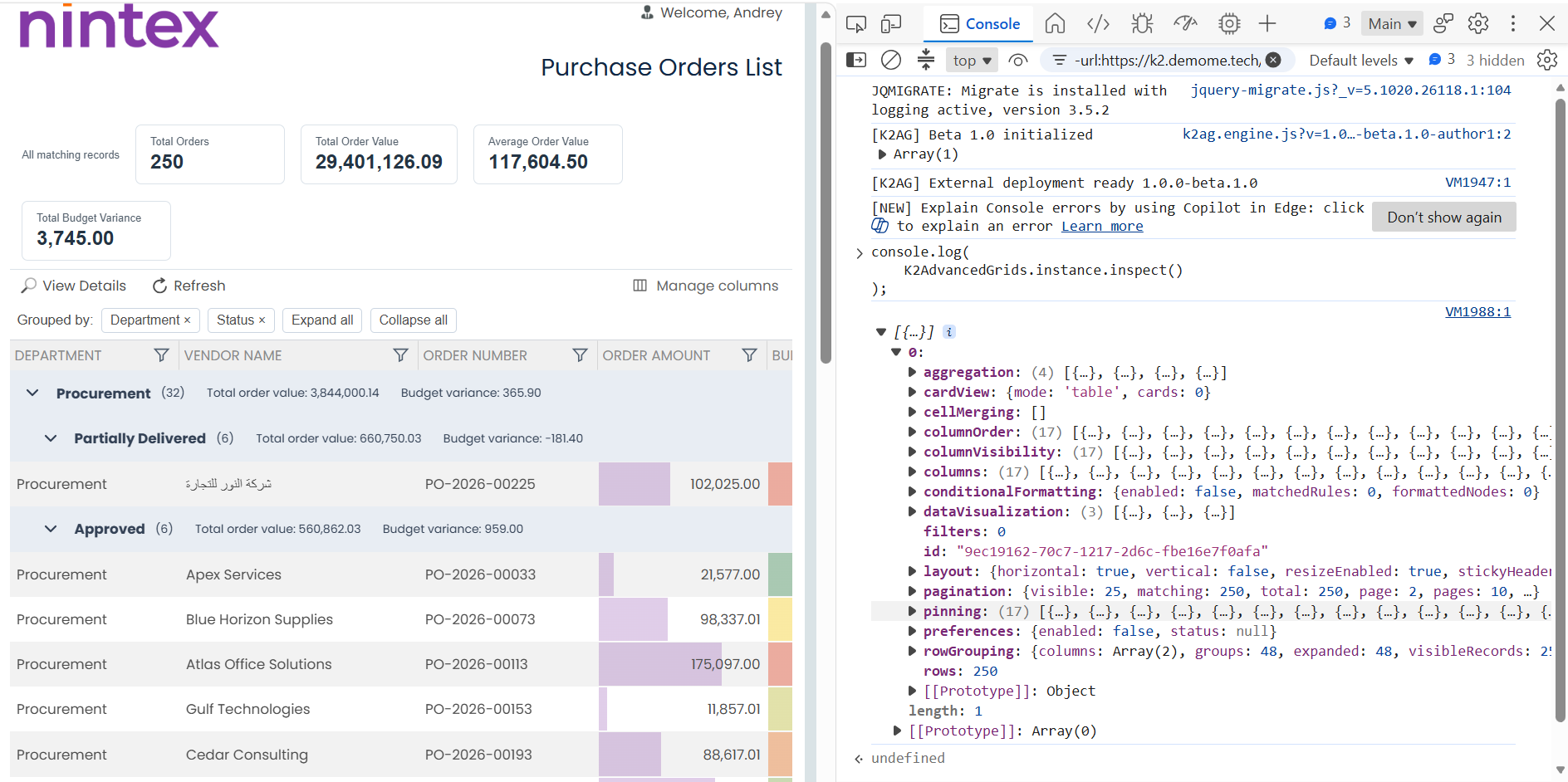
With the form open in Runtime, use the console script in Grid Discovery. Copy the ID of the target ListView, not the SmartObject or View Definition ID.
4. Host the files
Create a custom folder under the K2 Styles path or use a separate same-origin IIS virtual directory. Do not overwrite native K2 resources. Back up custom files before K2 upgrades and replicate them across web nodes if applicable.
Open the downloaded configuration file and replace REPLACE_WITH_YOUR_AREAITEMID with your actual grid identifier. Open both hosted JavaScript URLs in the browser and verify that they return JavaScript, not a login page. See First Configuration for the complete template.
Important — required configuration change
Replace REPLACE_WITH_YOUR_AREAITEMID with the actual Area Item ID of your own ListView before using this example. See Grid Discovery. Without a matching ID the engine cannot target your ListView.
6. Add and configure a Data Label
Return to K2 Designer and edit the SmartForm containing the target ListView. Drag a Data Label control onto the form (not into a ListView row). Name it K2AG_Loader_DataLabel, enable the Literal property, disable Visible (tested with Fully External Deployment to avoid an empty row), and leave its data source unbound. Create an Expression for the control containing the complete loader script. One loader per form can serve multiple ListViews.
Designer screenshots will be added after capture; property names may vary by version.
7. Add the loader
Paste the complete loader below into the Data Label Expression. Adjust the base path to match your IIS folder. Do not also run an embedded engine. If using a different configuration filename, change the loader accordingly.
<script>(function(){var base='/Runtime/Runtime/styles/K2AdvancedGrid/',configVersion='0.2.2',engineVersion='1.0.0-beta.1.0-author2';if(window.K2AGExternalLoading||window.K2GridFiltersV2){console.warn('[K2AG] Existing loader or engine detected. Use only one deployment per form.');return;}window.K2AGExternalLoading=true;function load(url){return new Promise(function(resolve,reject){var s=document.createElement('script');s.src=url;s.onload=resolve;s.onerror=function(){reject(new Error('Failed to load '+url));};document.head.appendChild(s);});}load(base+'config/purchase-orders.config.js?v='+encodeURIComponent(configVersion)).then(function(){if(!window.K2AdvancedGridsConfig)throw new Error('Configuration missing');return load(base+'engine/k2ag.engine.js?v='+encodeURIComponent(engineVersion));}).then(function(){if(!window.K2AdvancedGrids||!window.K2AdvancedGrids.instance)throw new Error('Engine initialization failed');console.info('[K2AG] External deployment ready',window.K2AdvancedGrids.version);}).catch(function(e){console.error('[K2AG] External deployment failed',e);}).finally(function(){window.K2AGExternalLoading=false;});})();</script>
8. Save, run and verify
Save the Expression and SmartForm, then open the form in Runtime. Confirm that filter icons appear in column headers and check the browser Console for initialization messages.
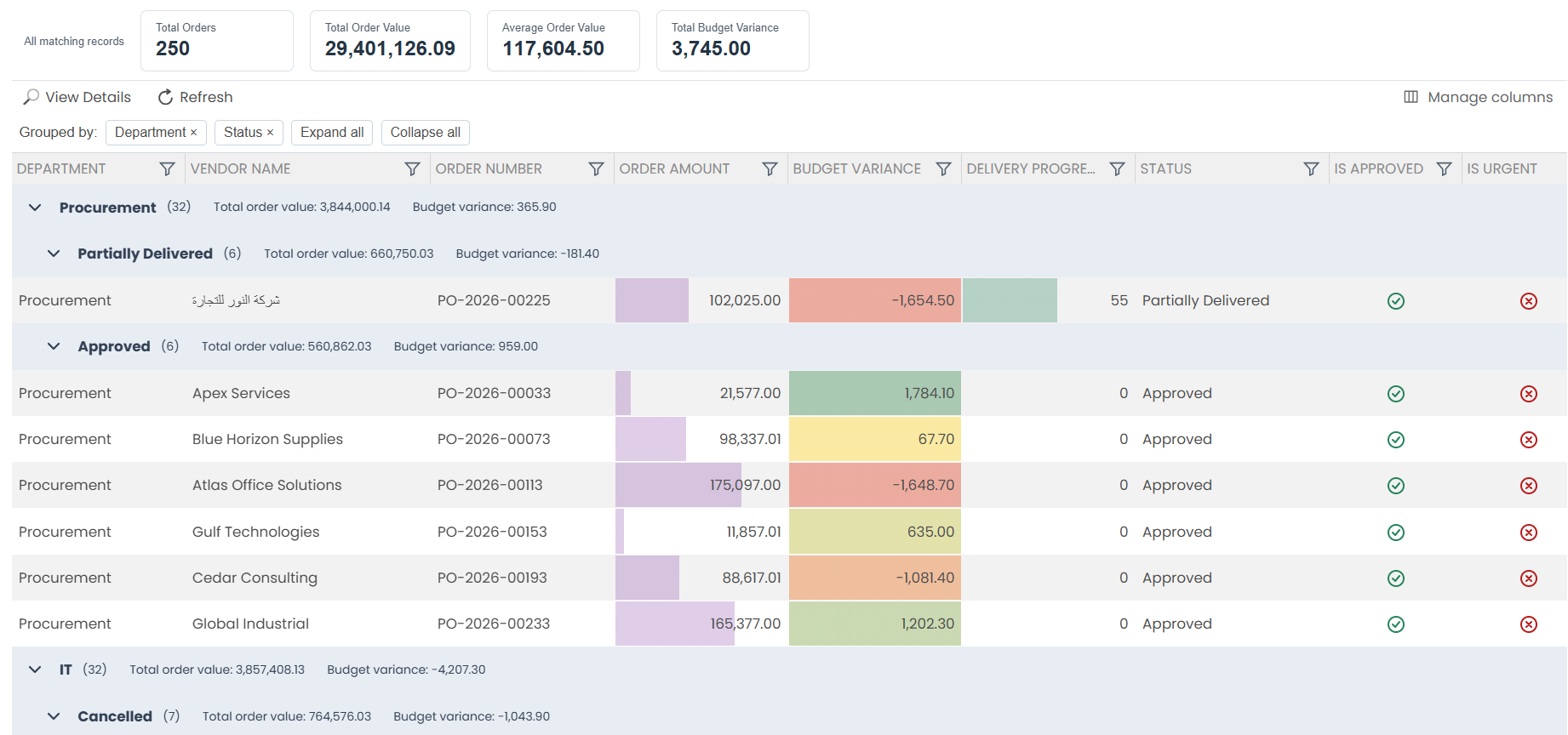
Expected: external deployment ready and one grid for the demo. Update configVersion whenever the config file changes, and engineVersion whenever the engine file changes. These query strings bypass cached URLs where the cache respects query strings. If they do not, use versioned filenames. Reopen the form and verify requests in Network. Saved preferences may override configured settings; reset them if appropriate. Restore the original Expression for rollback; this rollback test is still pending.
Find the runtime Area Item ID without installing Advanced Grids.
Quick discovery
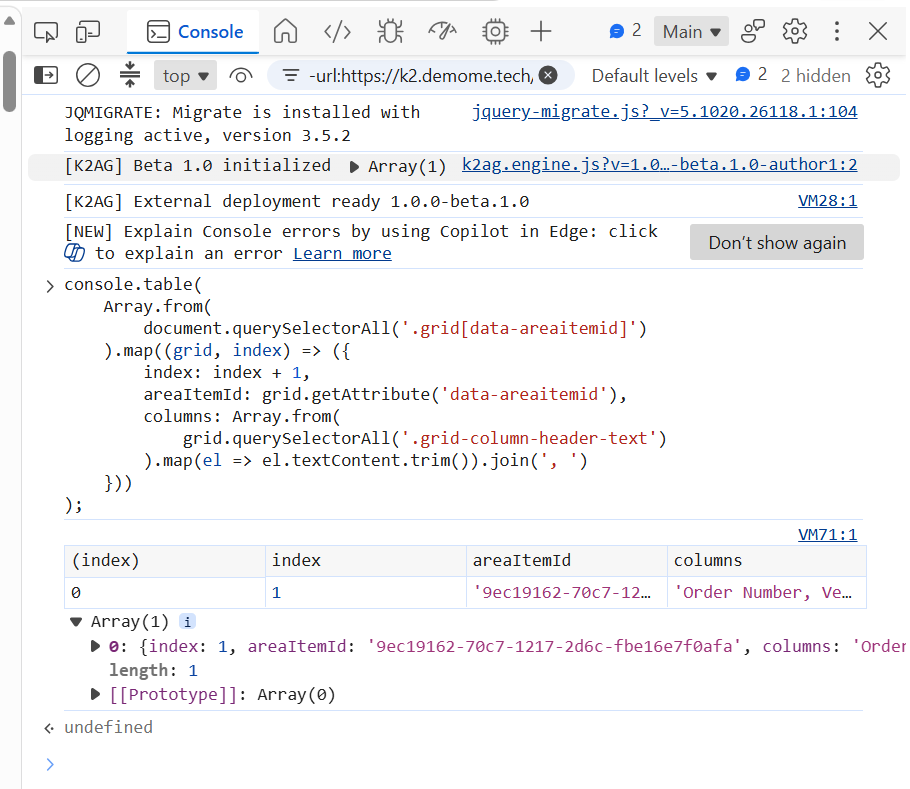
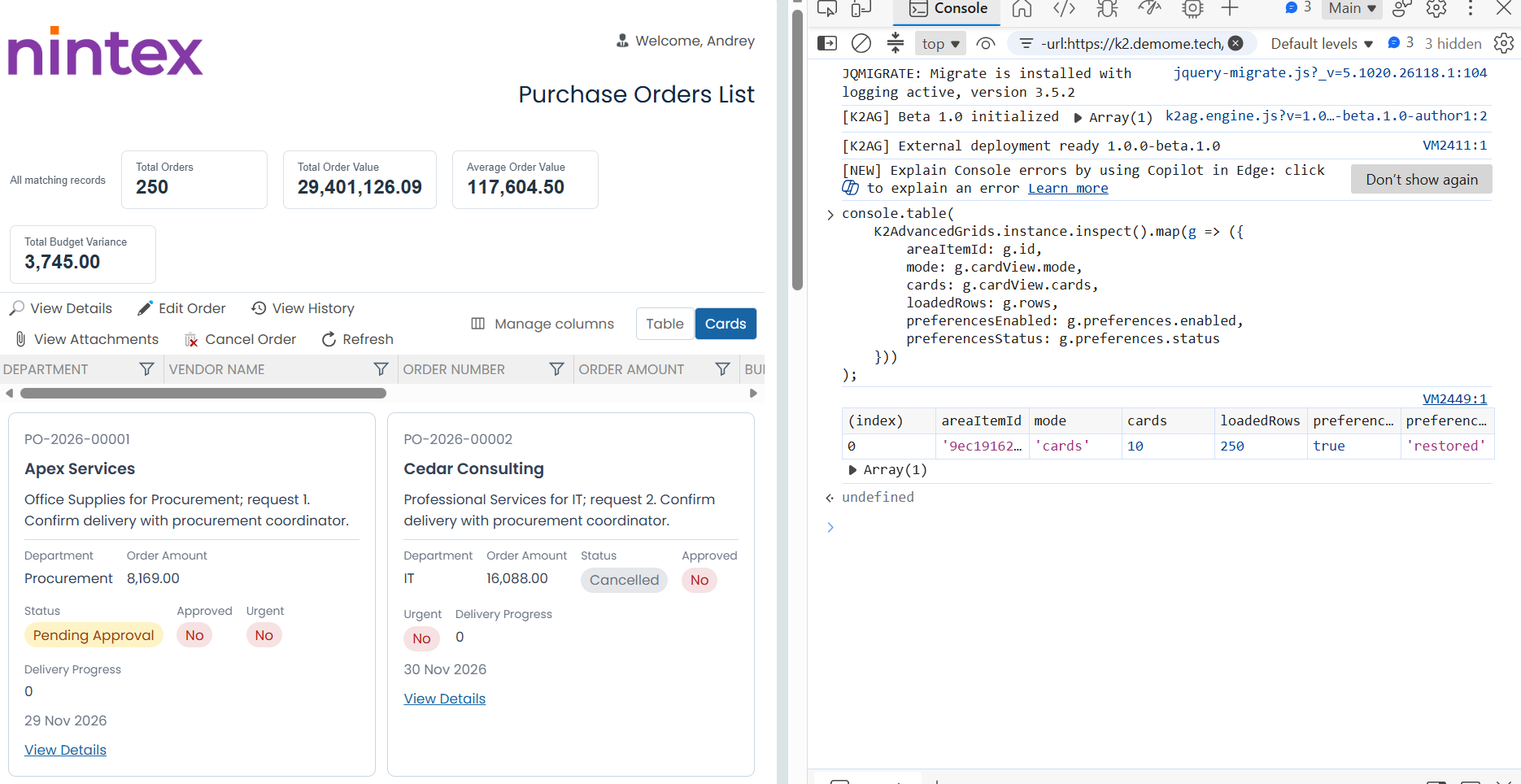
Open the target form in Runtime, open browser Developer Tools → Console, and run the following script. Use the returned Area Item ID, not the SmartObject ID.
Download diagnostic script ↓Figure 09 · Quick discovery returns the Area Item ID and column headers · Actual K2 Runtime capture
The screenshot was captured after engine initialization, but the diagnostic itself only reads the DOM and does not depend on the engine. The Full Discovery metadata exporter and Studio integration are planned.
Start with filtering and the Active Filters Bar only. The provided template explicitly disables other modules.
Complete configuration
Use the reusable template for your own form. It uses the same engine as the demonstration.
Important — required configuration change
Replace REPLACE_WITH_YOUR_AREAITEMID with the actual Area Item ID of your own ListView before using this example. See Grid Discovery. Without a matching ID the engine cannot target your ListView.
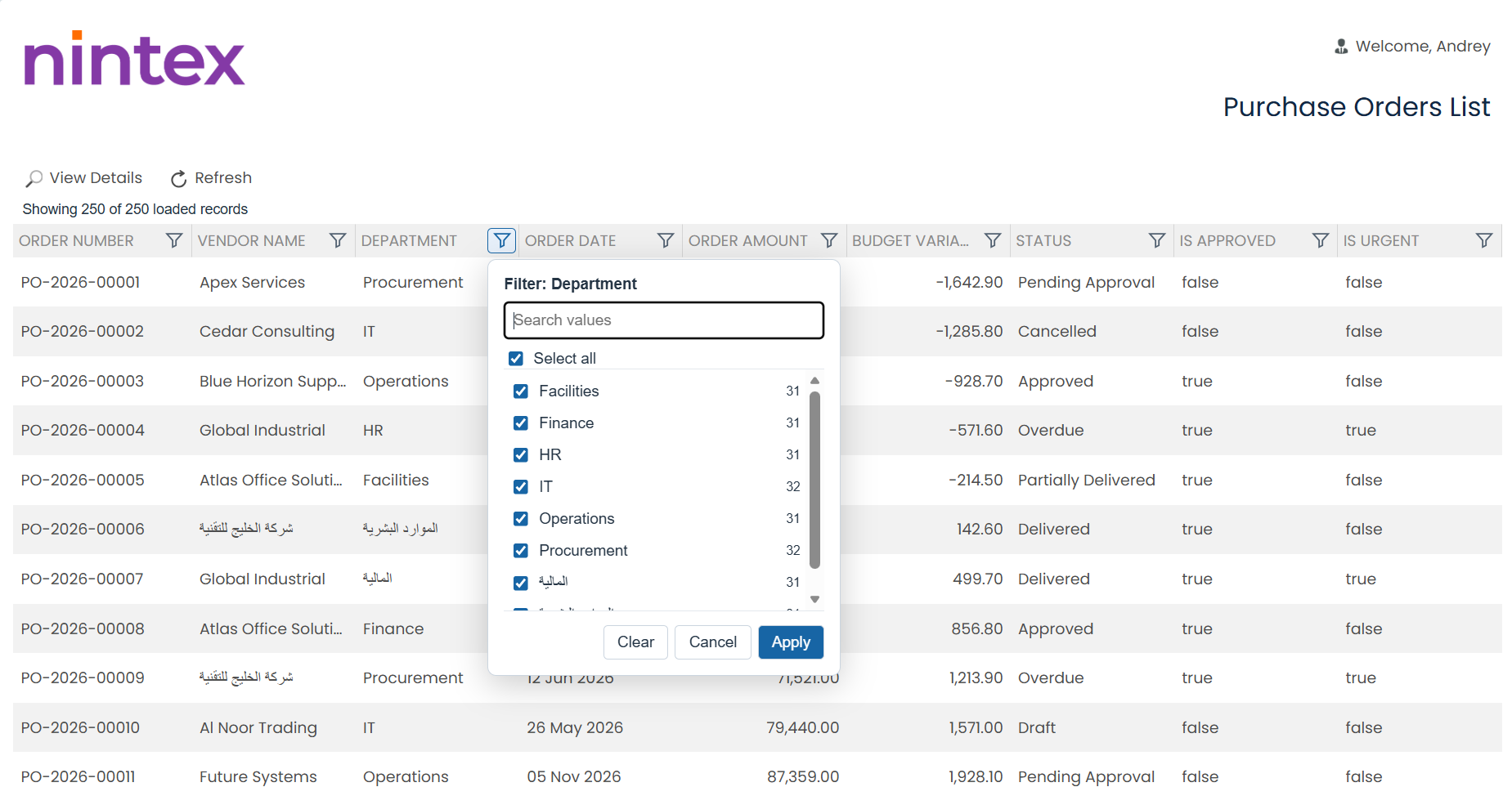
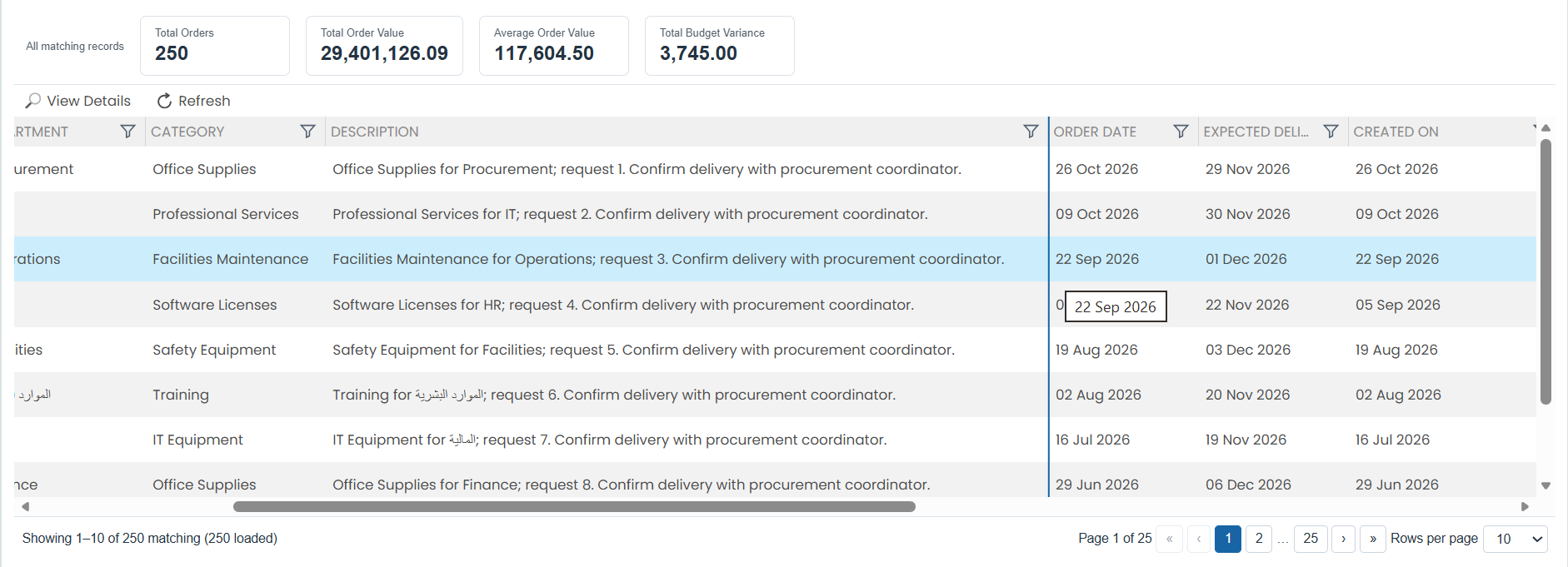
Figure 02 · Filter icons and category selection · Actual K2 Runtime capture
To activate changes, increment the configuration version in the loader and reopen the form. For temporary changes, use the console examples in Advanced filtering.
Required after saving a configuration file
Update configVersion in the Data Label loader (for example from 0.3.0 to 0.4.0), save the form and reopen Runtime. Keep engineVersion unchanged unless the engine file was modified. Console-only experiments do not need a version change. See Installation & Deployment.
Use one configuration object and one engine per form. Each ListView has its own Area Item ID.
Configuration inheritance
Common settings belong in defaults. Each entry in grids can override them. For supported nested modules, the engine merges defaults with the individual module settings. Not all objects are recursively merged.
Important — required configuration change
Replace REPLACE_WITH_YOUR_AREAITEMID with the actual Area Item ID of your own ListView before using this example. See Grid Discovery. Without a matching ID the engine cannot target your ListView.
Replace each occurrence with the distinct runtime ID of its corresponding ListView.
Use real IDs and keep the complete template defaults. Saved user preferences can override applicable settings when enabled. In a tested paging example, resetting preferences changed the displayed page size from 10 to the configured 20.
Find relevant records directly in the standard ListView. Filter loaded records by category, text, numeric conditions, dates and Boolean values, without adding separate filter controls to the form.
Category selection
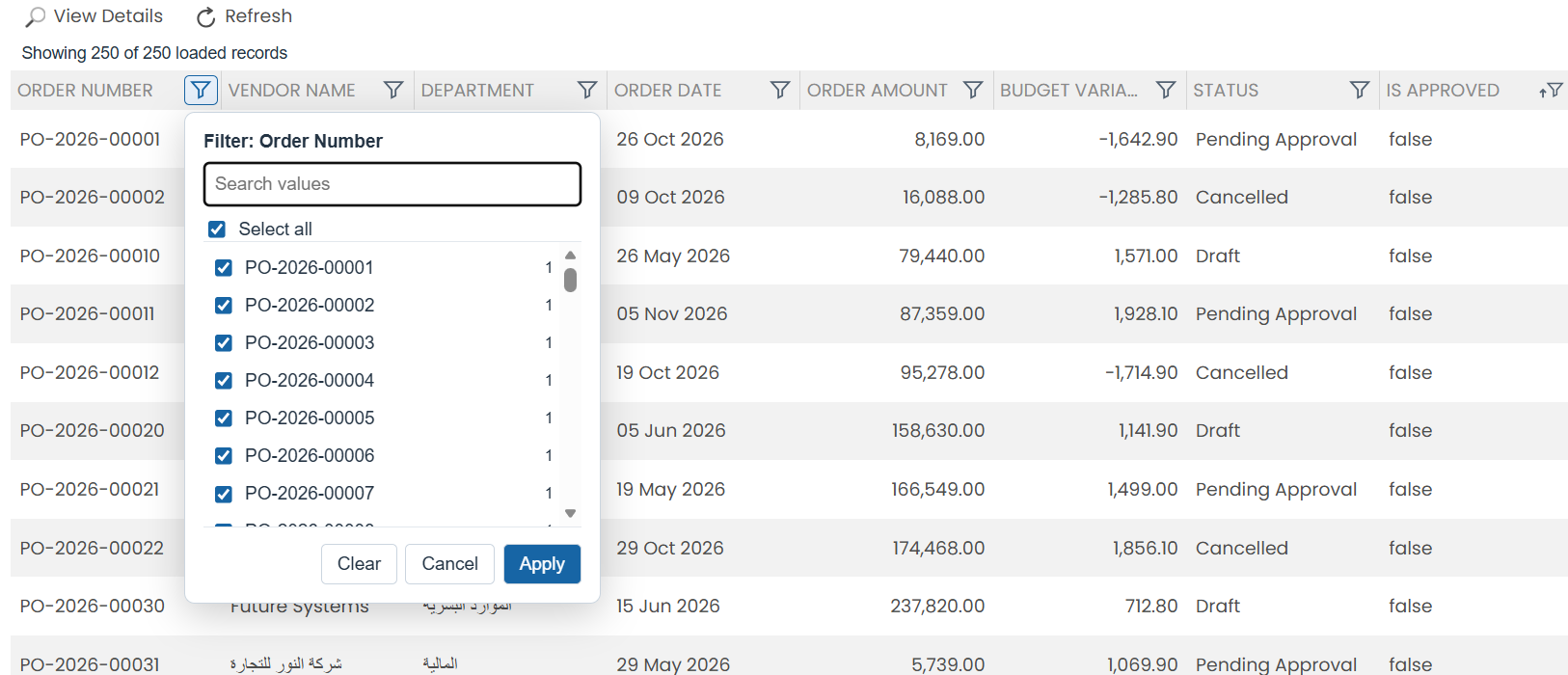
Figure 02 · Department categories, search and record counts · Actual K2 Runtime captureFigure 04 · Order Number in default category mode (text field) · Actual K2 Runtime capture
Search values narrows the checkbox list; Select all applies to the currently shown values. Counts reflect all loaded records, not a cascading subset from other filters. Apply commits the selection; Cancel closes without applying; Clear removes the column filter.
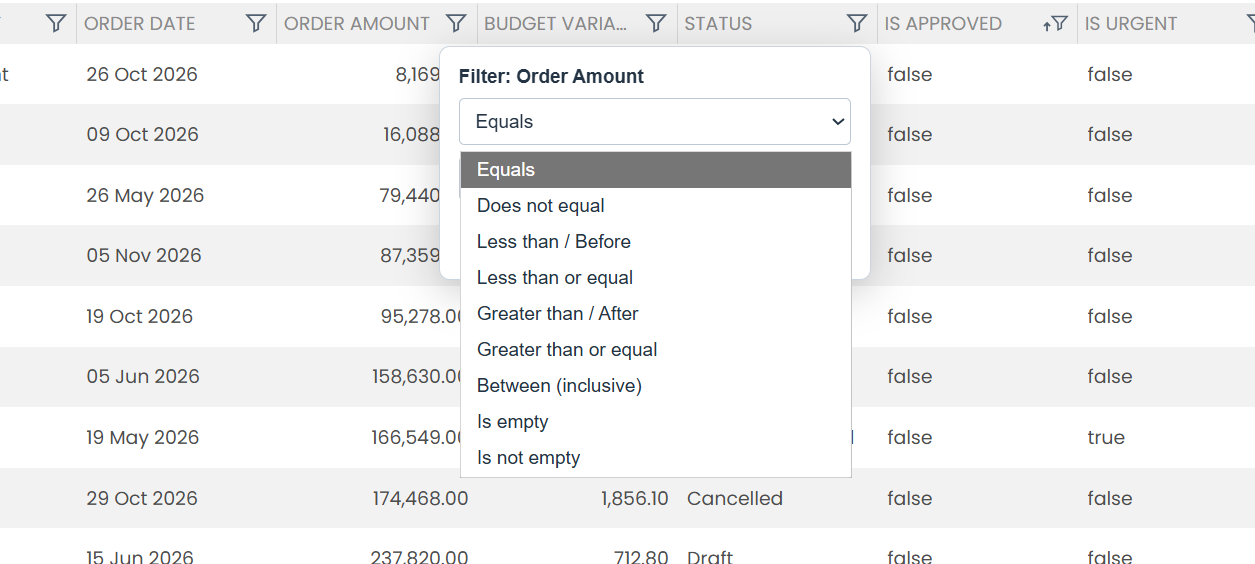
Numeric conditions
Figure 05 · Order Amount: numeric comparison operators · Actual K2 Runtime capture
Use equals, not equals, less/greater than, inclusive comparisons, inclusive between and empty/not empty. The Beta shares comparison labels with dates; the wording is on the UI polishing backlog.
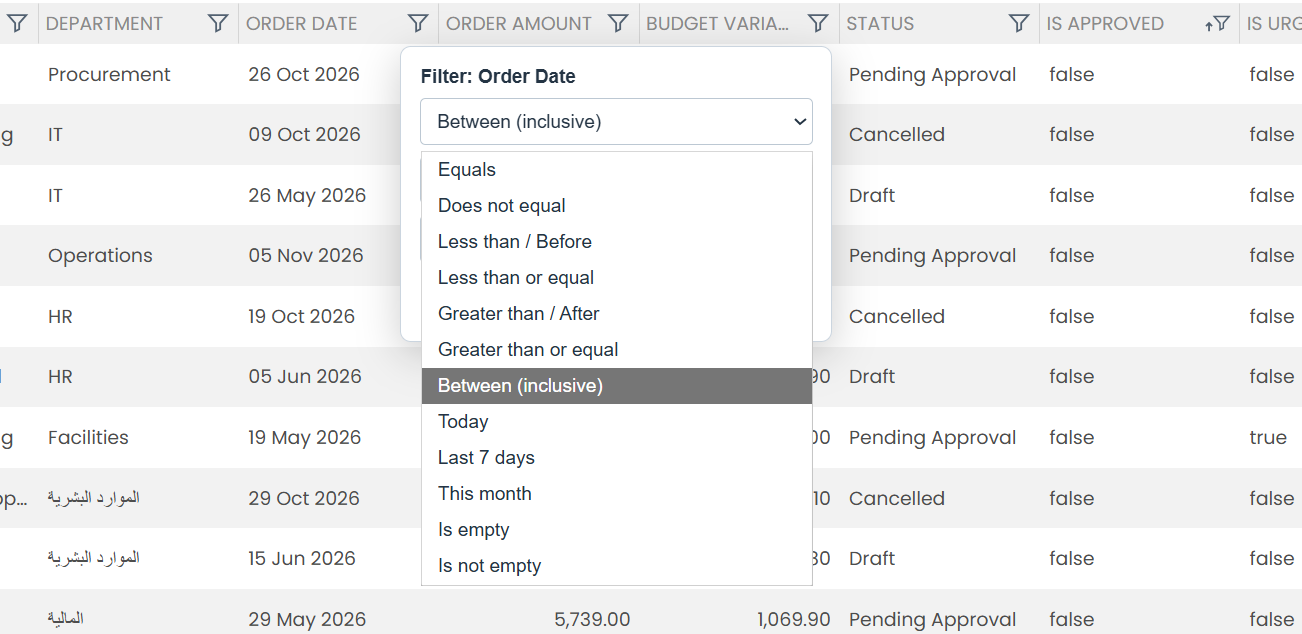
Date conditions
Figure 06 · Order Date: absolute and relative date operators · Actual K2 Runtime capture
Dates add Today, Last 7 days (including today), and This month, based on the browser local calendar. DateTime and Time examples will follow after the wider register is built.
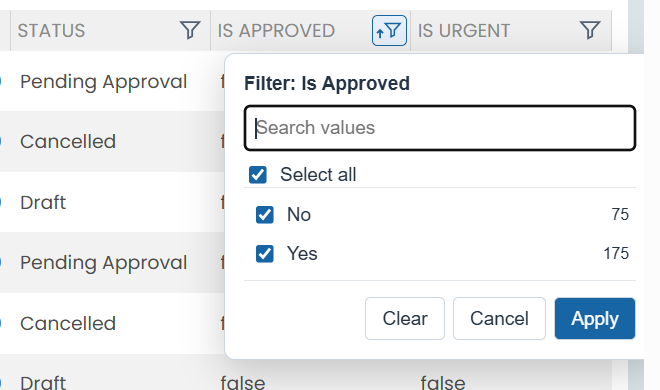
Boolean values
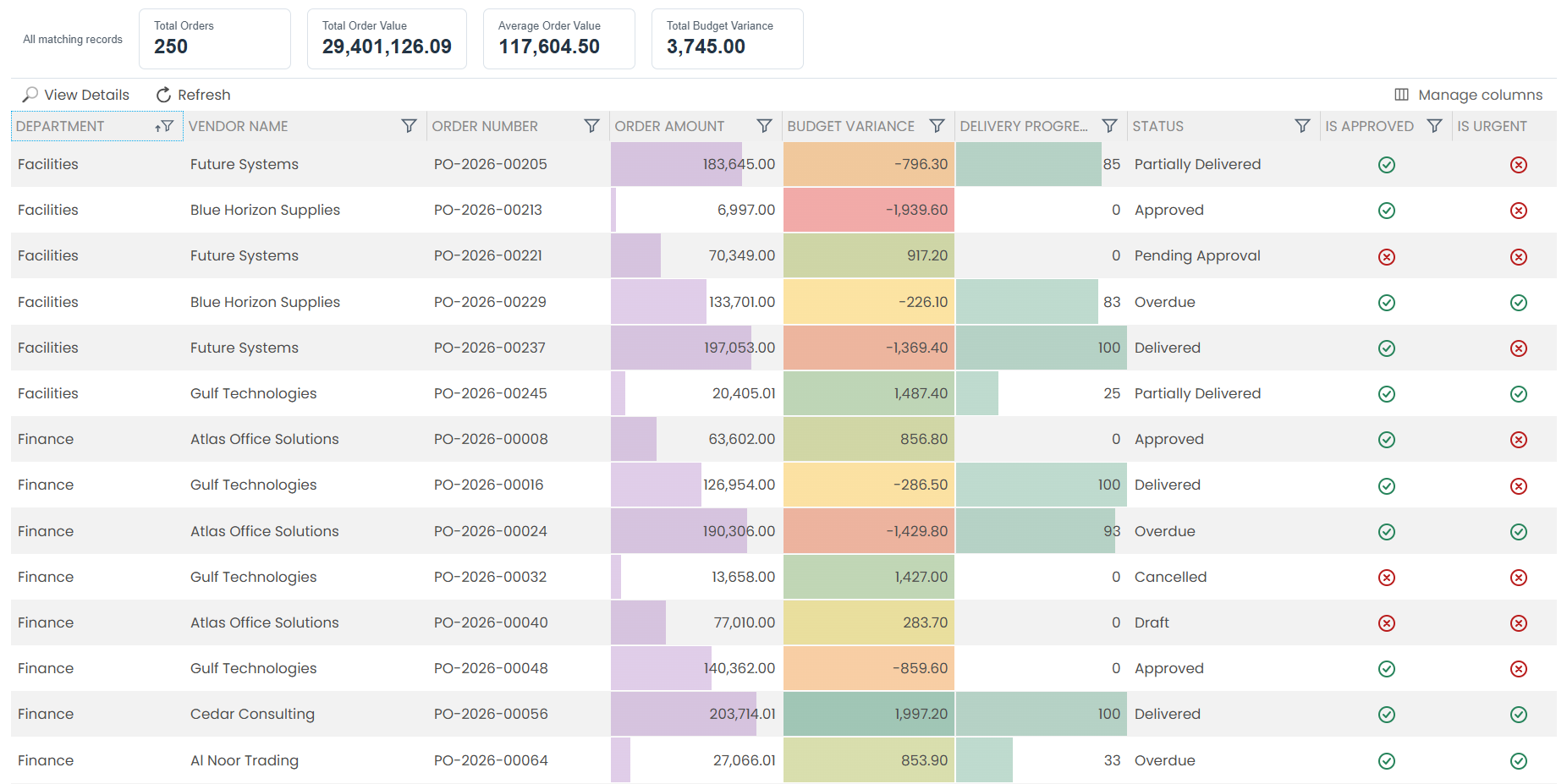
Figure 07 · Is Approved: 75 No and 175 Yes · Actual K2 Runtime capture
Boolean filters present Yes and No independently of the native true/false cell display.
Combined filters and active filters bar
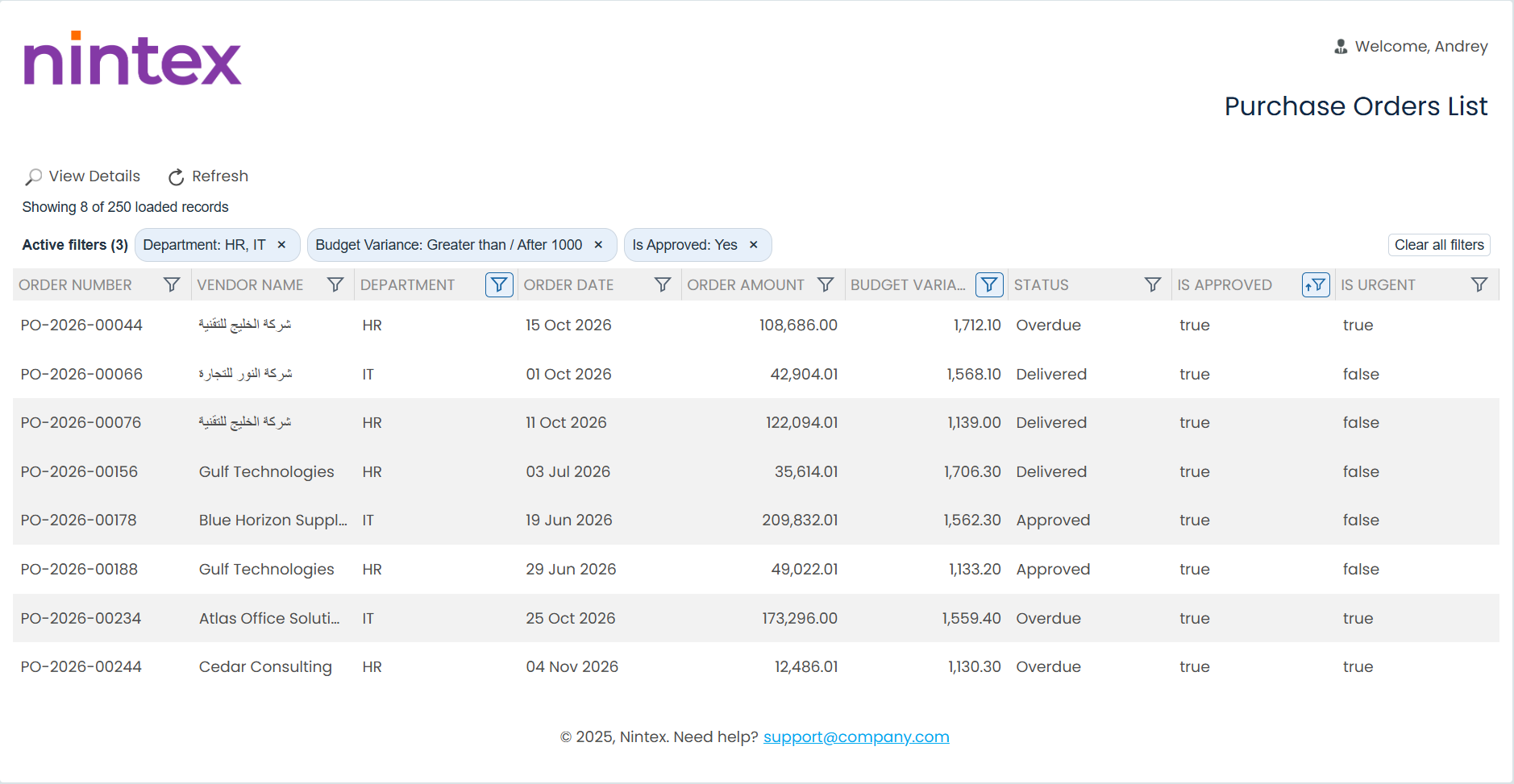
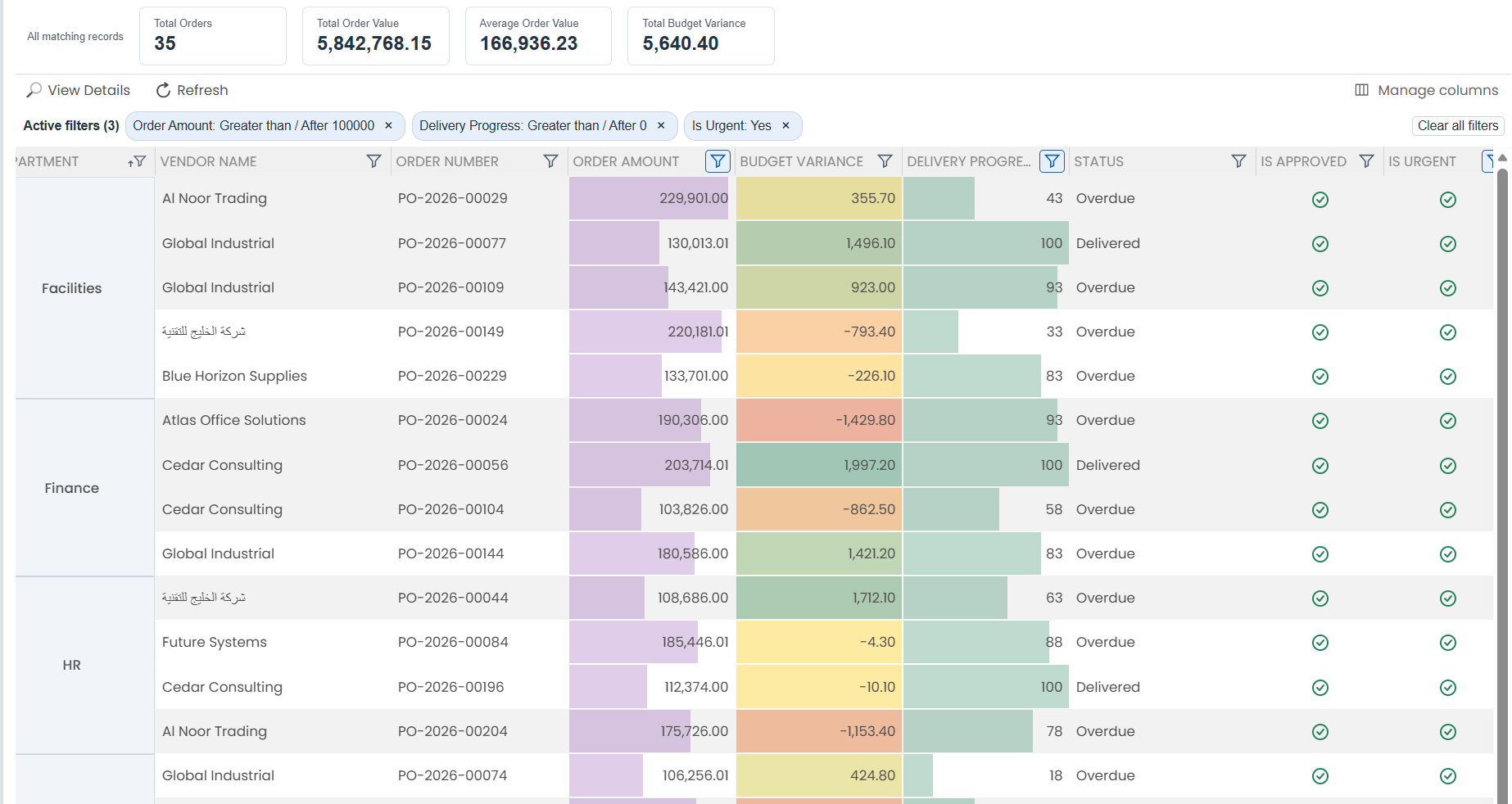
Choose HR and IT, Budget Variance greater than 1000, and Is Approved = Yes. Conditions across columns are combined with AND. Multiple checked values within one category are alternatives (OR).
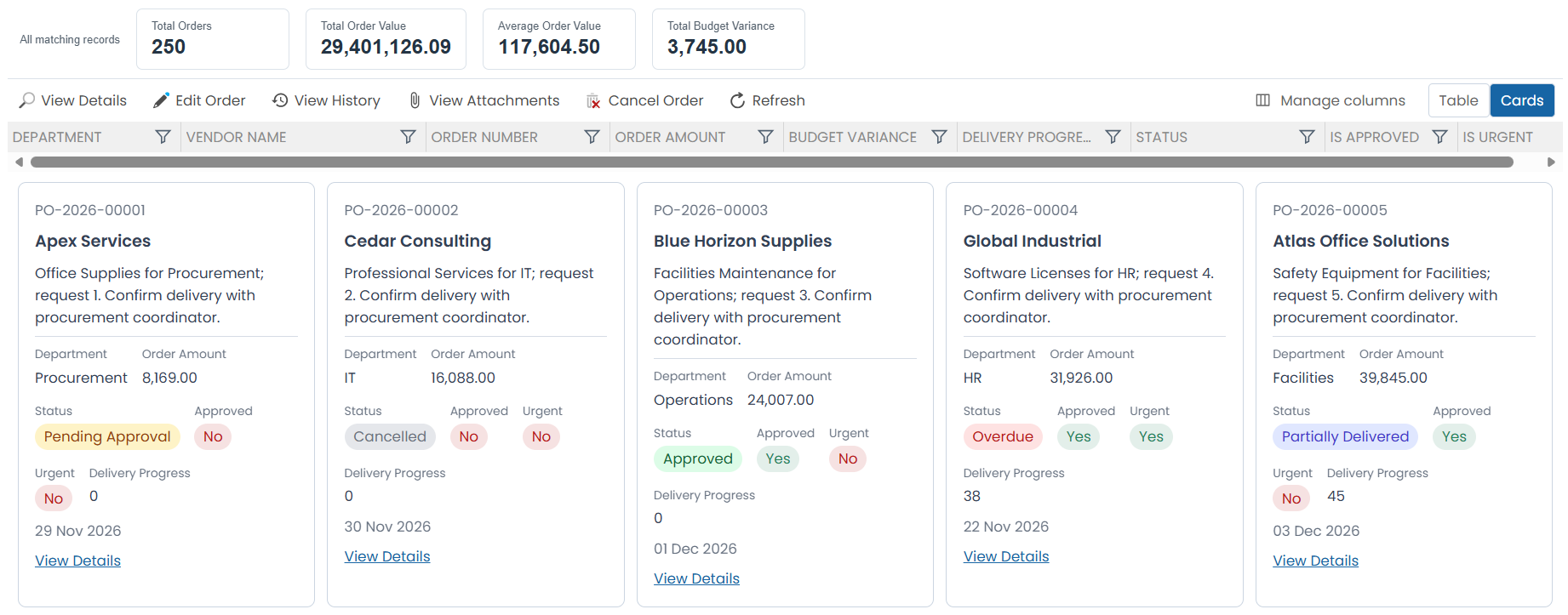
Figure 03 · Three filters reduce 250 loaded records to 8 matches · Actual K2 Runtime capture
Remove a chip to clear its condition, or use Clear all filters. Selecting no category values is a valid filter that matches no records.
Figure 08 · No matching records: zero of 250 · Actual K2 Runtime capture
Configuration reference
Paths below are relative to defaults or an individual grid entry, unless stated otherwise. Defaults shown are effective fallbacks in Beta 1.0 when omitted.
Parameter
Type / fallback
Effect
filtering.enabled
Boolean / true unless false
Enable filter controls and filtering
activeFilters.enabled
Boolean / false unless true
Display active filter chips
activeFilters.maxValues
Positive integer / 3
Maximum category values displayed before abbreviated label
showRecordCount
Boolean / true unless false
Show counter when paging is disabled
showClearAll
Boolean / true unless false
Show clear-all action
autoDetectTypes
Boolean / true unless false
Infer type from K2 runtime metadata
textMode
category | text / category
Default mode for Text fields
columns[identifier].mode
category | text
Override Text field mode
columns[identifier].type
Supported normalized type name
Override detected type
columns[identifier].enabled
Boolean / true unless false
Exclude column from filter model
language (root)
auto | en | ar / auto
Choose built-in UI language
Supported types in the engine: autoguid, autonumber, date, datetime, decimal, guid, memo, number, text, time, yesno. Column lookup tries key, control name and then title. Memo always uses text operators; Yes/No uses category selection.
Configuration examples
These fragments belong inside the complete template, not in a separate Data Label.
Text operator mode supports Contains, Does not contain, Equals, Does not equal, Starts with, Ends with and empty/not empty. The Order Number screenshot above illustrates category mode, not text operator mode.
Console commands
Important — required configuration change
Replace REPLACE_WITH_YOUR_AREAITEMID with the actual Area Item ID of your own ListView before using this example. See Grid Discovery. Without a matching ID the engine cannot target your ListView.
(() => {
  const gridId = "REPLACE_WITH_YOUR_AREAITEMID";
  const grid = K2AdvancedGridsConfig.grids.find(g => g.areaItemId === gridId);
  if (!grid) throw new Error("ListView not found in configuration");
  grid.columns = { ...grid.columns, "Order Number": { mode: "text" } };
  K2AdvancedGrids.instance.clear(gridId);
  K2AdvancedGrids.instance.refresh();
})();
Console changes are temporary; save the configuration file and increment its version for permanent changes. The text-mode example is source-derived and awaits a dedicated runtime screenshot.
Benefits and limitations
Compared with our baseline, users gain per-column filter controls, multi-column conditions and visible active filters. Filtering is client-side: it cannot retrieve records not already loaded by K2 and is not an authorization mechanism. Large unique-value lists may affect responsiveness; performance testing is pending. Keep native paging disabled for this scenario. If no icon appears, inspect detected types, check the configured Area Item ID and verify that the column is rendered and supported.
Update configVersion in the Data Label loader (for example from 0.3.0 to 0.4.0), save the form and reopen Runtime. Keep engineVersion unchanged unless the engine file was modified. Console-only experiments do not need a version change. See Installation & Deployment.
Keep a large loaded register manageable with numbered pages or progressive row display, while filtering the entire loaded dataset.
Overview and prerequisites
Continue from First configuration with filtering enabled, nine columns and native K2 pagination disabled. The demo contains 250 loaded orders. No engine changes are required.
Quick start — Classic pagination
Replace the pagination section under defaults with the following settings. Keep the remaining configuration unchanged.
When downloading a complete configuration, replace REPLACE_WITH_YOUR_AREAITEMID with your actual ListView ID (see Grid Discovery). Save it on the server as purchase-orders.config.js or adjust the loader filename. Increment configVersion, for example to 0.3.0, and reopen the form. Leave engineVersion unchanged.
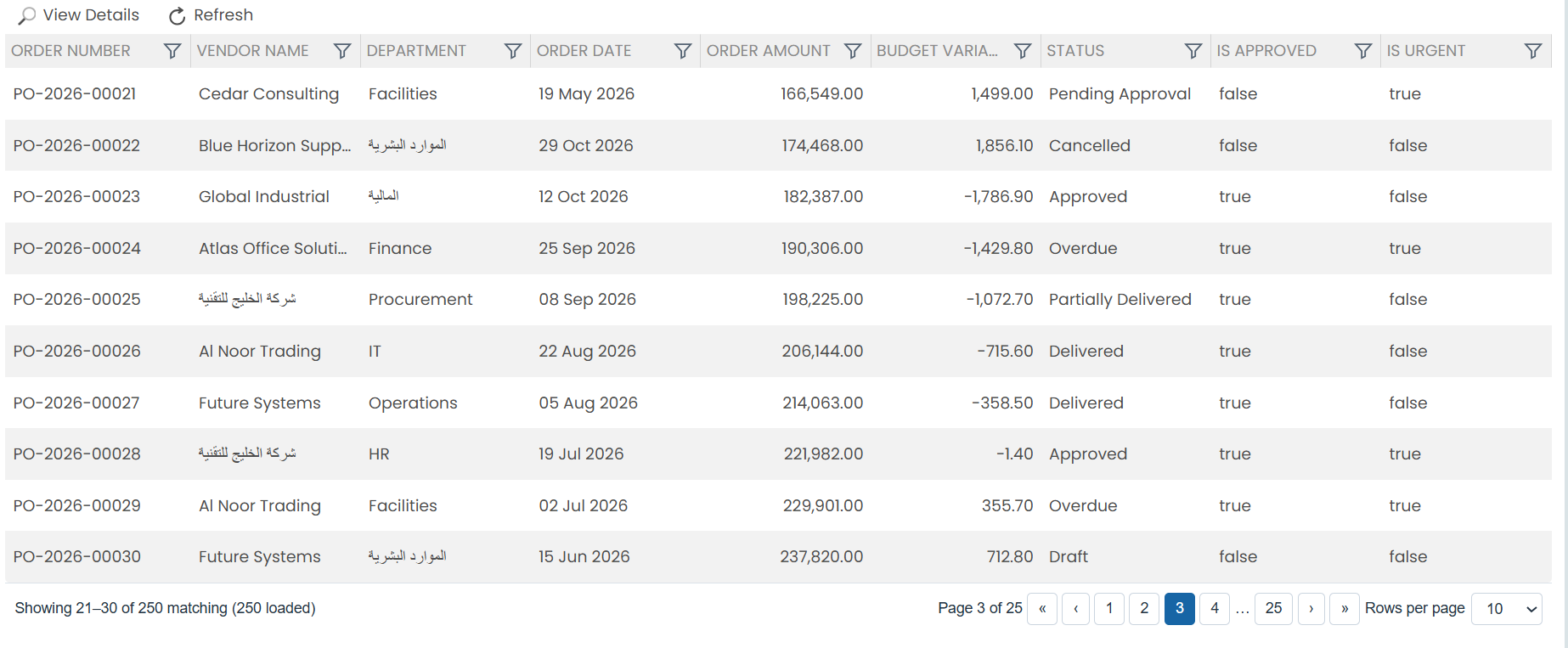
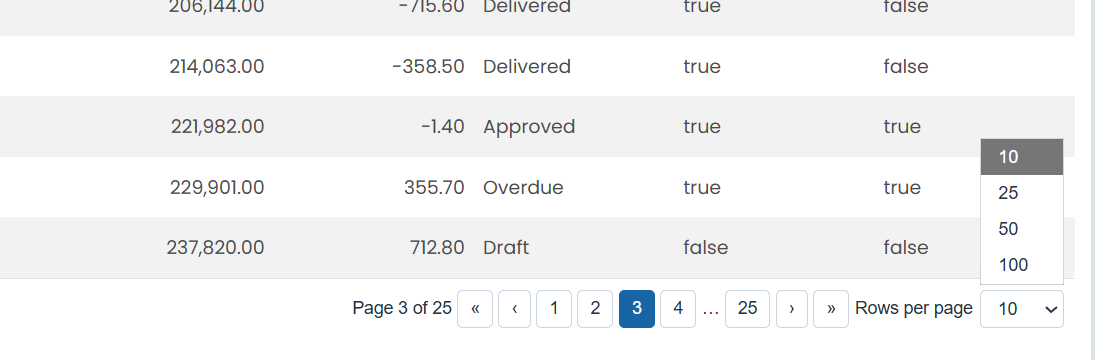
Use the numbered buttons, previous/next or first/last controls. The page-size selector offers 10, 25, 50 or 100 rows.
Figure 14 · Page 3 — records 21–30 · Actual K2 Runtime captureFigure 15 · Available page sizes · Actual K2 Runtime capture
Filtering and empty results
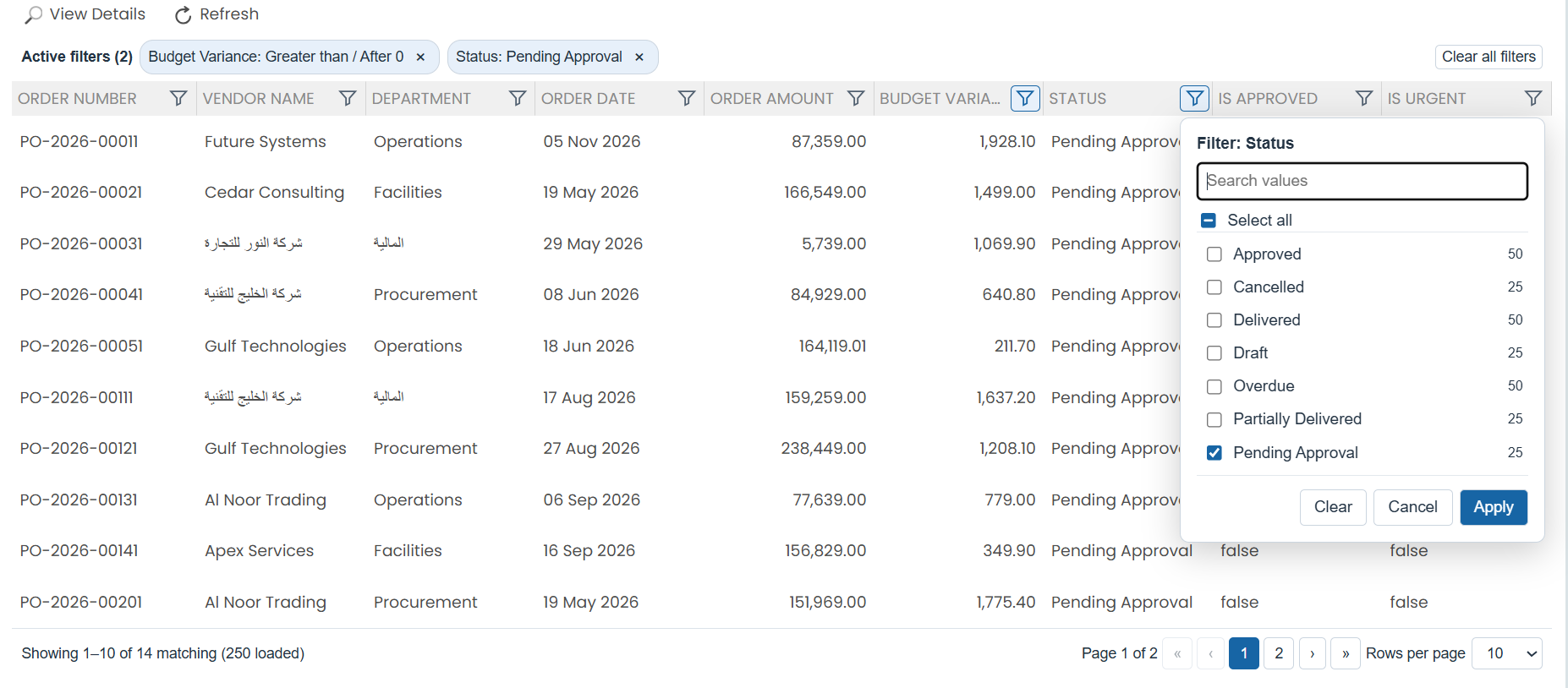
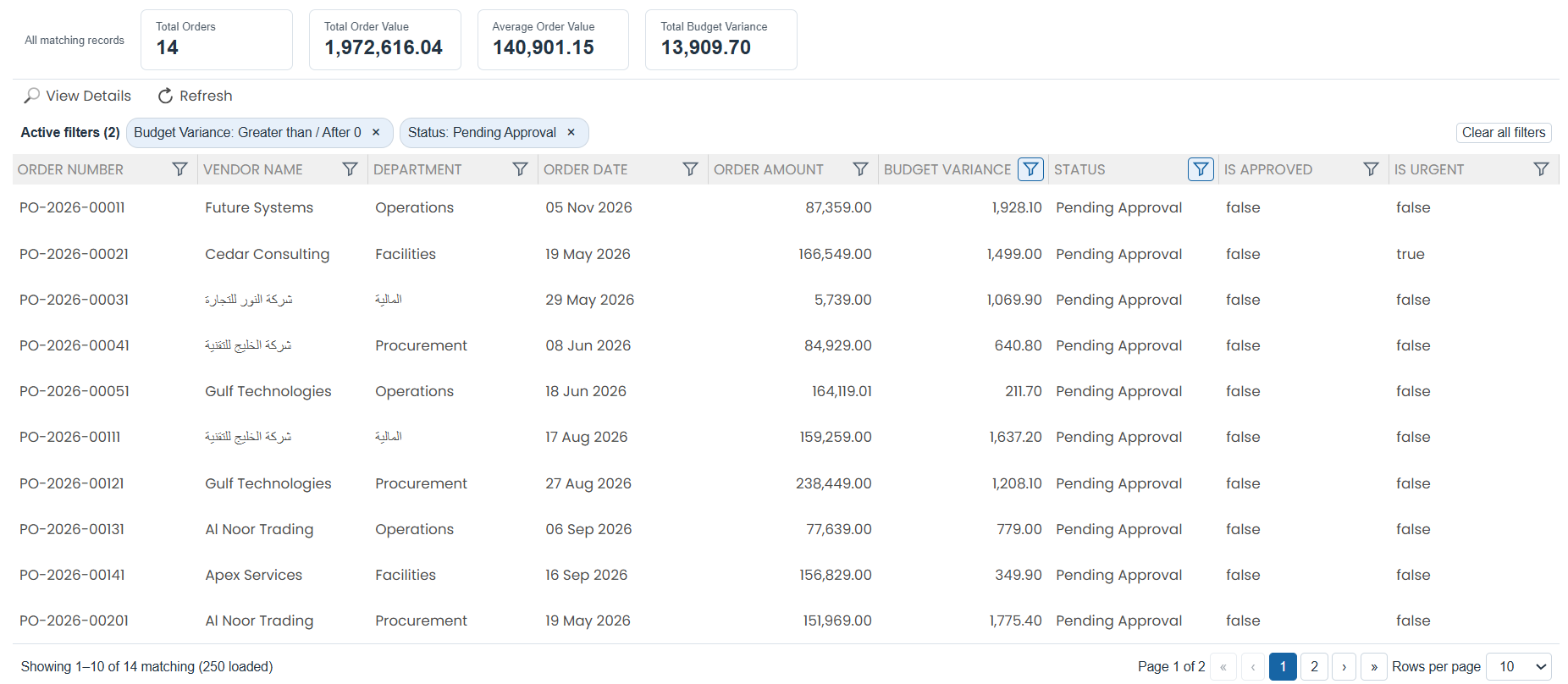
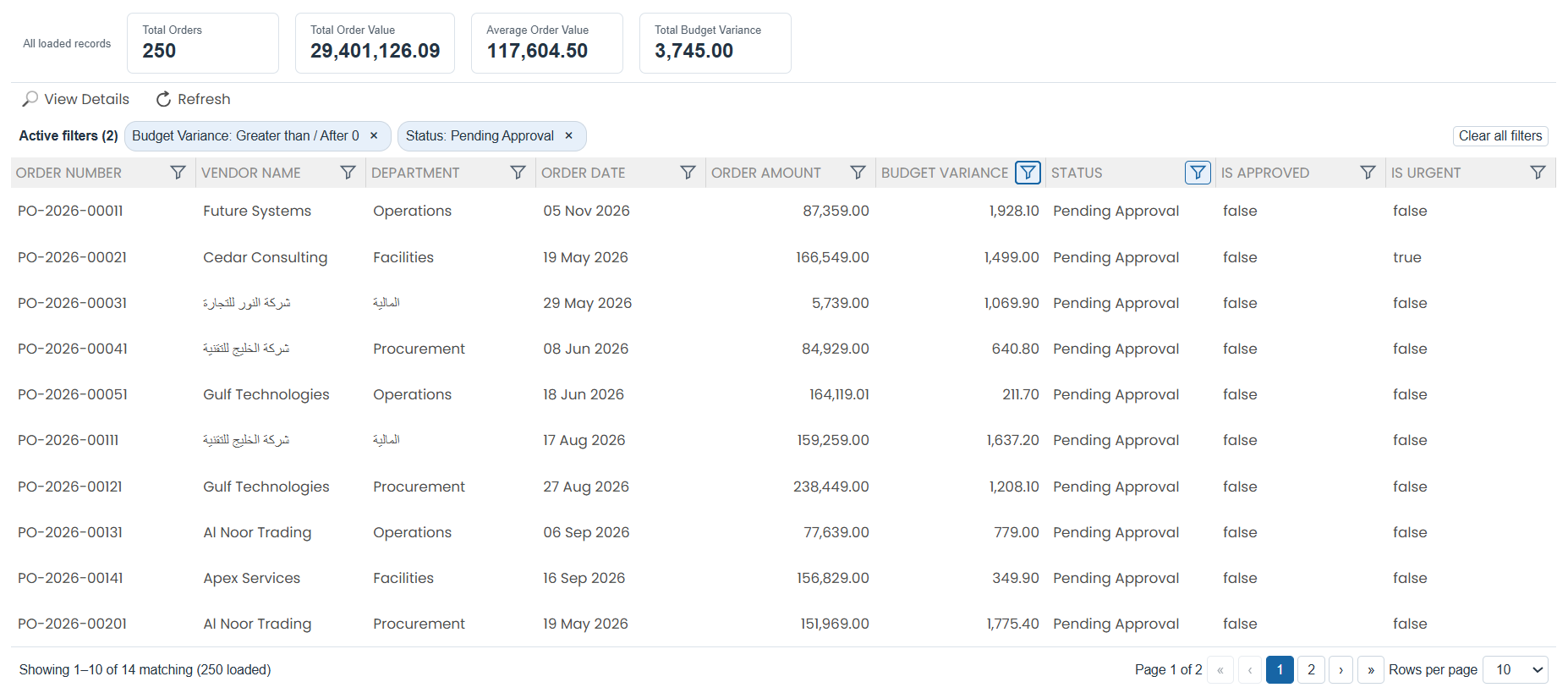
Apply Budget Variance greater than 0 and Status Pending Approval. The demo has 14 matching records across two pages, with 250 loaded. With resetOnFilter enabled, changing filters resets navigation to the first page. The screenshot confirms the resulting first page, not the preceding navigation action.
Figure 16 · Combined filters — 14 matching records · Actual K2 Runtime capture
Increase the Budget Variance threshold to 10000 while retaining Pending Approval. No rows match; navigation is disabled and the counter shows Page 0 of 0.
Figure 17 · Empty filtered result · Actual K2 Runtime capture
Load More
Set mode to loadMore to display the first batch and append another batch on each click. Download the complete alternative configuration, replace the Area Item ID and update configVersion when deploying it.
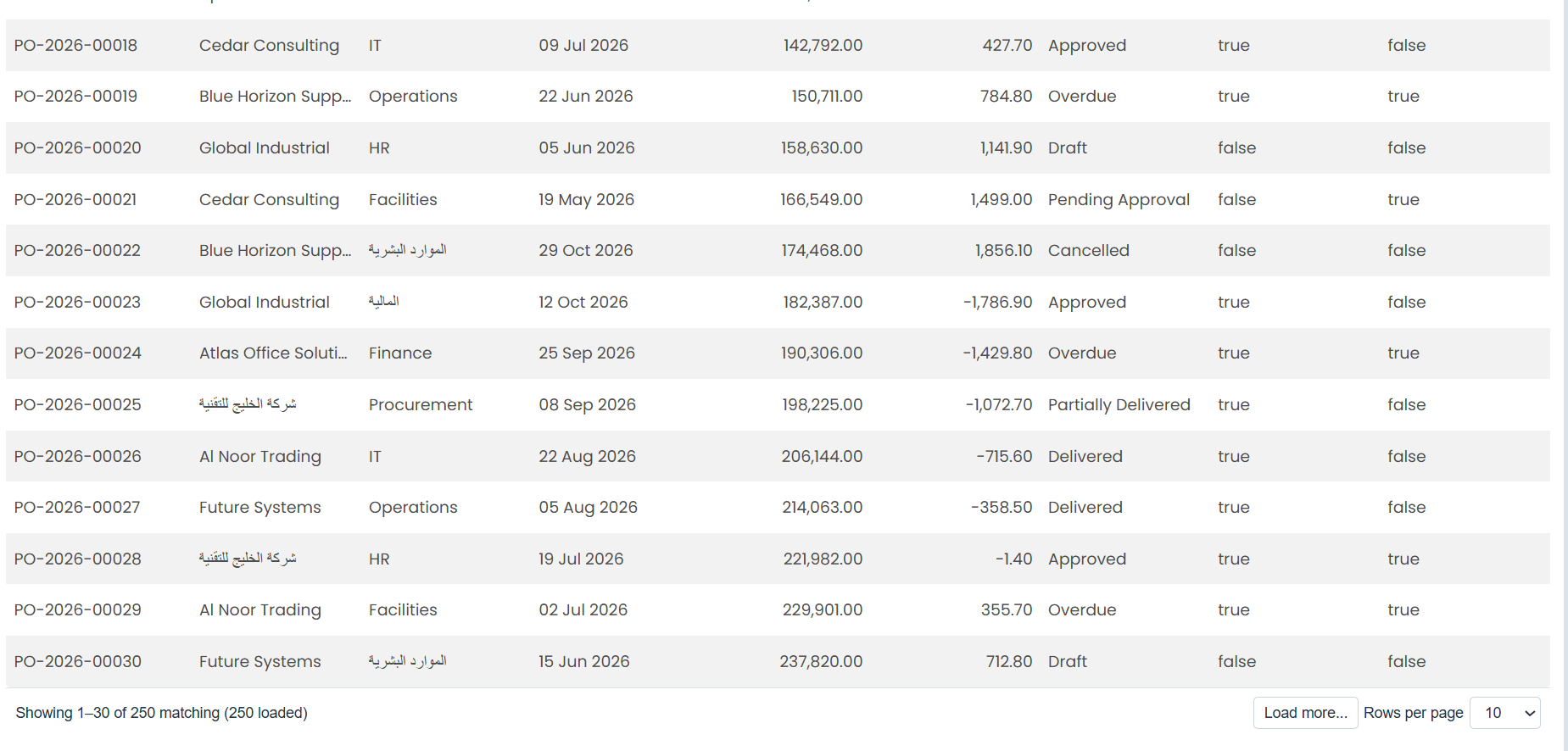
Download Load More configuration ↓Figure 18 · Load More — initial 10 rows · Actual K2 Runtime captureFigure 19 · Load More — 30 rows displayed · Actual K2 Runtime captureFigure 20 · All 250 matching records displayed · Actual K2 Runtime capture
Configuration reference
The following settings belong to defaults.pagination or an individual grids entry. Values shown are the lesson configuration, not necessarily engine defaults.
Parameter
Type / lesson value
Behavior
enabled
Boolean / true
Enable client-side pagination.
mode
classic | loadMore / classic
Numbered pages or progressive display.
pageSize
Positive integer / 10
Initial rows per page or batch.
pageSizeOptions
Integer array / [10,25,50,100]
Options in the page-size selector.
allowPageSizeChange
Boolean / true
Show the selector.
showRecordCount
Boolean / true
Show loaded and matching record counts.
showPageCount
Boolean / true
Show page count in Classic mode.
showFirstLastButtons
Boolean / true
Show first/last buttons in Classic mode.
resetOnFilter
Boolean / true
Reset page or batch limit when filters change.
preserveOnRefresh
Boolean / true
Retain page state when the grid element is replaced during refresh, subject to available records.
Console commands
These examples target one grid. Replace the placeholder with your actual ID. See Grid Discovery. Console changes are temporary.
Unlike a native server-paged configuration, these modes operate on the same loaded rows as Advanced Filtering. Classic provides direct navigation; Load More preserves previously displayed rows as batches expand. Neither mode fetches more records from SQL.
Limitations and troubleshooting
Client-side pagination does not reduce initial K2 loading or the number of records held in the browser.
Disable native pagination for this lesson so filtering can access all loaded rows.
Saved personal preferences, when enabled, may override configured page size. Use Reset Grid Preferences if appropriate; this also clears other preferences.
If changes are not reflected, check the loaded configuration and increment configVersion in the loader.
Required after saving a configuration file
Update configVersion in the Data Label loader (for example from 0.3.0 to 0.4.0), save the form and reopen Runtime. Keep engineVersion unchanged unless the engine file was modified. Console-only experiments do not need a version change. See Installation & Deployment.
Turn your register into an analytical view using client-side metrics, KPI cards and column-aligned totals.
Overview and prerequisites
Continue from Pagination & Load More. Keep nine columns, filtering and classic pagination enabled. Aggregates use the records already loaded into the browser; no additional SQL query is required.
Quick start — KPI cards
Replace the aggregation section under defaults with this fragment. For a complete configuration, replace REPLACE_WITH_YOUR_AREAITEMID with your own ID (see Grid Discovery), then save as purchase-orders.config.js or update the loader filename.
Update configVersion in the Data Label loader (for example from 0.3.0 to 0.4.0), save the form and reopen Runtime. Keep engineVersion unchanged unless the engine file was modified. Console-only experiments do not need a version change. See Installation & Deployment.
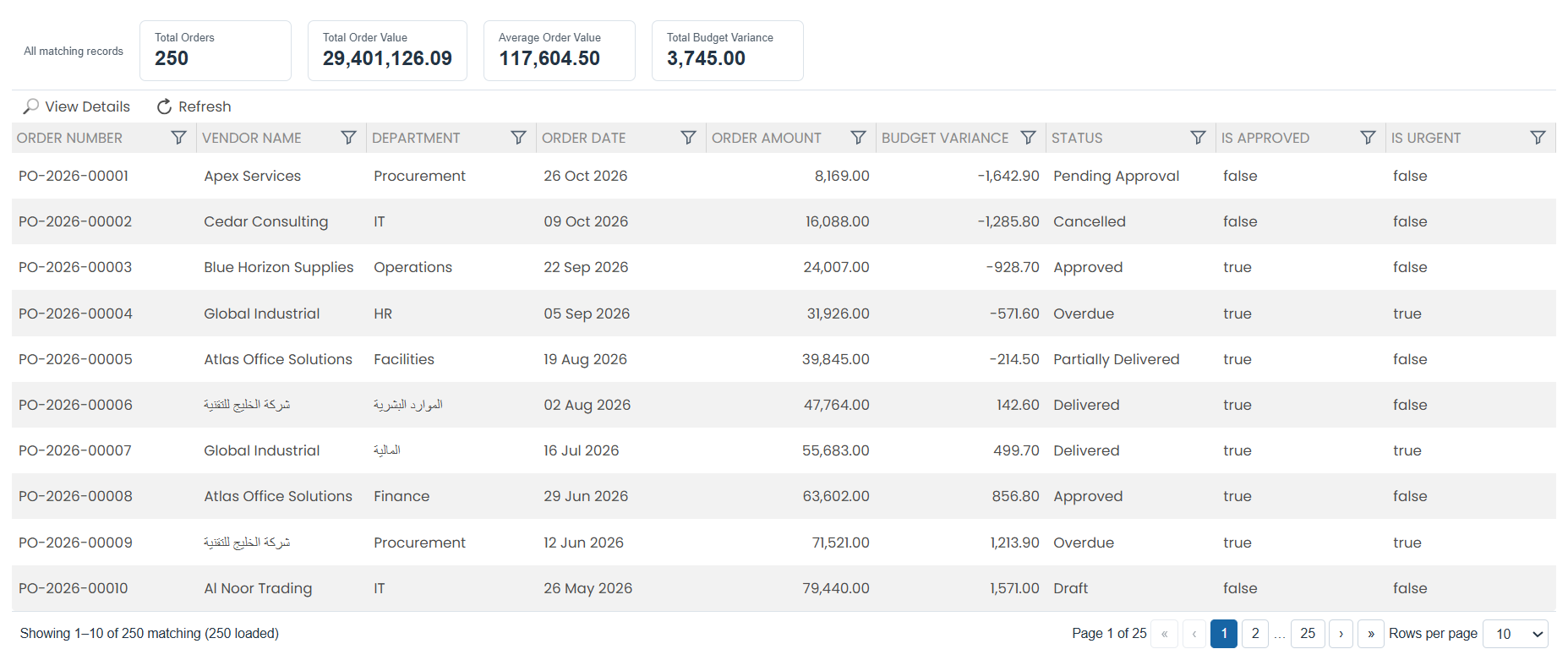
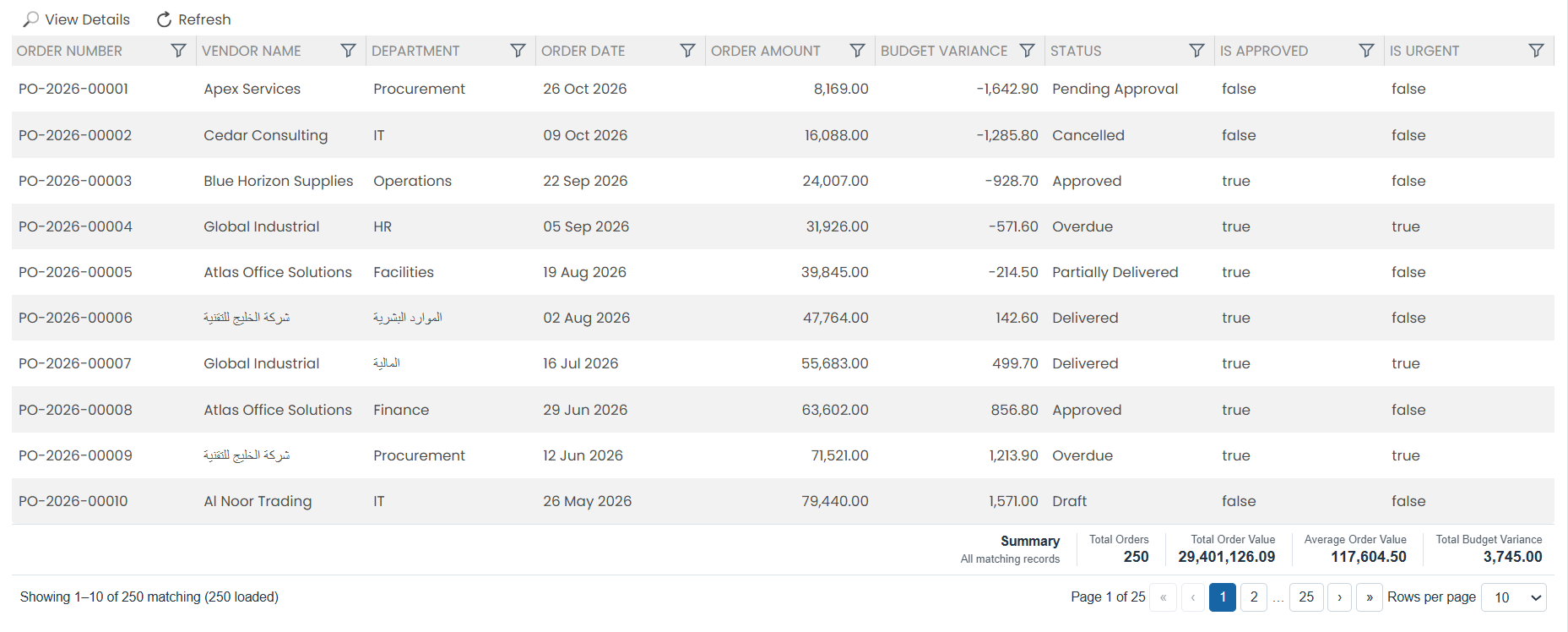
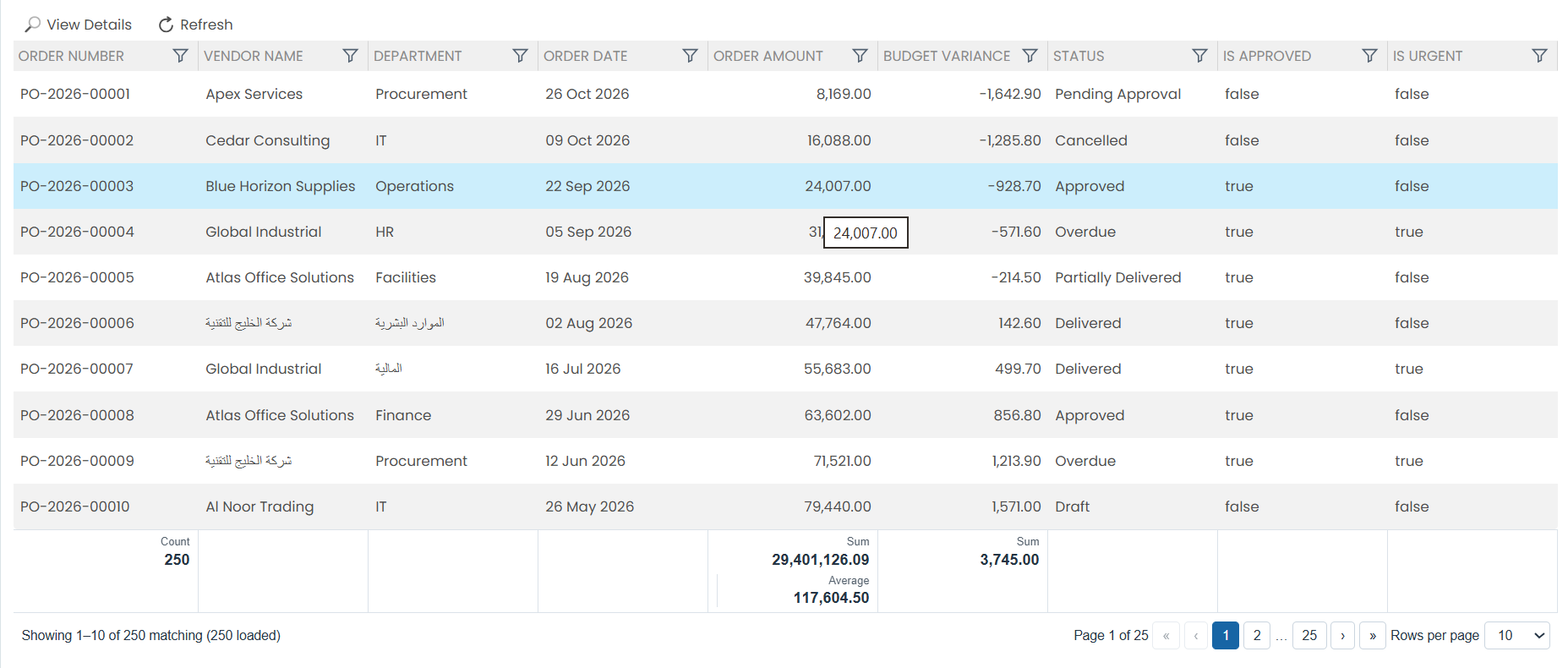
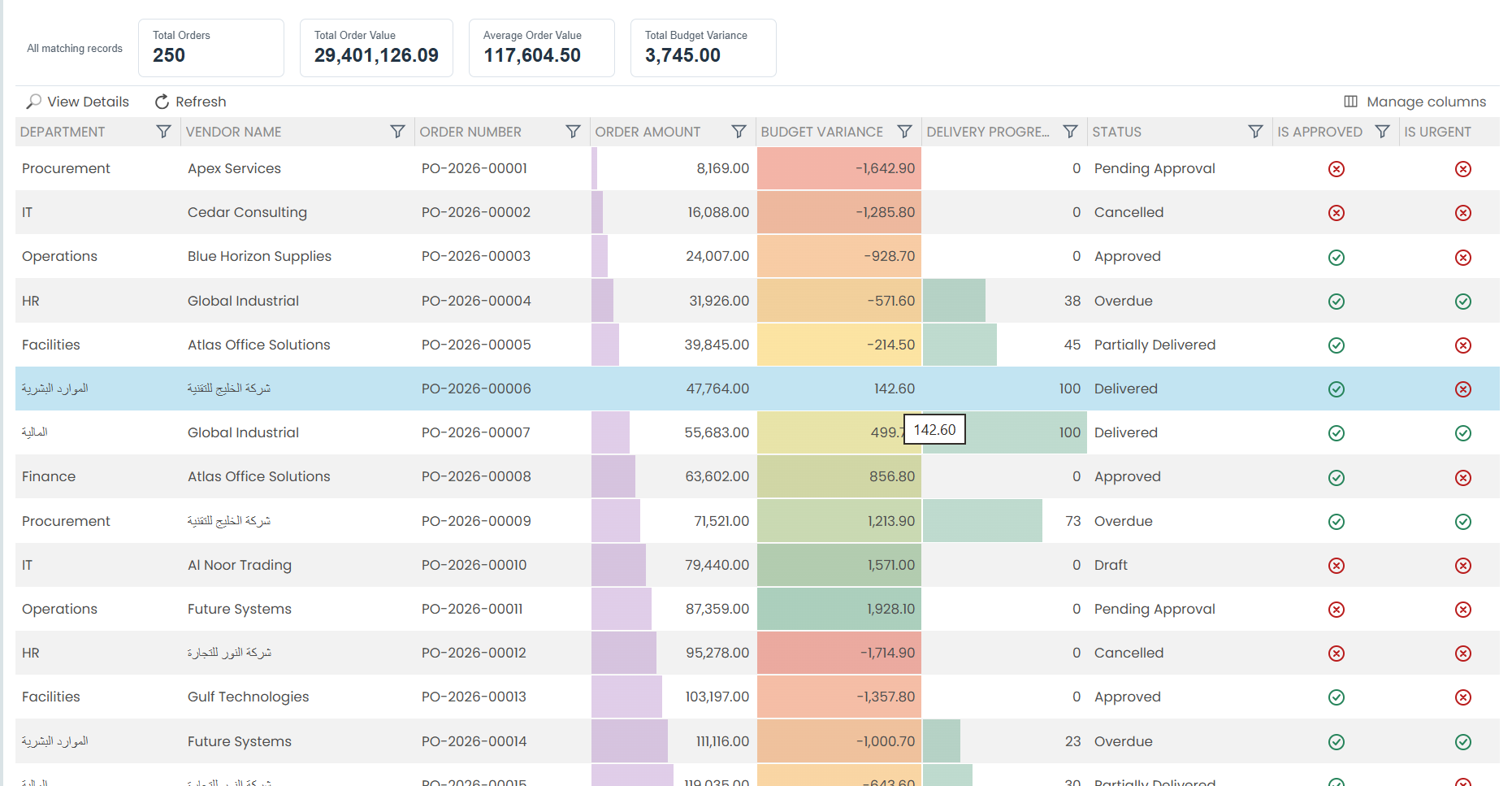
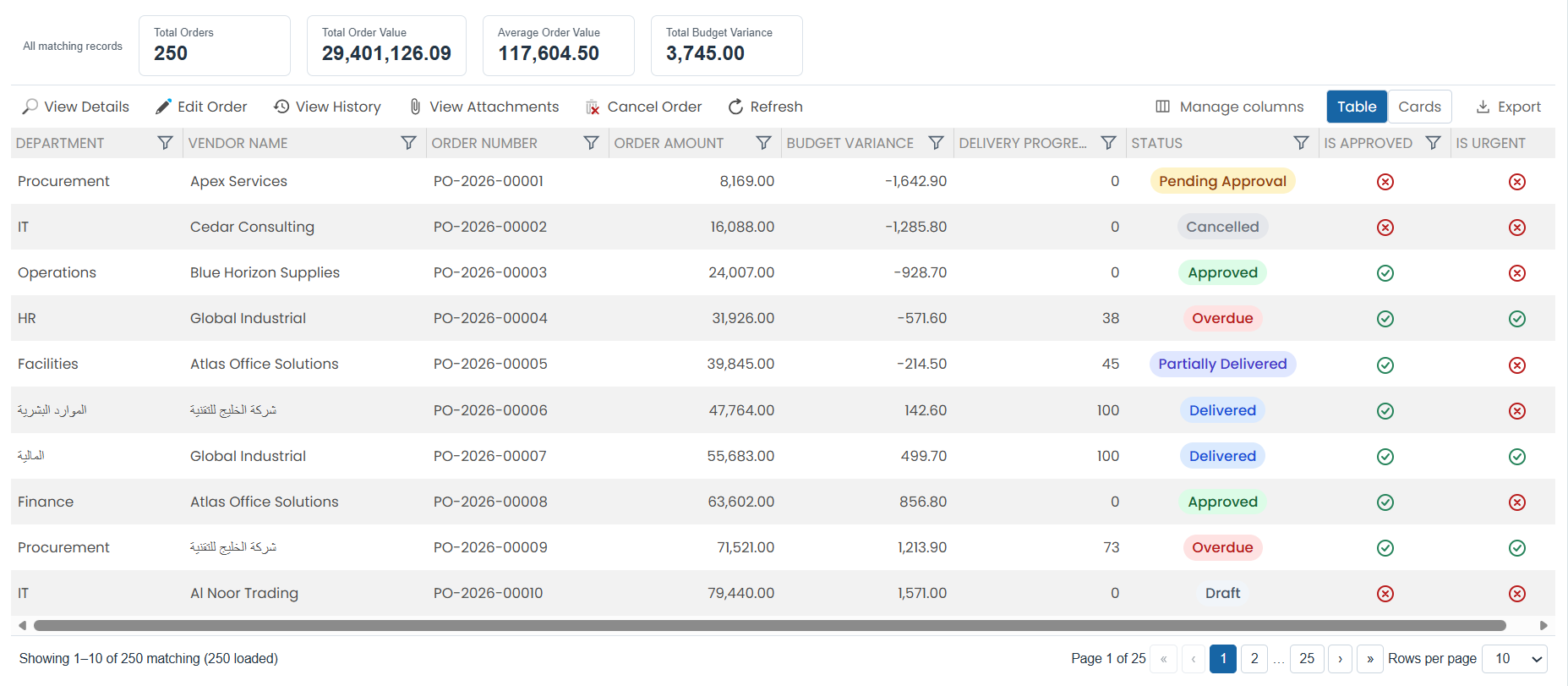
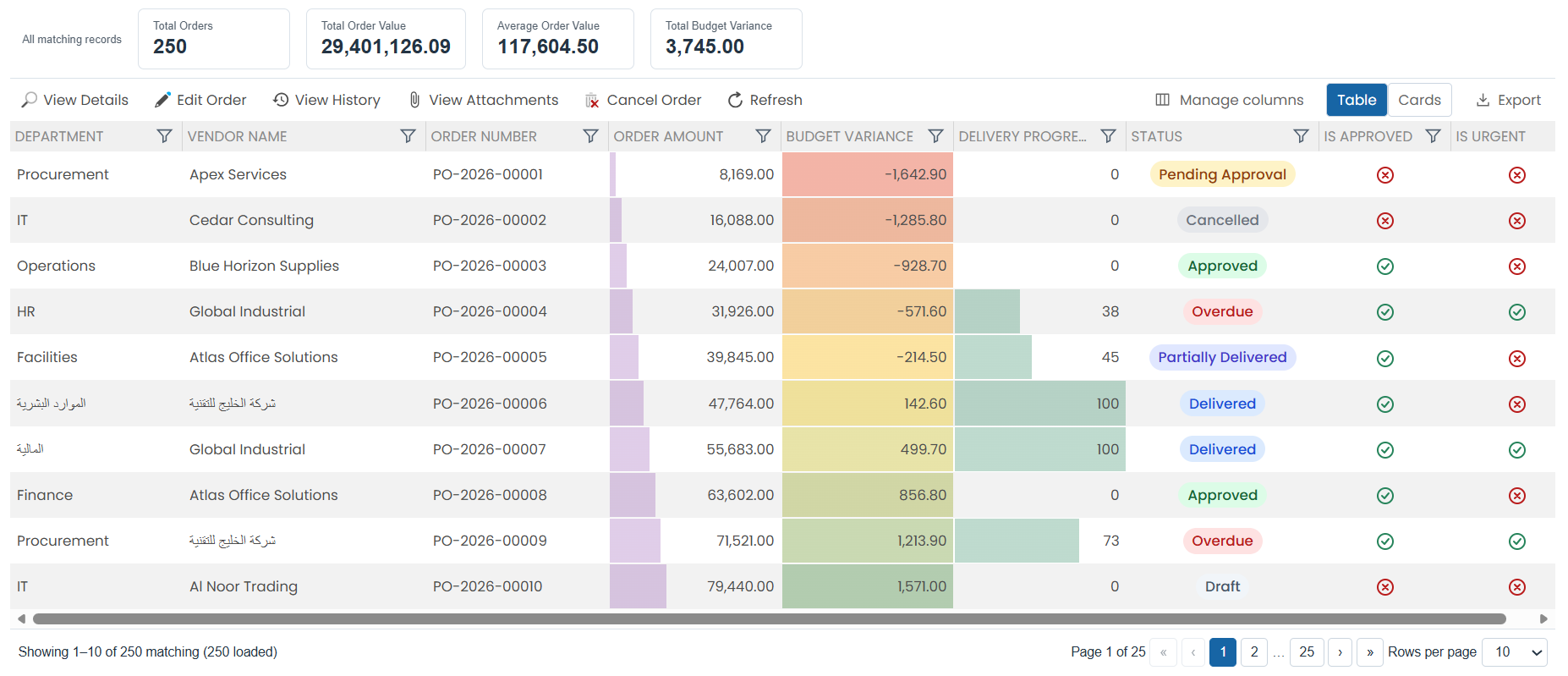
Figure 21 · KPI cards above the toolbar — 250 orders · Actual K2 Runtime capture
Dynamic filtering
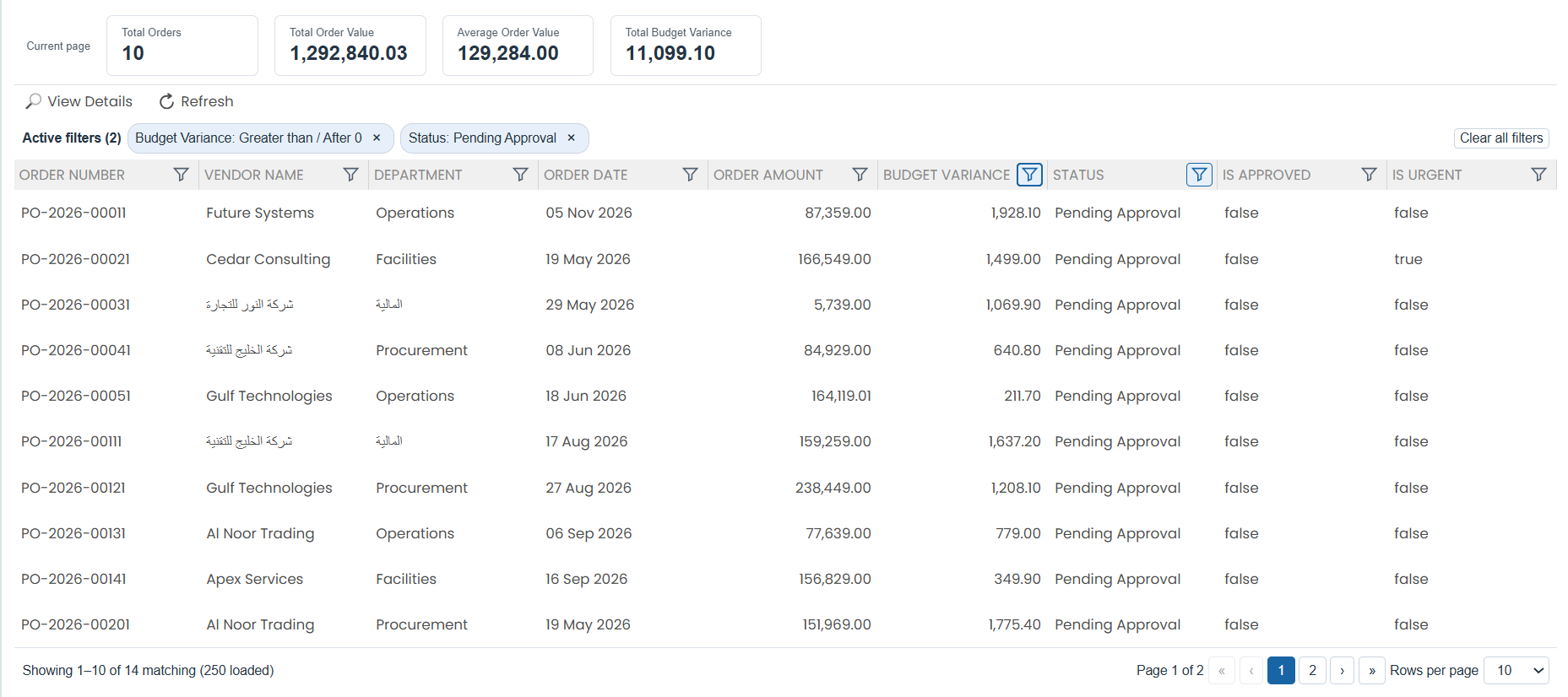
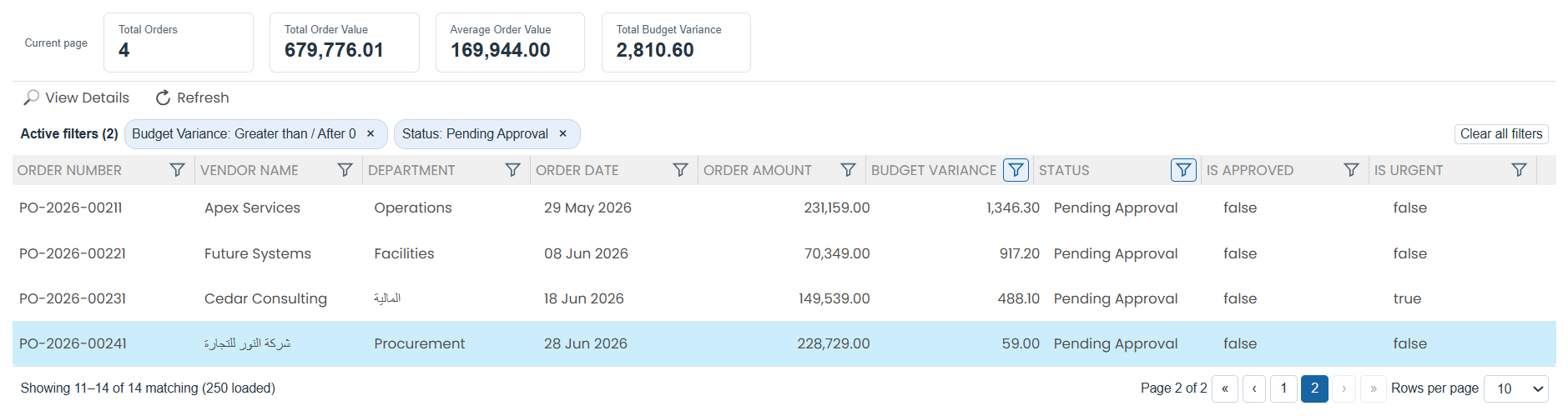
Apply Status = Pending Approval and Budget Variance greater than 0. The four KPIs recalculate for 14 matching orders even though only ten are displayed.
Keep the same filters. Switch between loaded, filtered and page scopes using the following Console command. These examples change shared defaults; an individual grid override can take precedence.
Figure 24 · Page scope — first ten matching orders · Actual K2 Runtime captureFigure 25 · Page scope — four remaining orders on page two · Actual K2 Runtime capture
Interactive scope example
Choose a scope to compare the actual captured metrics. This is an offline simulation, not a live K2 grid.
Metric
Loaded
Filtered
Page 1
Page 2
Count
250
14
10
4
Sum
29,401,126.09
1,972,616.04
1,292,840.03
679,776.01
Average
117,604.50
140,901.15
129,284.00
169,944.00
Variance
3,745.00
13,909.70
11,099.10
2,810.60
Compact summary
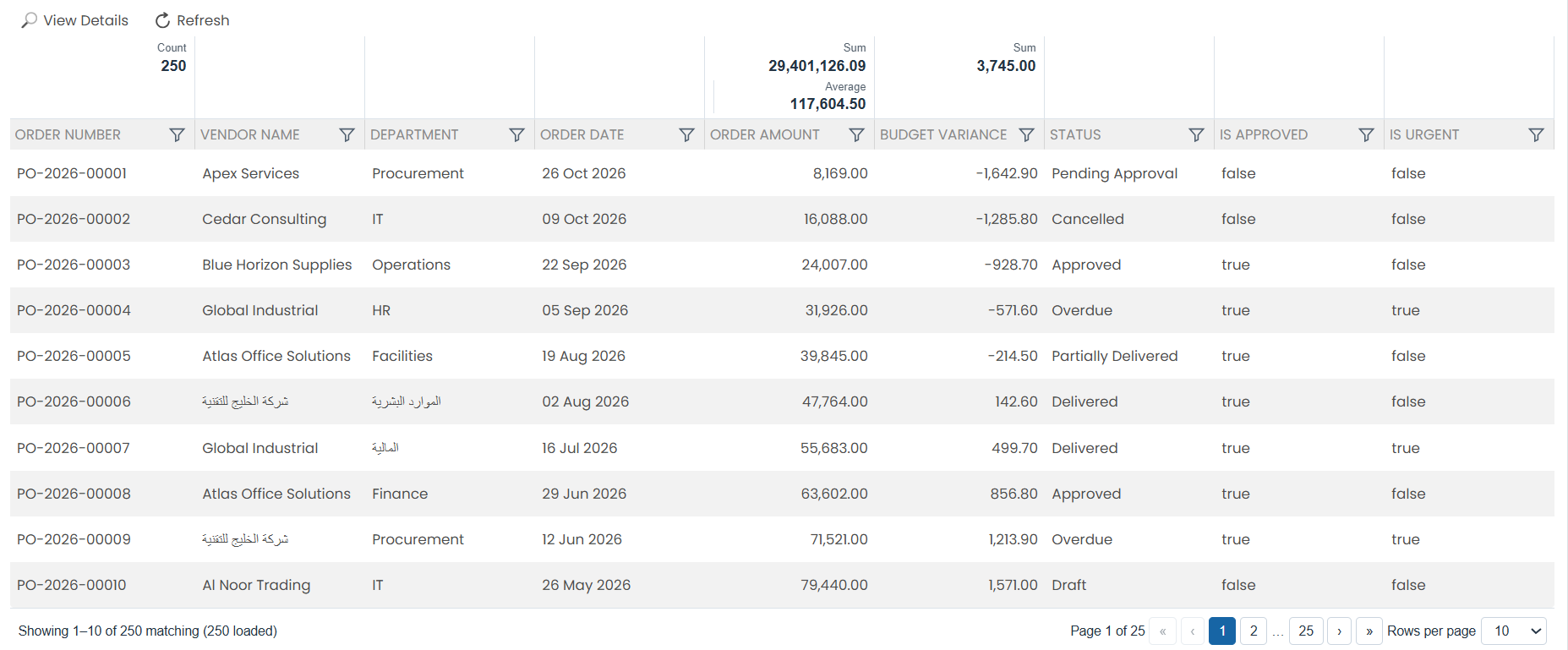
Clear the filters. Use a compact strip beneath the records or above the column headers.
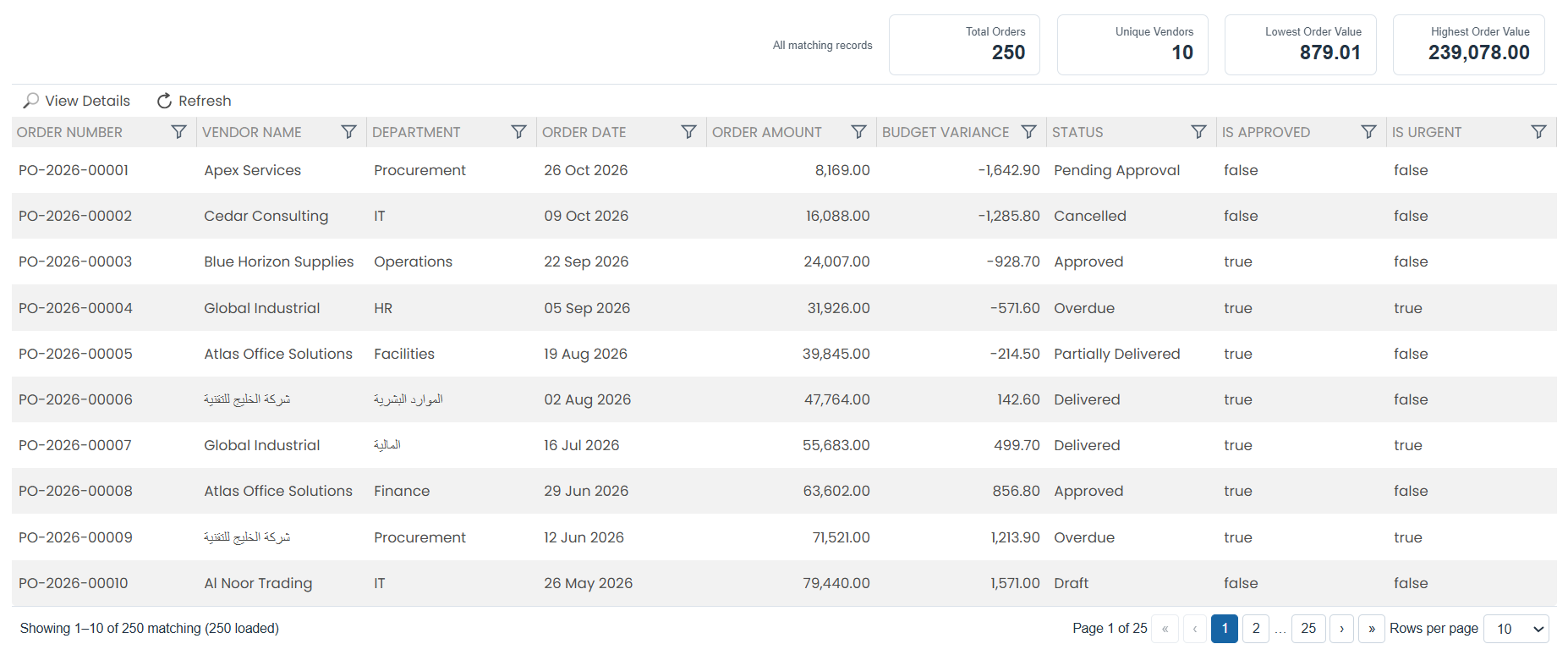
Figure 30 · Count, distinct vendors, minimum and maximum order value · Actual K2 Runtime capture
Configuration reference
Parameter
Type / allowed values
Behavior
enabled
Boolean; true enables
Otherwise summary is disabled
scope
loaded / filtered / page
Loaded rows, matching rows, or displayed page; fallback filtered
position
top / bottom
Fallback bottom
layout
kpi / compact / columns
Fallback compact; cards use compact instead of columns
alignment
start / center / end
Fallback end
showTitle
Boolean
Only true shows Summary
showScope
Boolean
Only true shows scope label
showLabels
Boolean
Shown unless false
showSeparators
Boolean
Enabled only when true
items
Array
Metric definitions
items[].column
String
Column key, name or title; omit for record count
items[].operation
count / countDistinct / sum / avg / min / max
Defaults to count
items[].label
String
Optional custom metric label
items[].precision
Integer 0–12
Decimal and average default 2; other numeric operations default 0
items[].prefix / suffix
String
Optional display text
items[].fontWeight
400 / 500 / 600 / 700 / 800
Fallback 600
Operation
Meaning
count
Rows if no column is specified; otherwise nonblank values
countDistinct
Distinct nonblank values
sum
Sum of numeric values
avg
Arithmetic mean of valid numeric values
min
Lowest numeric value
max
Highest numeric value
Standard vs Advanced
Unlike a plain ListView in our baseline, the same register now offers live aggregates, three presentation layouts and a selectable calculation scope without creating a separate summary View.
Limitations and troubleshooting
Totals cover only loaded records, not necessarily every record in SQL.
Numeric operations require a numeric column; blank values are ignored. No valid numeric values display an em dash.
Use a column reference for column-aligned metrics. Check exact header names or keys if a metric is missing.
Console changes are temporary. Reopen the form to restore the saved configuration.
Amounts shown in the screenshots are rounded for display; totals use underlying numeric values.
Required after saving a configuration file
Update configVersion in the Data Label loader (for example from 0.3.0 to 0.4.0), save the form and reopen Runtime. Keep engineVersion unchanged unless the engine file was modified. Console-only experiments do not need a version change. See Installation & Deployment.
Expand a nine-column register into a readable seventeen-column business grid without widening the entire SmartForm.
Overview and prerequisites
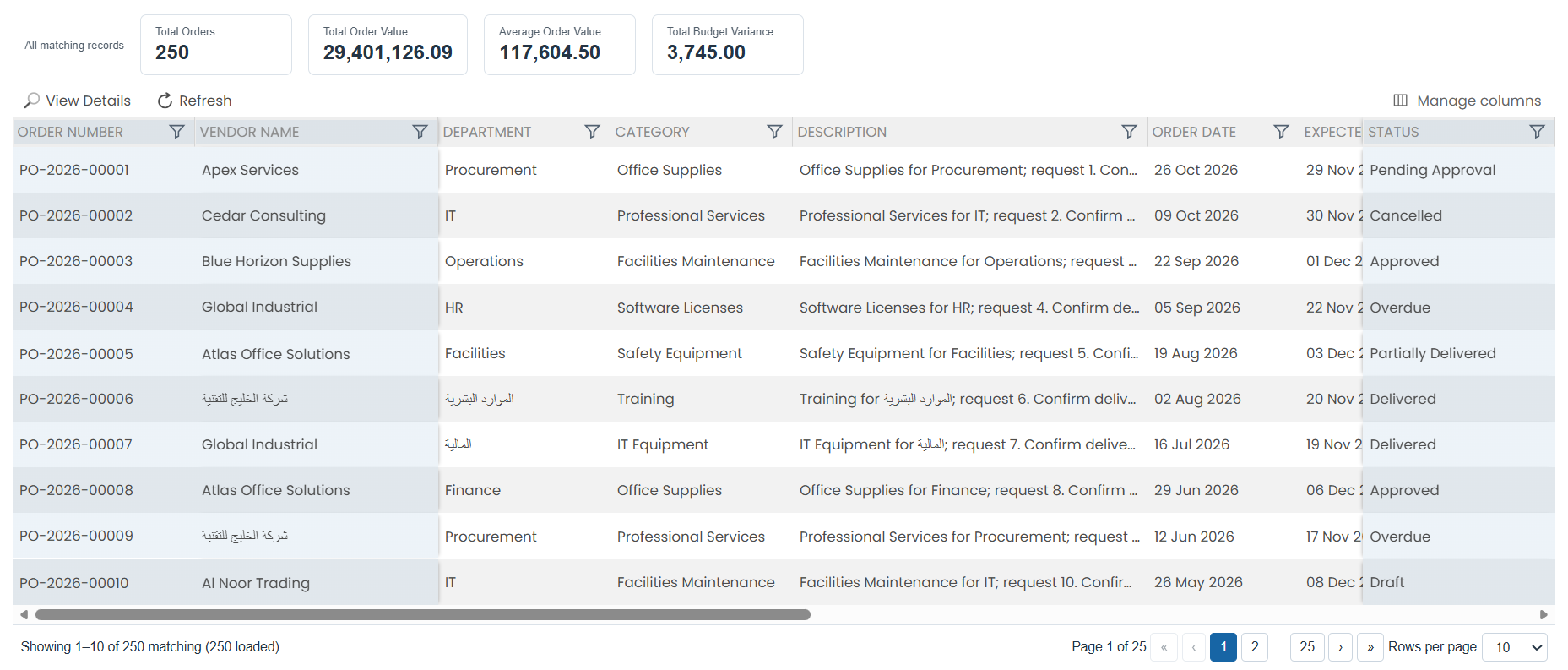
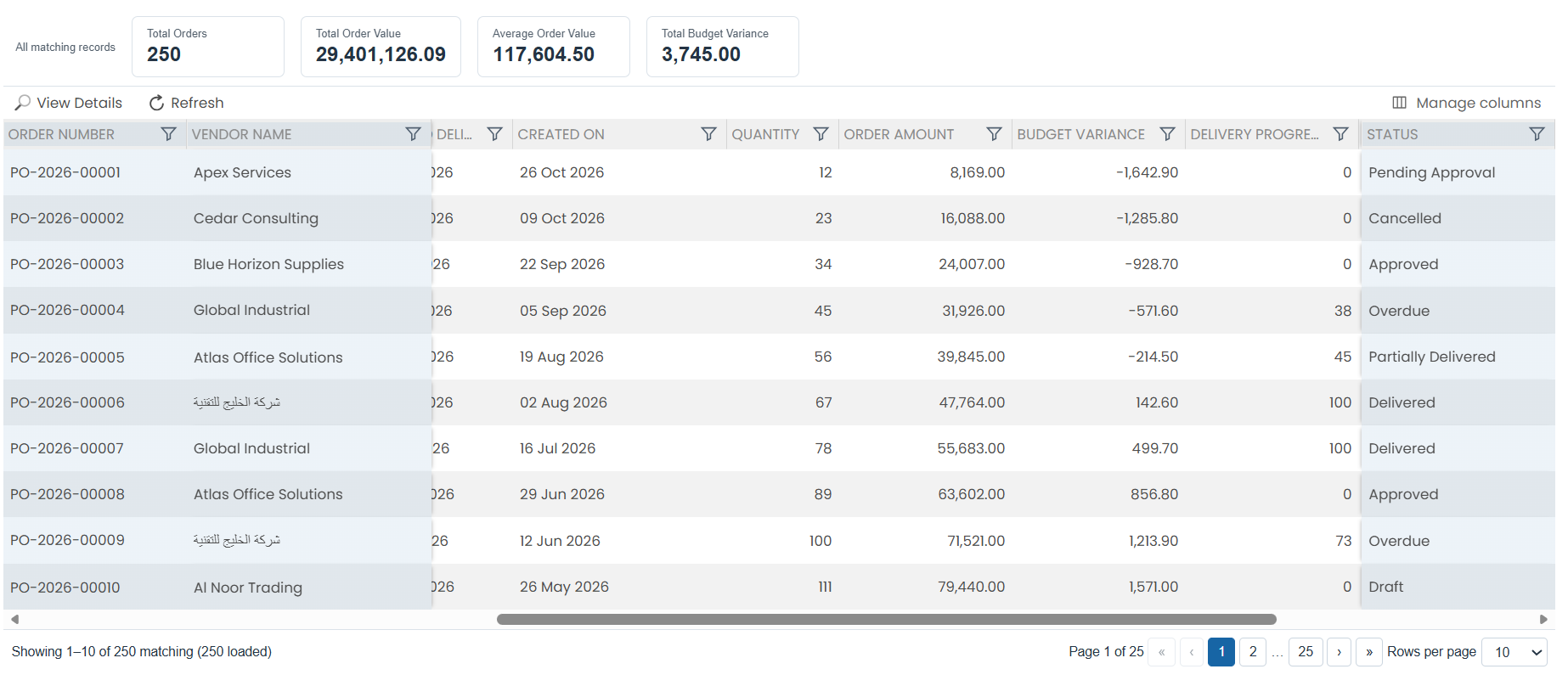
Continue from Aggregation & Summary. Keep filtering, classic paging and KPI summary enabled. Add eight fields to the non-editable ListView in K2 Designer and save the form. Without horizontal scrolling, the standard table squeezes all seventeen columns into the available width.
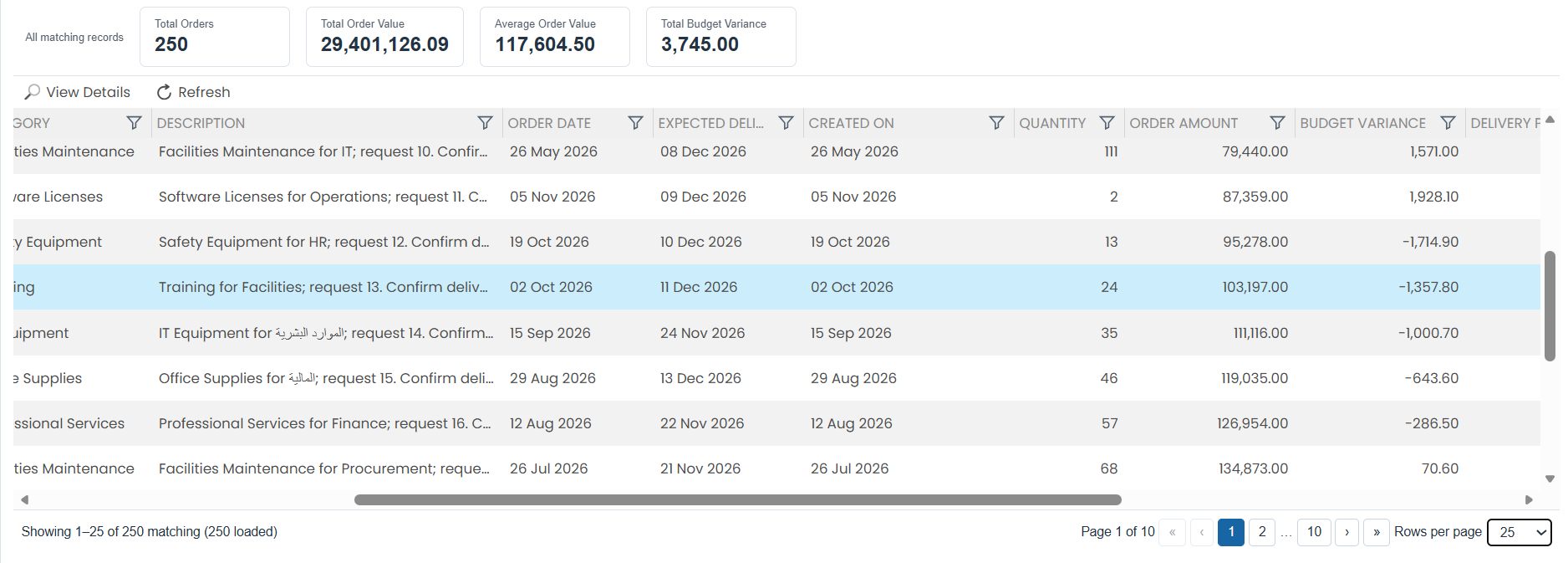
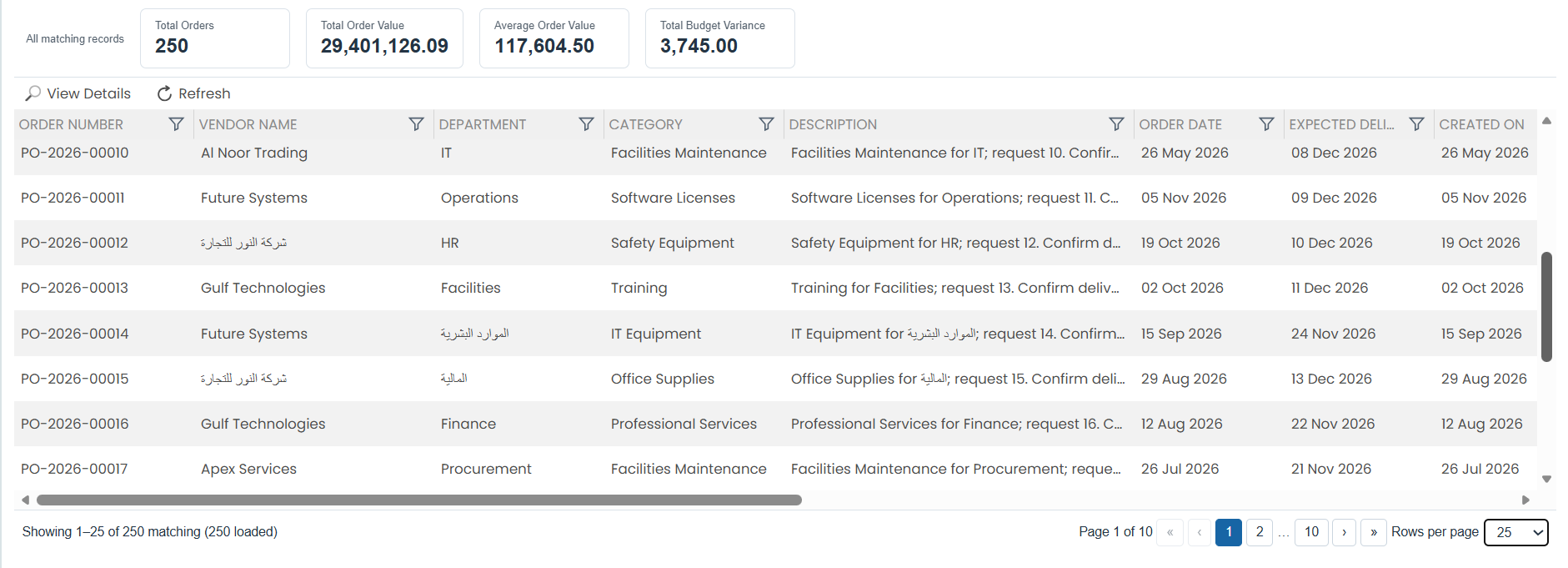
Figure 31 · Seventeen columns without horizontal scrolling · Actual K2 Runtime capture
Extend the ListView
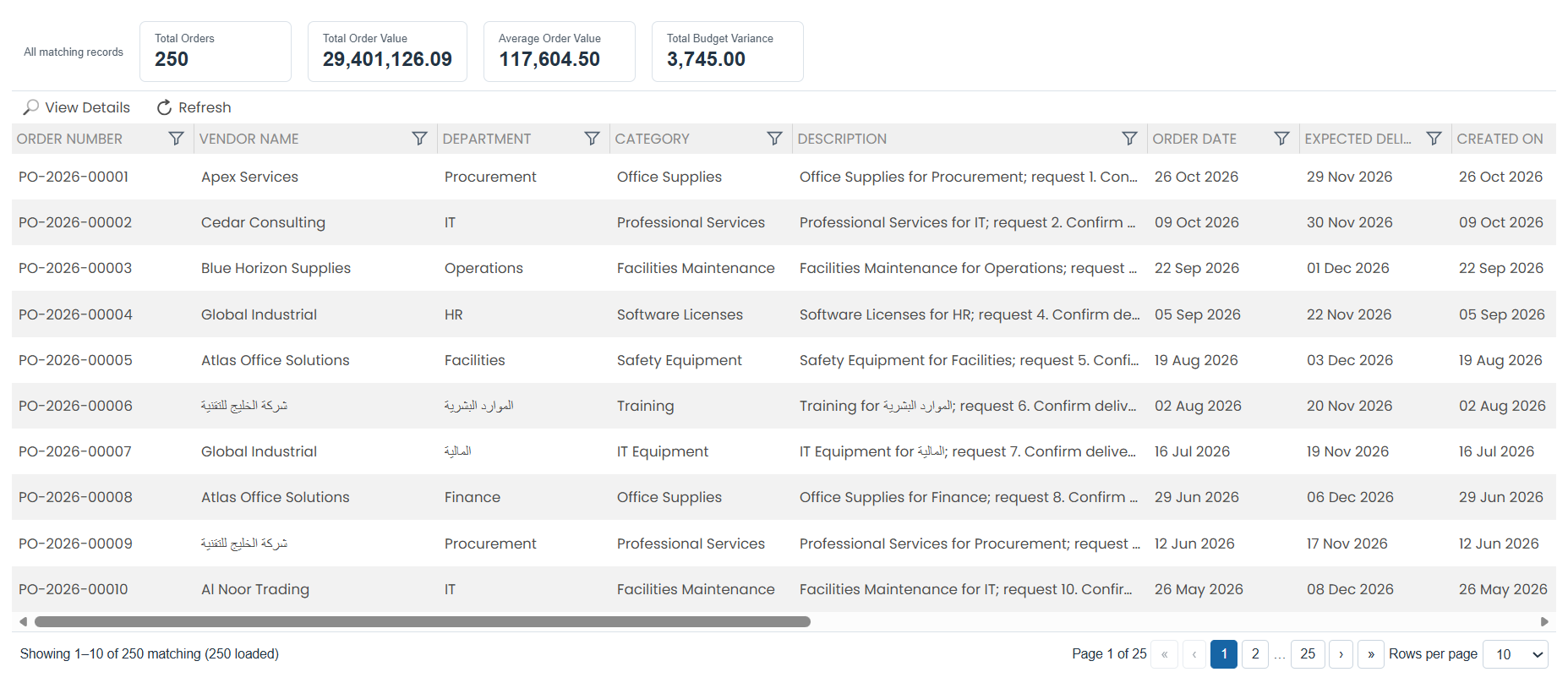
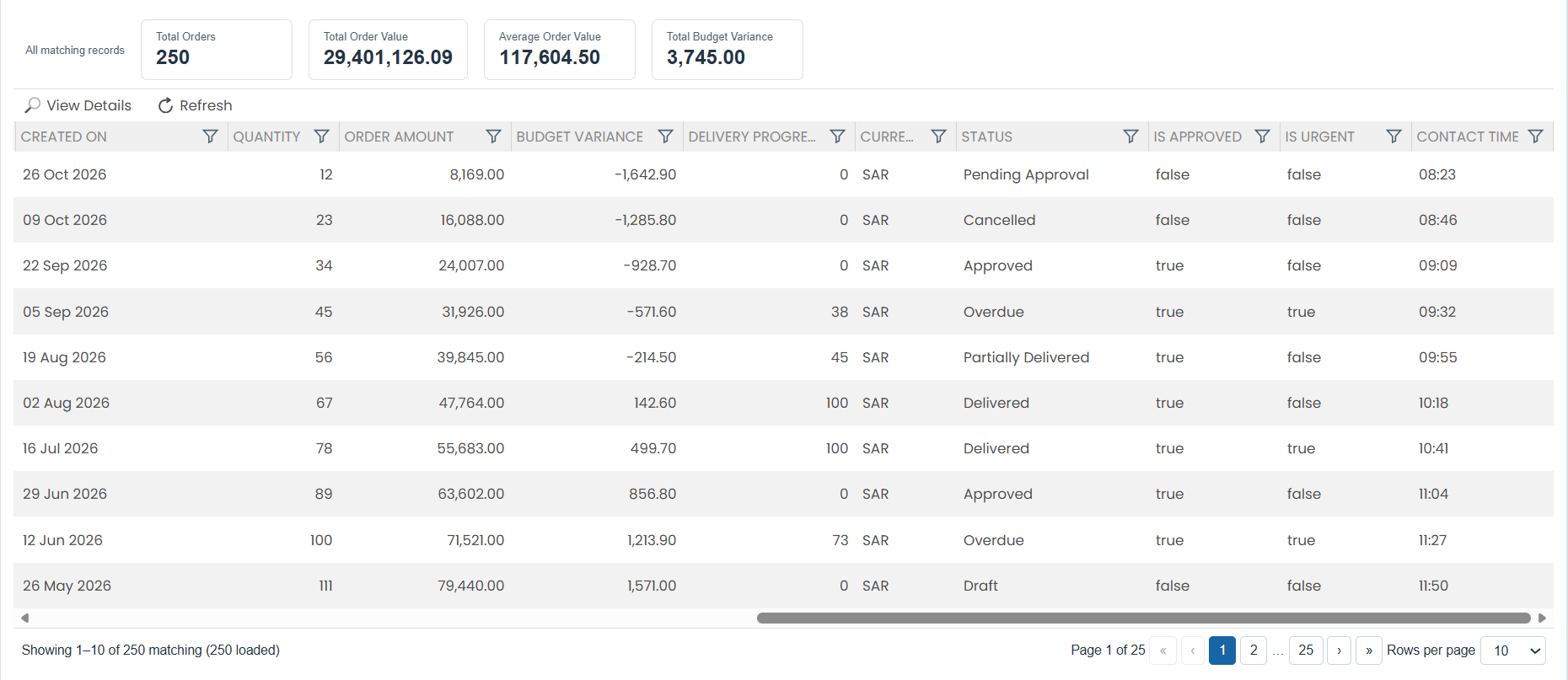
The following is the actual column order used in the captured demo. Use the exact displayed headers in your configuration. The SmartObject already contains these properties.
Parameter
Type / example
Purpose
Order Number
180 px
Existing field
Vendor Name
240 px
Existing field
Department
170 px
Existing field
Category
180 px
New field
Description
350 px
New field
Order Date
150 px
Existing field
Expected Delivery
180 px
New field
Created On
210 px
New field
Quantity
110 px
New field
Order Amount
170 px
Existing field
Budget Variance
170 px
Existing field
Delivery Progress
170 px
New field
Currency
100 px
New field
Status
190 px
Existing field
Is Approved
130 px
Existing field
Is Urgent
130 px
Existing field
Contact Time
140 px
New field
Quick start — horizontal scrolling
Replace defaults.horizontalScroll with this fragment; leave vertical scrolling and resizing disabled for the first test.
Replace REPLACE_WITH_YOUR_AREAITEMID with your own ID (see Grid Discovery). Save the file and update configVersion in the Data Label loader, for example to 0.5.0 or another unused version. Save the form and reopen Runtime. Keep engineVersion unchanged unless the engine changes. Console-only experiments do not need a version change. If the downloaded filename differs, update the loader path or rename the file to purchase-orders.config.js.
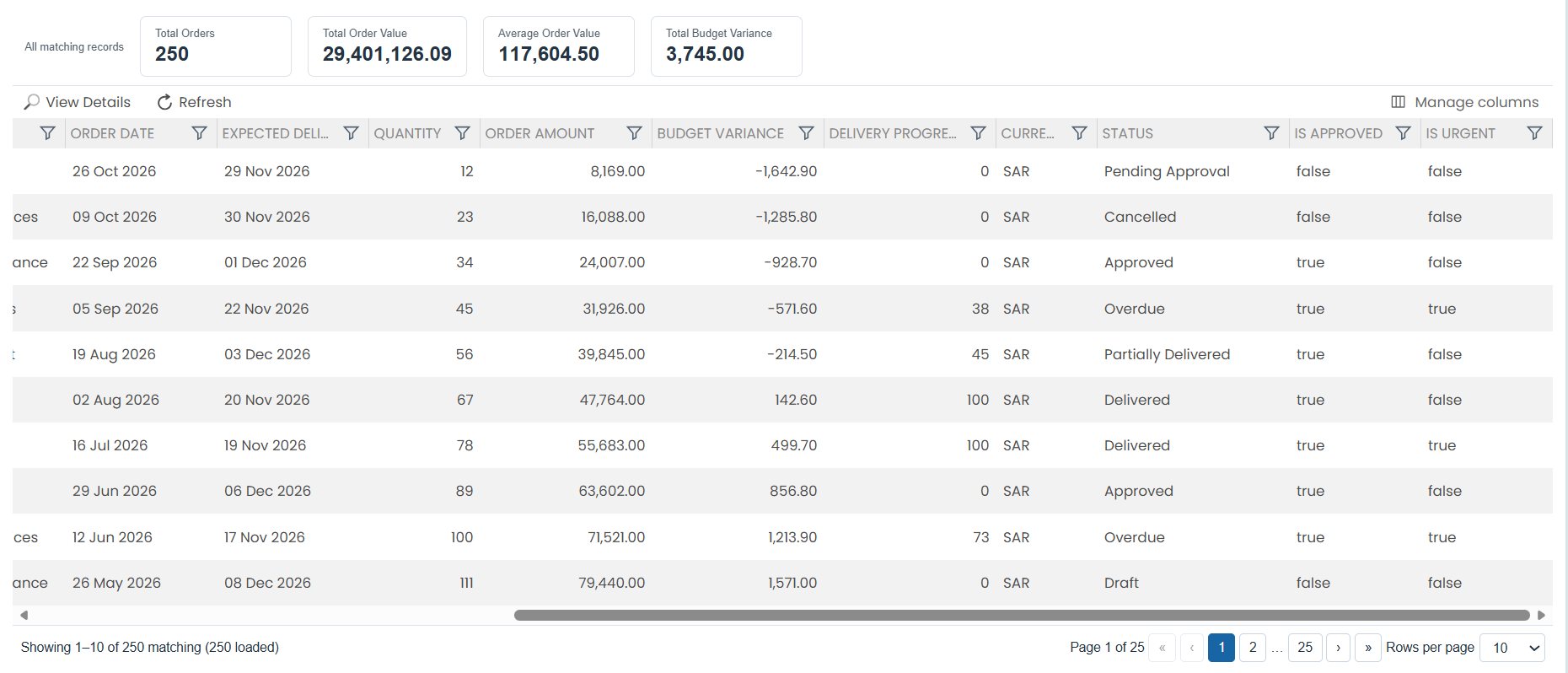
Figure 32 · Horizontal scroll — left edge · Actual K2 Runtime captureFigure 33 · Horizontal scroll — right edge · Actual K2 Runtime capture
Horizontal configuration reference
Parameter
Type / example
Purpose
enabled
boolean / true
Enable horizontal overflow and explicit widths.
defaultColumnWidth
positive integer / 150
Fallback width in pixels.
minColumnWidth
positive integer / 60
Lower bound in pixels.
maxColumnWidth
positive integer / 800
Upper bound in pixels.
columnWidths
object / header: width
Per-column width in pixels, by header or column key.
Vertical scrolling
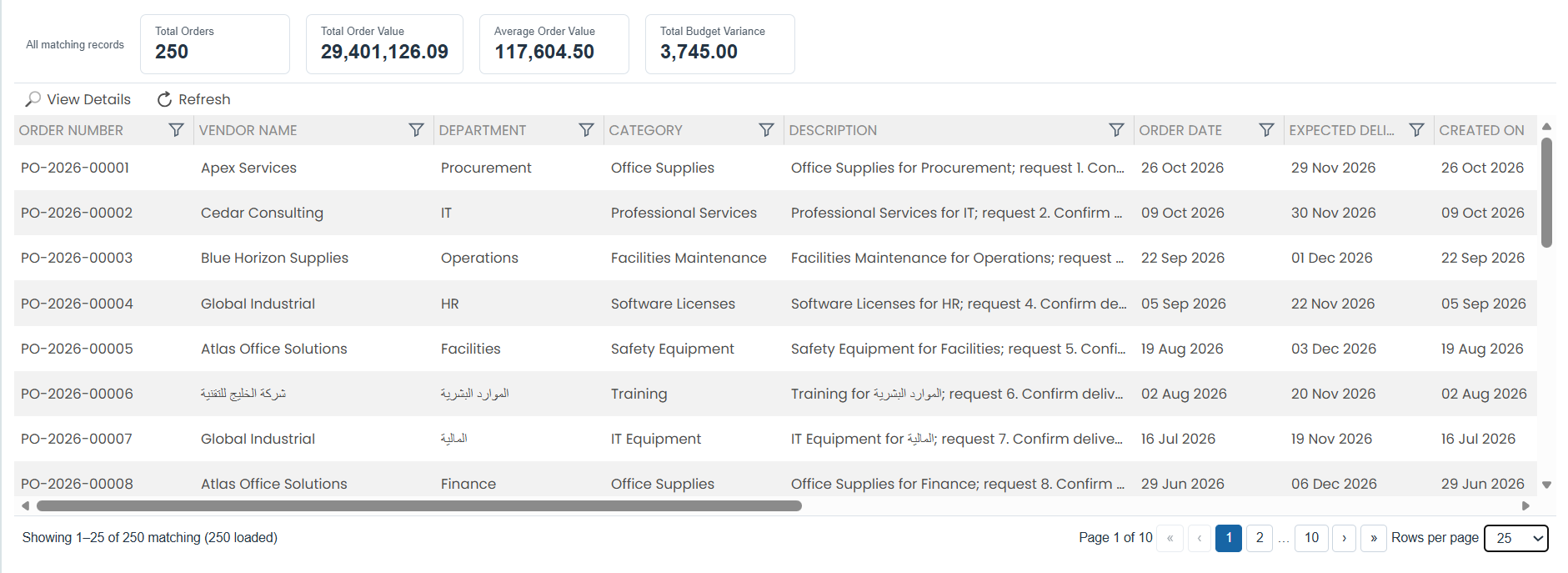
Enable a bounded scroll area and select 25 rows per page. Both scrollbars can operate together; KPI cards and pagination remain outside the scroll area in the demonstrated layout.
Replace REPLACE_WITH_YOUR_AREAITEMID with your own ID (see Grid Discovery). Save the file and update configVersion in the Data Label loader, for example to 0.5.0 or another unused version. Save the form and reopen Runtime. Keep engineVersion unchanged unless the engine changes. Console-only experiments do not need a version change. If the downloaded filename differs, update the loader path or rename the file to purchase-orders.config.js.
Figure 34 · Bounded table with 25 matching rows per page · Actual K2 Runtime captureFigure 36 · Simultaneous horizontal and vertical scrolling · Actual K2 Runtime capture
Vertical configuration reference
Parameter
Type / example
Purpose
enabled
boolean / true
Enable vertical overflow.
maxHeight
CSS length / 400px
Maximum scroll area height. Supports px, rem, em, vh, dvh and %. Invalid values fall back to 400px.
stickyHeader
boolean / true
Keep header visible during vertical scrolling.
Interactive example
Offline simulation: scroll in both directions within the example. This is not K2 Runtime.
Order Number
Vendor Name
Department
Category
Description
Order Date
Expected Delivery
Created On
Quantity
Order Amount
PO-2026-00001
Cedar Consulting
IT
Office Supplies
Sample purchase order description
26 Oct 2026
29 Nov 2026
26 Oct 2026
11
8169
PO-2026-00002
Blue Horizon Supplies
Operations
Office Supplies
Sample purchase order description
26 Oct 2026
29 Nov 2026
26 Oct 2026
22
16338
PO-2026-00003
Apex Services
Procurement
Office Supplies
Sample purchase order description
26 Oct 2026
29 Nov 2026
26 Oct 2026
33
24507
PO-2026-00004
Cedar Consulting
IT
Office Supplies
Sample purchase order description
26 Oct 2026
29 Nov 2026
26 Oct 2026
44
32676
PO-2026-00005
Blue Horizon Supplies
Operations
Office Supplies
Sample purchase order description
26 Oct 2026
29 Nov 2026
26 Oct 2026
55
40845
PO-2026-00006
Apex Services
Procurement
Office Supplies
Sample purchase order description
26 Oct 2026
29 Nov 2026
26 Oct 2026
66
49014
PO-2026-00007
Cedar Consulting
IT
Office Supplies
Sample purchase order description
26 Oct 2026
29 Nov 2026
26 Oct 2026
77
57183
PO-2026-00008
Blue Horizon Supplies
Operations
Office Supplies
Sample purchase order description
26 Oct 2026
29 Nov 2026
26 Oct 2026
88
65352
PO-2026-00009
Apex Services
Procurement
Office Supplies
Sample purchase order description
26 Oct 2026
29 Nov 2026
26 Oct 2026
99
73521
PO-2026-00010
Cedar Consulting
IT
Office Supplies
Sample purchase order description
26 Oct 2026
29 Nov 2026
26 Oct 2026
110
81690
PO-2026-00011
Blue Horizon Supplies
Operations
Office Supplies
Sample purchase order description
26 Oct 2026
29 Nov 2026
26 Oct 2026
121
89859
PO-2026-00012
Apex Services
Procurement
Office Supplies
Sample purchase order description
26 Oct 2026
29 Nov 2026
26 Oct 2026
132
98028
PO-2026-00013
Cedar Consulting
IT
Office Supplies
Sample purchase order description
26 Oct 2026
29 Nov 2026
26 Oct 2026
143
106197
PO-2026-00014
Blue Horizon Supplies
Operations
Office Supplies
Sample purchase order description
26 Oct 2026
29 Nov 2026
26 Oct 2026
154
114366
PO-2026-00015
Apex Services
Procurement
Office Supplies
Sample purchase order description
26 Oct 2026
29 Nov 2026
26 Oct 2026
165
122535
PO-2026-00016
Cedar Consulting
IT
Office Supplies
Sample purchase order description
26 Oct 2026
29 Nov 2026
26 Oct 2026
176
130704
PO-2026-00017
Blue Horizon Supplies
Operations
Office Supplies
Sample purchase order description
26 Oct 2026
29 Nov 2026
26 Oct 2026
187
138873
PO-2026-00018
Apex Services
Procurement
Office Supplies
Sample purchase order description
26 Oct 2026
29 Nov 2026
26 Oct 2026
198
147042
PO-2026-00019
Cedar Consulting
IT
Office Supplies
Sample purchase order description
26 Oct 2026
29 Nov 2026
26 Oct 2026
209
155211
PO-2026-00020
Blue Horizon Supplies
Operations
Office Supplies
Sample purchase order description
26 Oct 2026
29 Nov 2026
26 Oct 2026
220
163380
PO-2026-00021
Apex Services
Procurement
Office Supplies
Sample purchase order description
26 Oct 2026
29 Nov 2026
26 Oct 2026
231
171549
PO-2026-00022
Cedar Consulting
IT
Office Supplies
Sample purchase order description
26 Oct 2026
29 Nov 2026
26 Oct 2026
242
179718
PO-2026-00023
Blue Horizon Supplies
Operations
Office Supplies
Sample purchase order description
26 Oct 2026
29 Nov 2026
26 Oct 2026
253
187887
PO-2026-00024
Apex Services
Procurement
Office Supplies
Sample purchase order description
26 Oct 2026
29 Nov 2026
26 Oct 2026
264
196056
PO-2026-00025
Cedar Consulting
IT
Office Supplies
Sample purchase order description
26 Oct 2026
29 Nov 2026
26 Oct 2026
275
204225
Advantages and limitations
More fields remain accessible without squeezing their widths. Scrolling does not virtualize rows, change the SQL query or reduce initial data loading. A scrollbar appears only when content exceeds its container. For temporary Console tests, shared defaults affect all grids without individual overrides. See Multiple ListViews for per-grid settings.
Replace REPLACE_WITH_YOUR_AREAITEMID with your own ID (see Grid Discovery). Save the file and update configVersion in the Data Label loader, for example to 0.5.0 or another unused version. Save the form and reopen Runtime. Keep engineVersion unchanged unless the engine changes. Console-only experiments do not need a version change. If the downloaded filename differs, update the loader path or rename the file to purchase-orders.config.js.
Advantages and limitations
The column context remains visible while scrolling within the grid, rather than pinning the header to the entire browser window. With too few rows to overflow the viewport, the effect is not apparent. The same behavior can be explored in the scrolling lesson simulation.
Resize columns by dragging their boundaries, or automatically fit widths to loaded cell content.
Prerequisites and quick start
Enable horizontal scrolling first. Resizing and AutoFit depend on its explicit width model. Enable the following module under defaults or test it temporarily in Console.
Replace REPLACE_WITH_YOUR_AREAITEMID with your own ID (see Grid Discovery). Save the file and update configVersion in the Data Label loader, for example to 0.5.0 or another unused version. Save the form and reopen Runtime. Keep engineVersion unchanged unless the engine changes. Console-only experiments do not need a version change. If the downloaded filename differs, update the loader path or rename the file to purchase-orders.config.js.
Manual resizing
Hover near the boundary of Vendor Name. Drag the boundary to widen the column. Full-height handles allow this interaction along the visible grid body, not only at the header.
Figure 37 · Full-height resize indicator · Actual K2 Runtime captureFigure 38 · Vendor Name widened manually · Actual K2 Runtime capture
AutoFit
Scroll to Description, narrow it and double-click the column boundary. AutoFit measures the header and loaded row text, with padding and width limits. It does not query additional records.
Figure 39 · Description before AutoFit · Actual K2 Runtime captureFigure 40 · Description after AutoFit · Actual K2 Runtime capture
Configuration reference
Parameter
Type / example
Purpose
enabled
boolean / true
Enable resizing.
minWidth
positive integer / 60
Minimum resize width in pixels, constrained by horizontal settings.
maxWidth
positive integer / 800
Maximum resize width in pixels, constrained by horizontal settings.
handleWidth
positive integer / 6
Boundary hit area in pixels; engine clamps hit radius.
fullHeightHandle
boolean / true
Allow interaction along the visible column body.
highlightOnHover
boolean / true
Show the indicator on hover.
indicatorColor
CSS color / auto
Auto uses theme accent or fallback blue.
indicatorWidth
positive integer / 2
Indicator thickness, clamped to 1–8 px.
autoFitOnDoubleClick
boolean / true
Enable double-click AutoFit.
Interactive example
Offline simulation: adjust the Vendor Name width or select AutoFit. Actual measurements depend on K2 theme and loaded text.
Order
Vendor Name
Department
PO-00001
Apex Services
Procurement
PO-00002
Blue Horizon Supplies
Operations
PO-00003
Atlas Office Solutions
Facilities
Advantages and limitations
Users can adapt widths without editing the K2 View. Very long text may still truncate at the configured maximum. Widths are not persisted across reloads unless Personal Preferences are enabled and configured. For the next lesson retain horizontal scrolling and resizing, disable vertical scrolling, and keep classic pagination with ten rows.
Show only the columns needed for a business task while preserving the underlying records.
Prerequisites and quick start
Continue from the previous lesson. Use the non-editable 17-column ListView and keep native pagination disabled. The full downloadable configuration includes all preceding features. For a temporary Console experiment use:
Replace REPLACE_WITH_YOUR_AREAITEMID with your own ID (see Grid Discovery). Save the configuration, update configVersion in the Data Label loader to a new value (e.g. 0.6.1), save the form and reopen Runtime. Keep engineVersion unchanged. Console-only changes do not require a version change. Rename the downloaded file to purchase-orders.config.js or change the loader path.
Manage columns
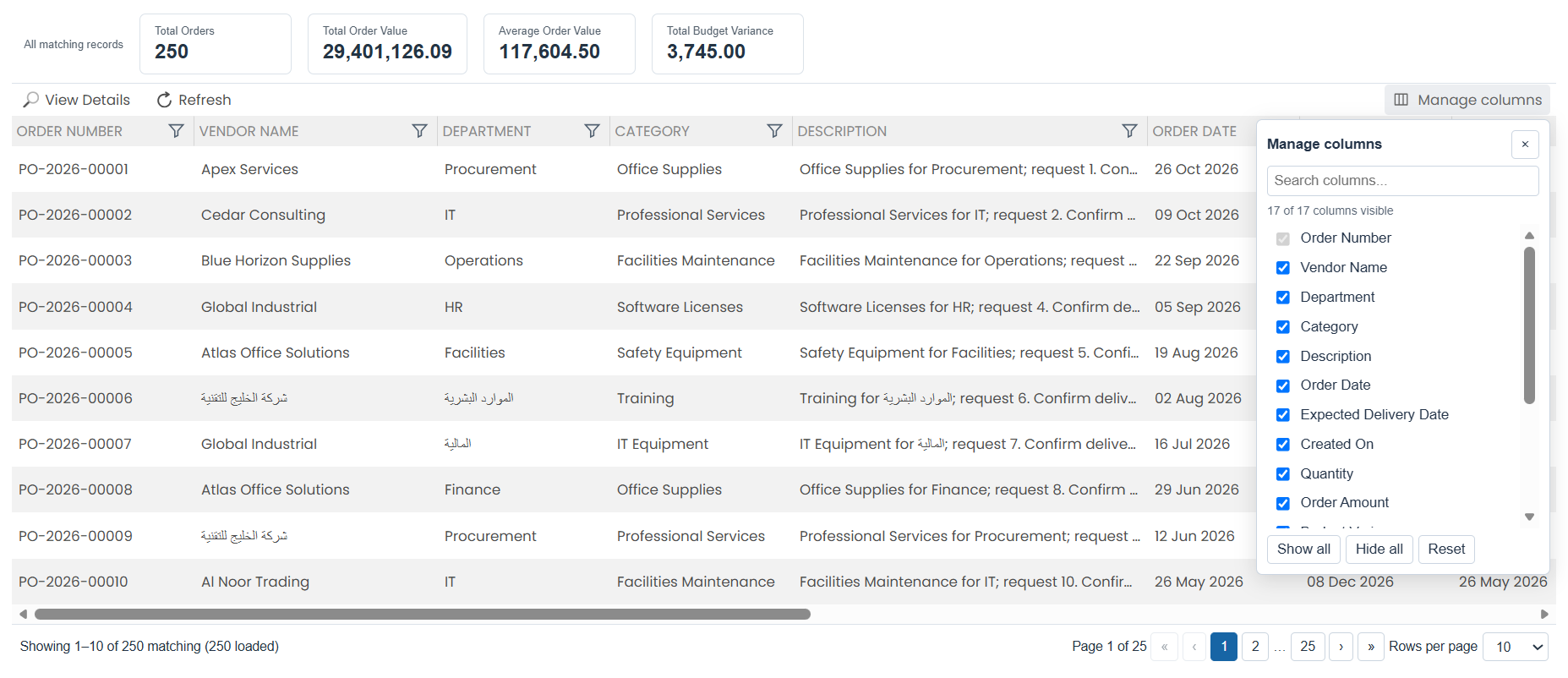
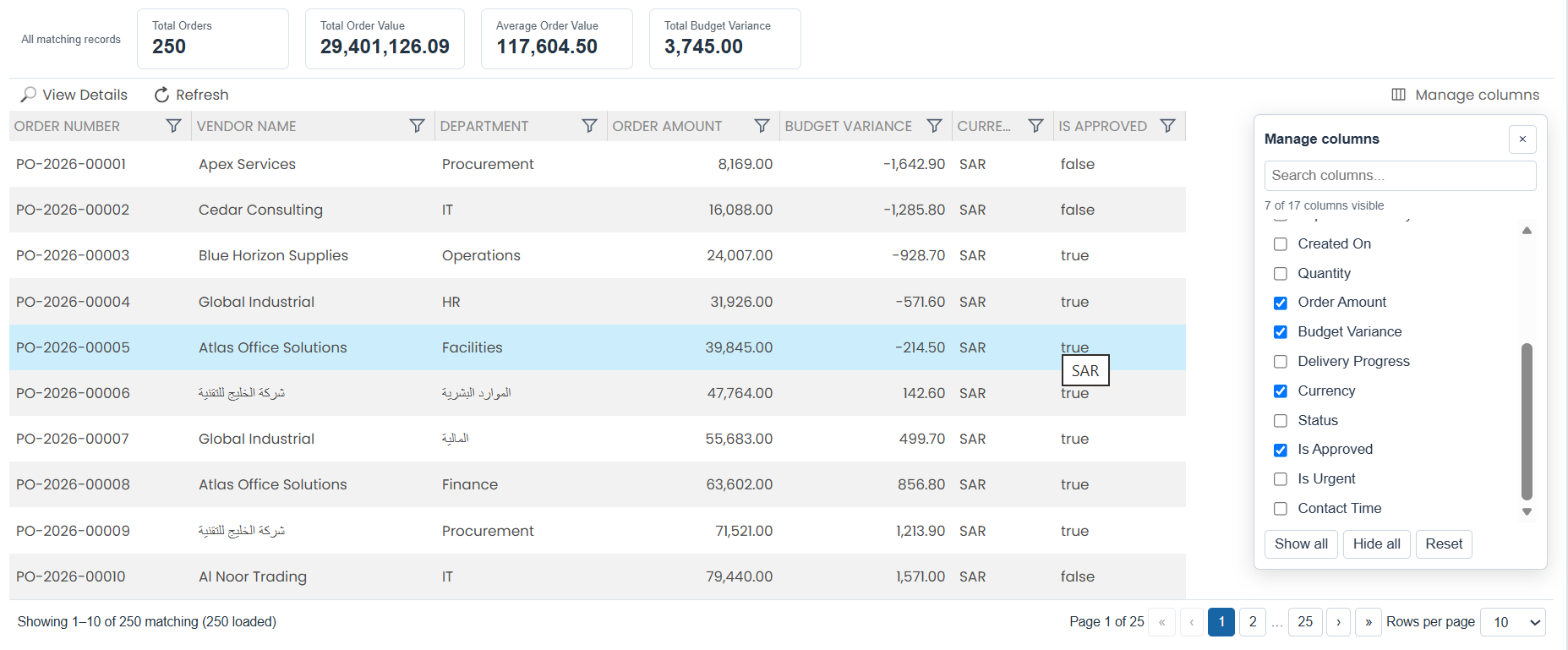
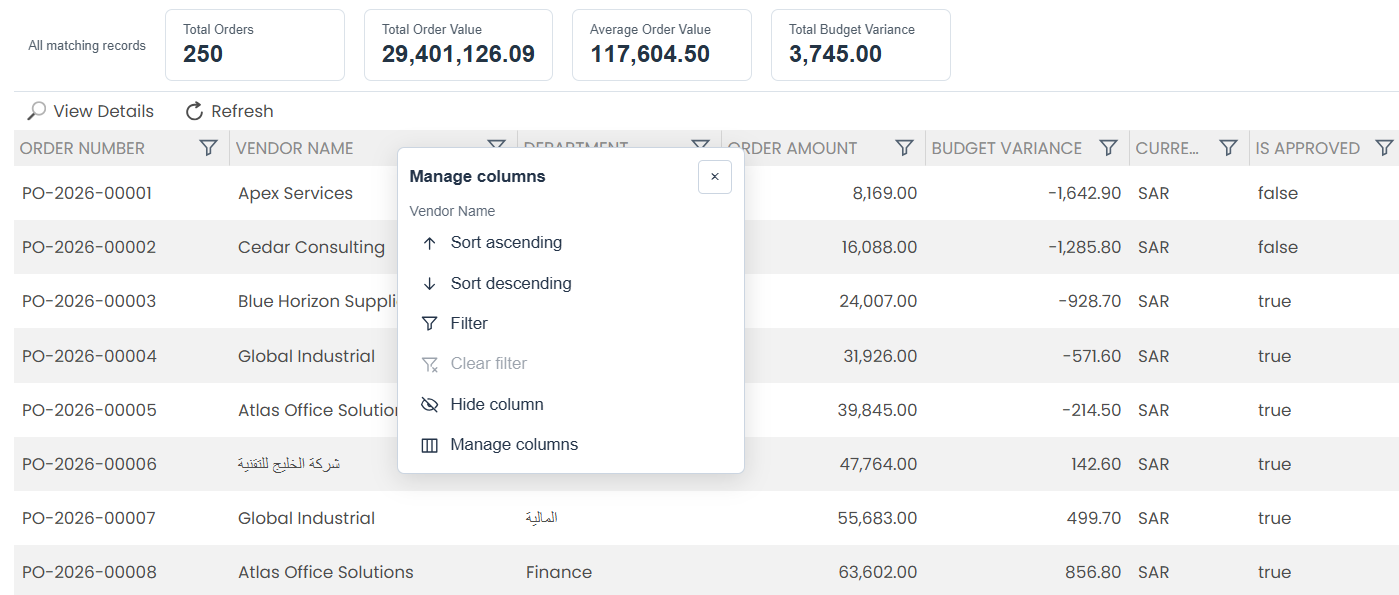
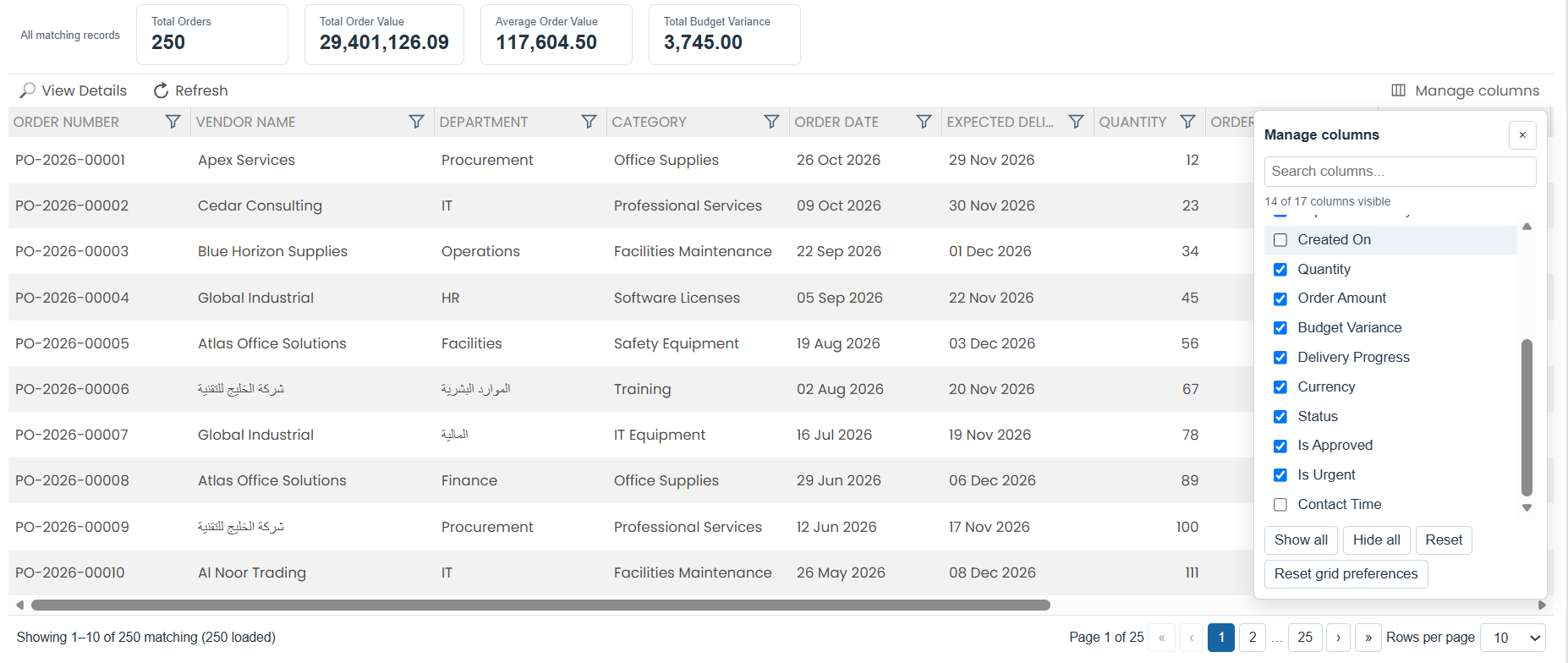
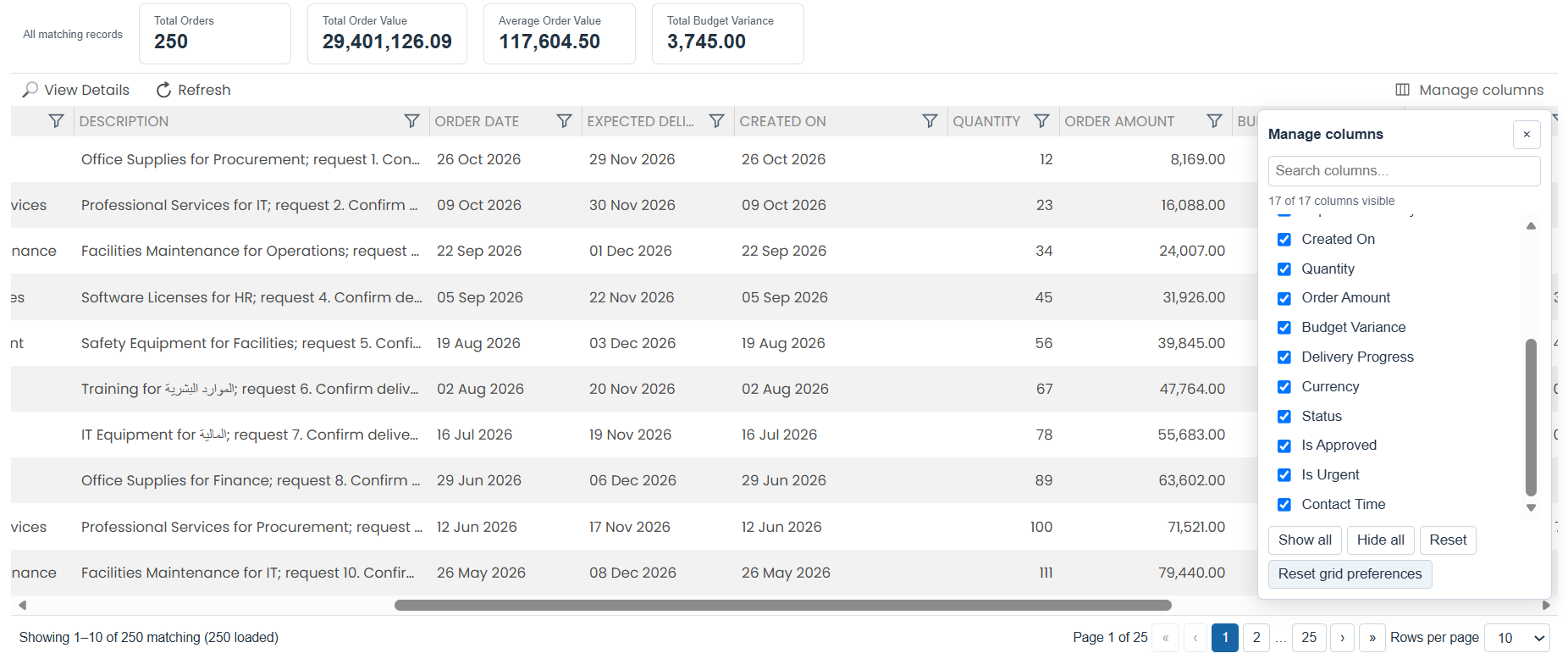
Open Manage columns in the toolbar. Search or toggle columns. Order Number is required, so its checkbox is disabled. Show all restores all columns; Hide all keeps required columns (at least one column remains); Reset restores configured visibility.
Right-click a column header to access sorting, filtering and visibility commands.
Figure 43 · Header context menu · Actual K2 Runtime capture
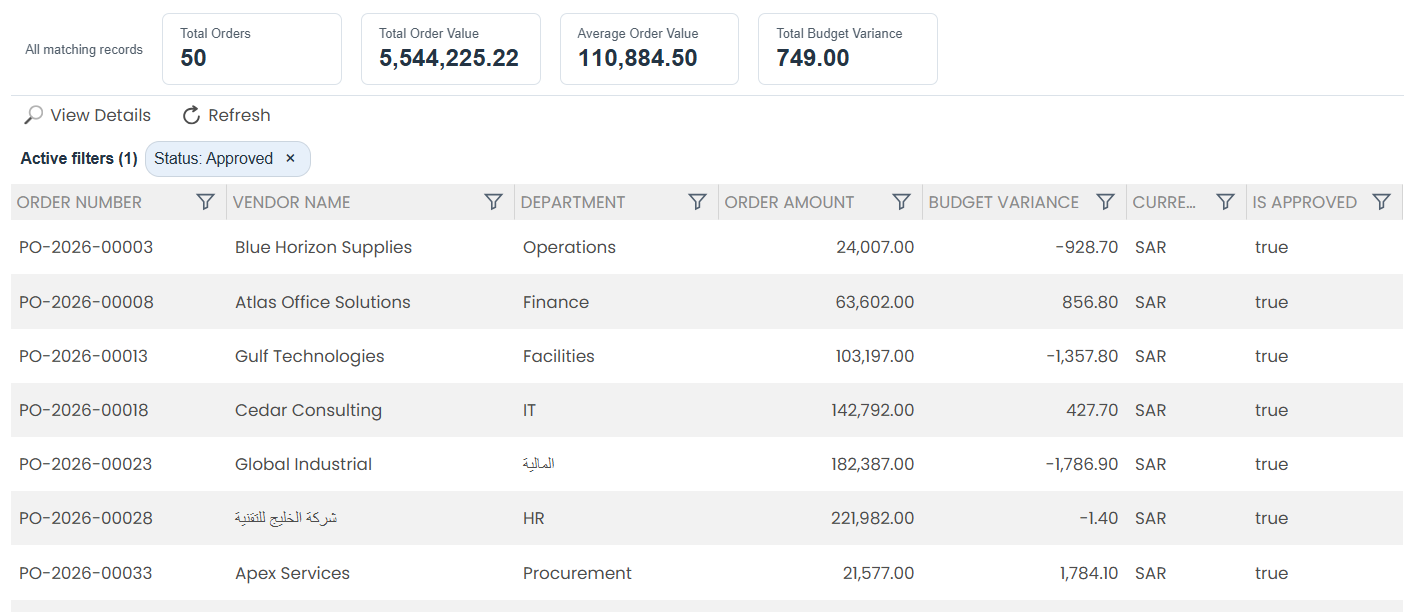
Show Status, filter it to Approved, then hide it. With preserveHiddenFilters enabled, 50 records remain and the total value is 5,544,225.22 SAR. Active Filters Bar exposes the hidden filter.
Figure 44 · Hidden Status filter remains active · Actual K2 Runtime capture
Interactive example
Offline simulation, not a live K2 form.
Configuration reference
Parameter
Value in lesson
Behavior
enabled
true
Enable management
showToolbarButton
true
Show toolbar entry
enableHeaderContextMenu
true
Enable right-click header menu
visibility.enabled
true
Enable visibility controls
visibility.requiredColumns
Order Number
Cannot be hidden
visibility.hiddenByDefault
[]
Initial hidden columns
visibility.preserveHiddenFilters
true
False clears filters on hidden columns
Console commands
Replace the placeholder with your own Area Item ID (see Grid Discovery).
Keep identifiers and status visible while scrolling across wide tables.
Prerequisites and quick start
Continue from the previous lesson. Use the non-editable 17-column ListView and keep native pagination disabled. The full downloadable configuration includes all preceding features. For a temporary Console experiment use:
Replace REPLACE_WITH_YOUR_AREAITEMID with your own ID (see Grid Discovery). Save the configuration, update configVersion in the Data Label loader to a new value (e.g. 0.6.1), save the form and reopen Runtime. Keep engineVersion unchanged. Console-only changes do not require a version change. Rename the downloaded file to purchase-orders.config.js or change the loader path.
Pin to start and end
Order Number and Vendor Name are pinned to start; Status to end. Scroll horizontally and compare the two positions.
Figure 45 · Pinned columns at initial position · Actual K2 Runtime captureFigure 46 · Pinned columns during horizontal scrolling · Actual K2 Runtime capture
Change pinning in Runtime
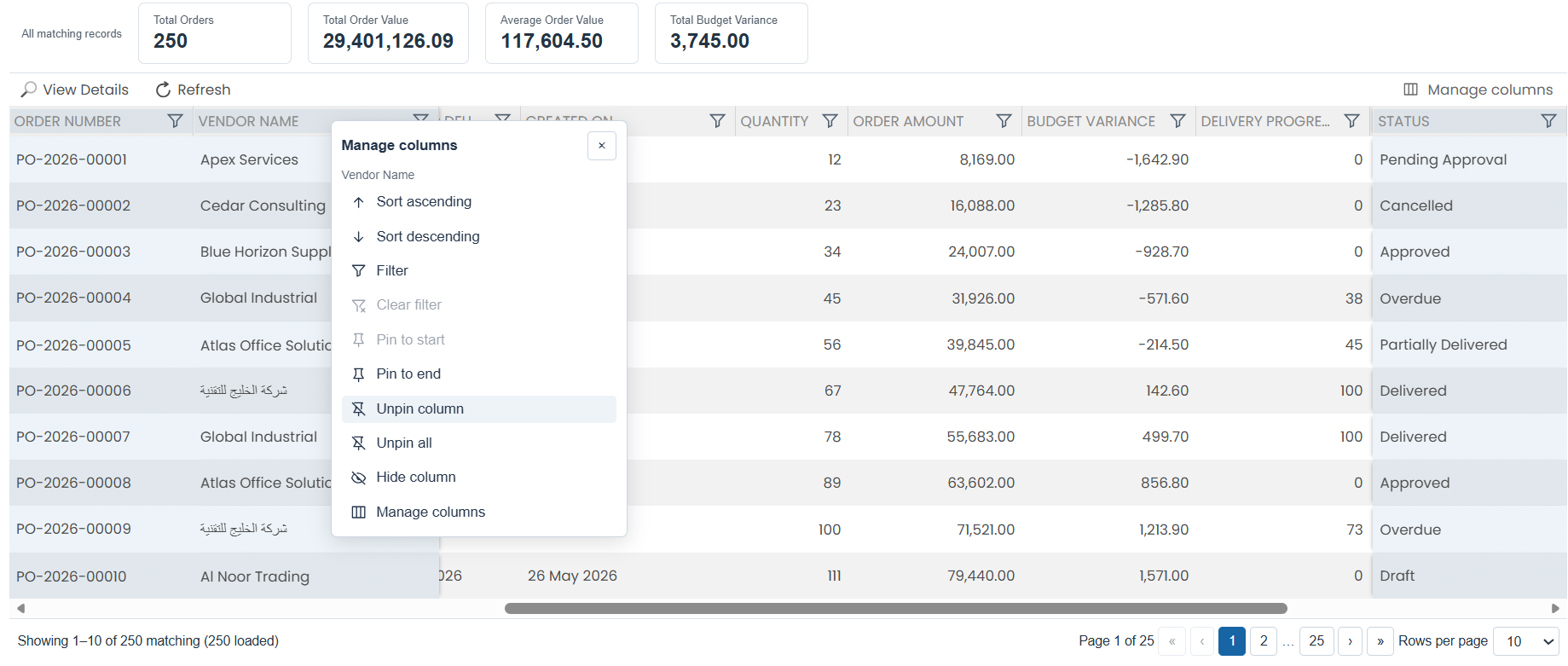
Right-click Vendor Name and choose Unpin column. Pin to start/end and Unpin all are also available.
Figure 47 · Pinning commands · Actual K2 Runtime captureFigure 48 · Vendor Name unpinned; Order Number and Status remain pinned · Actual K2 Runtime capture
Interactive example
Offline simulation: scroll the table and toggle sticky columns.
Order Number
Vendor
Department
Description
Order Amount
Status
PO-2026-00001
Apex Services
Procurement
Purchase order for business supplies
8,169.00
Pending Approval
PO-2026-00002
Cedar Consulting
IT
Purchase order for business supplies
16,088.00
Cancelled
PO-2026-00003
Blue Horizon
Operations
Purchase order for business supplies
24,007.00
Approved
Configuration reference
Parameter
Value in lesson
Behavior
enabled
true
Enable pinning
allowUserPinning
true
Allow runtime pin/unpin
pinnedStart
Order Number, Vendor Name
Initial leading pins
pinnedEnd
Status
Initial trailing pins
maxPinnedColumns
3
Limit on adding runtime pins; keep configured pins within this limit
Console commands
Replace the placeholder with your own Area Item ID (see Grid Discovery).
const id = 'REPLACE_WITH_YOUR_AREAITEMID';
K2AdvancedGrids.instance.setColumnPinned(id, 'Vendor Name', null);
K2AdvancedGrids.instance.setColumnPinned(id, 'Vendor Name', 'start');
// Reset to configured pins
K2AdvancedGrids.instance.resetPins(id);
Move columns to prioritize the information needed for a task.
Prerequisites and quick start
Continue from the previous lesson. Use the non-editable 17-column ListView and keep native pagination disabled. The full downloadable configuration includes all preceding features. For a temporary Console experiment use:
Replace REPLACE_WITH_YOUR_AREAITEMID with your own ID (see Grid Discovery). Save the configuration, update configVersion in the Data Label loader to a new value (e.g. 0.6.1), save the form and reopen Runtime. Keep engineVersion unchanged. Console-only changes do not require a version change. Rename the downloaded file to purchase-orders.config.js or change the loader path.
Drag and drop
Unpin Vendor Name if necessary. Drag Order Amount and Budget Variance toward the beginning of the unpinned region. The header itself is the drag target; the drop indicator shows the intended position.
Figure 49 · Header drag interaction · Actual K2 Runtime captureFigure 50 · Drop position indicator · Actual K2 Runtime captureFigure 51 · Financial columns moved toward the start · Actual K2 Runtime capture
Header menu and sorting
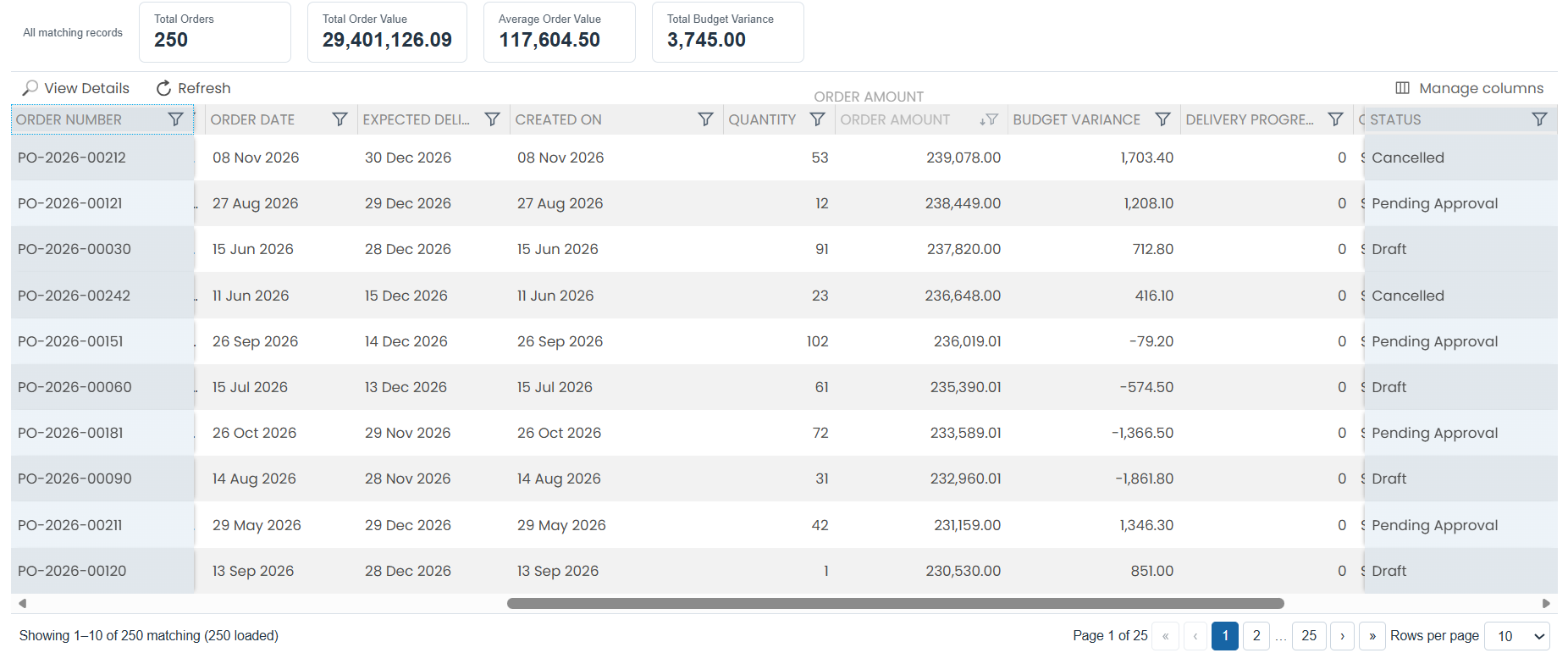
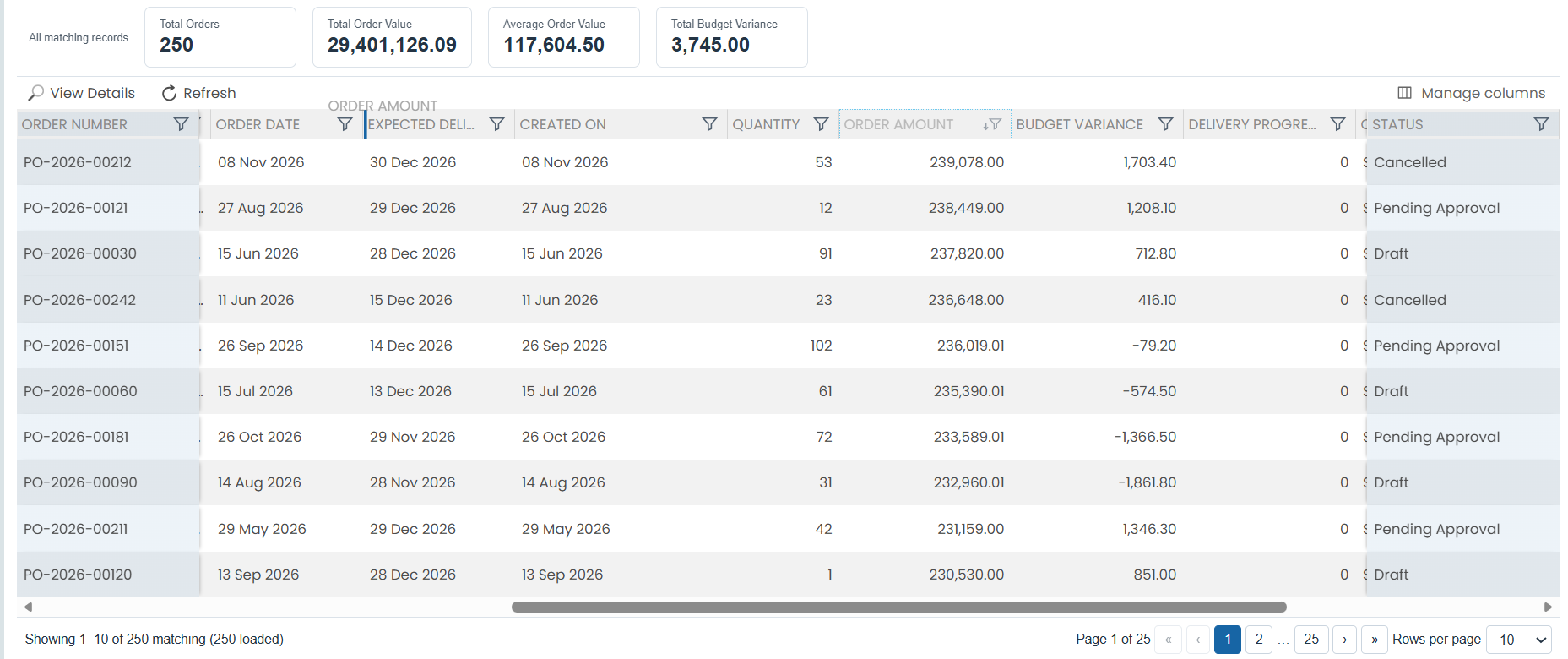
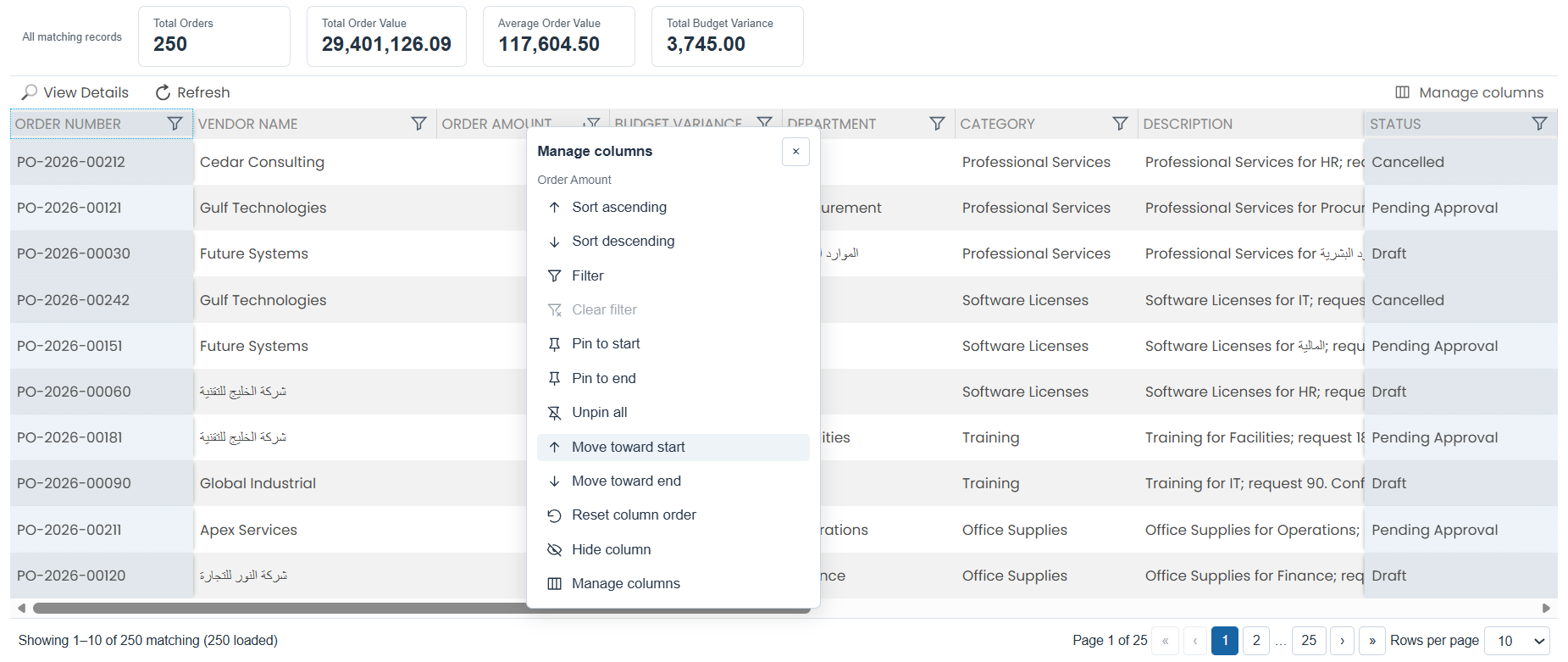
Move toward start/end moves a column within its pin group. Reset column order restores the configured order. Sort ascending and descending are also available in this menu; the captures show Order Amount sorted descending.
Figure 52 · Move and reset order commands · Actual K2 Runtime capture
Unlisted columns follow in their original order, subject to pinning.
Interactive example
Offline simulation: select a column and move it using the buttons.
Configuration reference
Parameter
Value in lesson
Behavior
enabled
true
Enable reordering
allowUserReordering
true
Allow runtime movement
initialOrder
[]
Initial priority order; omitted columns are appended
Console commands
Replace the placeholder with your own Area Item ID (see Grid Discovery).
const id = 'REPLACE_WITH_YOUR_AREAITEMID';
K2AdvancedGrids.instance.moveColumn(id, 'Order Amount', 'Department', false);
K2AdvancedGrids.instance.resetColumnOrder(id);
Benefits and limitations
Requires horizontal scrolling. Movement across pin groups is not allowed. Hidden columns cannot be dragged. Sorting rows and reordering columns are separate operations.
Restore a personalized grid layout on the next visit without additional server storage.
Prerequisites and quick start
Continue from the previous lesson. Use the non-editable 17-column ListView and keep native pagination disabled. The full downloadable configuration includes all preceding features. For a temporary Console experiment use:
Replace REPLACE_WITH_YOUR_AREAITEMID with your own ID (see Grid Discovery). Save the configuration, update configVersion in the Data Label loader to a new value (e.g. 0.6.1), save the form and reopen Runtime. Keep engineVersion unchanged. Console-only changes do not require a version change. Rename the downloaded file to purchase-orders.config.js or change the loader path.
Save and restore
Hide Description, Created On and Contact Time. Optionally resize Vendor Name, change pins, reorder columns and select 25 rows per page. Refresh the form and compare each setting. The supplied captures show 14 visible columns before and after restoration, and the diagnostic status restored. They do not independently verify all five settings or a changed page size.
Figure 53 · Customized visibility — 14 of 17 · Actual K2 Runtime captureFigure 54 · Restored layout · Actual K2 Runtime capture
Figure 55 · Preferences enabled and restored · Actual K2 Runtime capture
Reset grid preferences
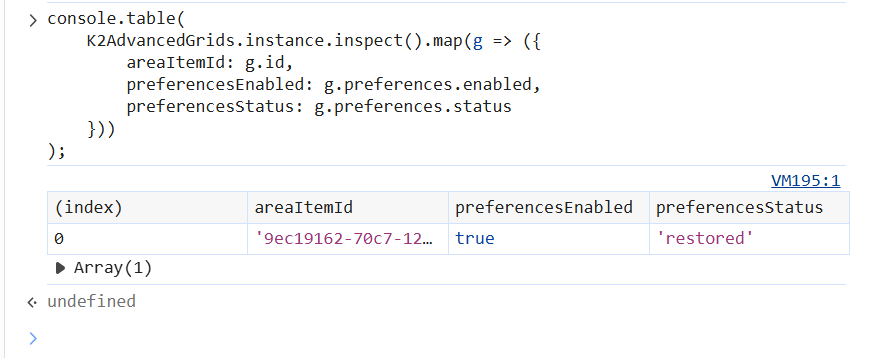
Open Manage columns and select Reset grid preferences, not just Reset (visibility only). The saved layout is removed and developer defaults are reapplied. This is useful after changing a configured page size that is overridden by a saved preference.
Figure 56 · Reset restores all 17 columns · Actual K2 Runtime capture
Interactive example
Offline simulation: choose a page size and save, then restore or reset. This demo uses a separate localStorage key and does not modify K2 preferences.
Configuration reference
Parameter
Value in lesson
Behavior
enabled
true
Enable preferences
namespace
K2AdvancedGrids
Storage namespace
allowBrowserScope
true
Allow storage without userKey
userKey
optional
Provide stable user-specific identifier to separate users
saveVisibility
true
Store hidden columns
saveOrder
true
Store column order
savePinning
true
Store pins
saveWidths
true
Store resized widths
savePageSize
true
Store page size
Console commands
Replace the placeholder with your own Area Item ID (see Grid Discovery).
const id = 'REPLACE_WITH_YOUR_AREAITEMID';
K2AdvancedGrids.instance.resetPreferences(id);
Benefits and limitations
Local storage is scoped by origin, path, grid and user key (or browser scope). It is not server persistence or cross-device synchronization. Shared browser profiles need a userKey. Storage may be blocked. Saved preferences can override updated defaults; reset when necessary. Filters and sorting are not persisted by these switches.
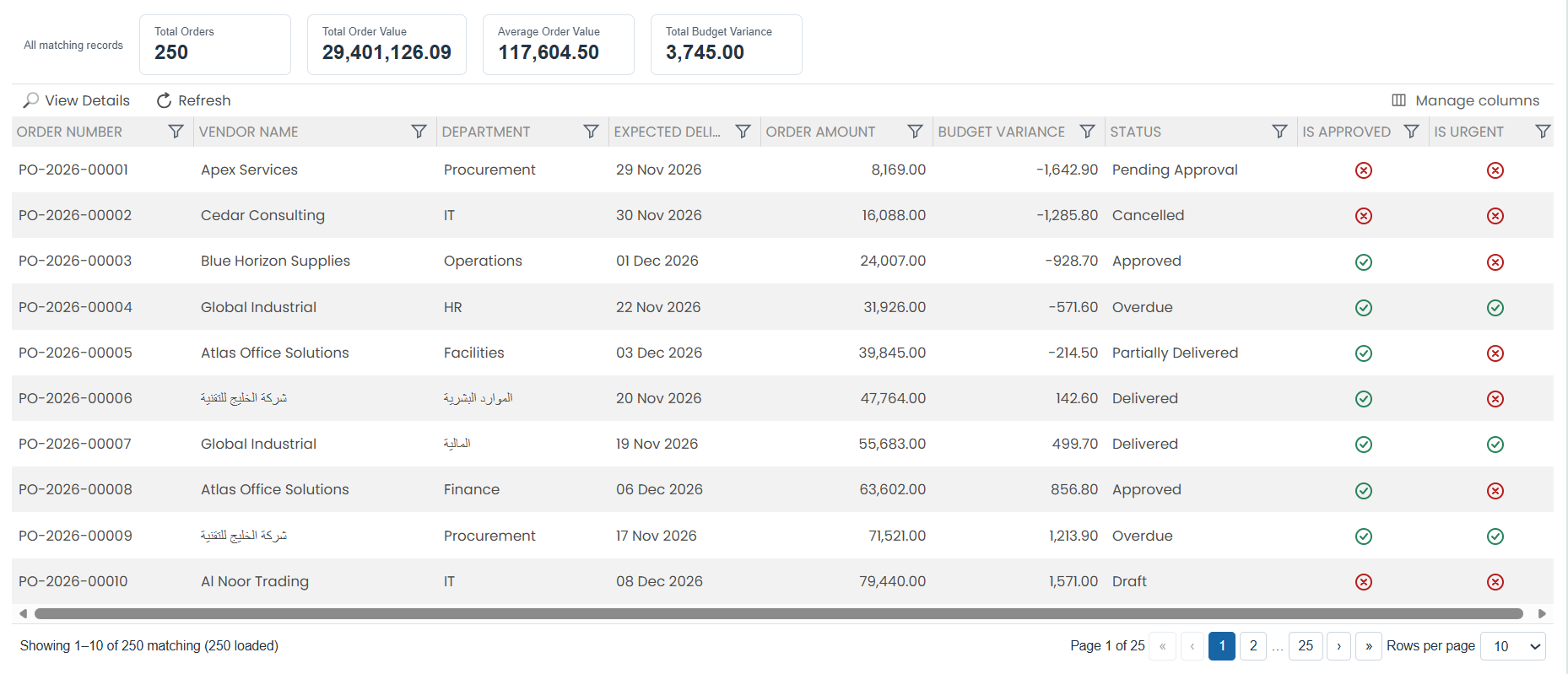
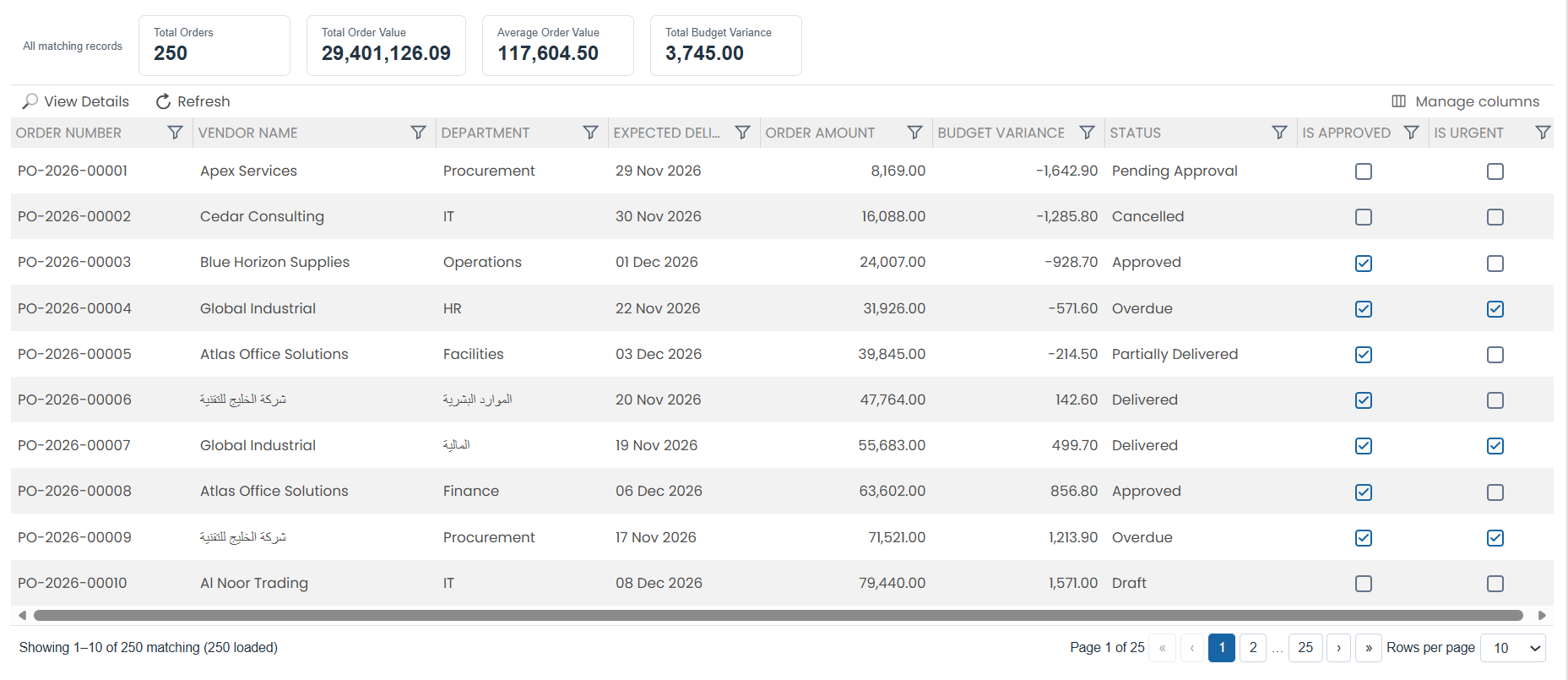
Replace raw true and false with meaningful read-only visual indicators without changing SmartObject values.
Prepare the example
Continue from Personal preferences. Keep filtering, classic paging and KPI summary. Use Manage columns to show Order Number, Vendor Name, Department, Expected Delivery Date, Order Amount, Budget Variance, Status, Is Approved and Is Urgent. Unpin Status for the comparison. Saved preferences may override initial widths, visibility and pinning.
Replace REPLACE_WITH_YOUR_AREAITEMID with your own ID (see Grid Discovery). Rename the downloaded file to purchase-orders.config.js or update the loader path. Update configVersion in the Data Label (e.g. 0.7.1), save the form and reopen Runtime. Keep engineVersion unchanged. Console-only changes do not require a version change.
Offline simulation; change the mode, labels and colors to generate a Boolean configuration fragment.
Configuration reference
Parameter
Behavior
enabled
Enable the module or override per column.
mode
icon, checkbox, text, badge
alignment
start, center, end
iconSize
Clamped to 10–48 pixels.
trueText / falseText
auto uses localized Yes/No; or custom labels.
nullText
Default em dash.
trueColor / falseColor
auto or valid CSS color.
columns
Overrides by column key, name or title.
Benefits and limitations
Read-only display; checkboxes are not editable. Requires standard Yes/No cells with raw metadata and simple text wrappers. Formatting does not replace original data or authorize access.
Replace REPLACE_WITH_YOUR_AREAITEMID with your own ID (see Grid Discovery). Rename the downloaded file to purchase-orders.config.js or update the loader path. Update configVersion in the Data Label (e.g. 0.7.1), save the form and reopen Runtime. Keep engineVersion unchanged. Console-only changes do not require a version change.
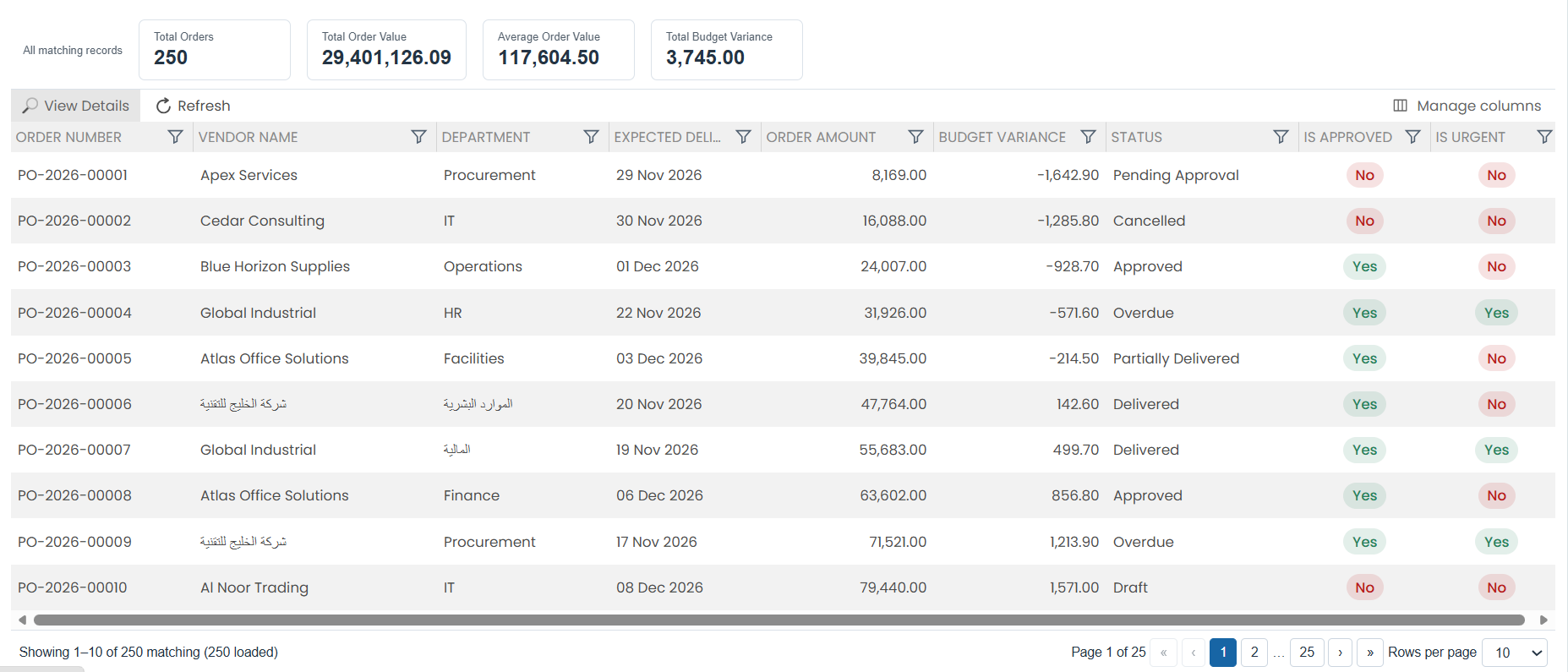
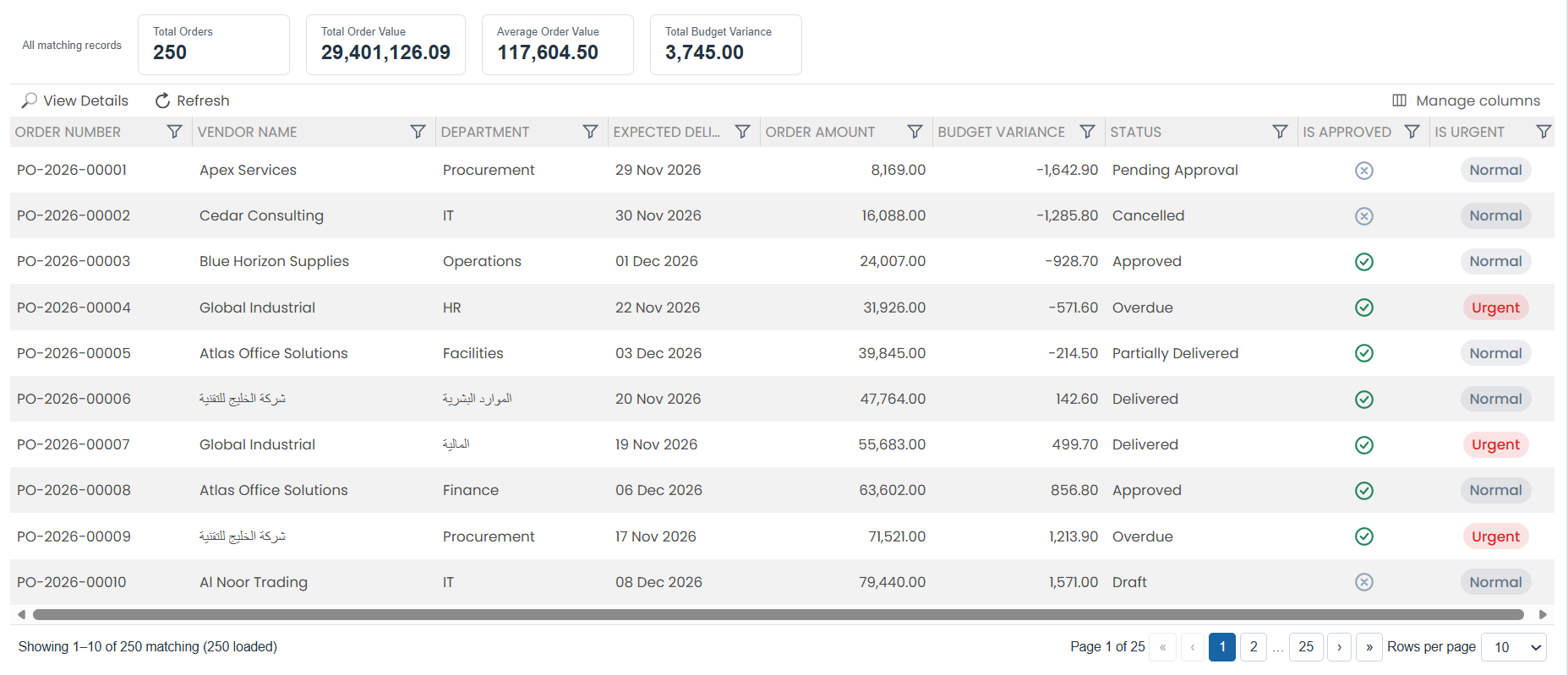
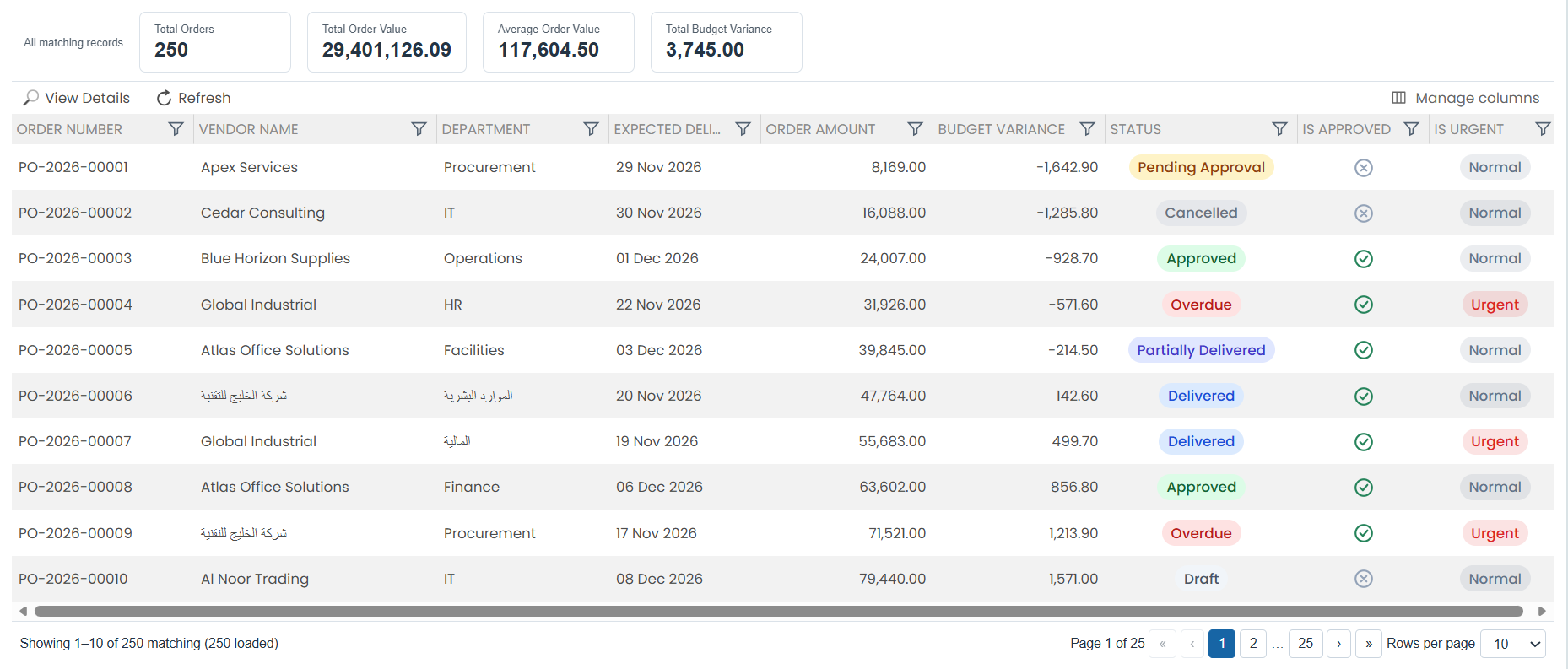
Figure 62 · Seven status badges · Actual K2 Runtime capture
Numeric formatting
Red negative values and green positive values describe the sign only; choose business-specific semantics in production.
Figure 65 · Urgent rows · Actual K2 Runtime capture
Multiple conditions and priority
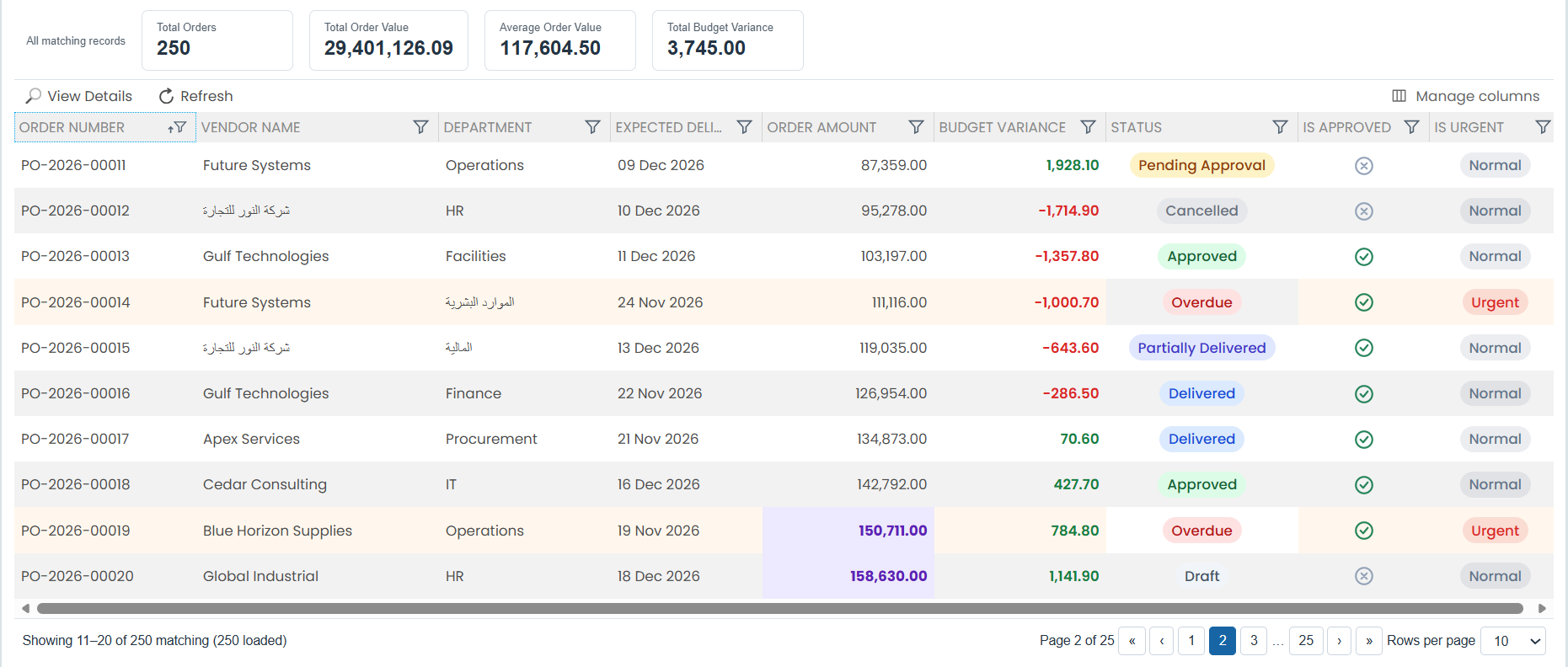
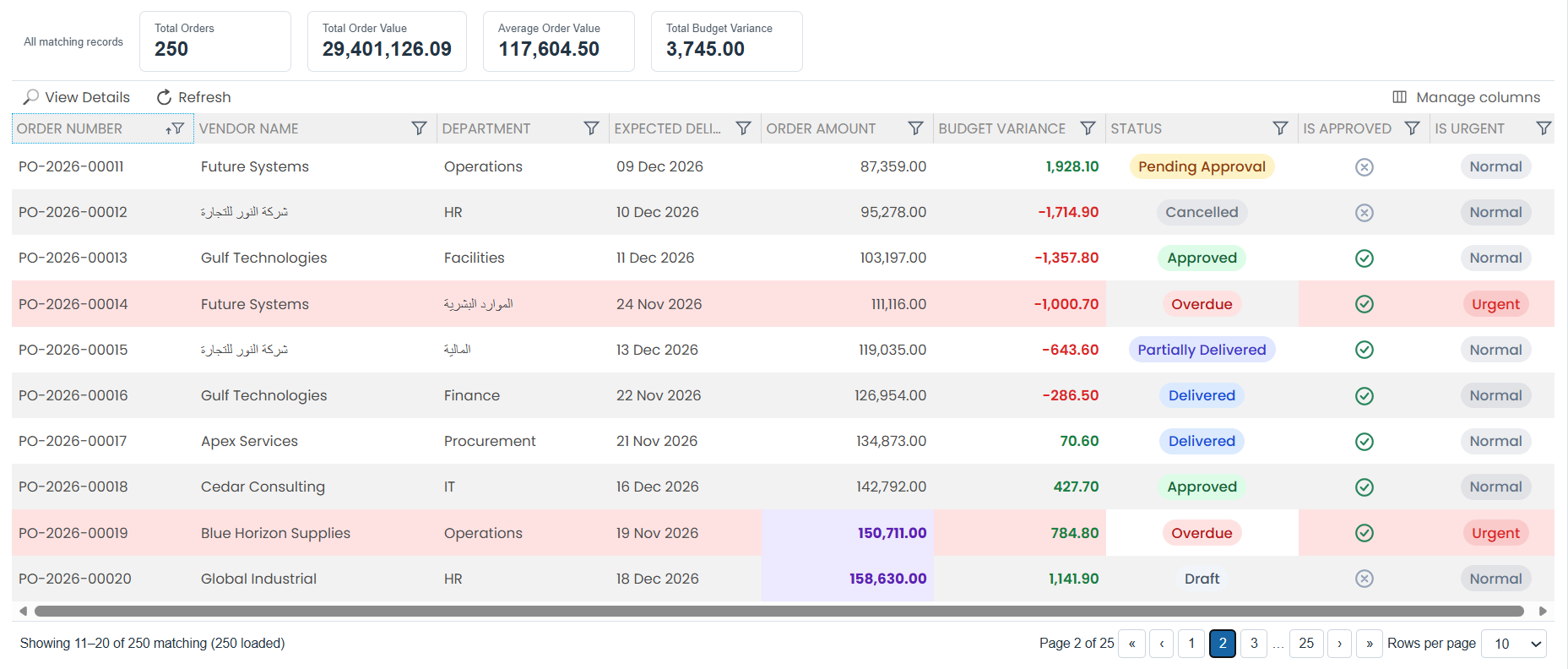
Urgent AND Overdue receives a higher-priority red background. The first matching rule for each style property wins within the row or cell target; cell properties override row properties. Status badge cells may retain their ordinary cell background because the badge background is applied to the inner text.
The isolated date rule was verified in K2 Runtime: 22 and 17 November are highlighted for Overdue orders, while past Delivered dates and future dates are not. Combined interaction with other conditional rules remains to be verified. The engine supports beforeToday and notIn (case insensitive operator names). Test independently of row backgrounds; use the following replacement rule set, rather than appending it, to make the effect visible. On 28 November 2026, PO-2026-00004 (22 November, Overdue) should match; PO-2026-00006 (20 November, Delivered) should not. The actual result depends on the browser date and SmartObject type.
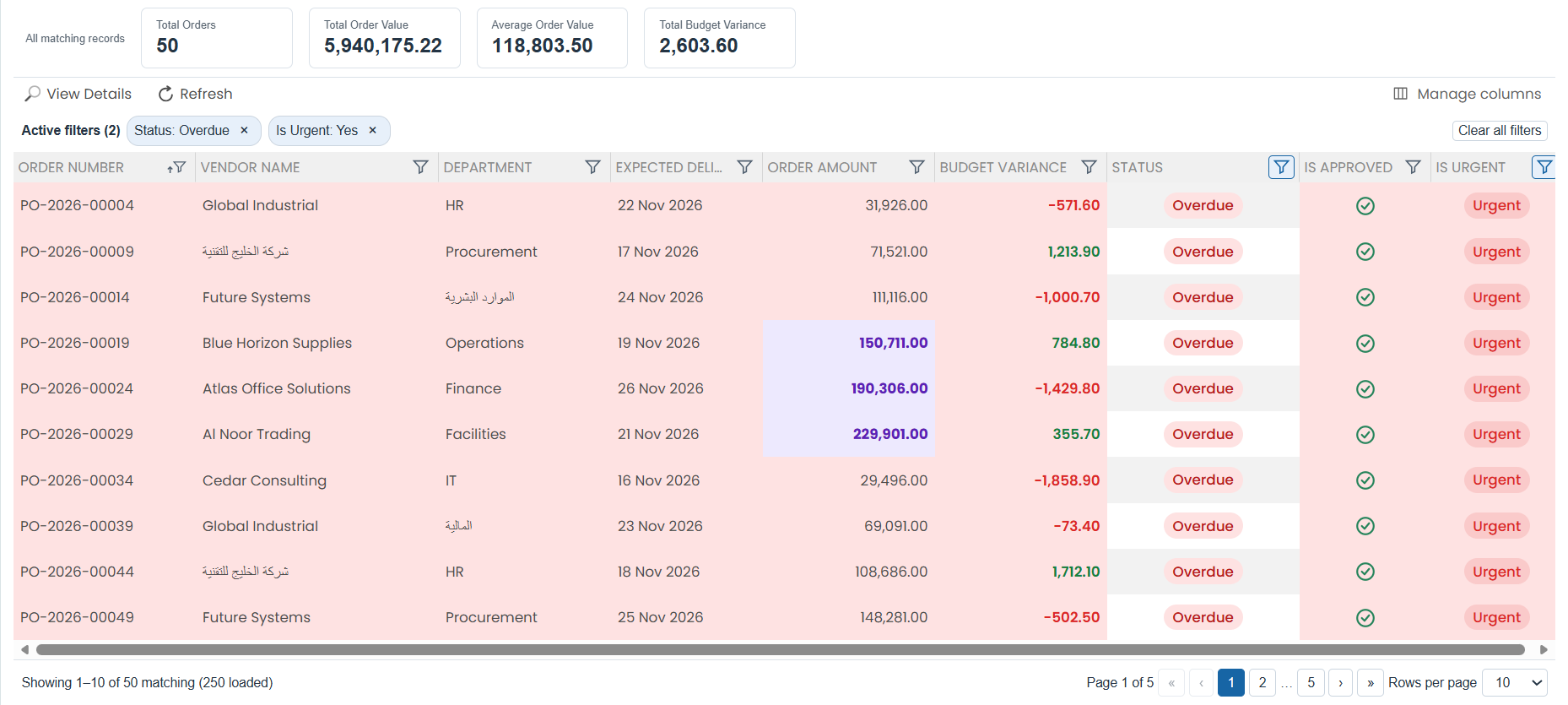
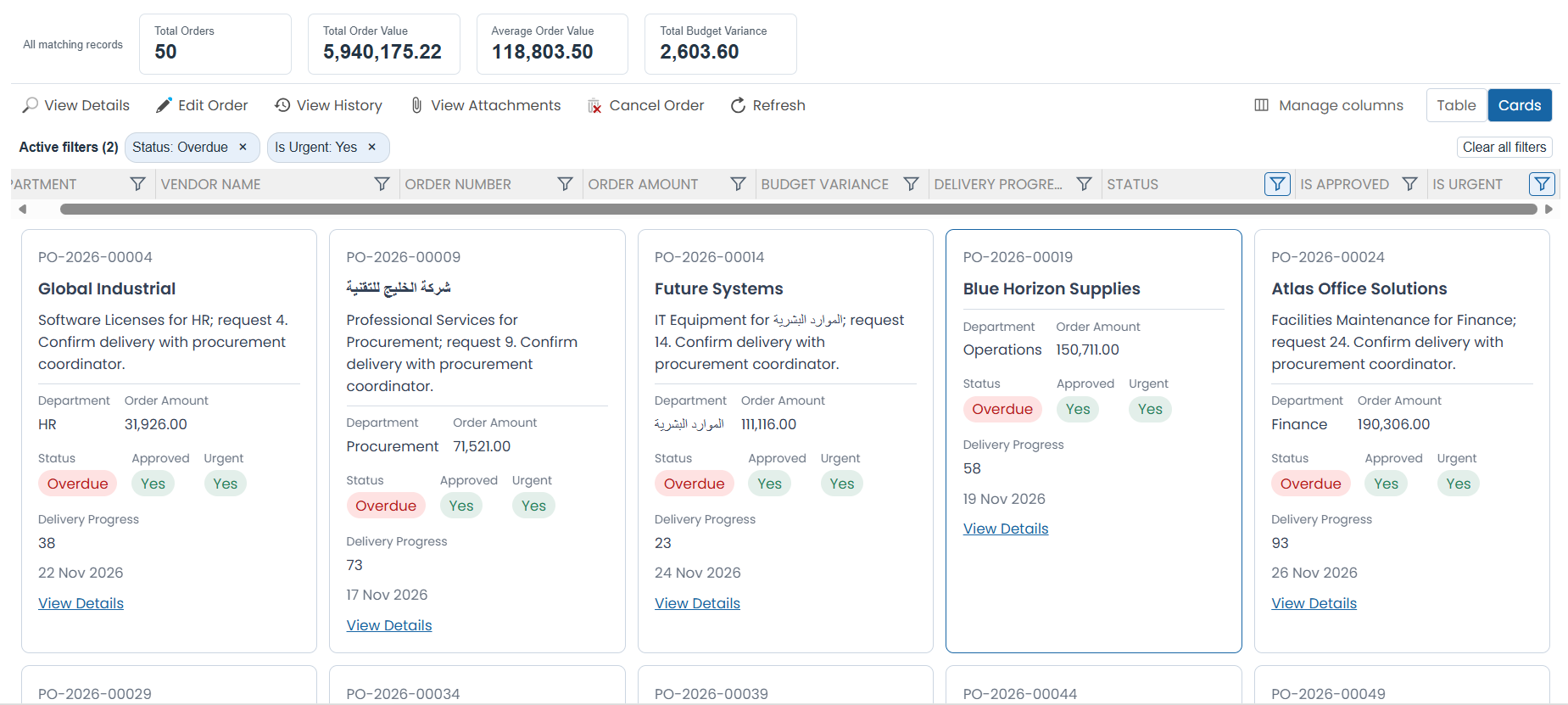
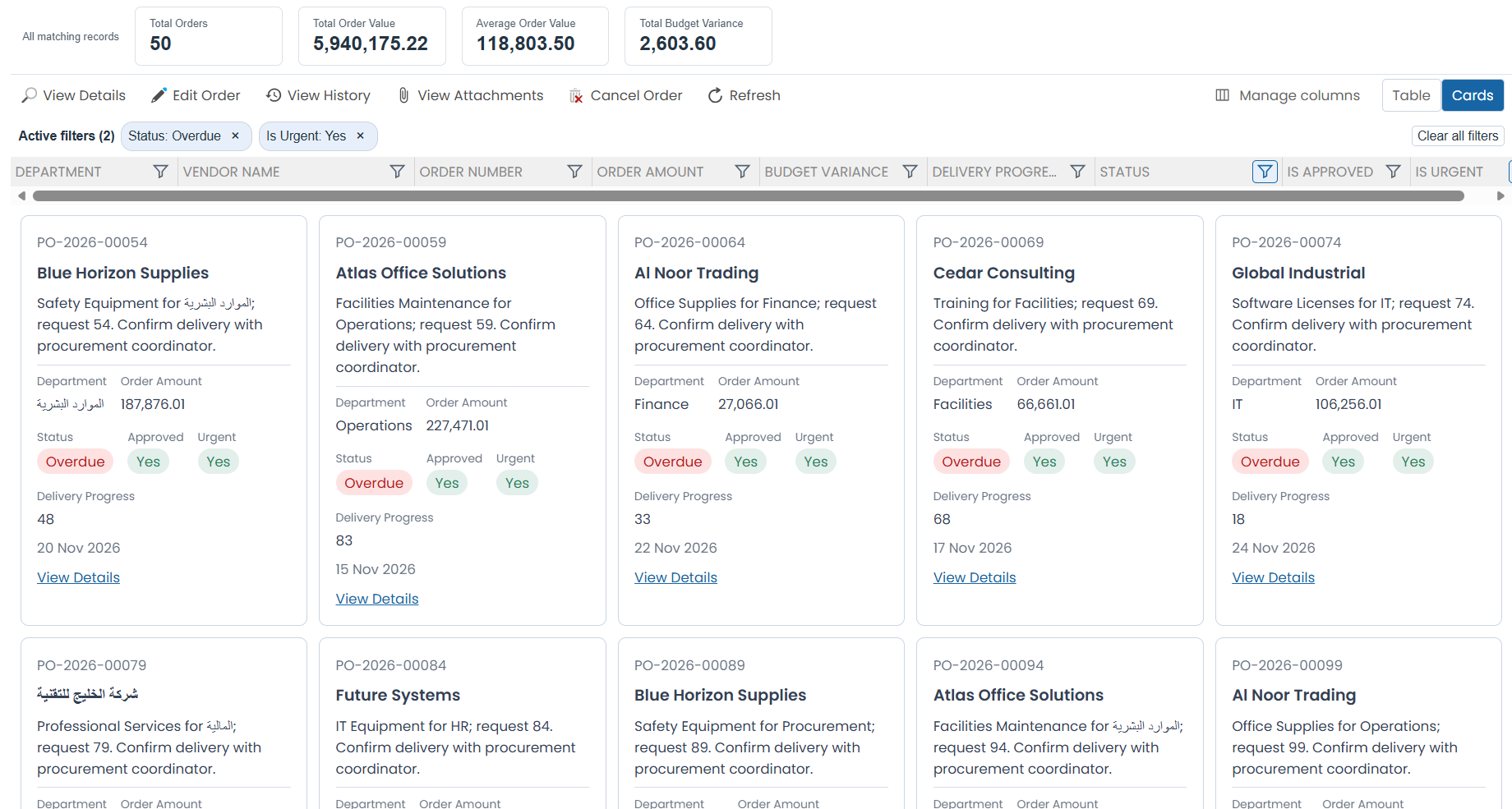
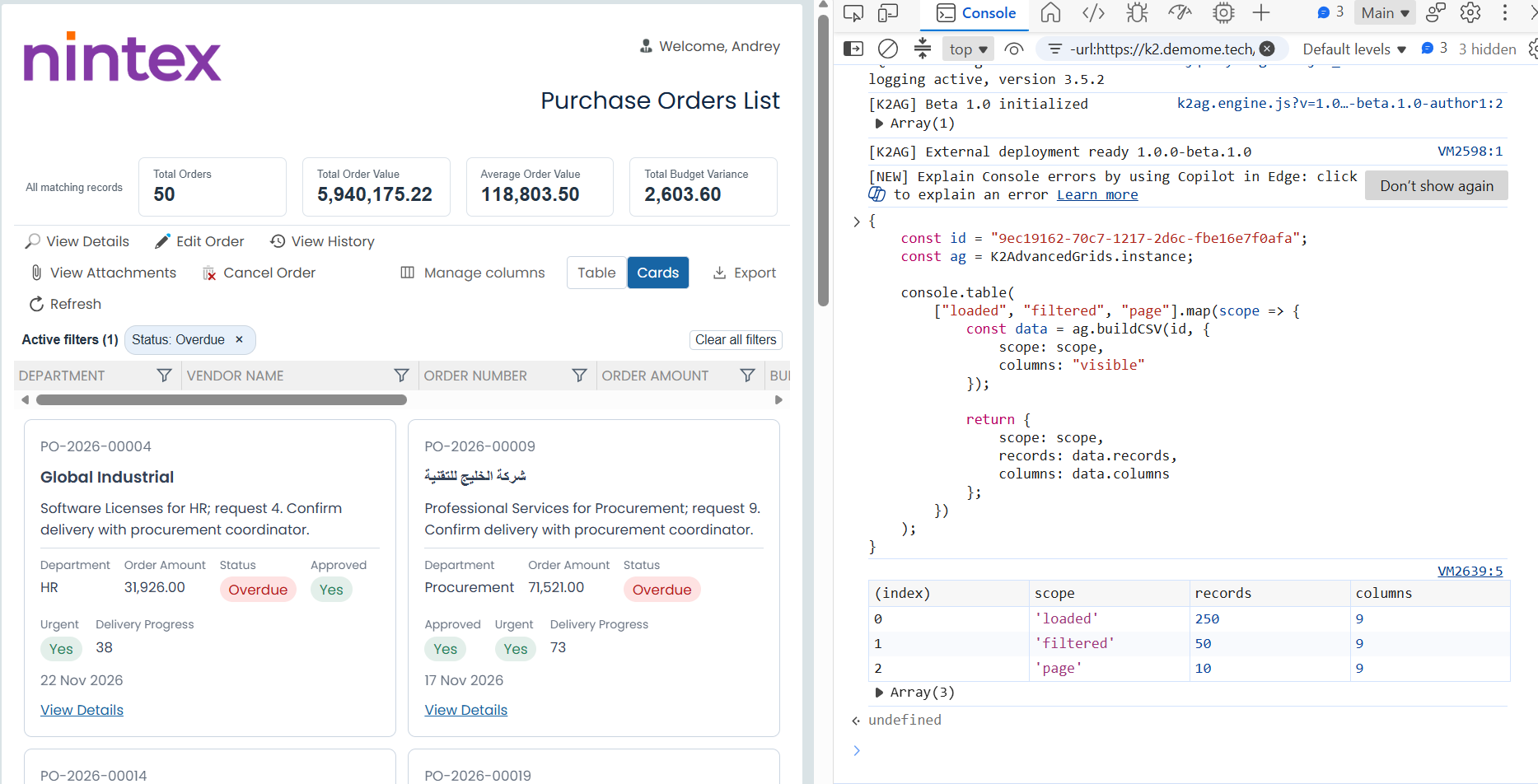
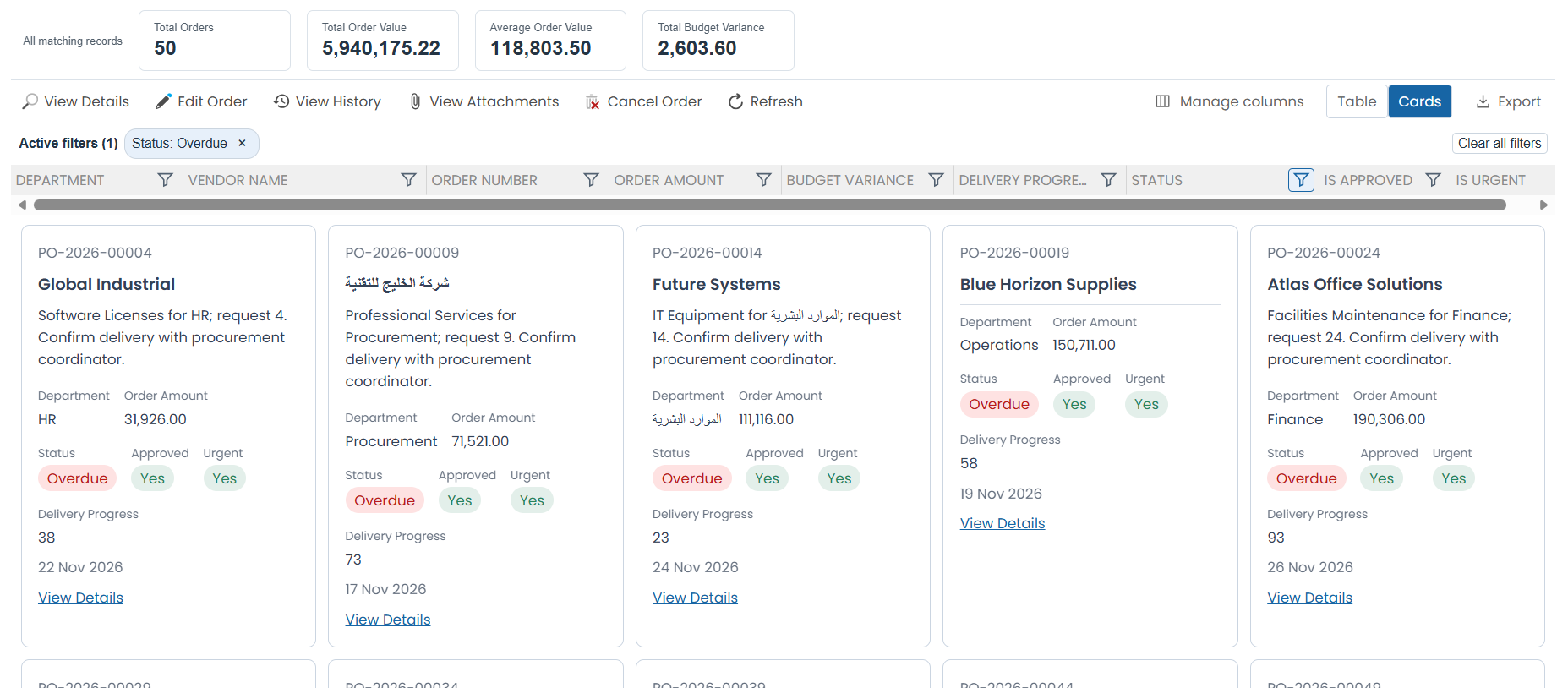
Restore the combined rule set. Filter Status = Overdue and Is Urgent = Yes. The actual Runtime capture shows 50 matching orders, total 5,940,175.22, average 118,803.50 and budget variance 2,603.60. The page size is 10 and five pages remain.
Figure 68 · Filtered critical orders and recalculated KPI · Actual K2 Runtime capture
Configuration reference
Parameter
Behavior
enabled / rules
Enable module and declare rules; individual enabled:false skips a rule.
column / targetColumn
Condition column; optional separate cell target.
target
row or cell (default cell).
operator
eq, ne, gt, ge, lt, le, between, blank, notblank, in, notin, contains, notcontains, starts, ends, beforetoday, aftertoday, today.
value / valueTo
Comparison operand(s); between also accepts a two-element array. in/notin require arrays.
conditions / logic
Nested conditions; or means any; otherwise all (AND). Empty conditions do not match.
Formatting is client-side over loaded records, not a server policy. Date operators require Date or DateTime; text operators require compatible text types. Badges require a simple standard text cell and do not replace Boolean formatting. Pinning, native View Details, OR behavior and refresh were not independently verified by these captures. Use the combined configuration as the baseline for the next lesson.
Turn numeric cells into visual comparisons without changing their underlying values. Use progress bars, diverging bars and two- or three-color scales in the same Purchase Order Register.
Prepare the register
Use the 17-column View from earlier lessons. Show these nine columns: Order Number, Vendor Name, Department, Order Amount, Budget Variance, Delivery Progress, Status, Is Approved, Is Urgent. Clear filters, unpin columns and use 10 rows per page. For a clean comparison the primary downloads disable Conditional Formatting and use Boolean icons, matching the Runtime captures. Previous filtering, paging, summary, scrolling and column management remain available.
Replace REPLACE_WITH_YOUR_AREAITEMID with your own ID (see Grid Discovery). Save the chosen file under the name loaded by your Data Label, increment configVersion and reload the form. Saved grid preferences may override layout defaults; use Reset grid preferences if necessary. Engine version stays unchanged.
Fixed progress bars
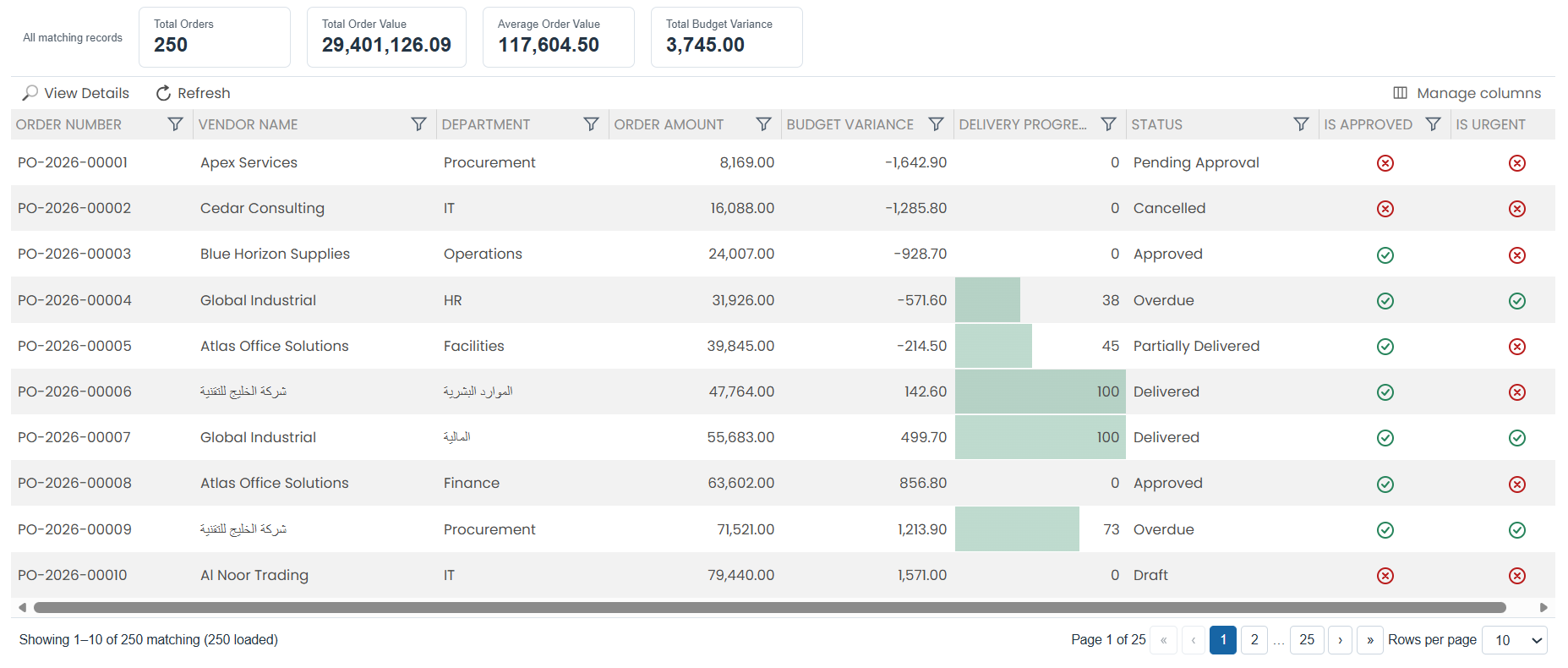
Delivery Progress uses the fixed range 0–100. The bar fills the cell in proportion to completion; zero has no visible fill and 100 fills the cell.
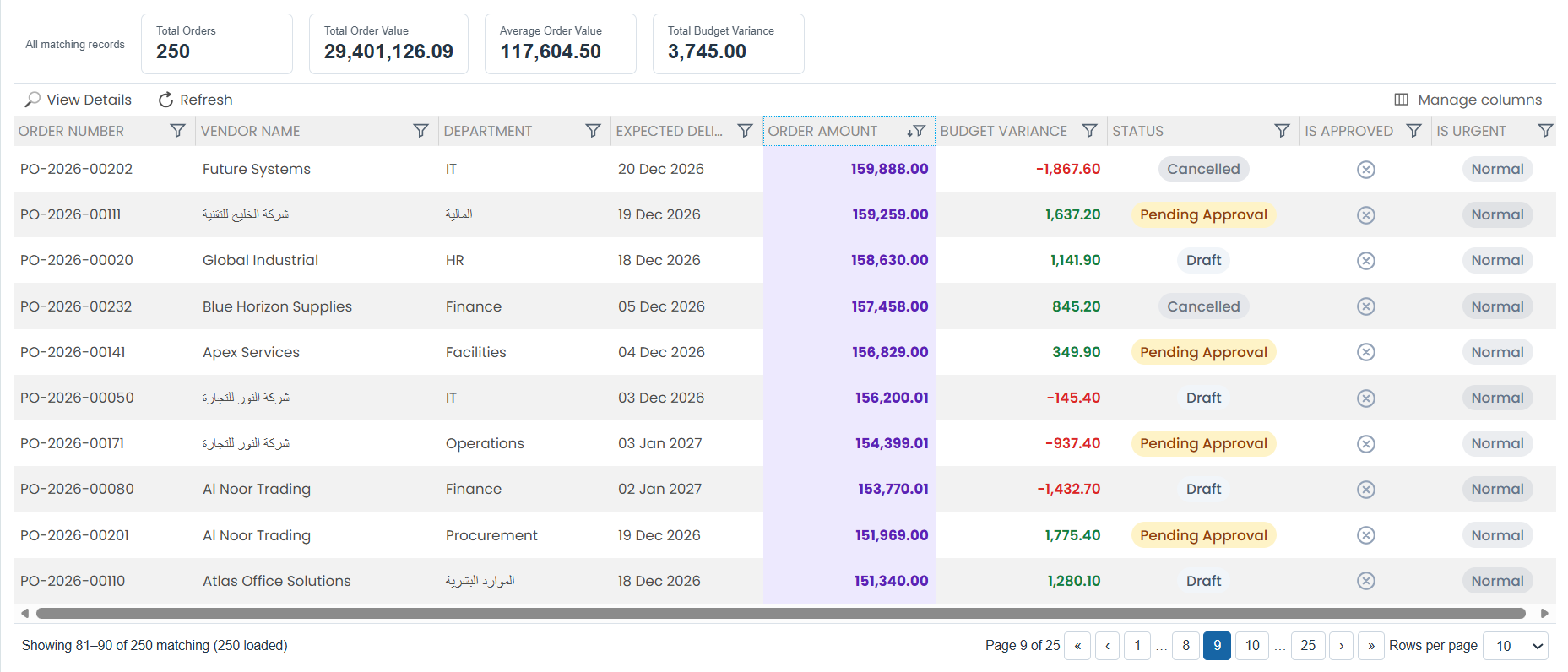
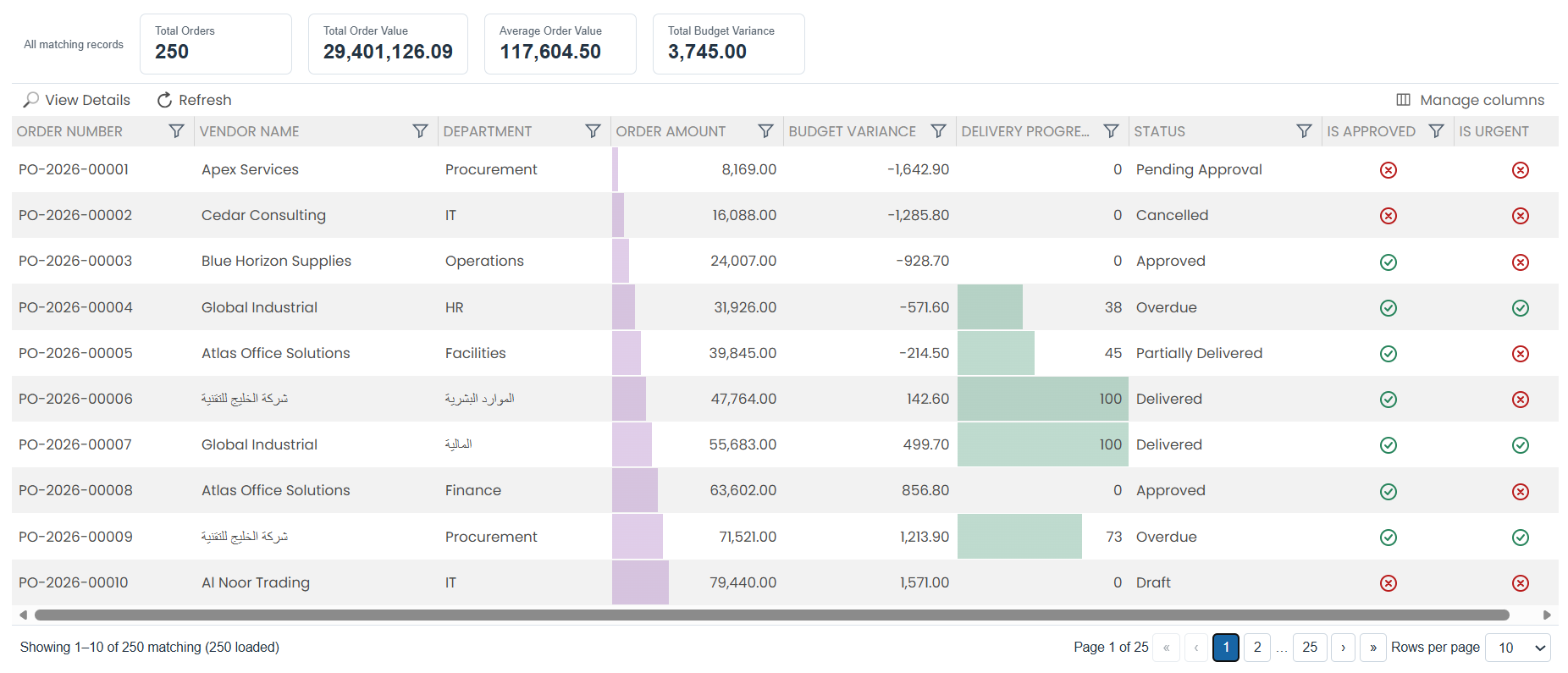
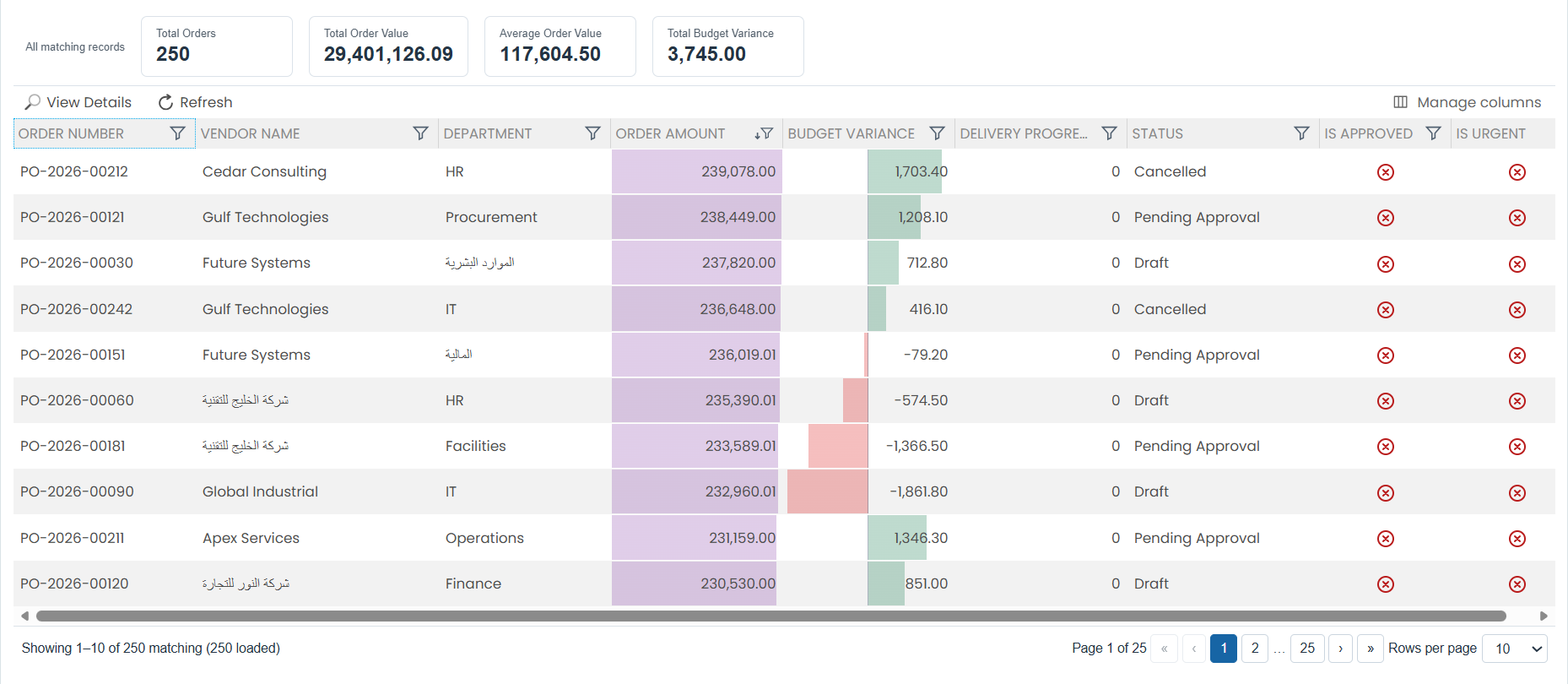
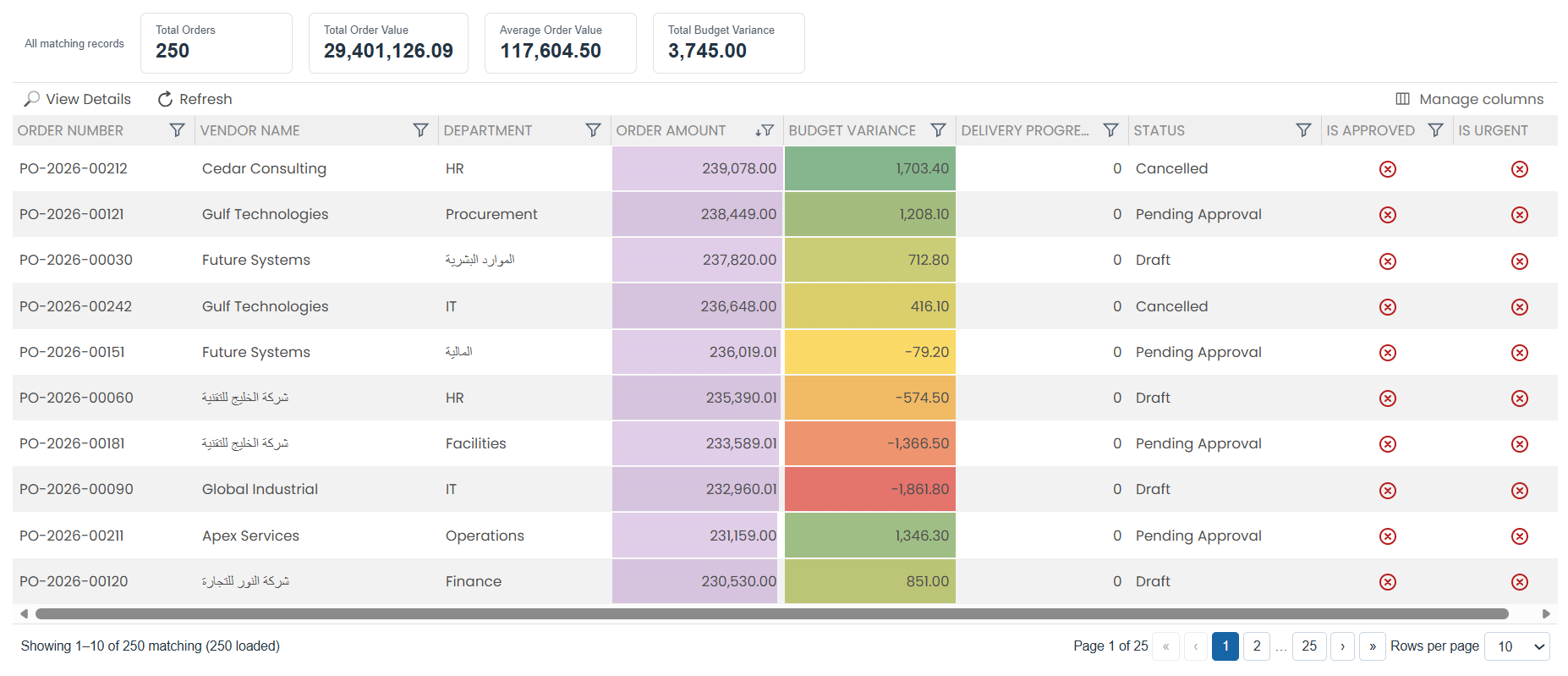
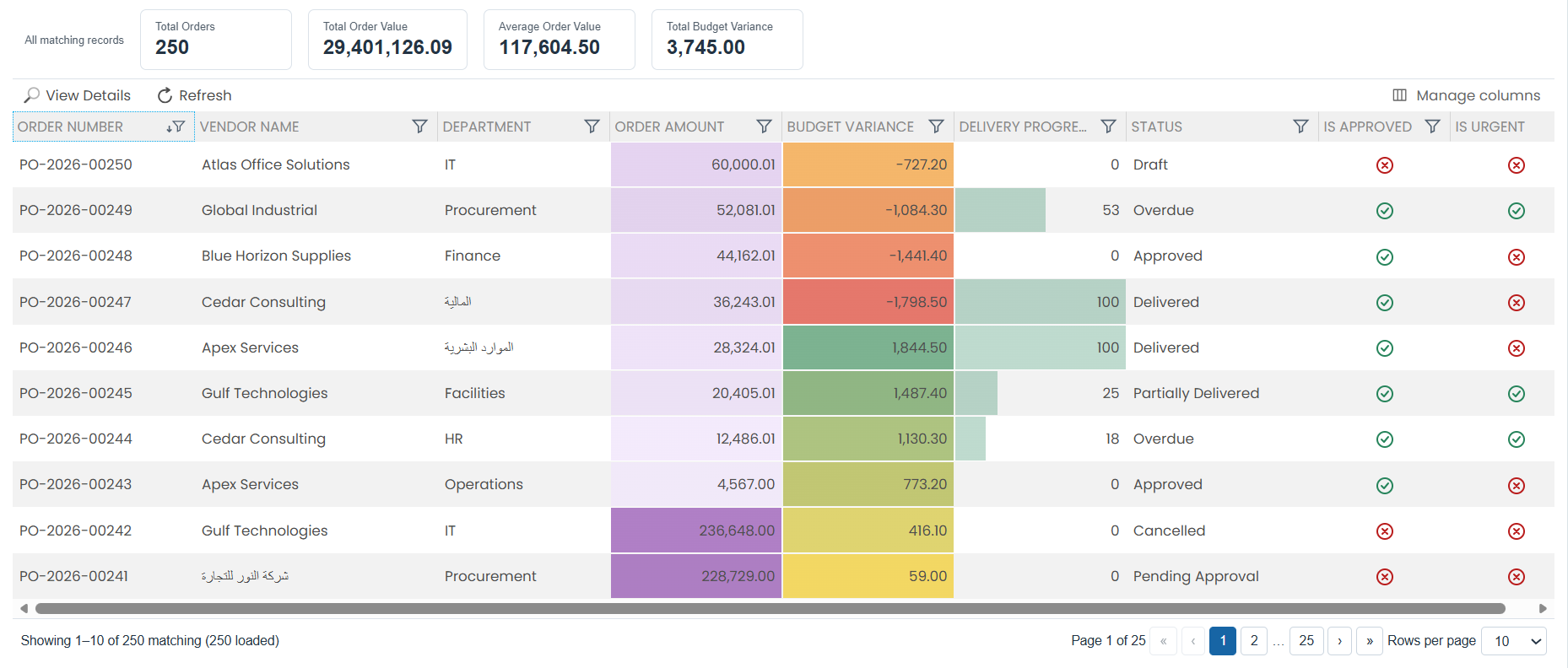
Order Amount uses the loaded numeric extent with zero included for automatic bar bounds. Sort descending to see the largest amount, 239,078.00 SAR, fill the cell.
Negative amounts extend toward the start from zero, positive amounts toward the end. A zero axis appears only when the range straddles zero. Automatic bounds may be asymmetric. A fixed −2000 to +2000 range places zero in the center; values beyond the bounds are visually clamped, not changed.
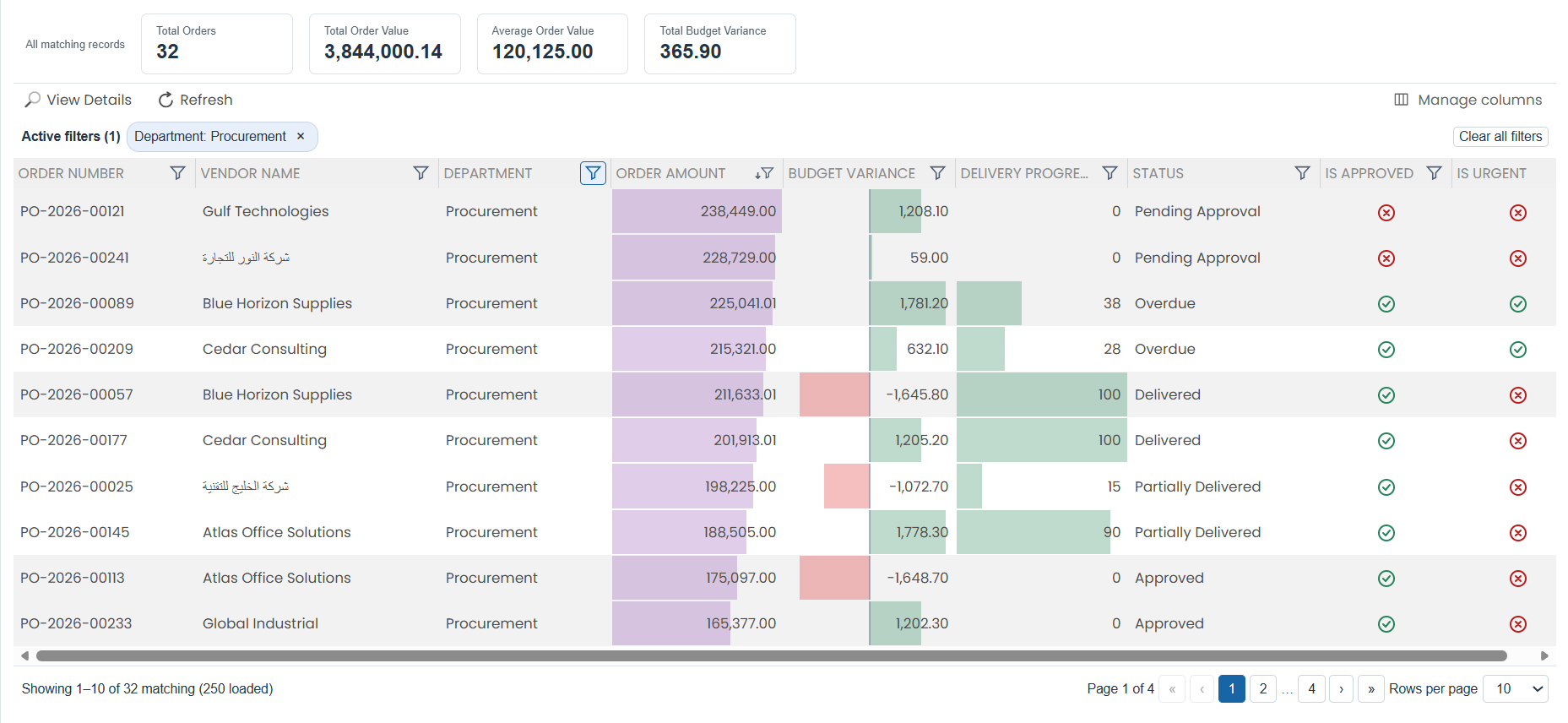
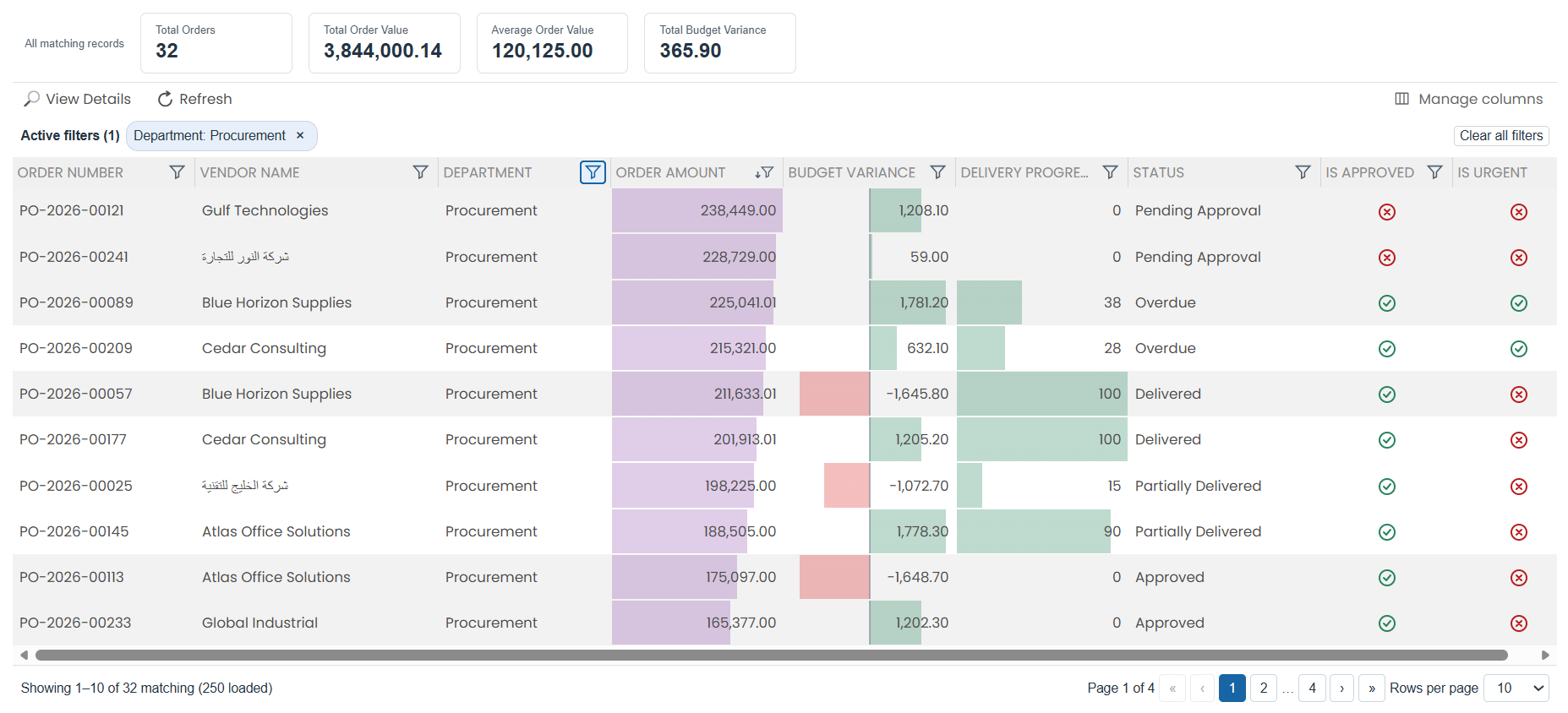
Filter Department = Procurement (32 matching out of 250 loaded). Switch only Order Amount scope. The maximum for Procurement (238,449) is very close to the loaded maximum (239,078), so the two screenshots differ only slightly. Fixed bounds are unaffected by scope.
Figure 74 · Procurement — loaded range · Actual K2 Runtime capture
Figure 75 · Procurement — filtered range · Actual K2 Runtime capture
Inspect the actual calculated bounds rather than relying only on the pixels. For a more visible difference, filter Order Amount to a lower range, then compare the same rows with both scopes. Clear filters and restore loaded scope afterwards.
Illustrative subset, not a live K2 grid. The maximum of the filtered example is deliberately much smaller.
Three-color scales
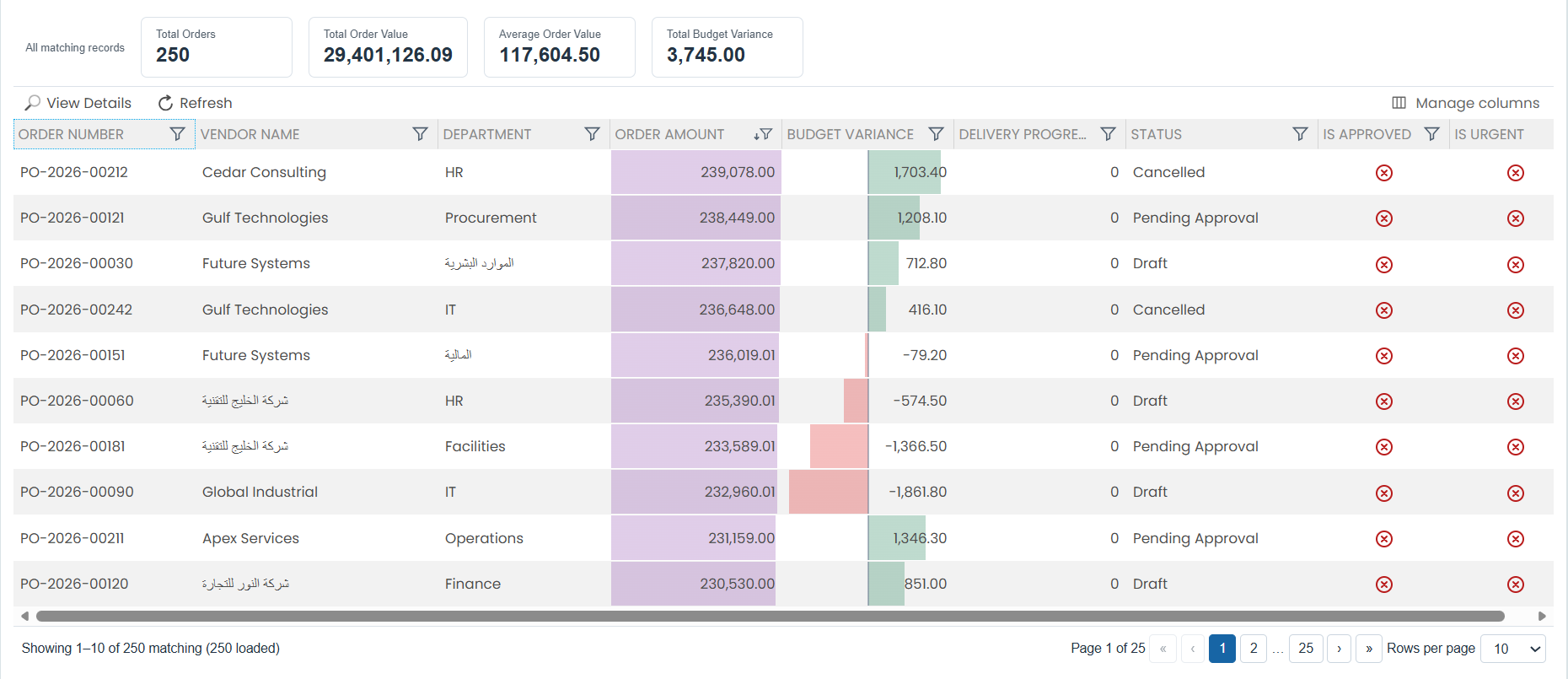
Clear filters. Budget Variance uses red, yellow and green with fixed symmetric bounds. The middle color corresponds to the midpoint of the range, not the median or necessarily zero.
Choose an intensity that keeps numbers readable. The following offline simulation illustrates the color and opacity settings; it does not execute the K2 engine.
Combined visualization
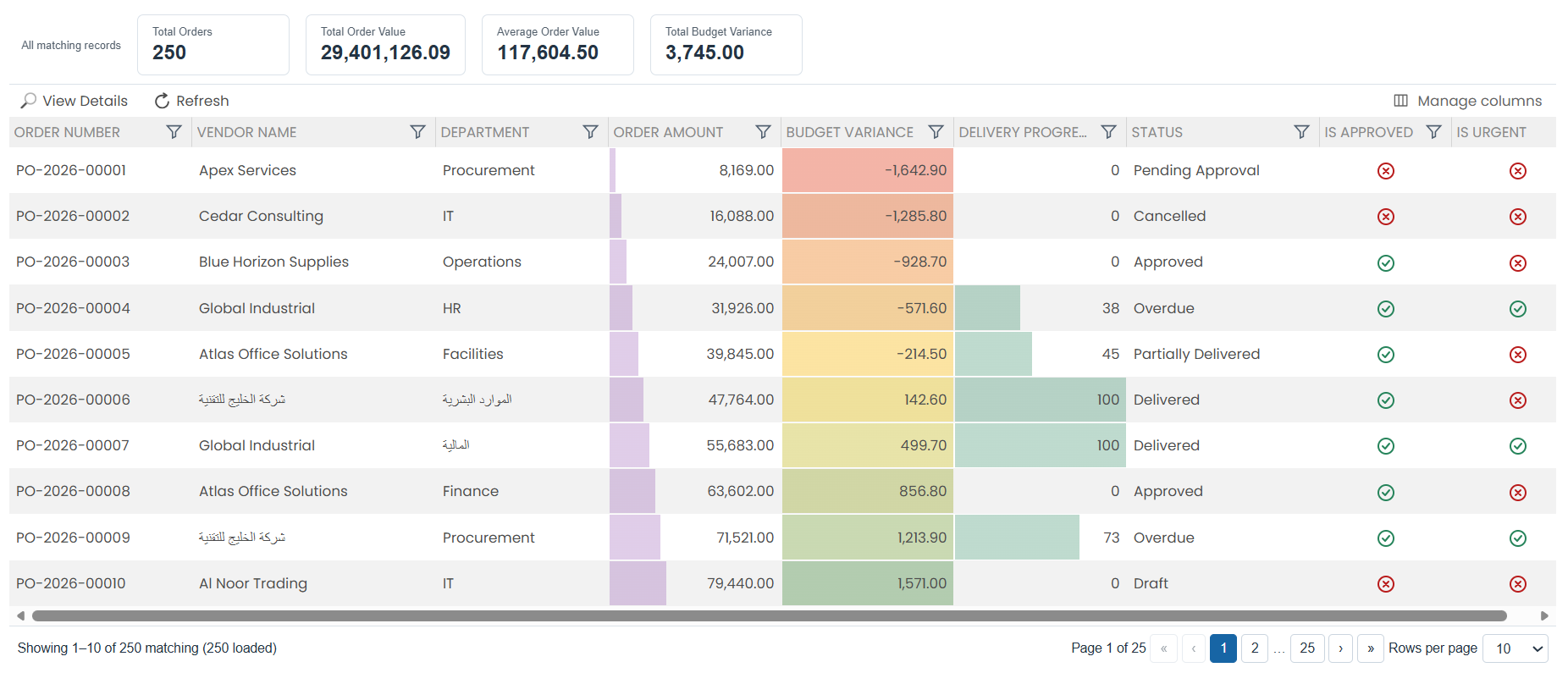
Restore Order Number ascending and use fixed progress bars, automatic amount bars and a softer three-color variance scale together. This reproduces the demonstrated visualization with Boolean icons. The optional extended configuration restores the previous status badges and conditional rules; their interaction with visualizations has not been independently verified in this lesson.
Module must be true; per-column false skips that column.
columns
Map of column keys, names or titles; numeric types only.
mode
bar or scale.
scope
loaded (default) or filtered; per-column setting overrides module.
min / max
Optional numeric bounds; missing bar bounds include zero. Scale bounds use data extent. Equal bounds produce a midpoint scale and no bar.
positiveColor / negativeColor
Colors for positive and negative bars.
showZeroAxis
Defaults to on for ranges crossing zero.
opacity
0–1; clamped; default 0.25.
minColor / midColor / maxColor
Scale colors; midColor:false selects two colors.
Benefits and limitations
Compared with the baseline, users can identify large orders, delivery progress and variance patterns at a glance. This is client-side rendering over loaded numeric records, not server aggregation or a query. Blank or nonnumeric cells are skipped. The engine uses CSS gradients and color-mix(); bars and scales are intentionally suppressed while a row is hovered or selected to preserve native selection feedback. Cell merging excludes cells with Data Visualization. Fixed range clamping and equal bounds are source-derived behaviors, not separately demonstrated here. Use the diagnostic command above to confirm scope differences. The extended formatting example requires runtime verification.
Reduce repetitive values in a standard K2 List View by visually combining consecutive cells, while keeping every purchase order as a separate underlying record.
Before you begin
Use the 17-column Purchase Orders List from the previous lessons. The examples keep nine visible columns, Data Visualization, Boolean icons, filtering, Summary and pagination. For repeatable setup the downloads disable preferences; existing preferences are not deleted. Sort Department ascending for the first examples. For a clear hierarchical result, arrange records in Department and then Vendor order (where available from the source). Merging itself does not sort records.
Replace REPLACE_WITH_YOUR_AREAITEMID with your own ID (see Grid Discovery). Save as the configuration filename loaded by the Data Label, increment configVersion and reload the form. The engine is unchanged.
Before and after
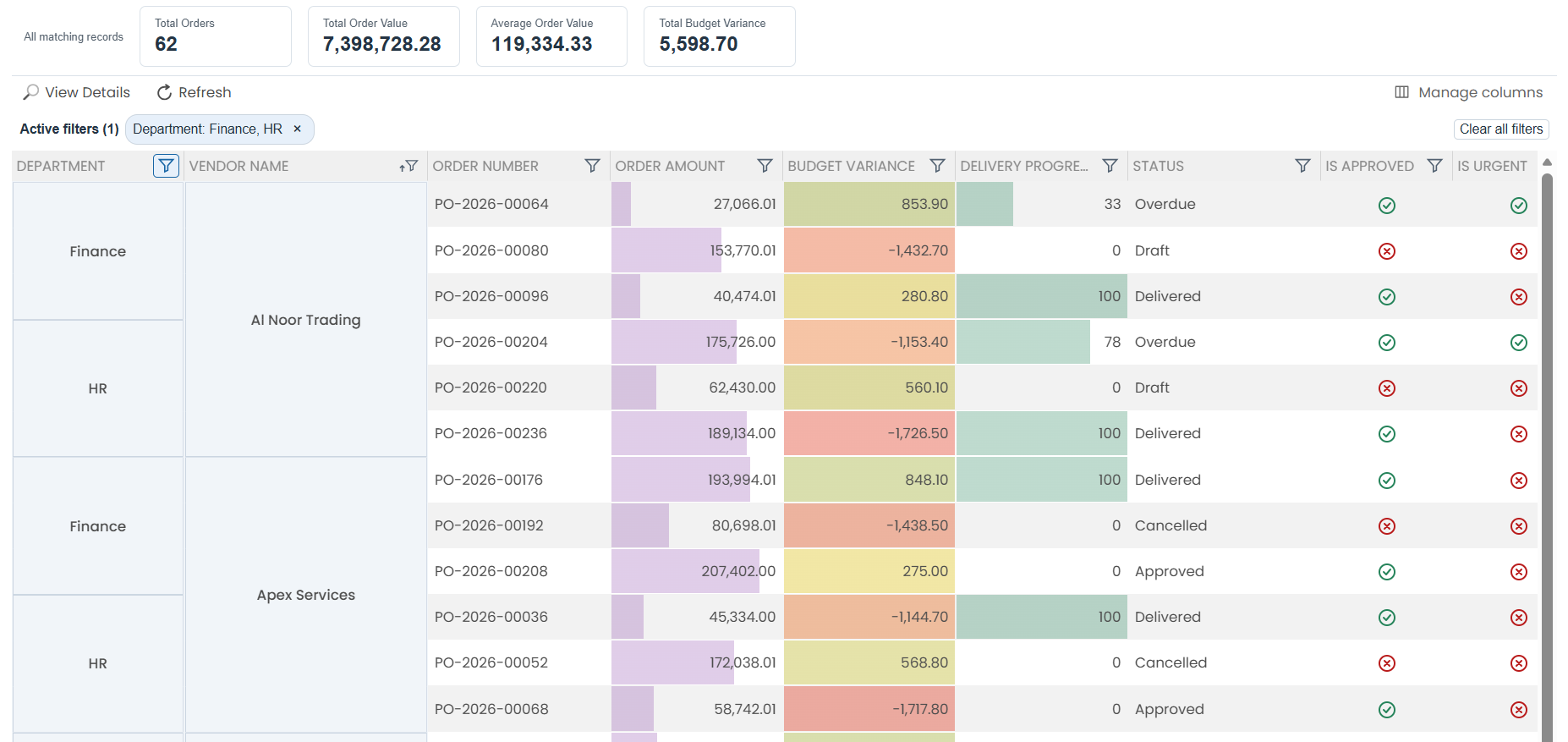
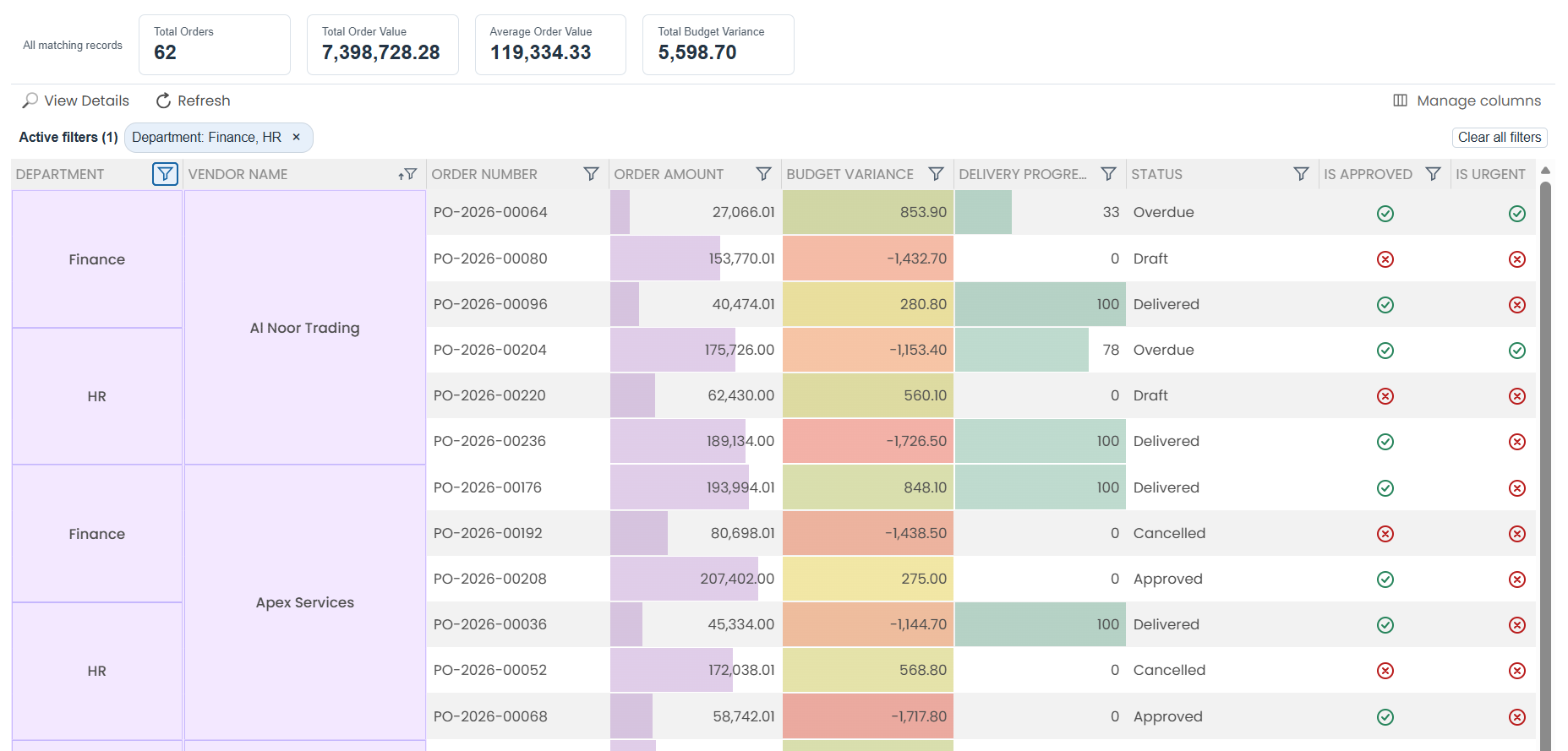
Figure 079 · Repeated department values before merging · Actual K2 Runtime capture
Figure 081 · Top and start alignment · Actual K2 Runtime capture
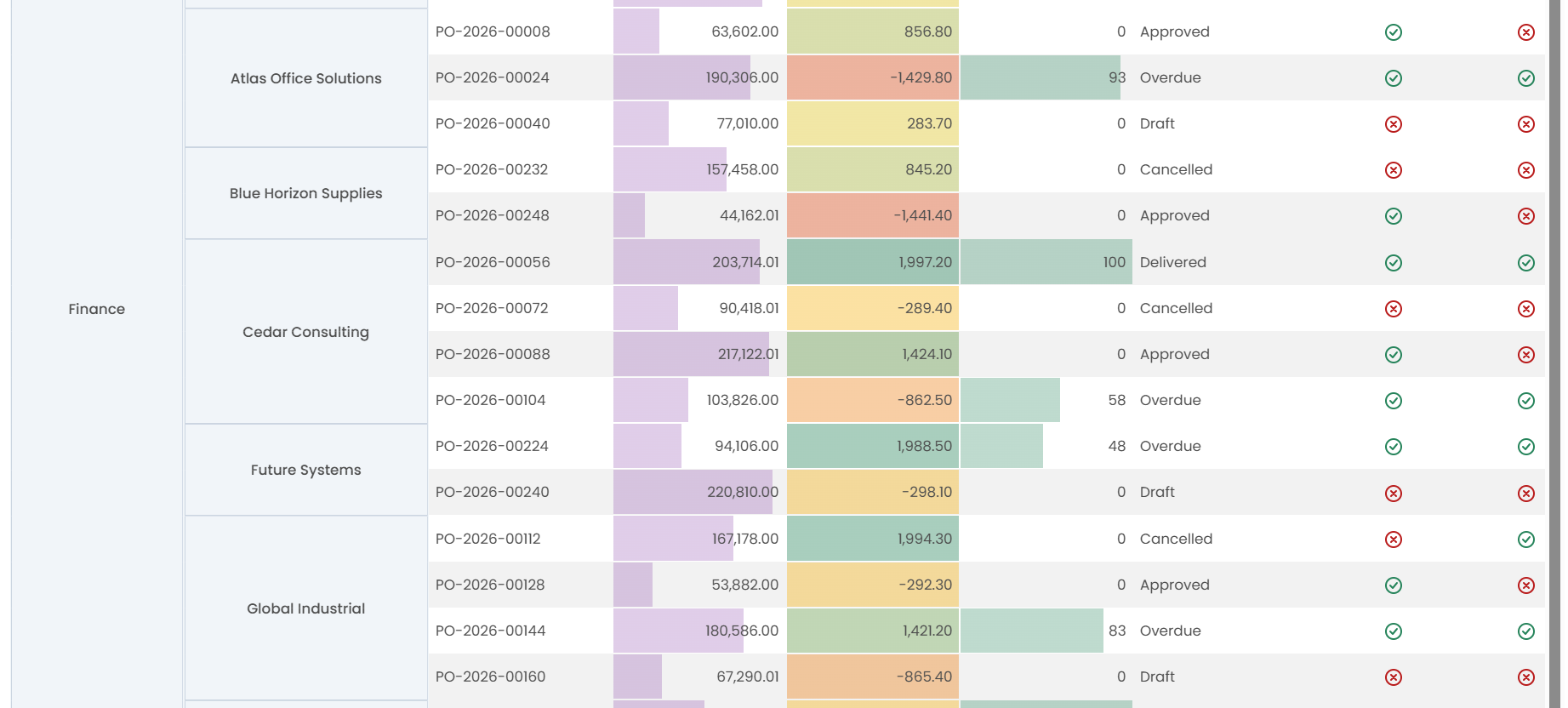
Hierarchical versus independent merging
Hierarchical mode uses the complete prefix of configured columns as the matching key. Independent mode uses each column separately. Neither mode creates a group header or changes the row count.
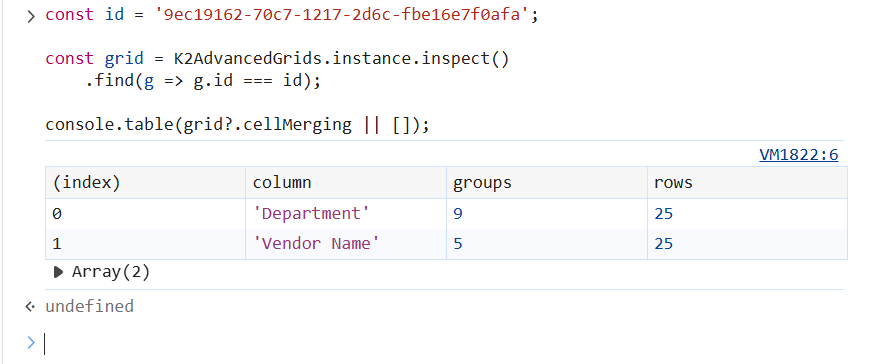
Compared with repeating labels in a native List View, merging reduces visual noise and makes adjacent records easier to compare. The engine retains underlying cells and record identities. Merging is restricted to visible rows on the current page, consecutive equal raw values, and simple text cells; Boolean icons, conditional badges and Data Visualization cells are excluded from merging themselves, but may coexist in other columns. Active Row Grouping suppresses merging. Filtering, paging and layout changes trigger recalculation. A group spanning pages is rendered separately on each page. This is not a physical HTML rowspan or a data transformation. The diagrams above are conceptual; screenshots are real Runtime captures.
Organize purchase orders into expandable groups, add nested levels and display group-level totals without replacing the underlying K2 List View.
Before you begin
Use the 17-column Purchase Orders List and the Data Visualization configuration from Lesson 9 — Data Bars & Color Scales. The downloadable configurations retain filtering, Summary, Boolean icons and Data Visualization, use 25 records per page, and disable cell merging and browser preferences for repeatable results.
Replace REPLACE_WITH_YOUR_AREAITEMID with your own ID (see Grid Discovery). Save the chosen download as purchase-orders.config.js in the server config folder, increment configVersion in the Data Label (for example, from 0.2.0 to 0.2.1), and reload the form. The engine is unchanged.
1. Single-level grouping
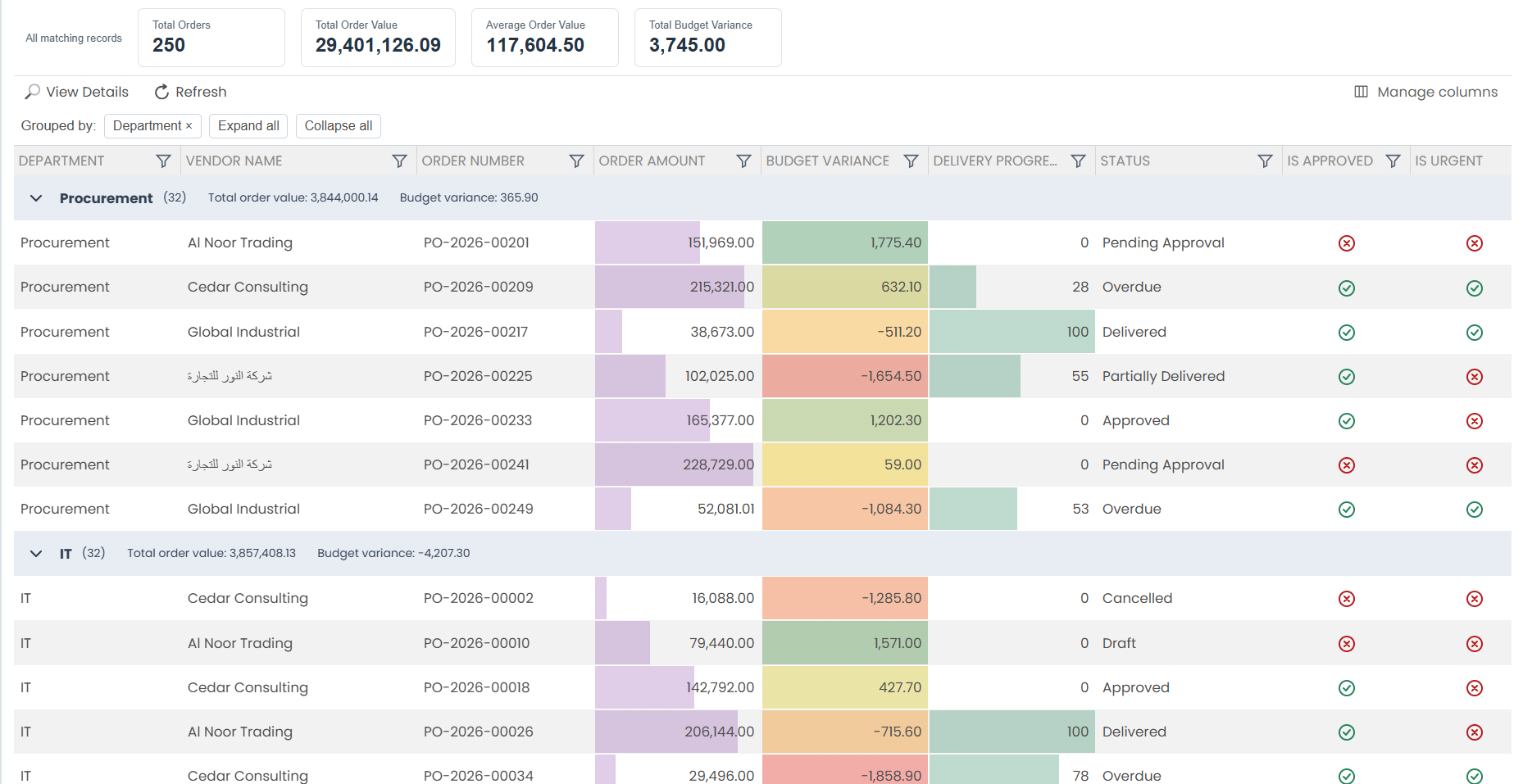
Start from the ungrouped list. Group by Department to collect records into expandable sections with a count and two aggregate values.
Figure 090 · Before grouping · Actual K2 Runtime capture
Figure 091 · Single-level grouping by Department · Actual K2 Runtime capture
2. Expand and collapse groups
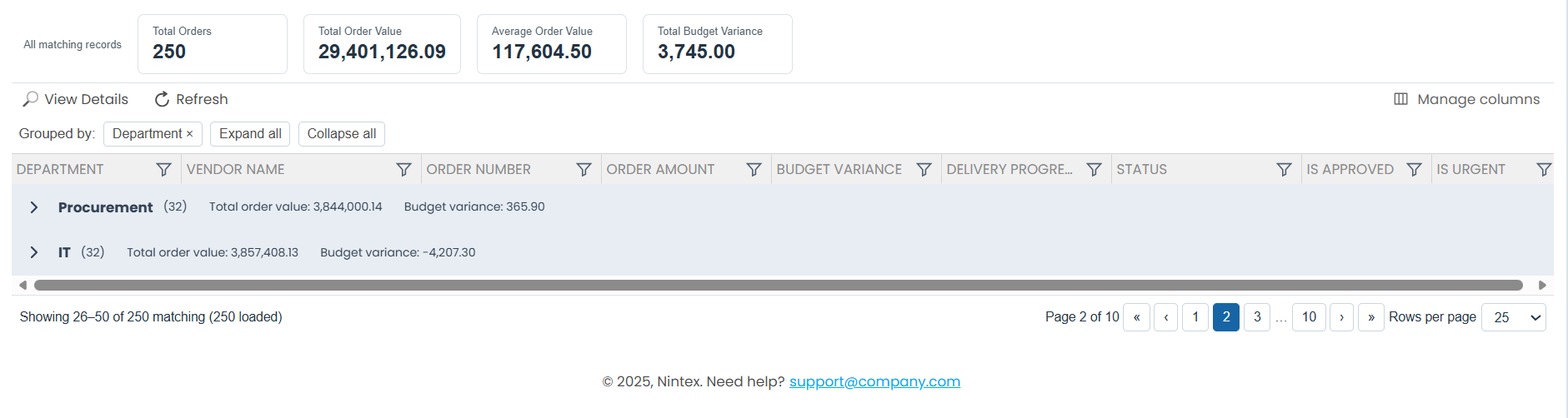
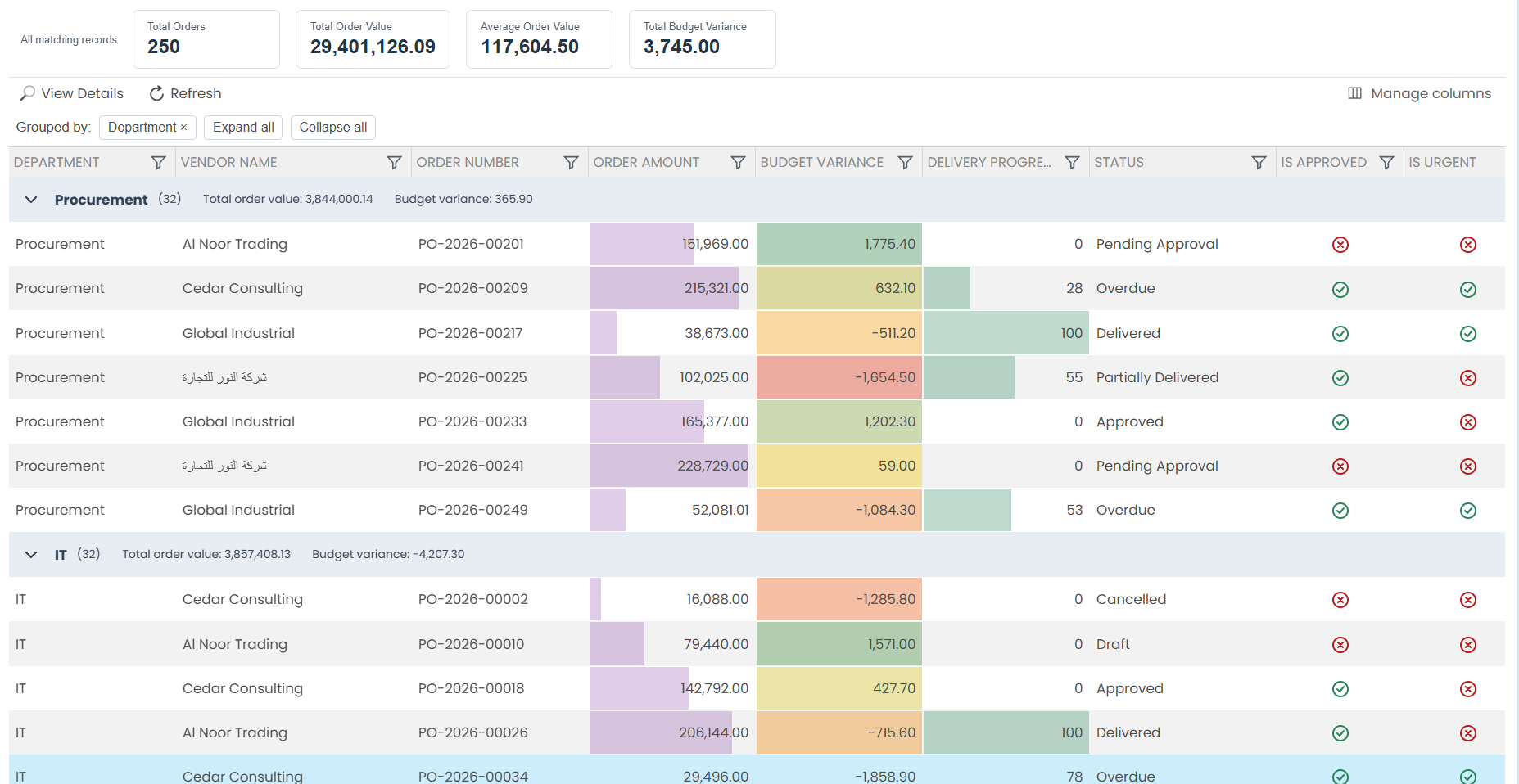
Click the chevron in a group header to toggle its records. Use Collapse all or Expand all in the grouping bar to change all group states. Collapsing is a presentation operation, not a filter: it does not change matching record counts.
Figure 092 · IT collapsed while Procurement remains expanded · Actual K2 Runtime captureFigure 093 · All groups on the current page collapsed · Actual K2 Runtime captureFigure 094 · Groups expanded again · Actual K2 Runtime capture
3. Grouping with filtering
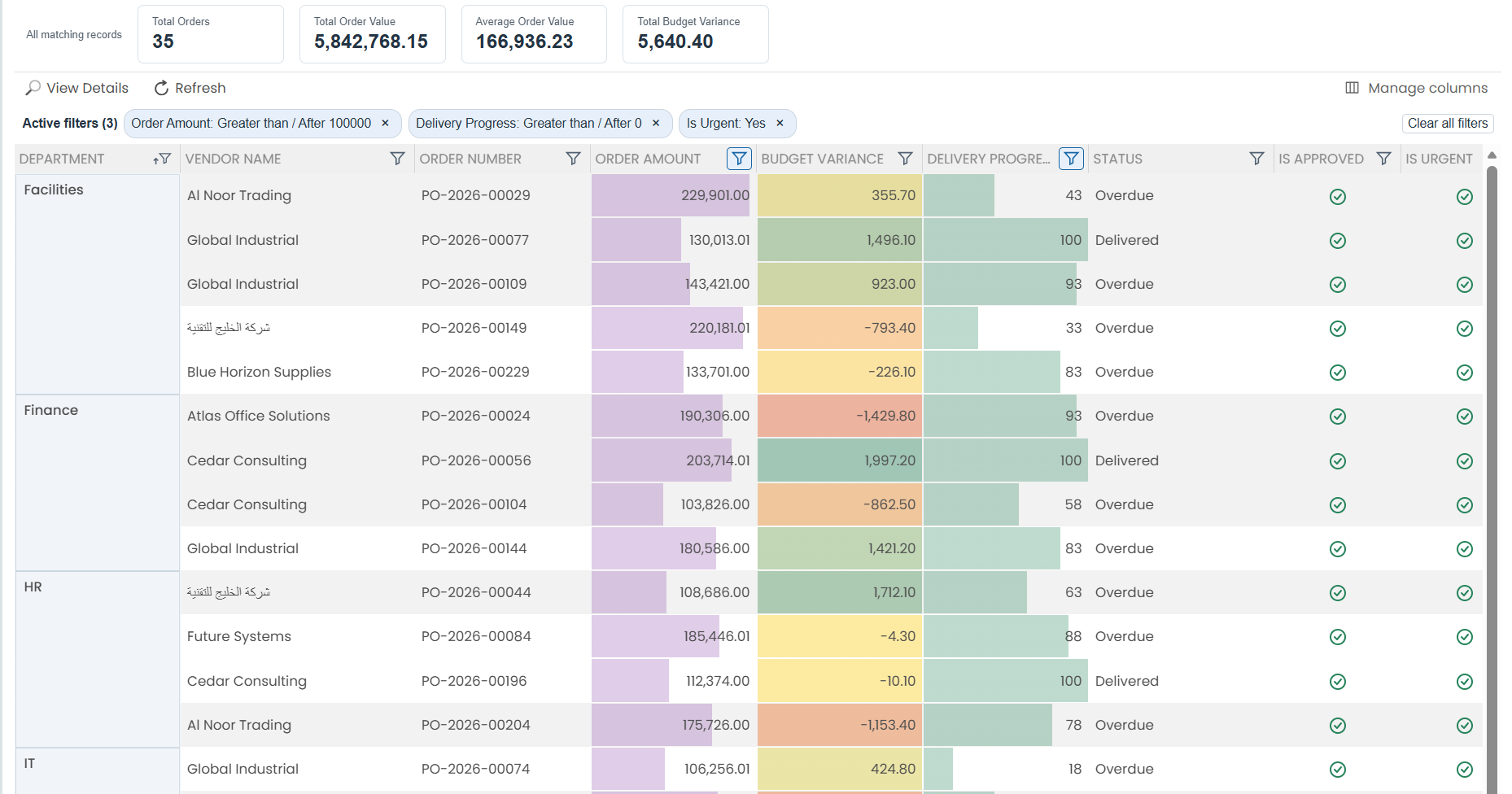
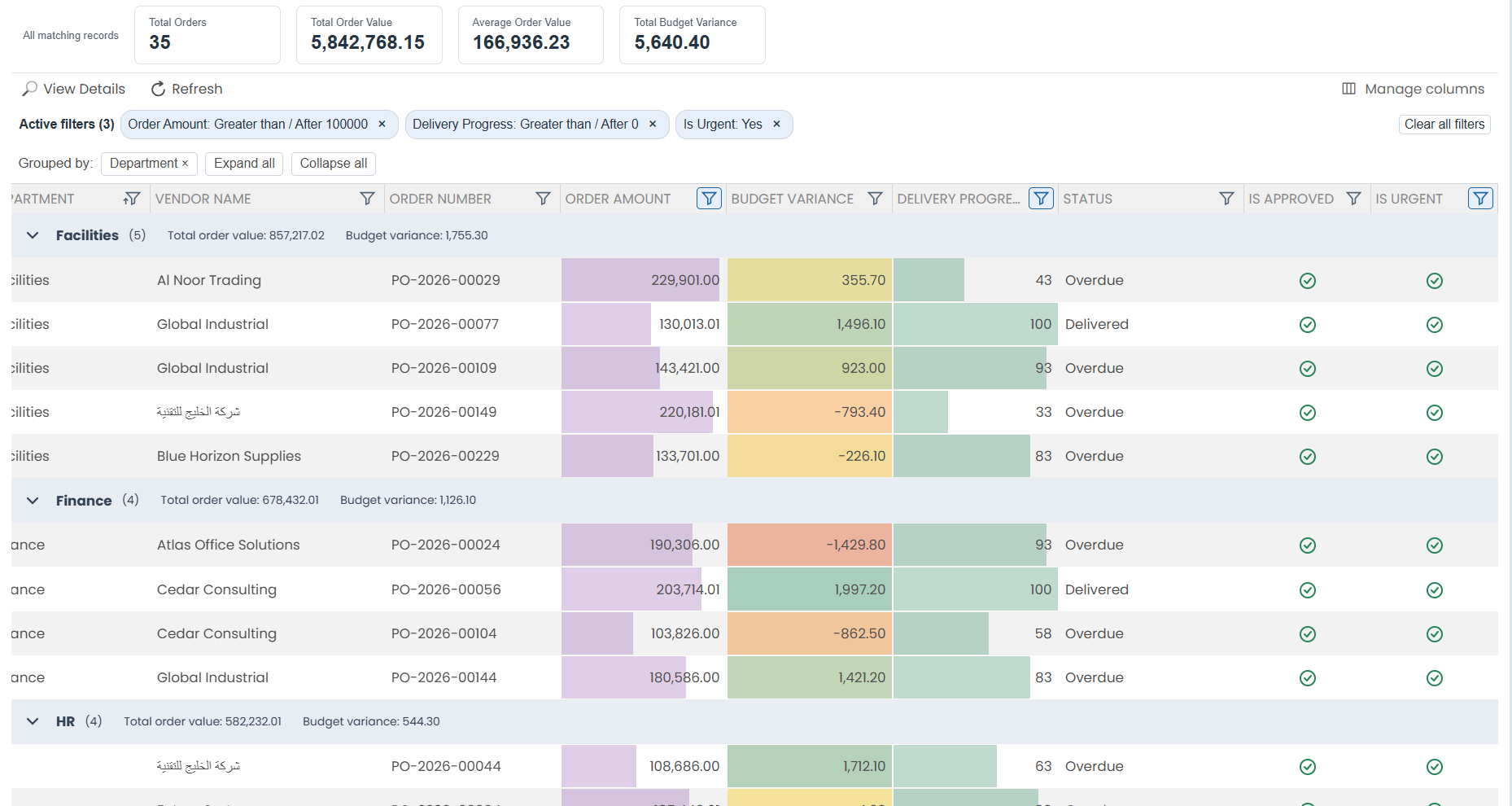
Apply Order Amount greater than 100000, Delivery Progress greater than 0 and Is Urgent = Yes. The example returns 35 matching orders. The Summary and group aggregates reflect the matching records, while Data Visualization remains active.
Figure 095 · Grouping with three active filters · Actual K2 Runtime capture
4. Multi-level grouping
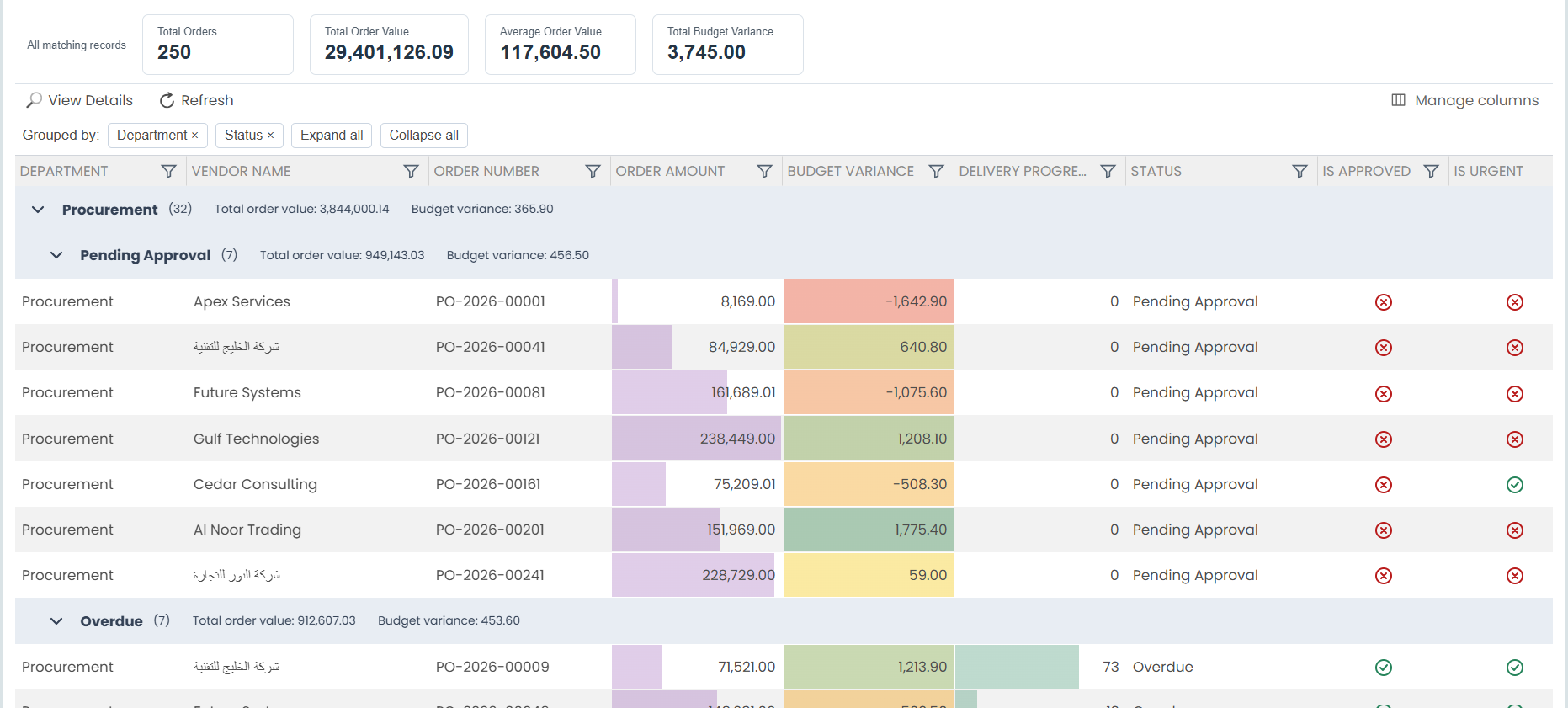
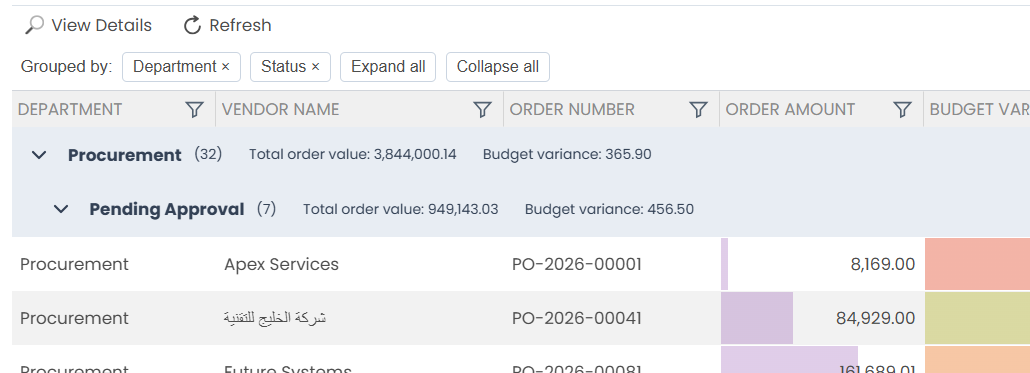
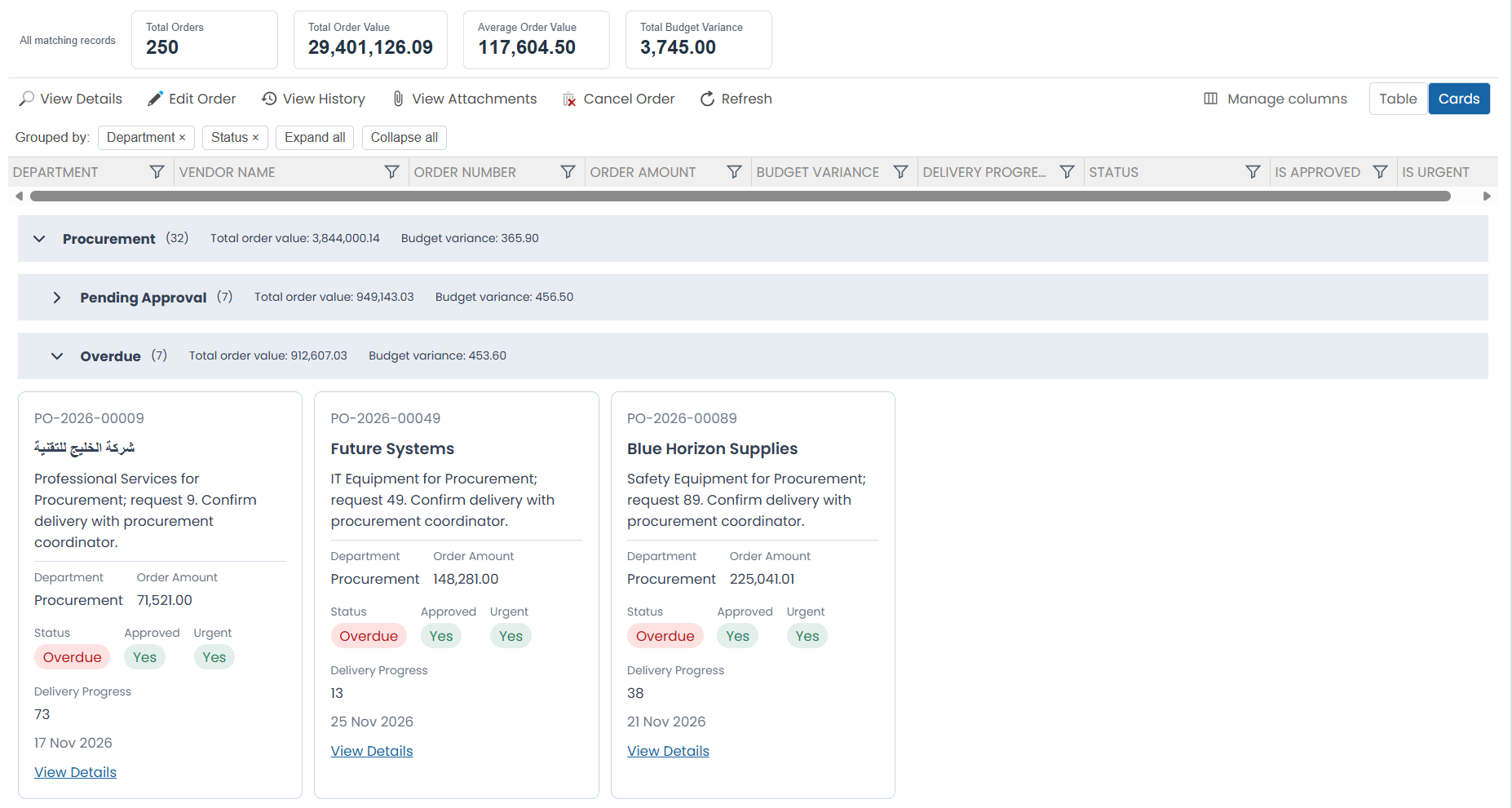
Clear filters before the next example. Add Status after Department to create nested groups. The order of columns in the configuration defines the hierarchy.
Figure 096 · Department followed by Status · Actual K2 Runtime capture
5. Group-level aggregates
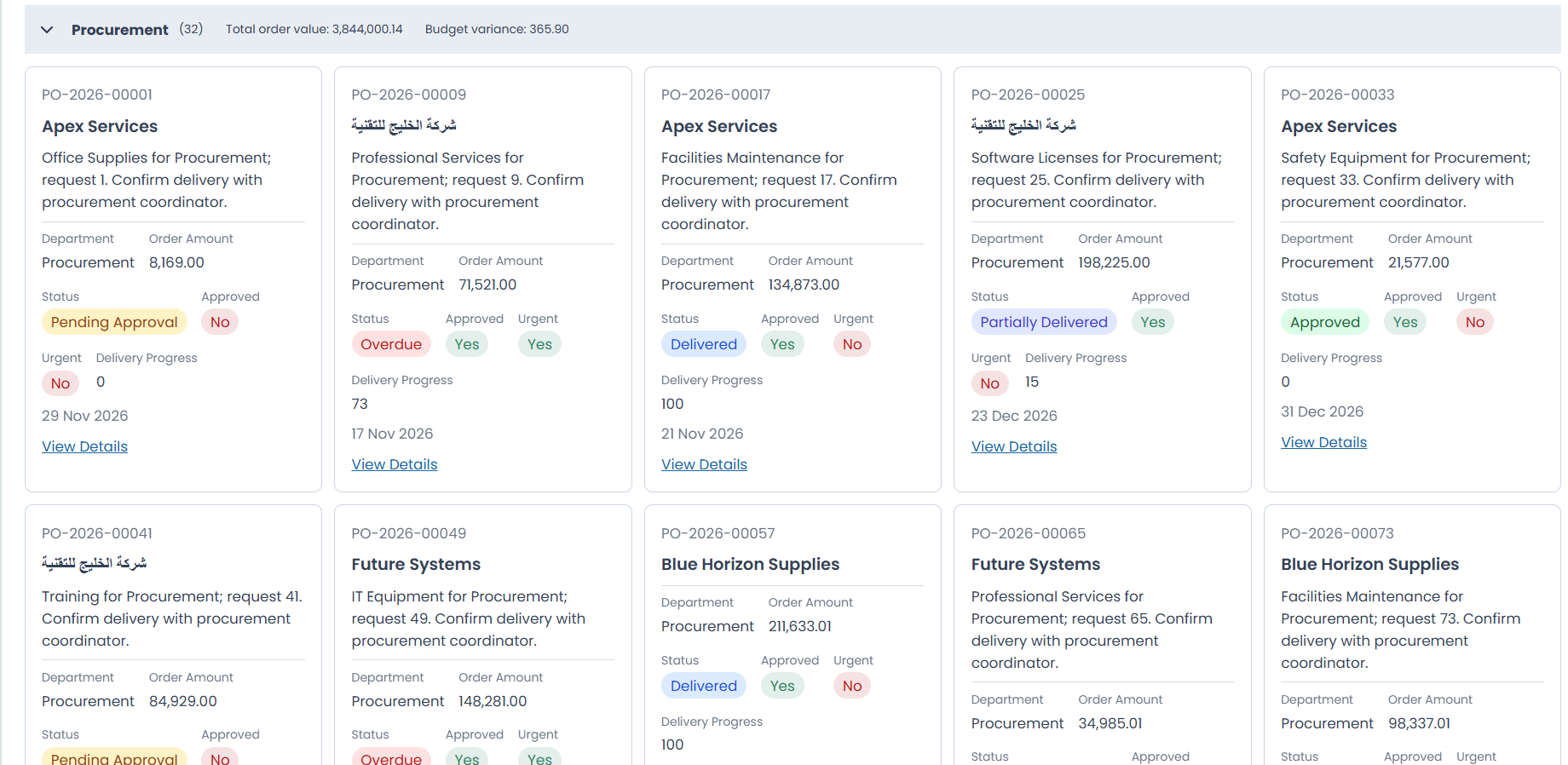
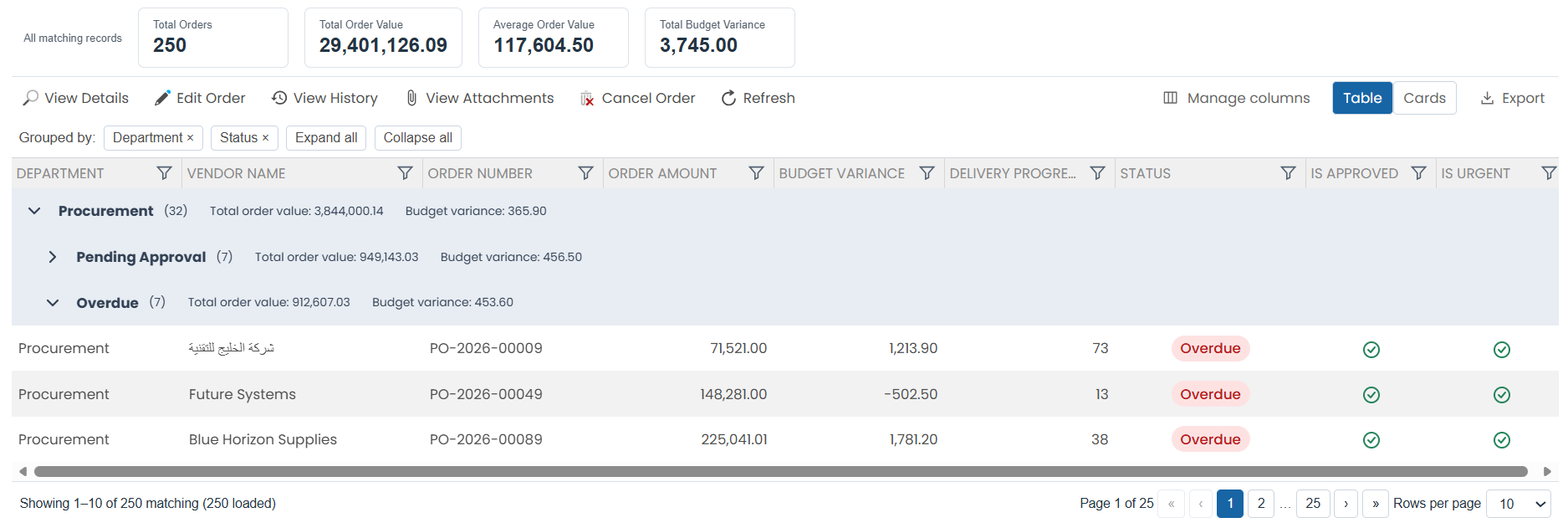
Each group header displays its record count, sum of Order Amount and sum of Budget Variance. Parent totals cover matching records within the parent, and child totals cover matching records within the child. Procurement contains 32 matching records with a total order value of 3,844,000.14; its Pending Approval subgroup contains seven records with a total value of 949,143.03.
Figure 097 · Parent and child aggregate values · Actual K2 Runtime capture
6. Manage grouping interactively
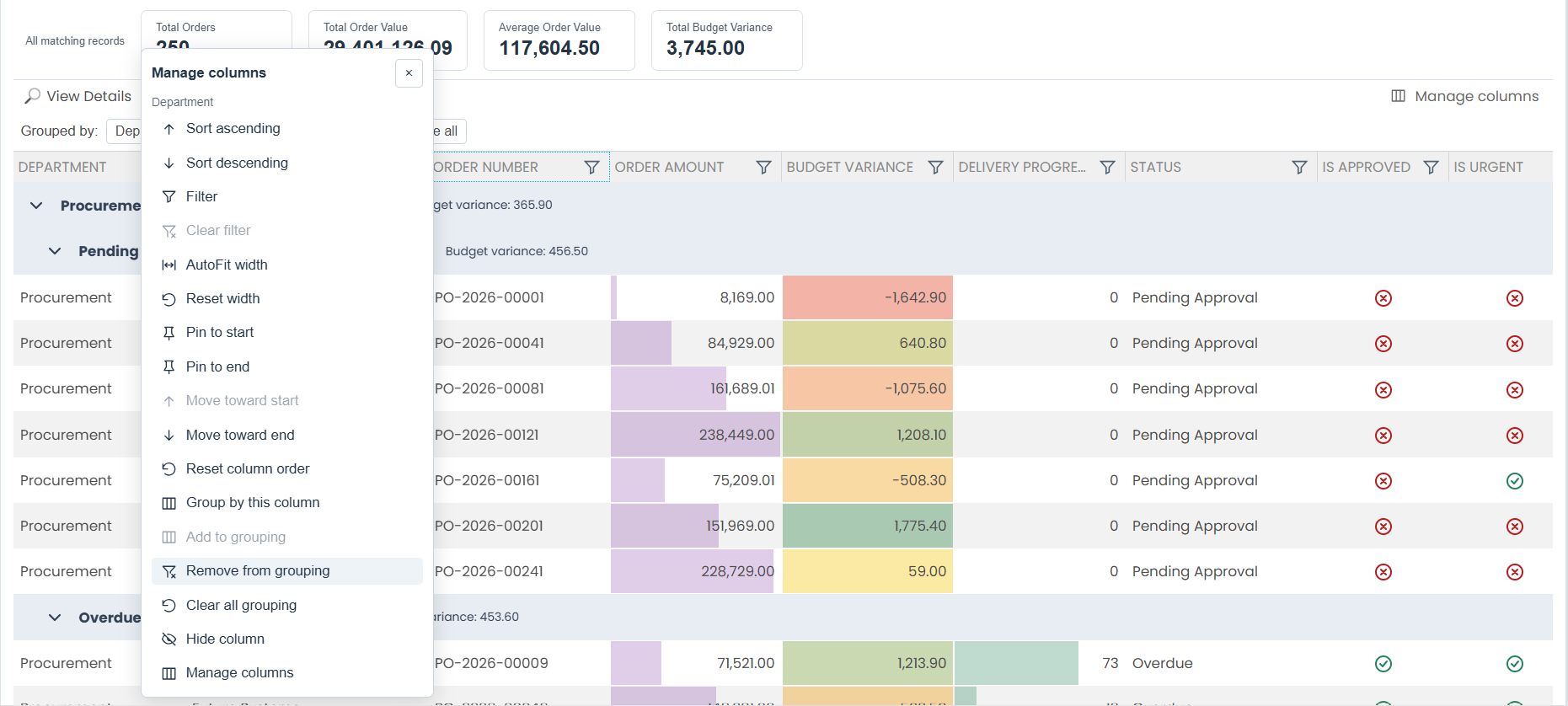
Right-click a column header to open Manage columns. Use Group by this column to replace the grouping, Add to grouping to append a level, Remove from grouping to remove a level, or Clear all grouping to restore the ungrouped presentation. You can also remove a grouping level using its chip in the grouping bar.
Figure 098 · Header context menu with grouping commands · Actual K2 Runtime capture
7. Grouping and pagination
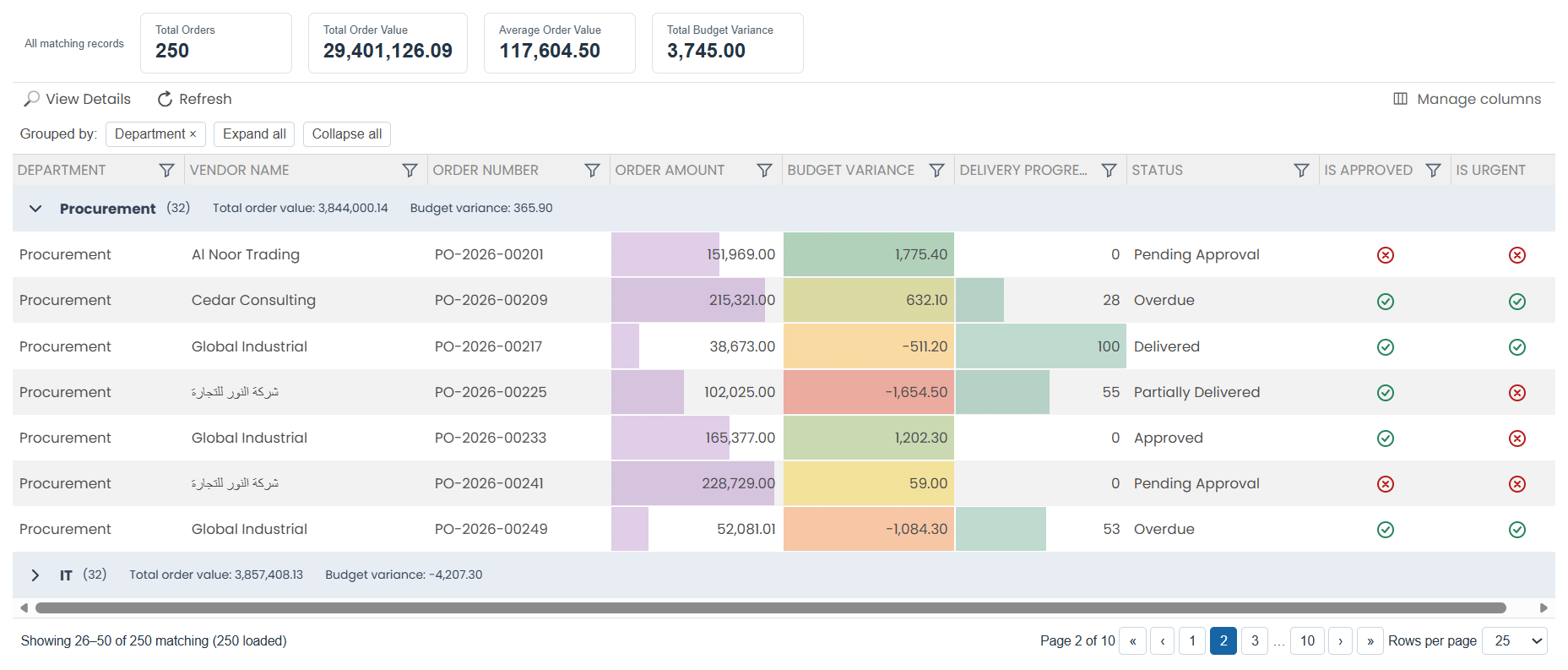
Pagination counts records rather than groups. A group can span several pages, with its header repeated on each relevant page. On page 2, Procurement can show only part of its 32 records while the header retains the full group count and aggregates. Collapsing groups does not repaginate the data.
Figure 099 · Nested groups continuing on the next page · Actual K2 Runtime capture
Configuration reference
Parameter
Meaning
enabled
Enables row grouping
columns
Ordered array of column titles; each entry adds a level
allowUserGrouping
Allows grouping commands in the header menu
collapsedByDefault
Initial collapsed state
showGroupingBar
Displays grouping chips and controls
showRecordCount
Displays the matching count per group
showExpandCollapseAll
Displays the global expand and collapse controls
aggregates
Array of aggregate definitions: column, operation, label and precision in these examples
Grouping provides an interactive hierarchy and subtotals, unlike visual cell merging, which combines adjacent equal values without creating group headers. Active grouping suppresses cell merging. Grouping and aggregates operate on records already loaded into the browser, not on an unloaded server-side result set. The examples demonstrate filtering, paging and Data Visualization together; native record actions are covered in the next lesson. Console changes are temporary; persist them in the server configuration file if required.
Expose existing K2 business actions directly on a selected record, with contextual availability and visibility, while retaining native K2 Rules.
Before you begin
Use the Purchase Orders List from Lesson 11 — Row Grouping. Add native Toolbar Buttons and configure their K2 Rules. For this tutorial, each rule can show a message containing the action name and selected Order Number; do not perform a real cancellation.
Button
System name used in examples
View Details
ViewDetails_ToolBarButton
Edit Order
EditOrder_ToolBarButton
View History
ViewHistory_ToolBarButton
View Attachments
ViewAttachments_ToolBarButton
Cancel Order
CancelOrder_ToolBarButton
Verify the actual control names in your View and adjust the configuration if they differ.
Replace REPLACE_WITH_YOUR_AREAITEMID with your View ID, save the selected file as purchase-orders.config.js, increment configVersion in the Data Label (for example, 0.2.1 to 0.2.2), and reload. Engine Beta 1.0 is unchanged. Console changes are temporary.
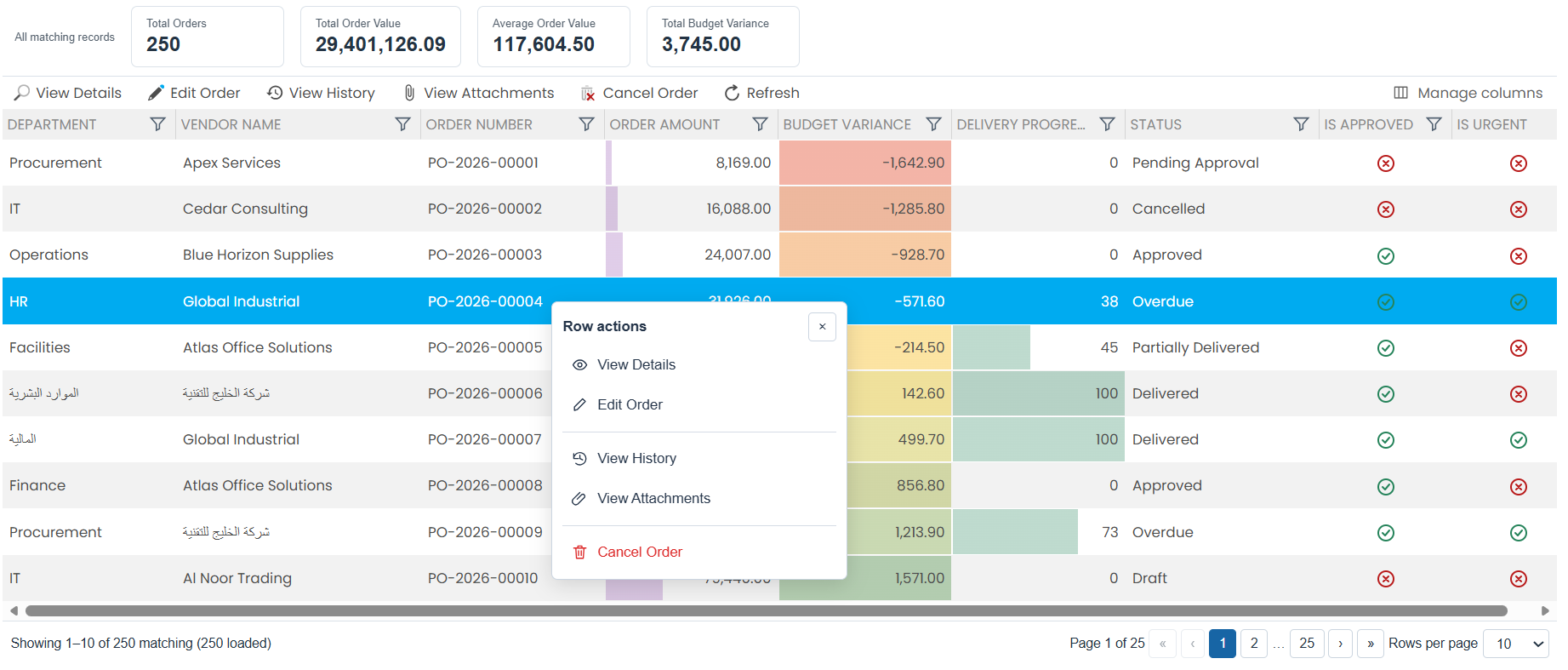
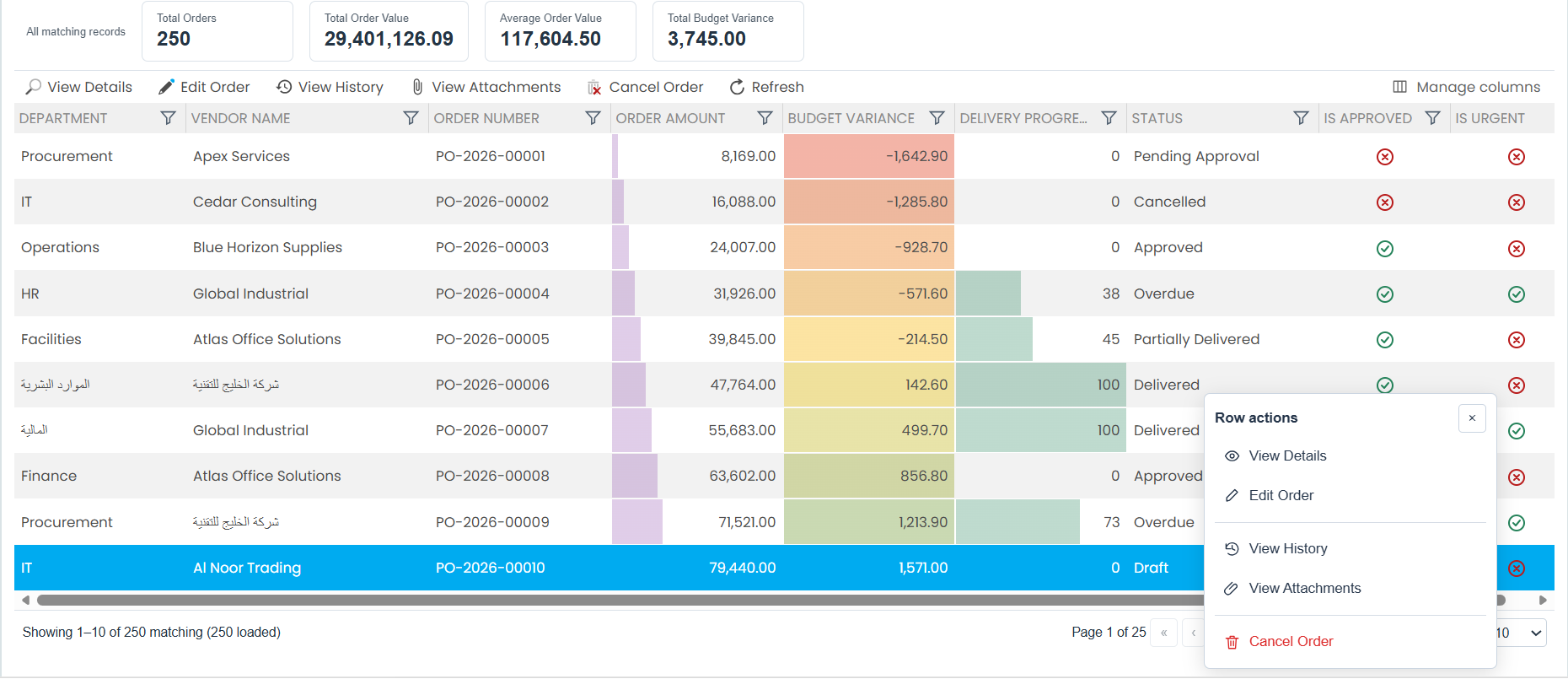
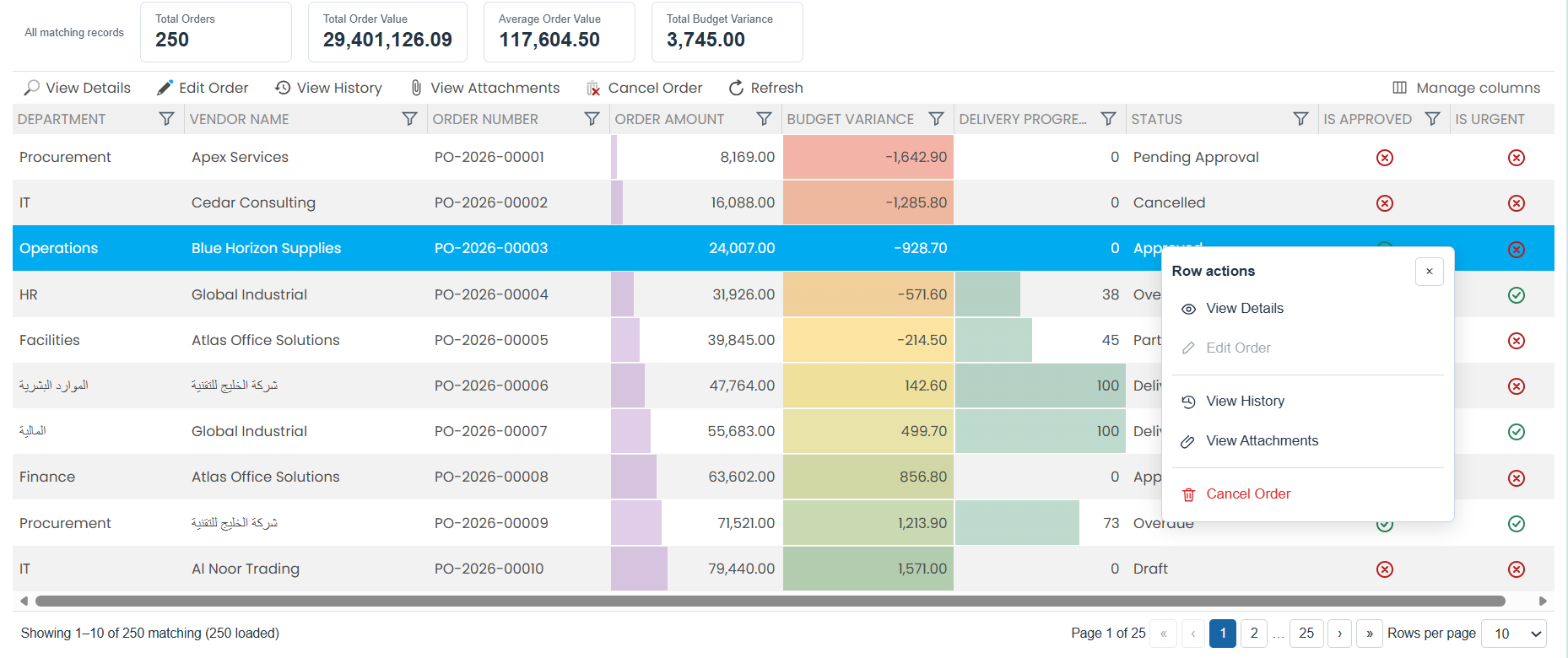
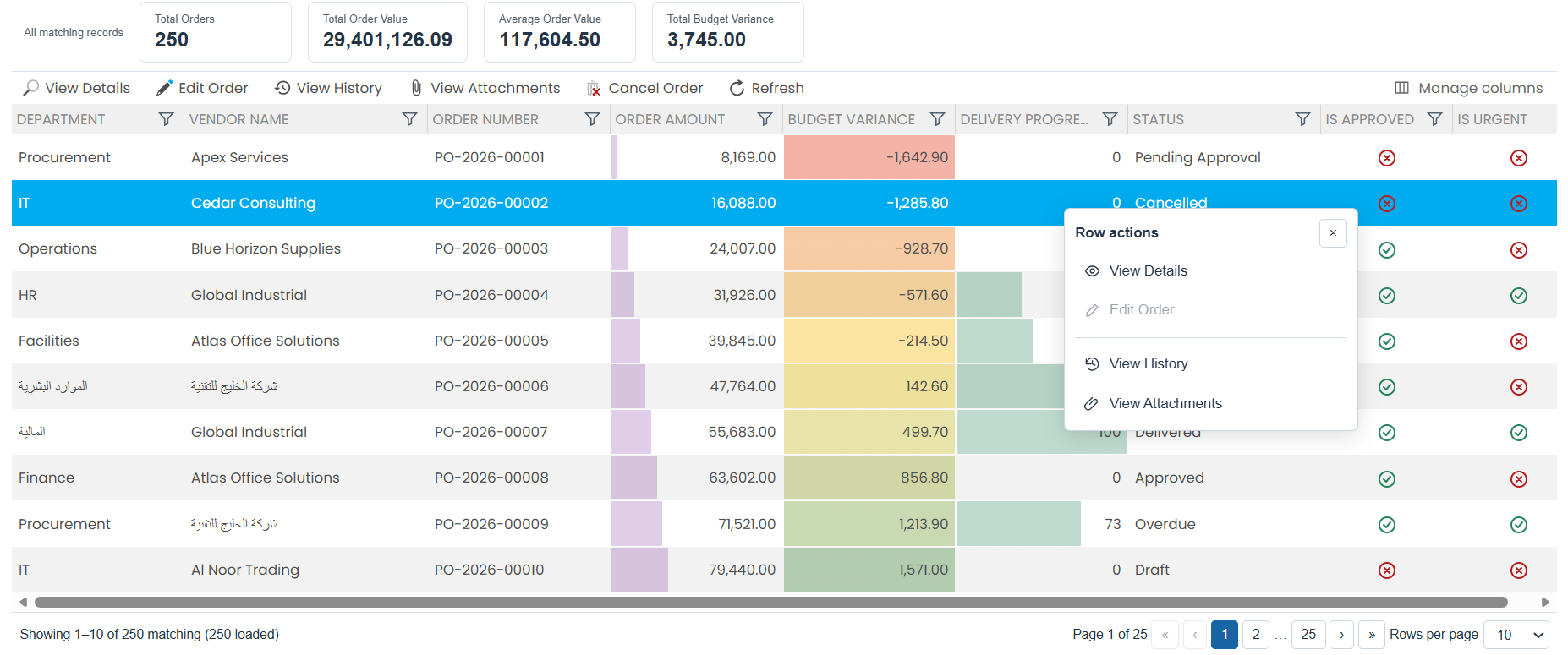
1. Basic row context menu
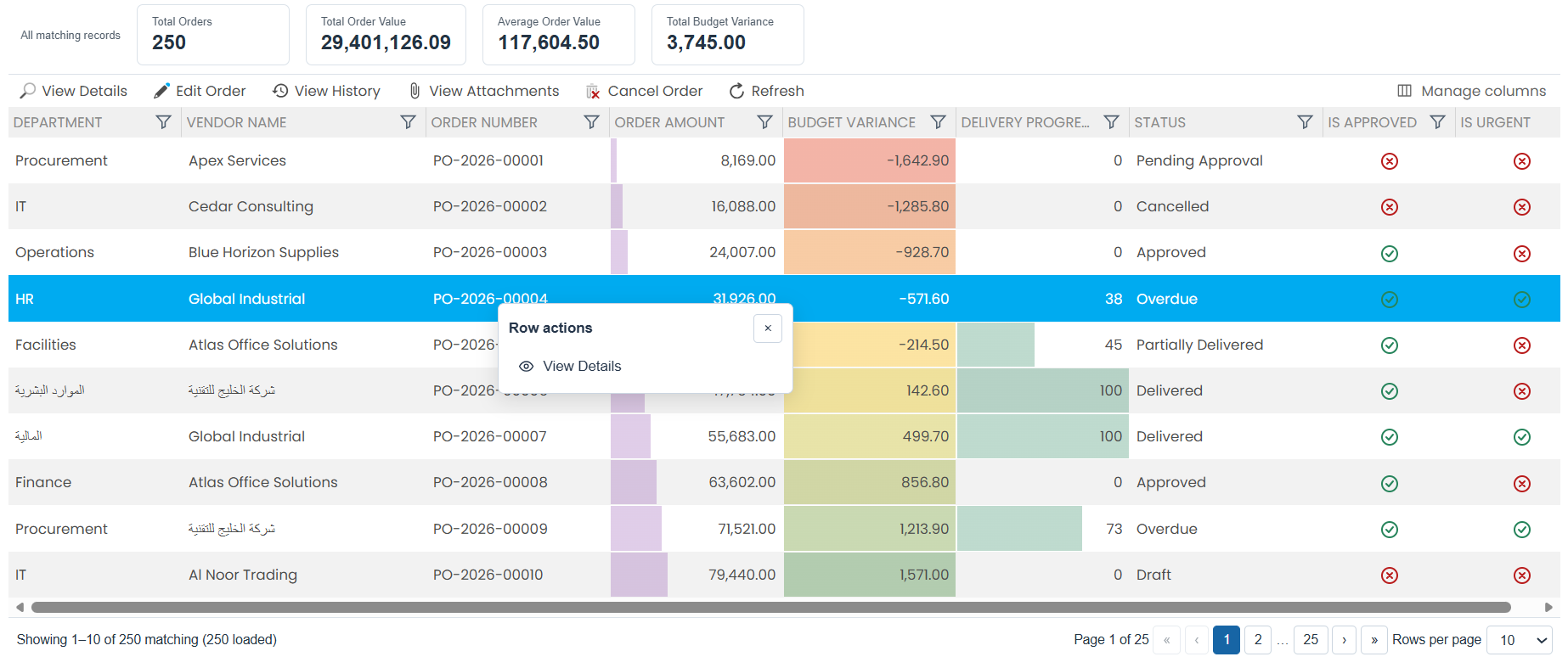
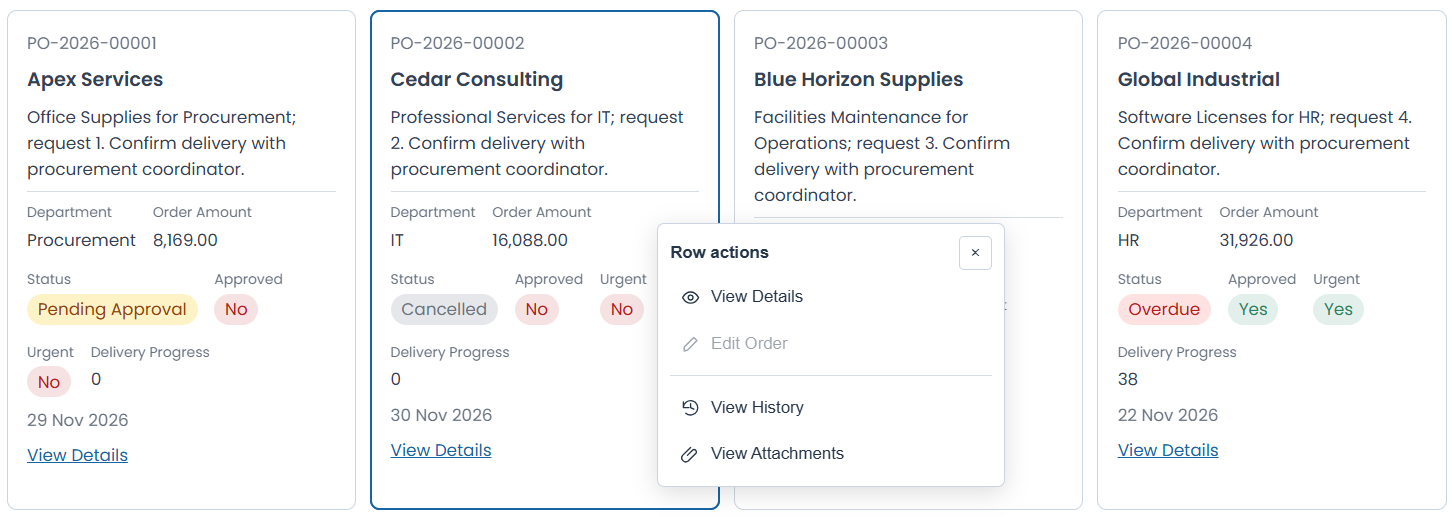
Right-click a data row. The engine selects that native K2 row and opens Row actions. Start with one action.
Figure 101 · Basic context menu on order PO-2026-00004 · Actual K2 Runtime capture
2. Native K2 Rule execution
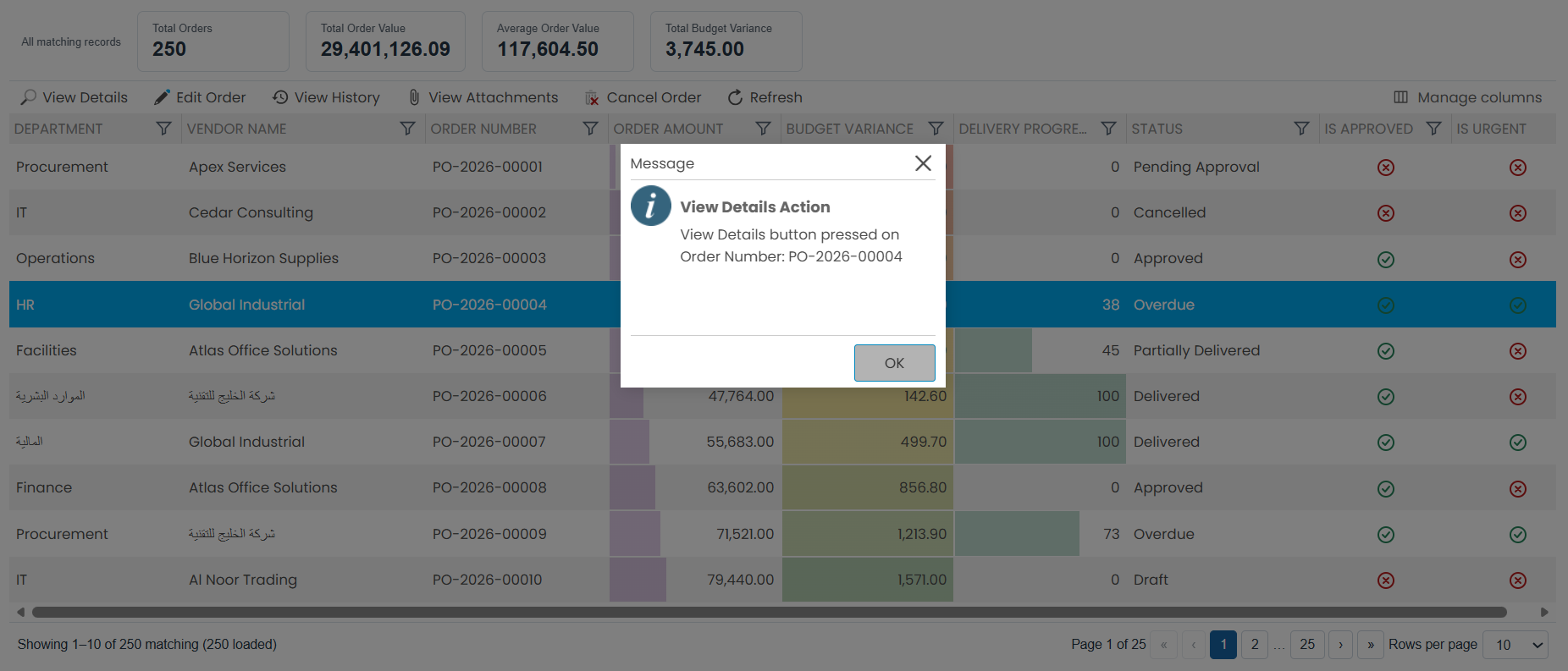
Select View Details. The existing K2 Toolbar Button rule executes for the selected record. The actual K2 message below reports PO-2026-00004, matching the selected row.
Figure 102 · Native K2 message confirms the selected order · Actual K2 Runtime capture
3. Multiple actions
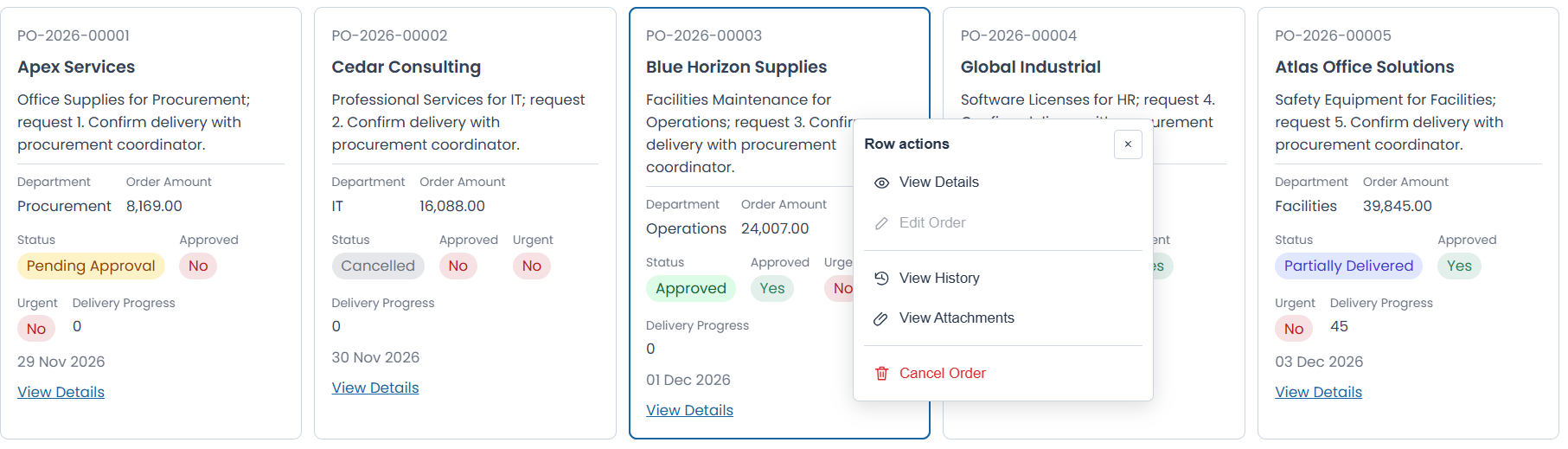
Define an ordered array of actions. Separators divide related actions; icons and text colors make the choices recognizable. This example marks Cancel Order in red.
Figure 106 · Cancelled: Cancel Order absent · Actual K2 Runtime capture
Security boundary
Menu conditions are presentation logic only. Enforce authorization and business-state validation in K2 Rules and backend services. Visible native Toolbar Buttons are not automatically governed by menu conditions.
6. Hide source toolbar buttons
Move the configured record actions out of the Toolbar while keeping their native controls and rules. Refresh remains visible because it is not mapped to the menu.
Figure 107 · Record actions hidden from Toolbar, available in context menu · Actual K2 Runtime capture
7. Integration with grouping and filtering
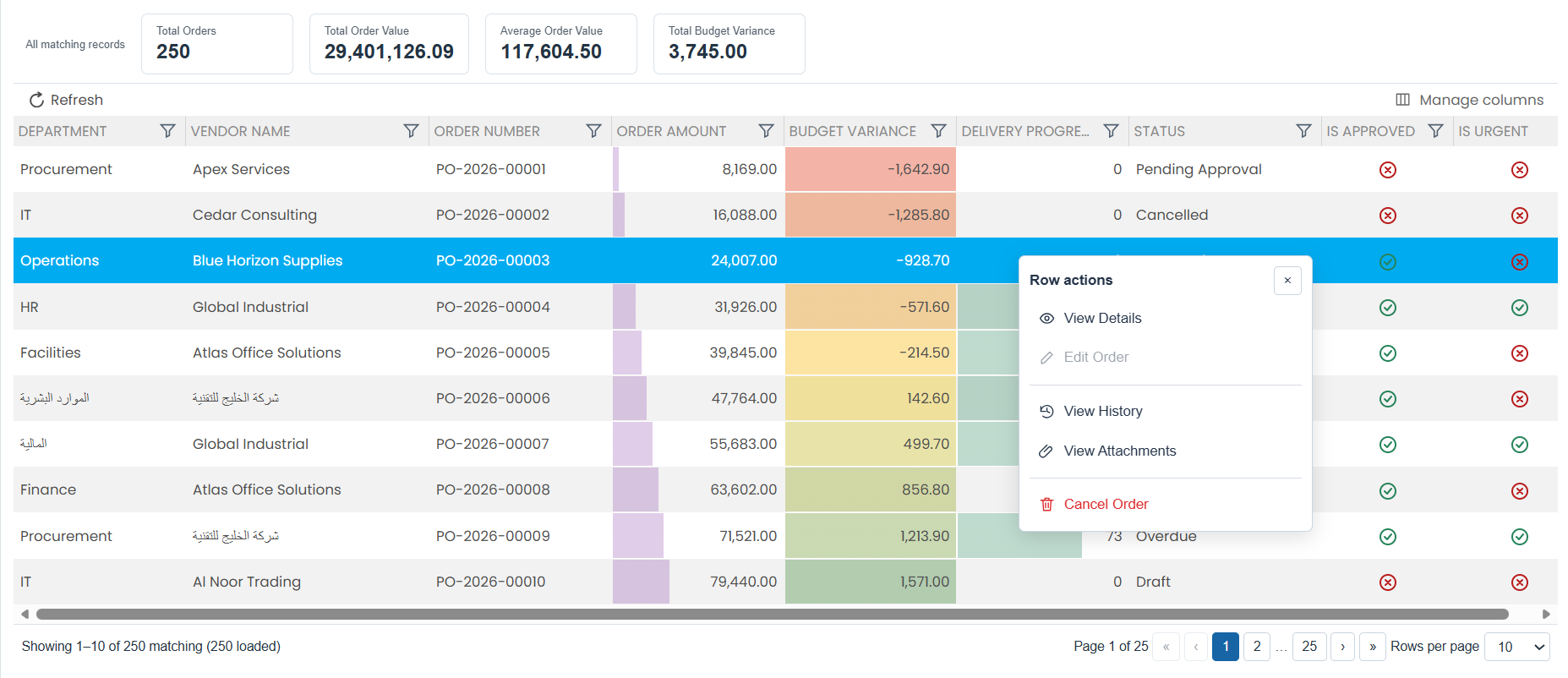
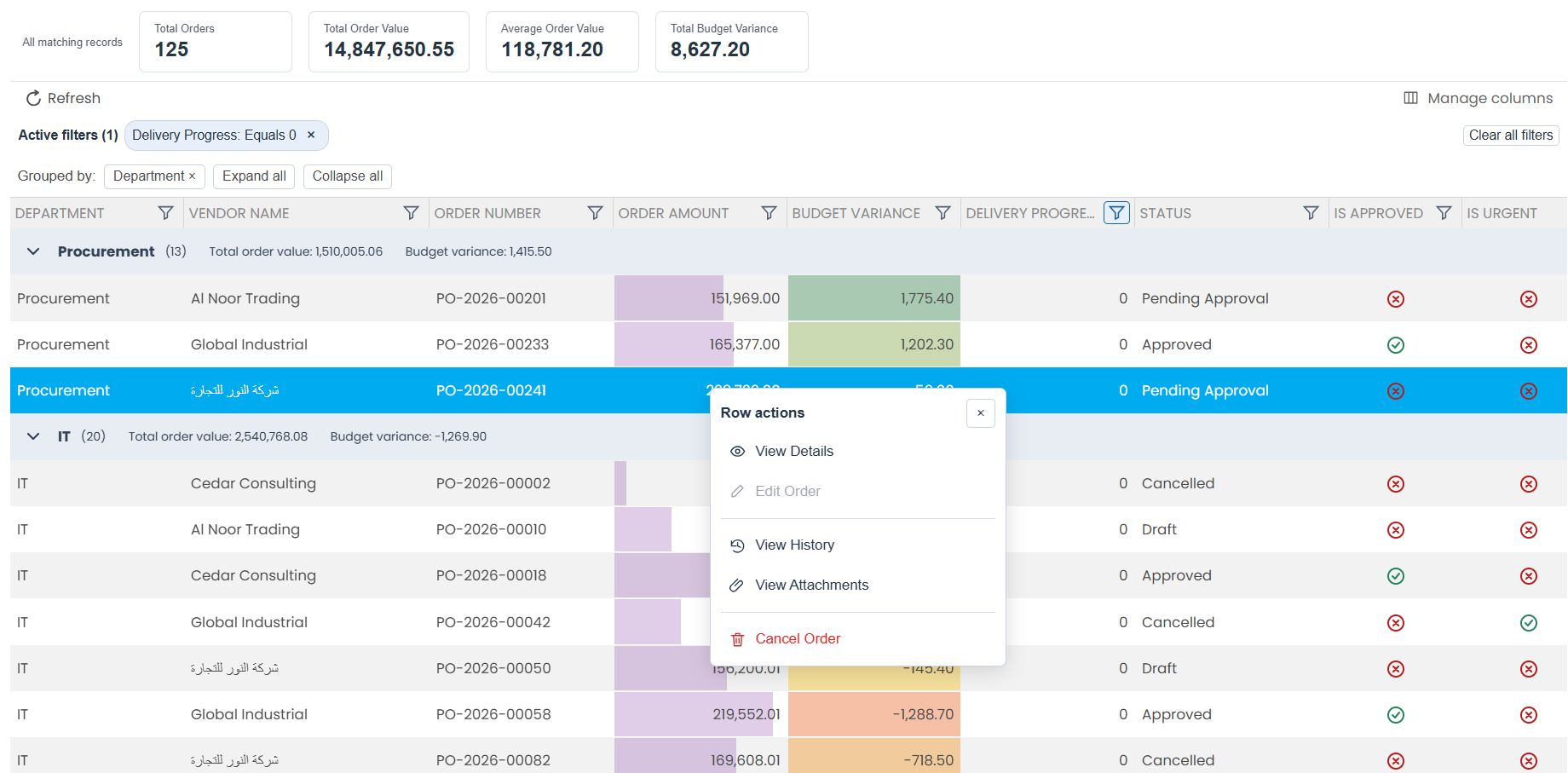
Enable grouping by Department, filter Delivery Progress to Equals 0, and navigate to another page if needed. Right-click a record inside a group. The example shows 125 matching records and the menu on PO-2026-00241; verify the native rule returns that same order when invoked. The screenshot confirms menu and selection, not the resulting rule execution in this combined scenario.
Figure 108 · Context menu on a grouped and filtered record · Actual K2 Runtime capture
Configuration reference
Parameter
Meaning
enabled
Enable row context menus
selectRowOnRightClick
Select the native record before invoking its action
selectionDelay
Delay in milliseconds used by the action selection flow
showIcons
Display action icons
hideSourceButton
Hide mapped native Toolbar Buttons; can also be set per item
items
Ordered array of action and separator definitions
button
Exact native Toolbar Button name or ID; must resolve uniquely inside the grid
text / textAr
Action label and optional Arabic label
icon / color
Action icon and text color
separator
Insert a divider
enabled / enabledWhen
Static or conditional action availability
visible / visibleWhen
Static or conditional action visibility
Reset and limitations
Disable the feature to restore the native Toolbar presentation. Actions require an existing uniquely identified native button and respect its disabled state. The context menu does not create or replace business rules.
Transform the same K2 ListView into a responsive collection of business cards, retaining the native record selection, K2 Rules, filtering, pagination and grouping.
Before you begin
Continue from Lesson 12 — Row Context Menus. Use the existing Purchase Orders List and native View Details Toolbar Button (ViewDetails_ToolBarButton). Keep the Description and Expected Delivery Date columns in the underlying ListView even when hidden in the table.
Replace REPLACE_WITH_YOUR_AREAITEMID with your runtime Area Item ID, save the chosen file as purchase-orders.config.js, increment configVersion in the Data Label loader and reload. The engine is unchanged. Console changes are temporary. Use the appropriate full configuration for each exercise; do not replace the entire defaults object with a fragment.
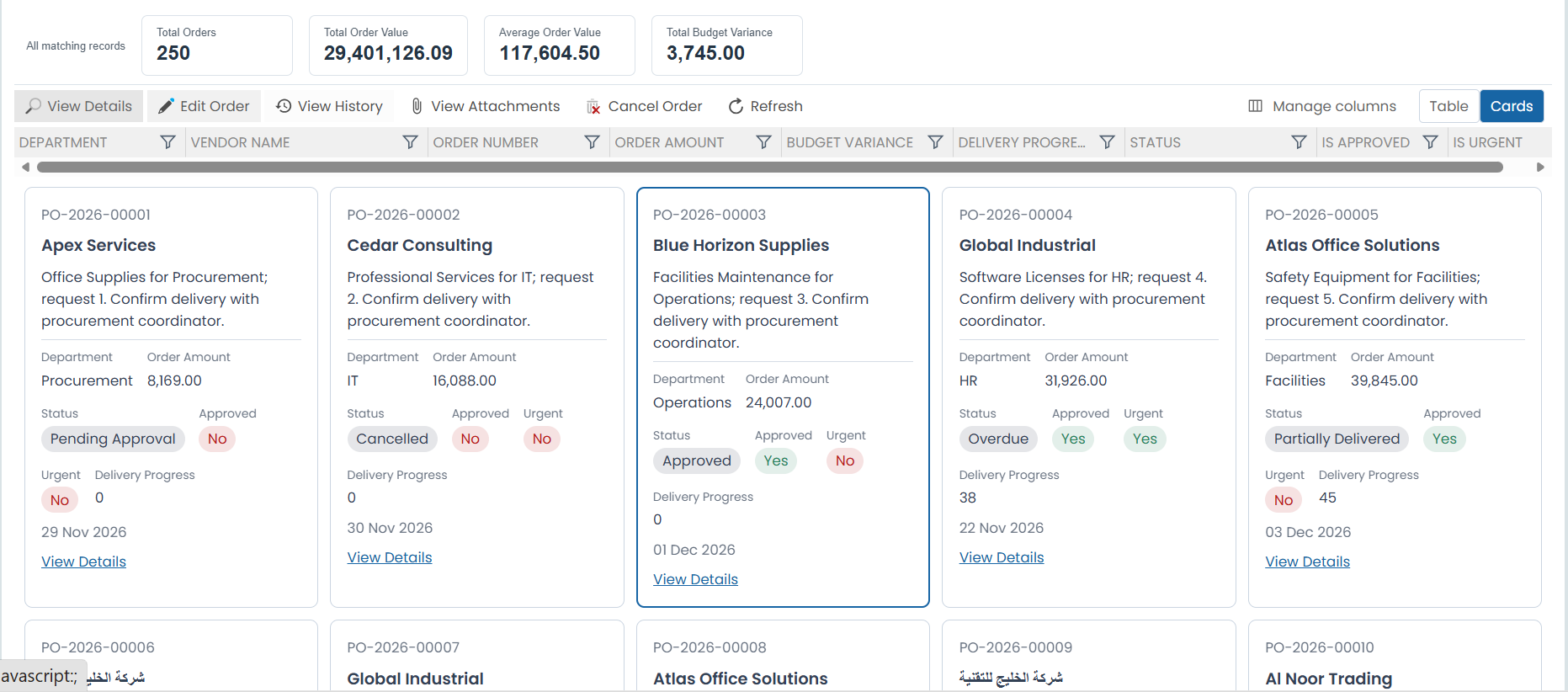
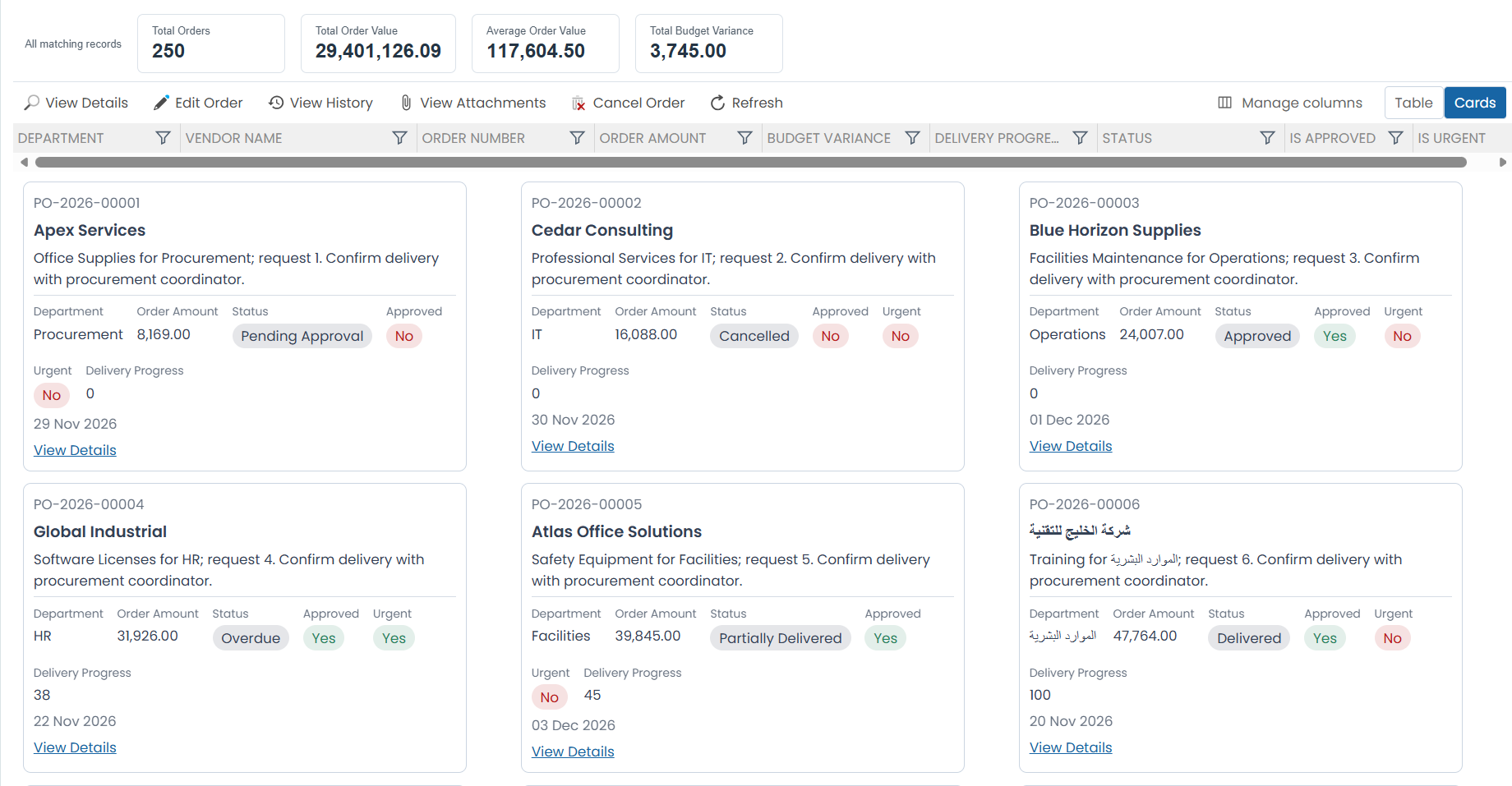
1. Enable Card View
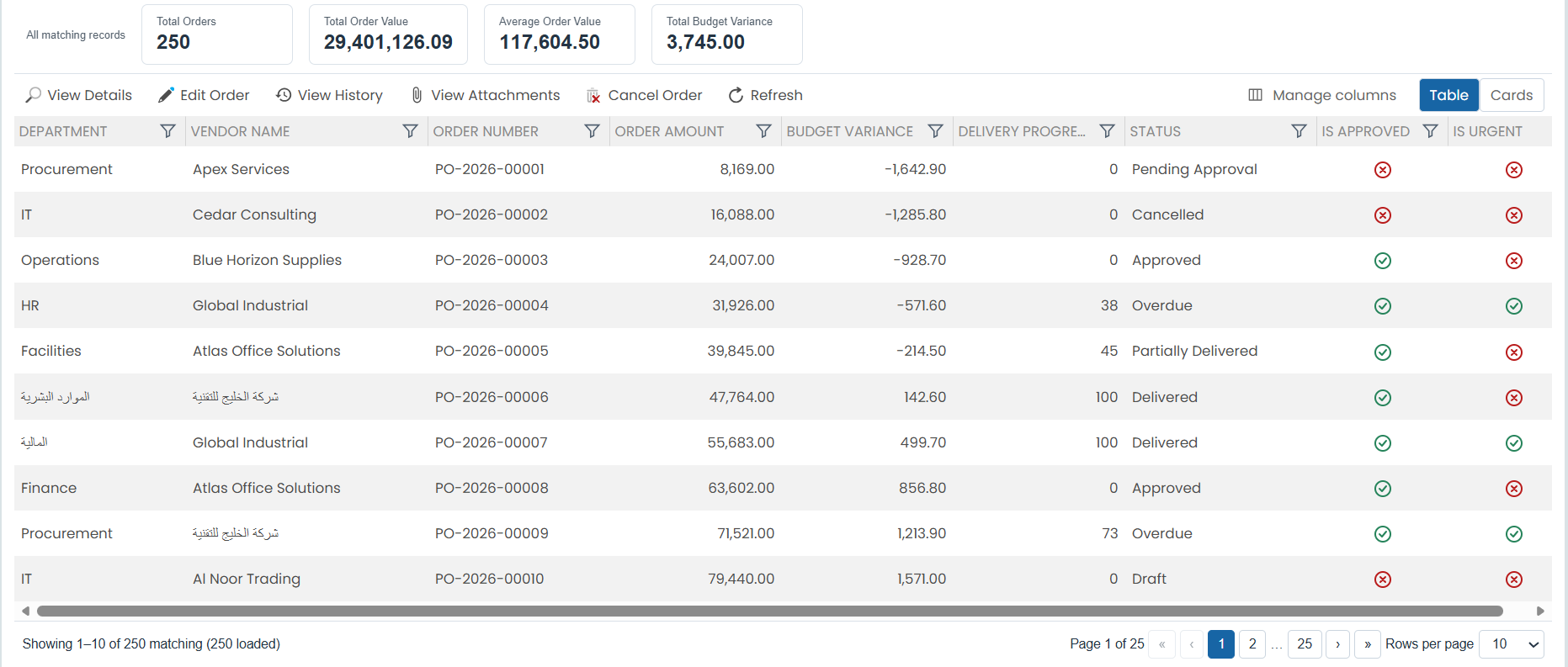
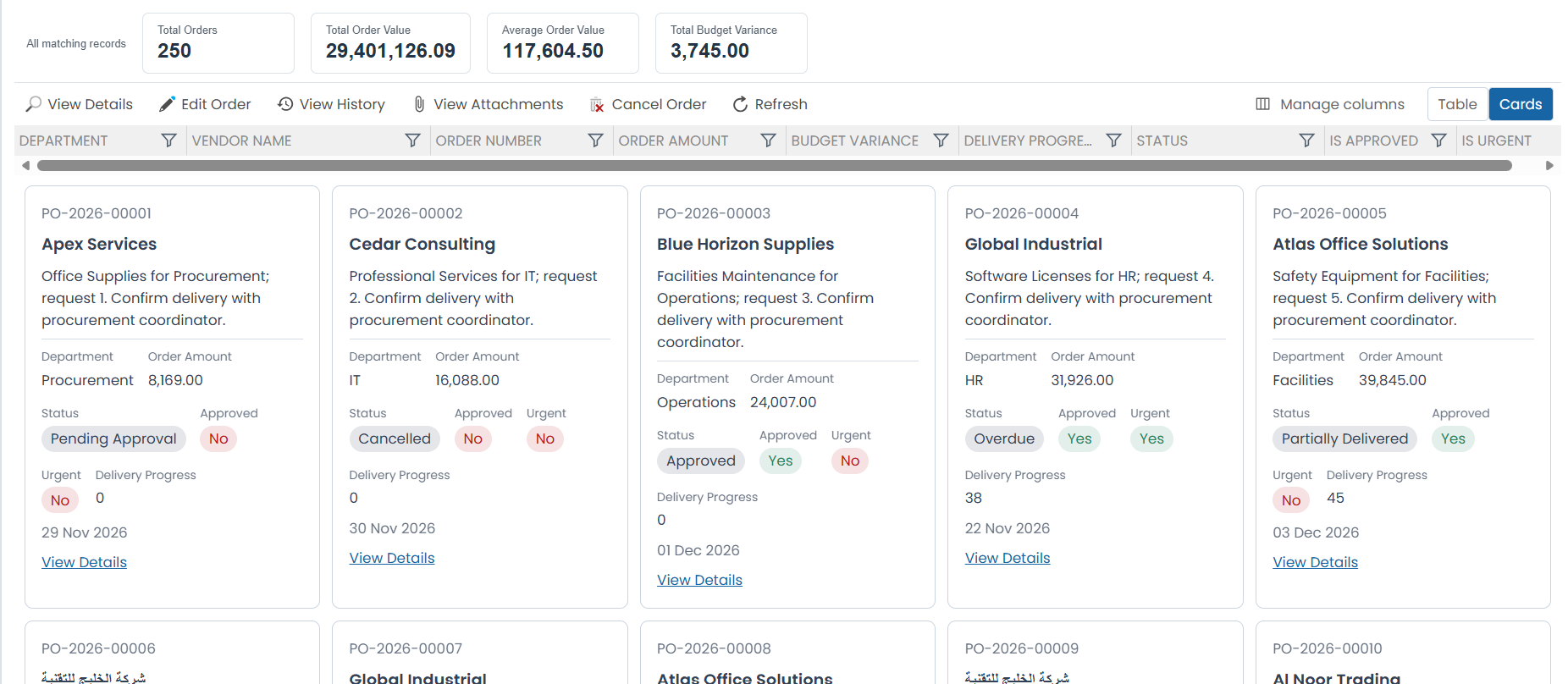
Start with the basic configuration. Table is the initial mode; select Cards in the toolbar to render the same records as cards. The native column headers remain available for filtering, sorting and grouping.
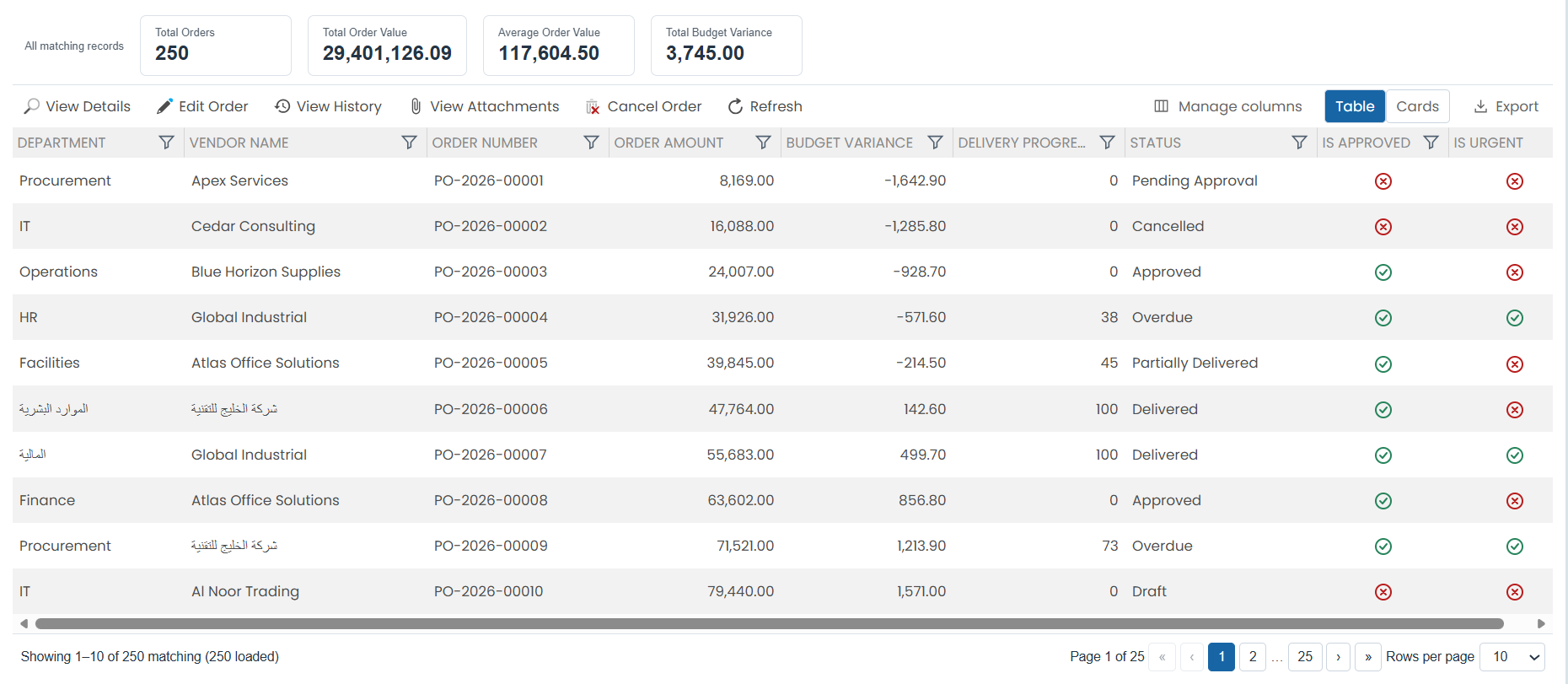
Figure 109 · Original table mode · Actual K2 Runtime captureFigure 110 · Basic card layout · Actual K2 Runtime capture
2. Selection and field mapping
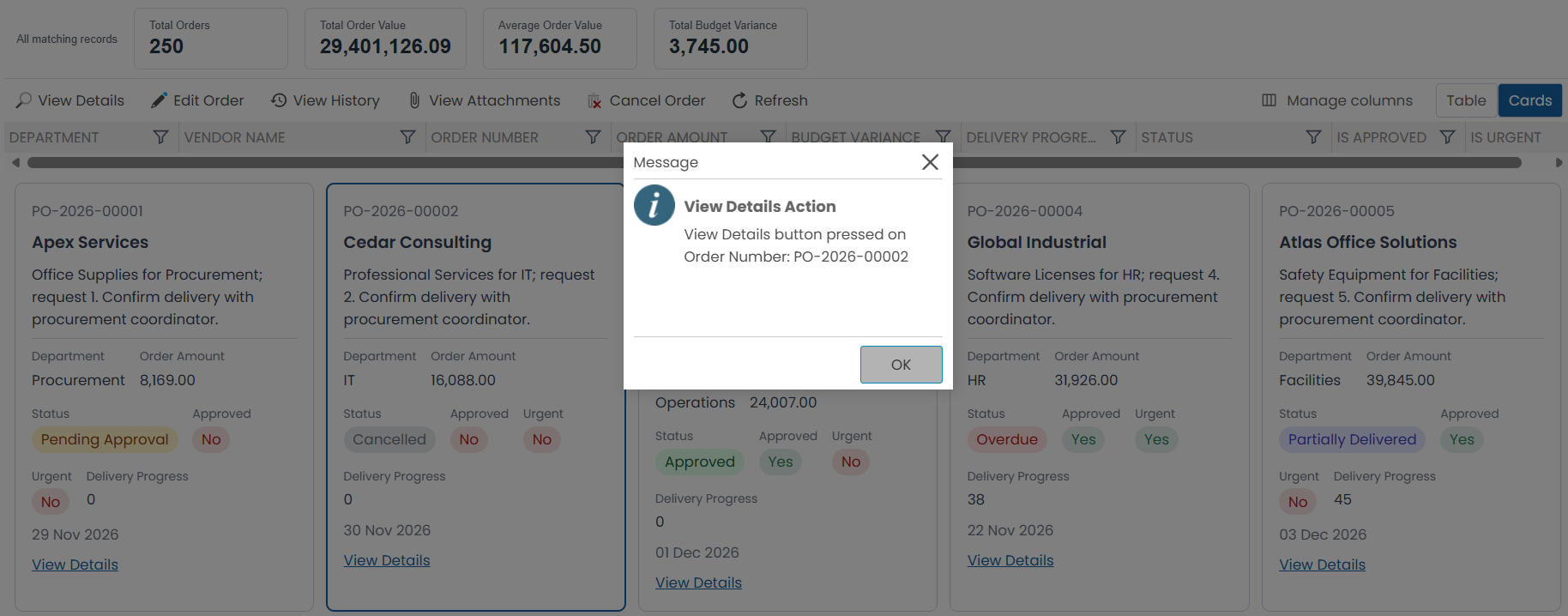
Click a card to select its underlying K2 row. The blue outline identifies the selected record. Mapping assigns Vendor Name to title, Order Number to subtitle, Description to body and Expected Delivery Date to footer. The fields array controls the additional labeled values and their formats. An empty description may be omitted.
Figure 111 · Selected card and native toolbar · Actual K2 Runtime capture
3. Layout and responsive behavior
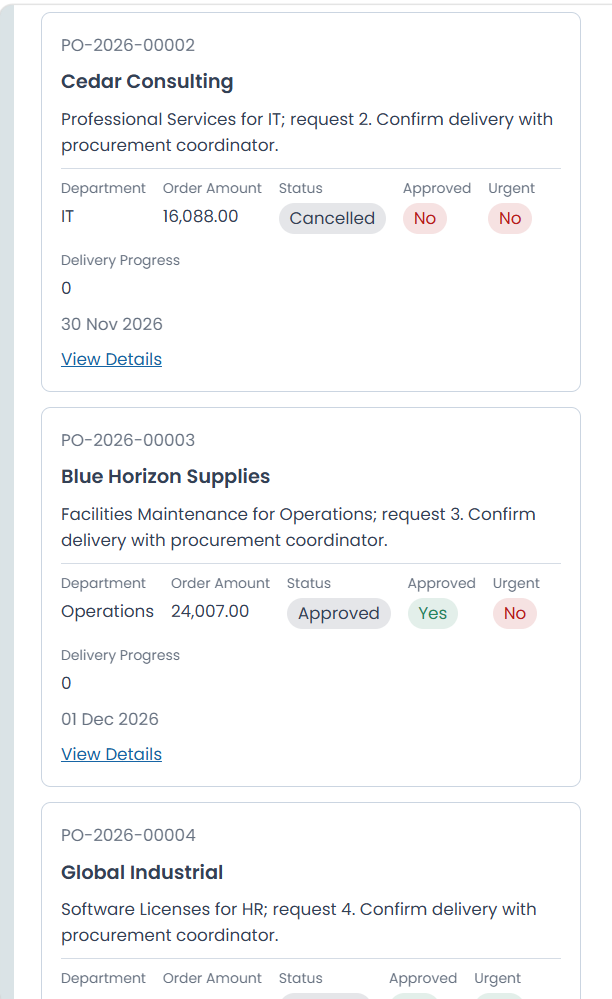
Use the compact configuration for three columns and compact density. The automatic layout adapts to the available width; test by narrowing the browser window.
Figure 113 · Single-column layout in a narrow viewport · Actual K2 Runtime capture
4. Status and Boolean badges
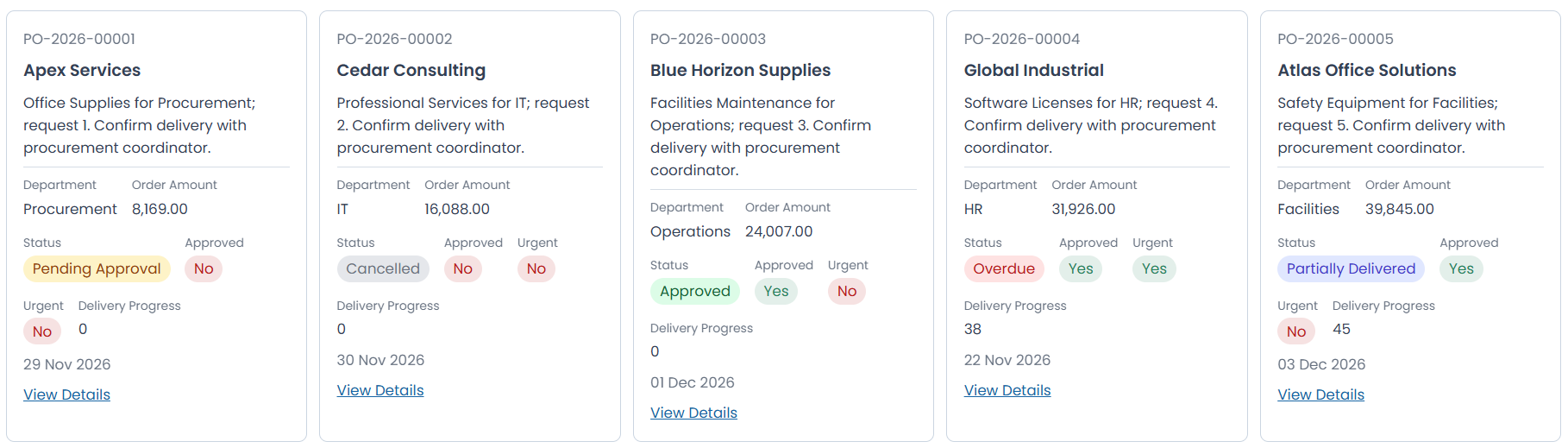
Load the actions configuration for colored status badges. Card fields can use the badge format; status styling is supplied by conditional formatting rules. See Lesson 8 — Boolean Formatting and Conditional Formatting. Without status rules the badges are neutral. The example uses generic Yes/No colors for Boolean fields, not semantic urgency colors.
Figure 114 · Colored status and Boolean badges · Actual K2 Runtime capture
5. Native K2 actions
Click View Details on the Cedar Consulting card. The configured linkButton invokes the existing native Toolbar Button rule for the selected row. The message confirms Order Number PO-2026-00002. Right-click a card to open the same row context menu as in Lesson 12.
Figure 115 · Native K2 rule receives the correct order number · Actual K2 Runtime captureFigure 116 · Context menu on a cancelled order · Actual K2 Runtime captureFigure 117 · Conditional availability on an approved order · Actual K2 Runtime capture
Security boundary
Card links and menu conditions are presentation features. Validate authorization and business state in K2 Rules and backend services. The examples do not execute real cancellation.
6. Filtering and pagination
Filter Status to Overdue and Is Urgent to Yes using the column headers. Expect 50 matching orders, total value 5,940,175.22, average 118,803.50 and budget variance 2,603.60. Navigate to page 2; the filtered KPI values stay unchanged while the cards change. See Lesson 2, Lesson 3 and Lesson 4.
Figure 118 · Filtered cards and recalculated KPIs · Actual K2 Runtime captureFigure 119 · Next page of filtered cards · Actual K2 Runtime capture
7. Grouped cards
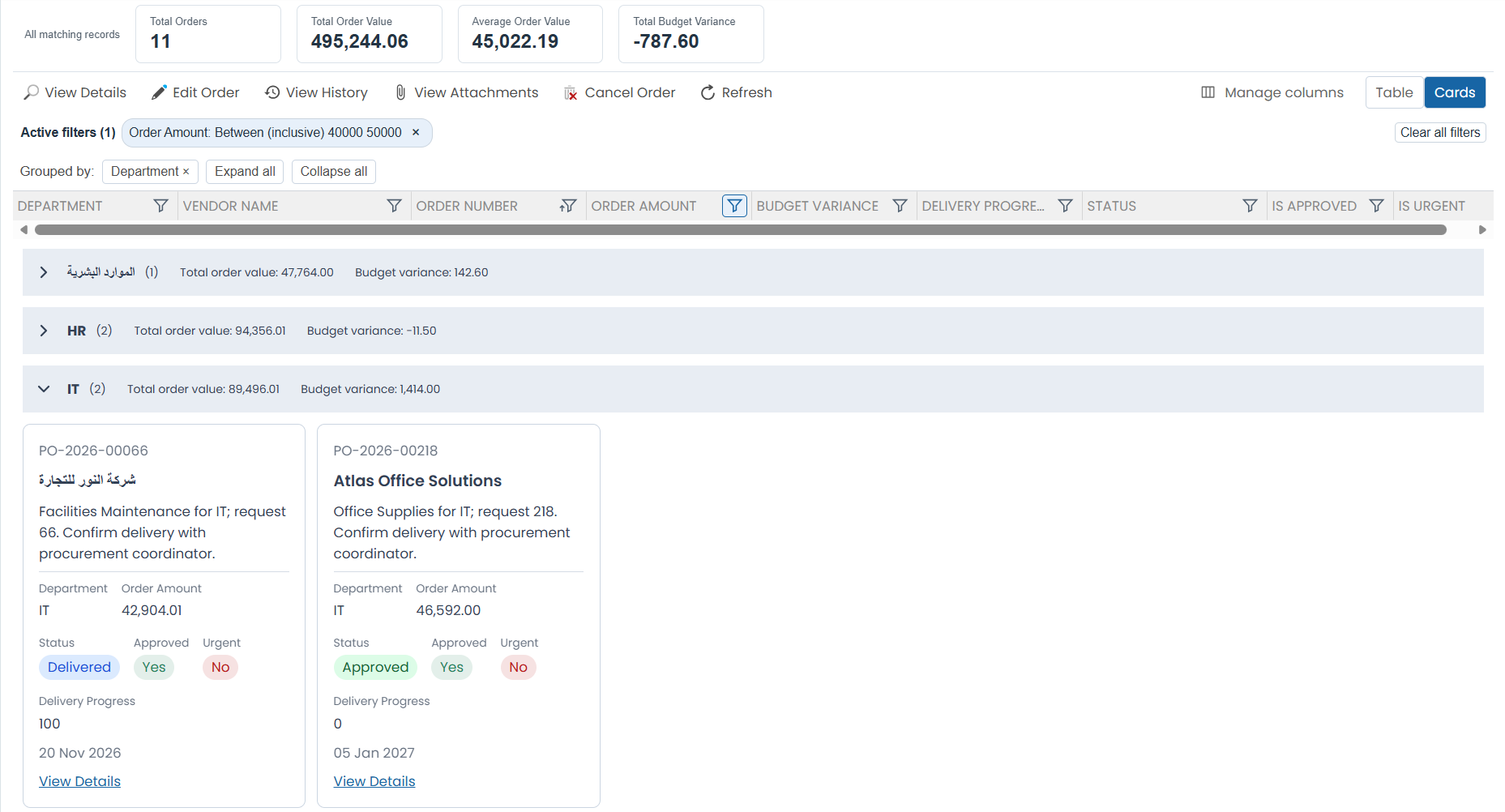
Load the grouped configuration. The Department group headers show record counts and aggregates; use Expand all, Collapse all or individual arrows. Apply an Order Amount between 40000 and 50000 to reproduce the filtered example, then expand IT. For nested grouping clear the filters, add Status as a second grouping column and collapse Pending Approval while leaving Overdue expanded. See Lesson 11 — Row Grouping.
Figure 120 · Cards grouped by Department · Actual K2 Runtime captureFigure 121 · Filtered groups with individual expansion states · Actual K2 Runtime capture
Figure 122 · Nested Department and Status groups · Actual K2 Runtime capture
8. Persist the selected view
Load the preferences configuration, which uses a dedicated namespace and starts in table mode. Select Cards and reload the form. The diagnostic should report cards mode and restored preferences. Storage is local to the browser; see Lesson 7 — Personal Preferences.
Ordered additional field definitions: column, label, format and precision where applicable
preserveInPreferences
Save selected mode when preferences are enabled
Benefits and current limitations
Cards offer a readable alternative to a wide table without duplicating the underlying K2 business logic. They operate on loaded records, not a separate server query. Table-specific data bars and color scales are not shown inside cards in this release. Table headers remain visible to provide access to column operations. Optional header hiding, card footer alignment and improved field layout are deferred until after the first documentation release. The engine remains frozen except for blocking defects.
Reset
Switch to Table or disable Card View. A saved preference can override the initial mode when the feature is enabled; reset grid preferences if necessary.
Replace REPLACE_WITH_YOUR_AREAITEMID with your runtime Area Item ID. Save the chosen configuration as purchase-orders.config.js in the server config folder, increment configVersion in the Data Label loader and reload the form. Console changes are temporary.
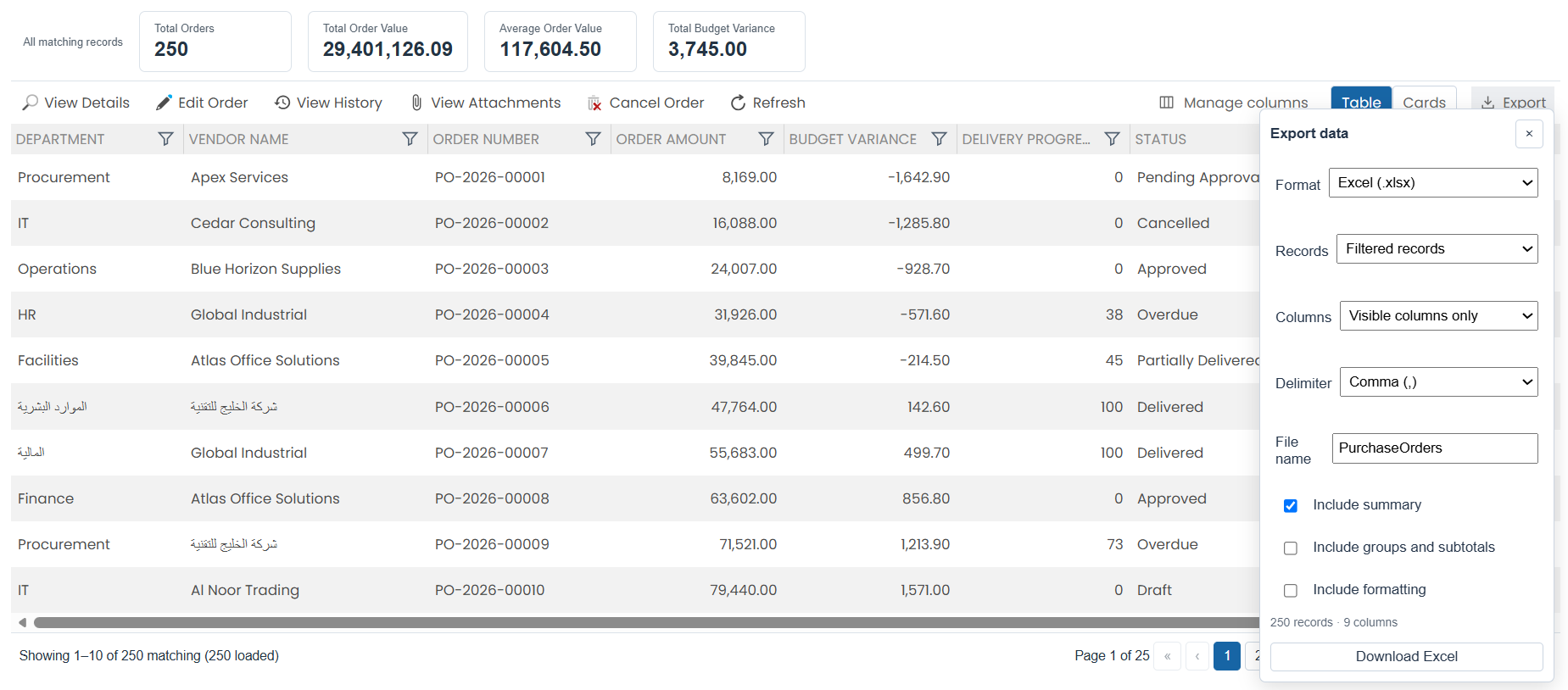
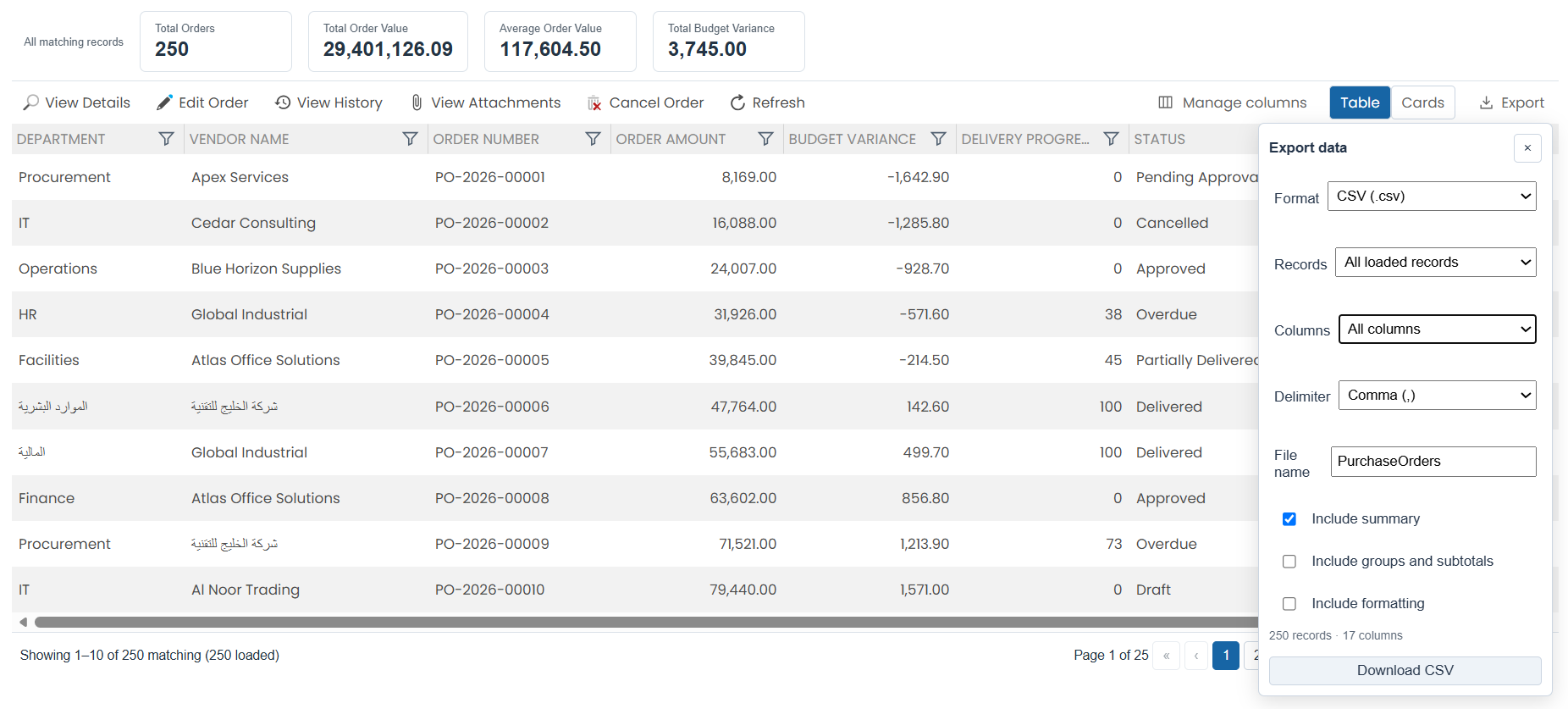
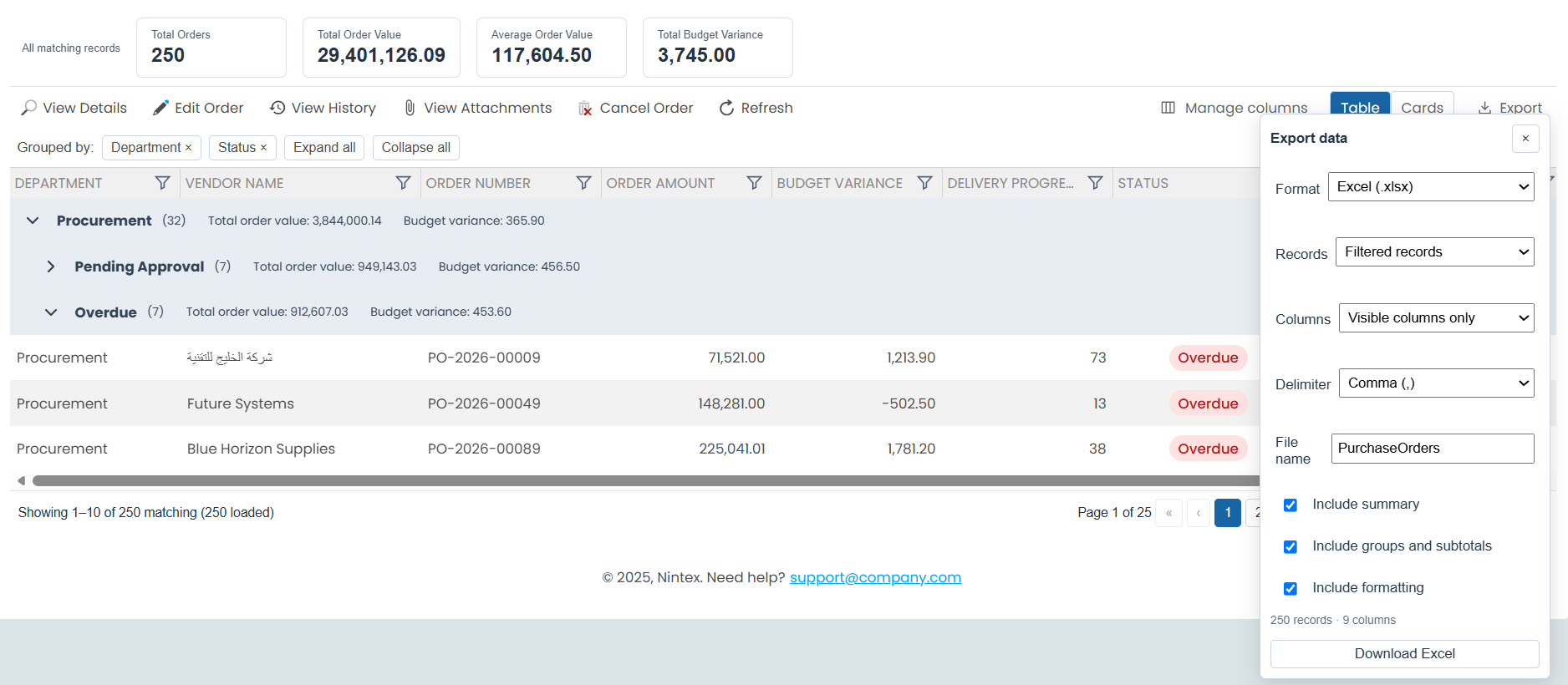
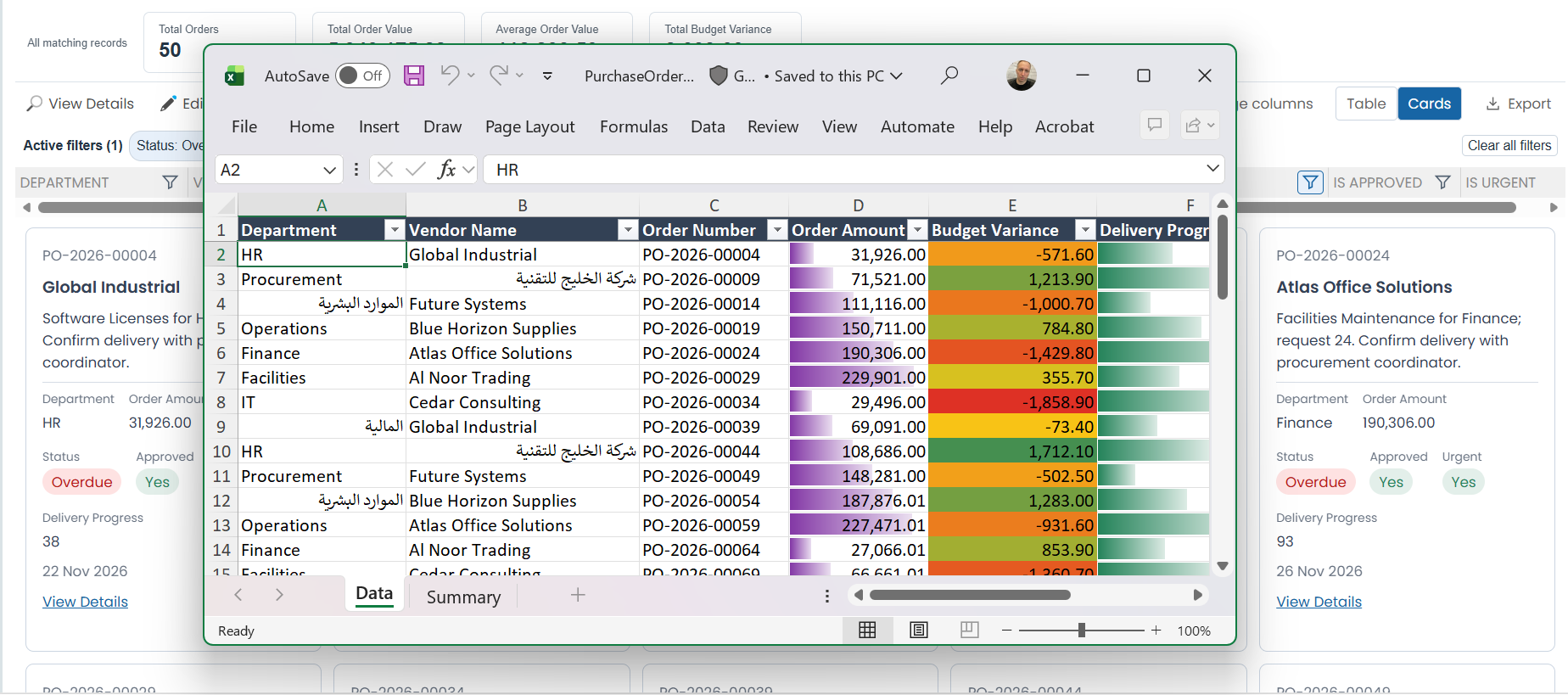
Figure 125 · Export toolbar button · Actual test captureFigure 126 · Export options dialog · Actual test capture
2. Download CSV
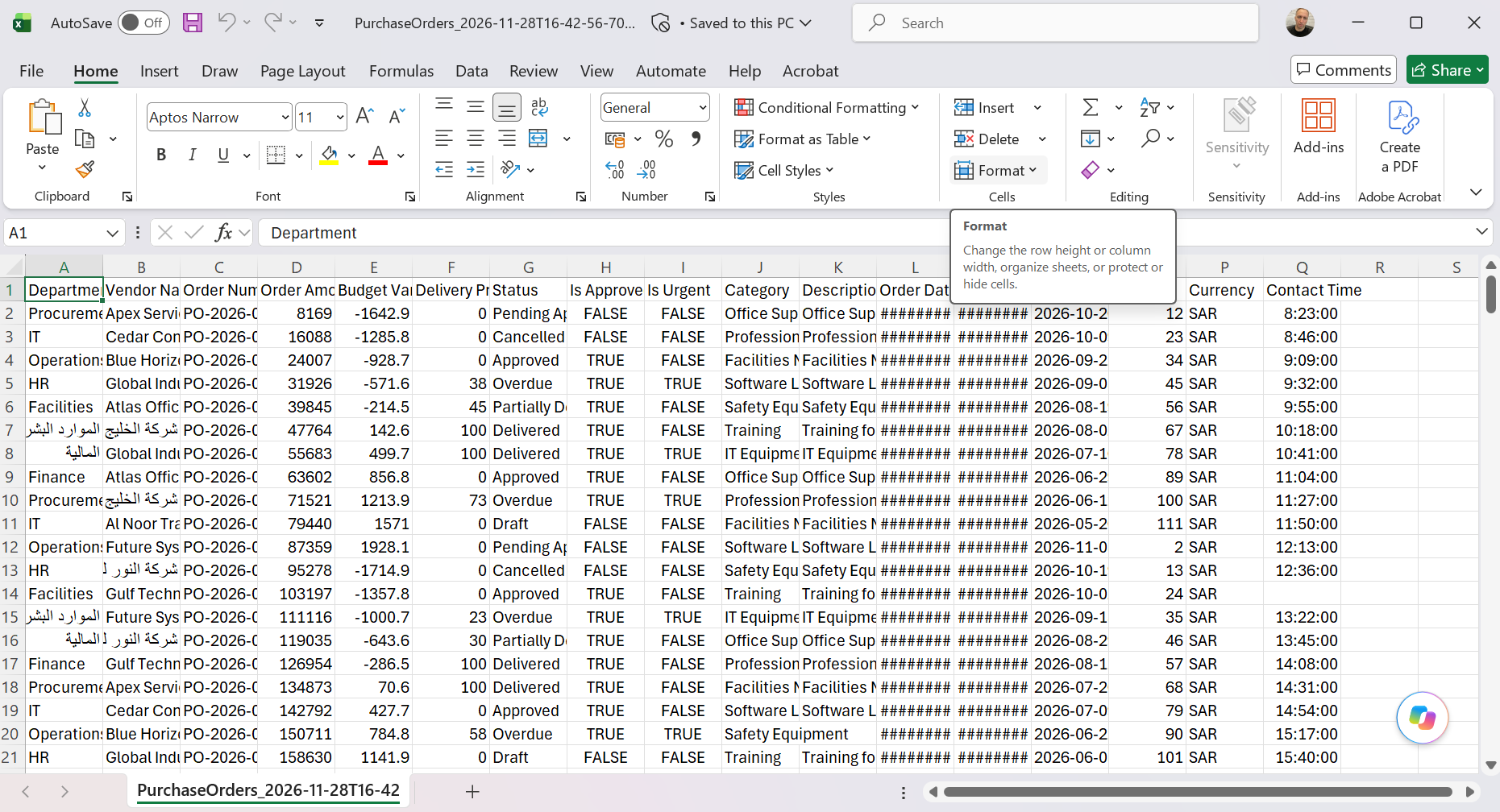
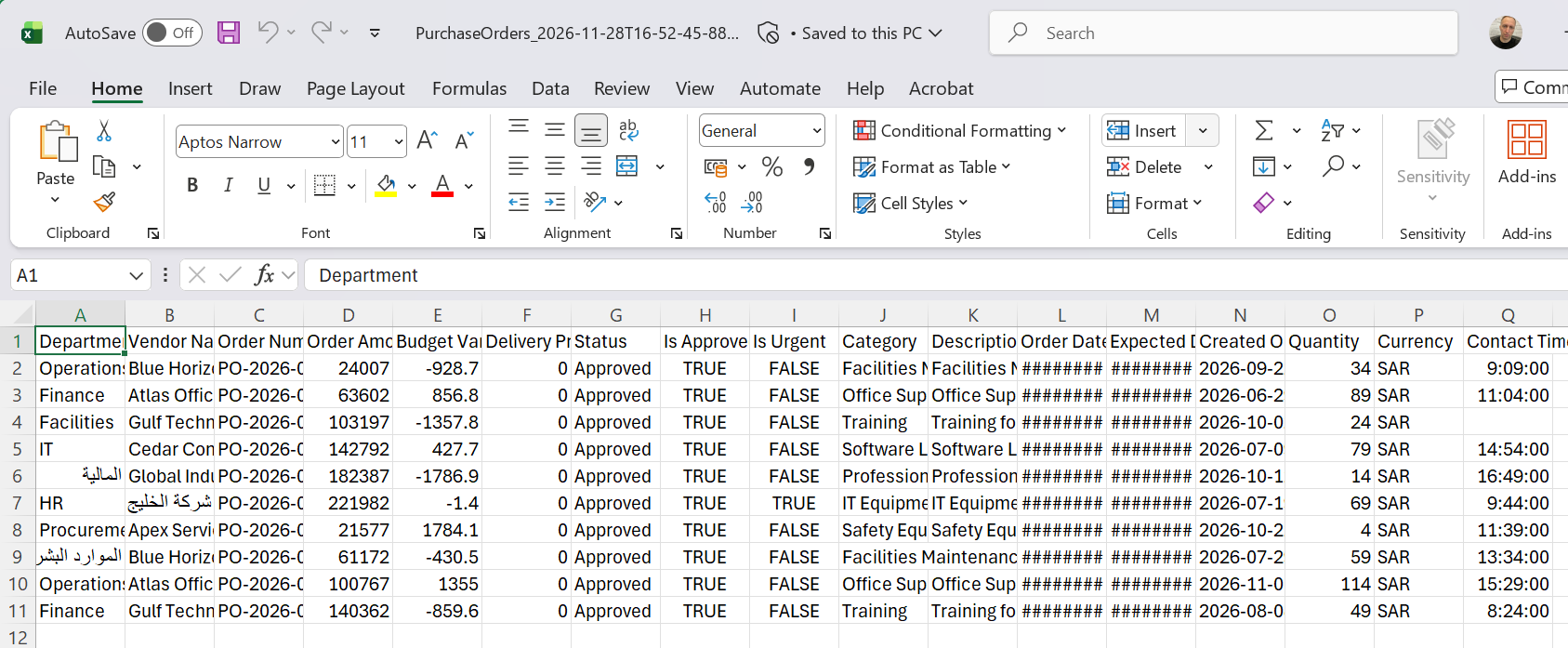
Select CSV, All loaded records and All columns. Choose comma as delimiter and download. CSV contains the header and raw record values, not Excel styles, summary sheets or group sheets. UTF-8 BOM is enabled by default for multilingual data; delimiters supported by the engine are comma, semicolon, tab and pipe. Excel may interpret dates or numbers using local settings; widen columns if dates appear as ####.
Figure 127 · CSV export settings: 250 records and 17 columns · Actual test captureFigure 128 · CSV opened in Excel · Actual test capture
3. Record scope
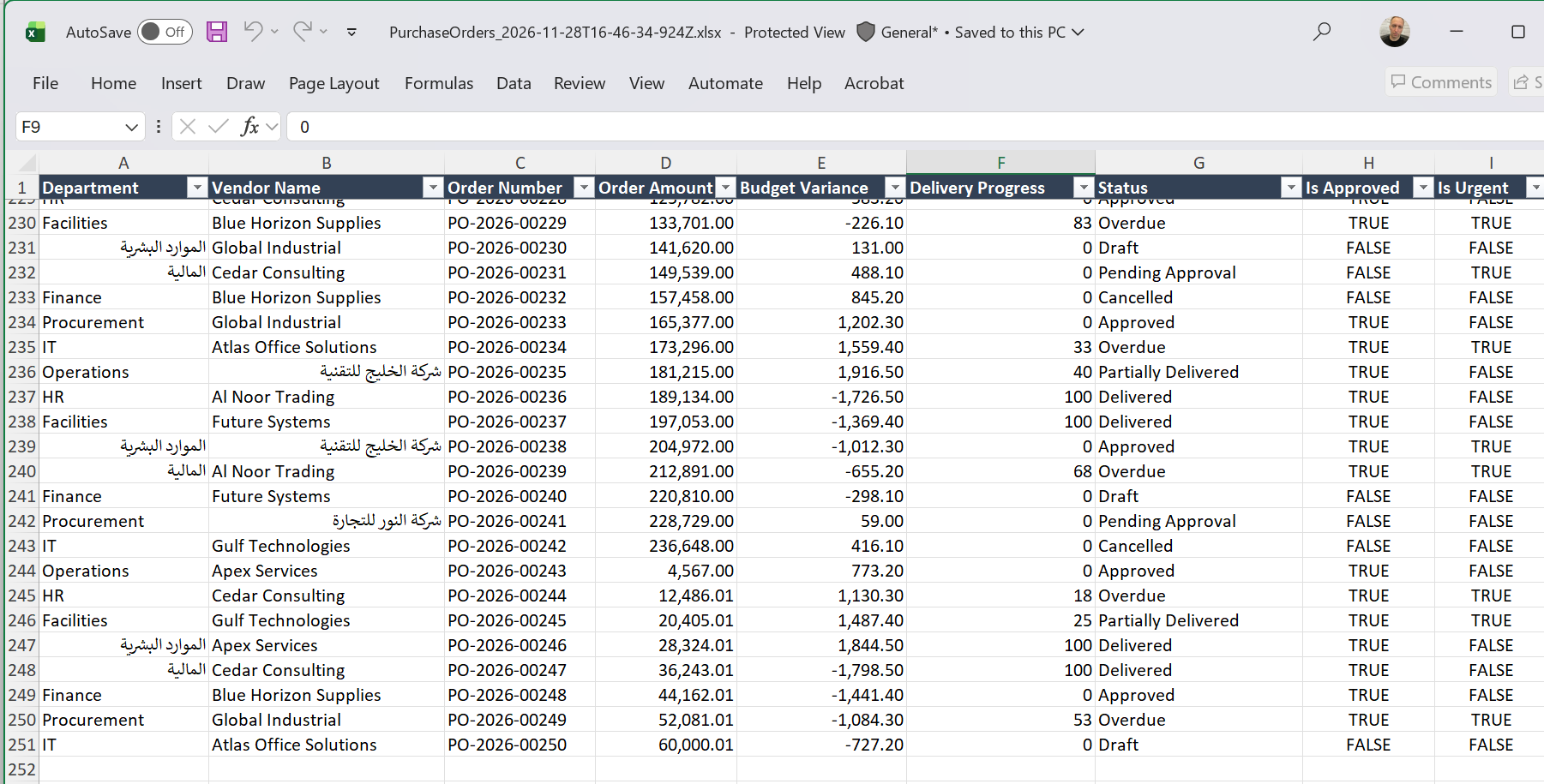
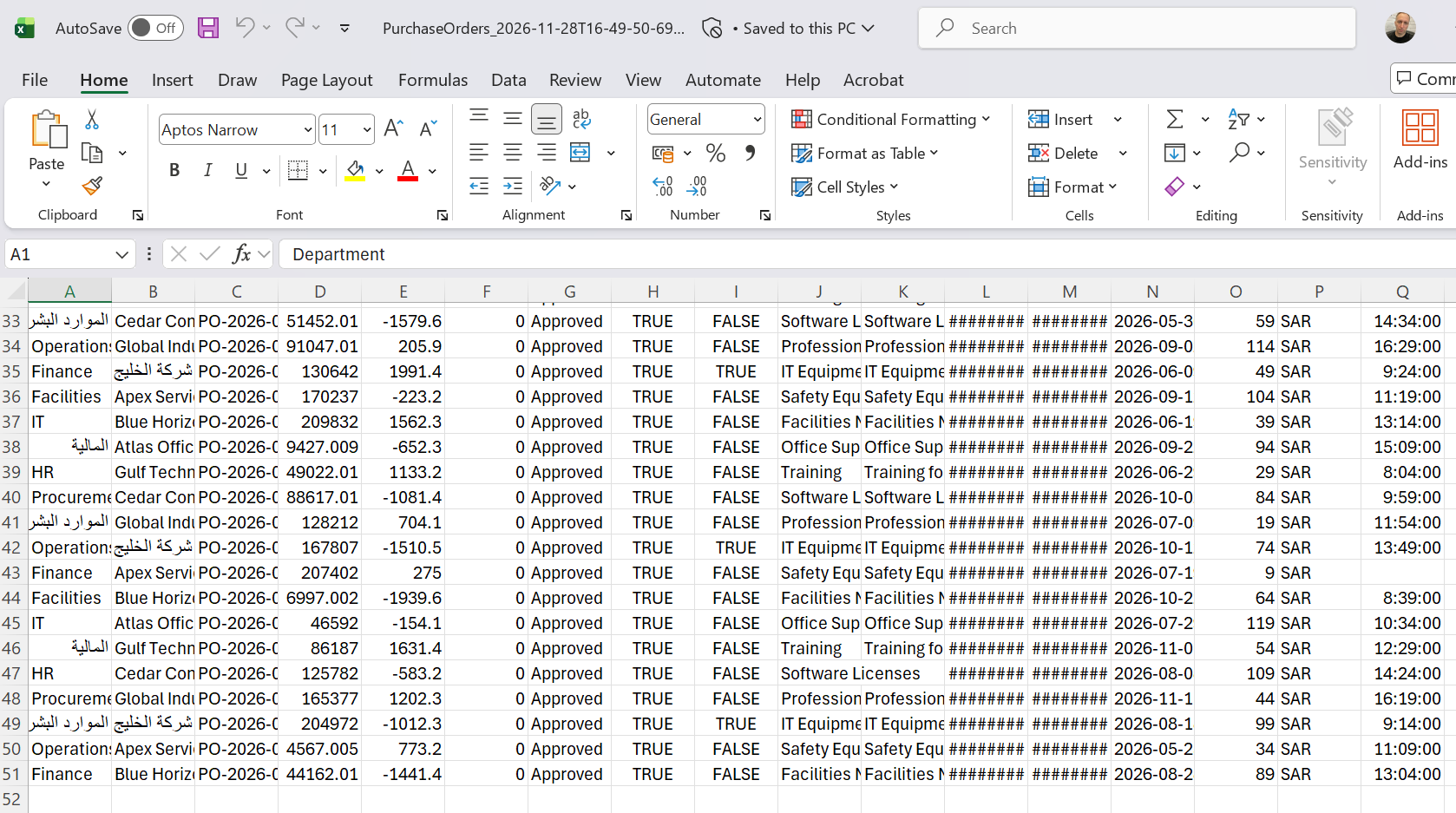
Loaded exports all records currently loaded into the grid, not unseen server records. Filtered exports all matching loaded records, across pages. Page exports the current page dataset. Apply Status = Approved to reproduce the 50-record filtered scenario, then export the current page of 10 records. See Lesson 2 and Lesson 3.
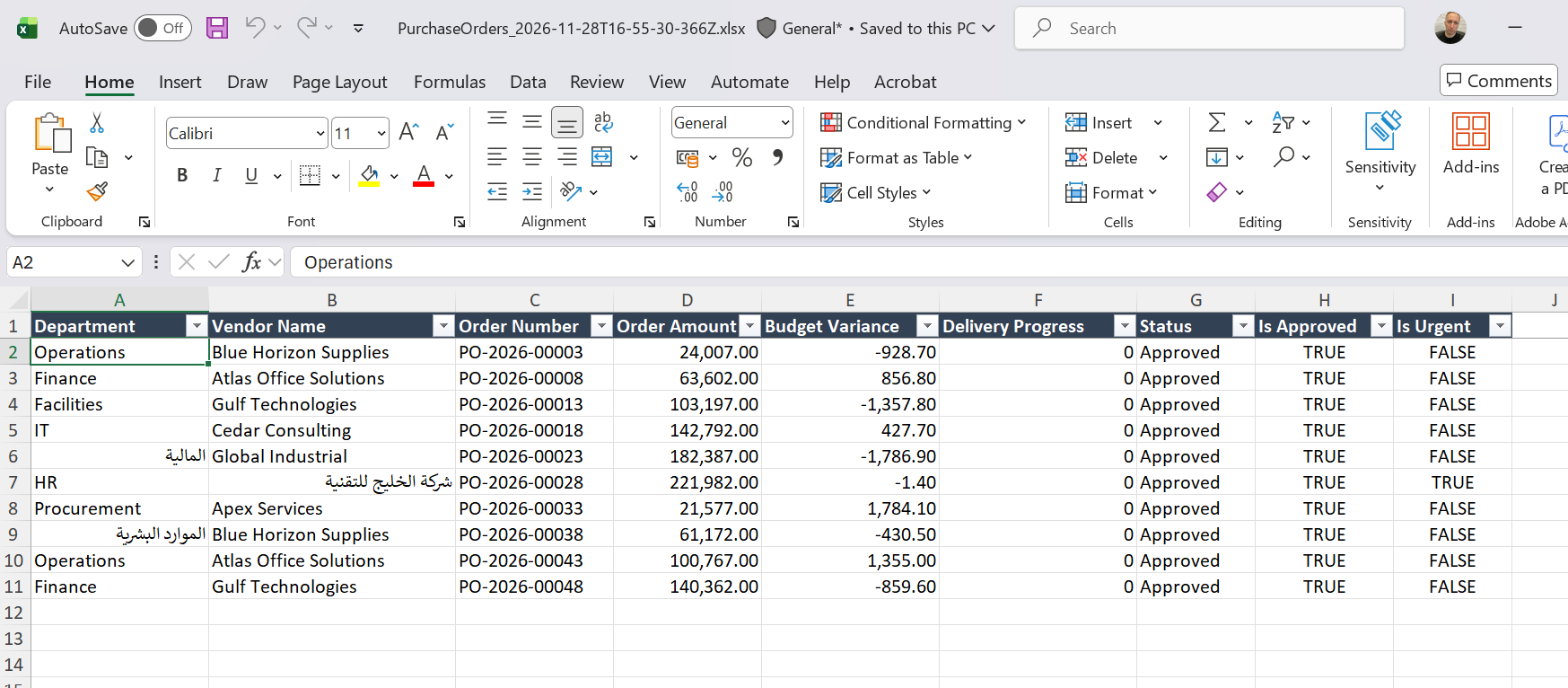
Figure 129 · All 250 loaded records (Excel example) · Actual test captureFigure 130 · Filtered CSV: 50 Approved records · Actual test captureFigure 131 · Current page CSV: 10 records · Actual test capture
4. Column selection and order
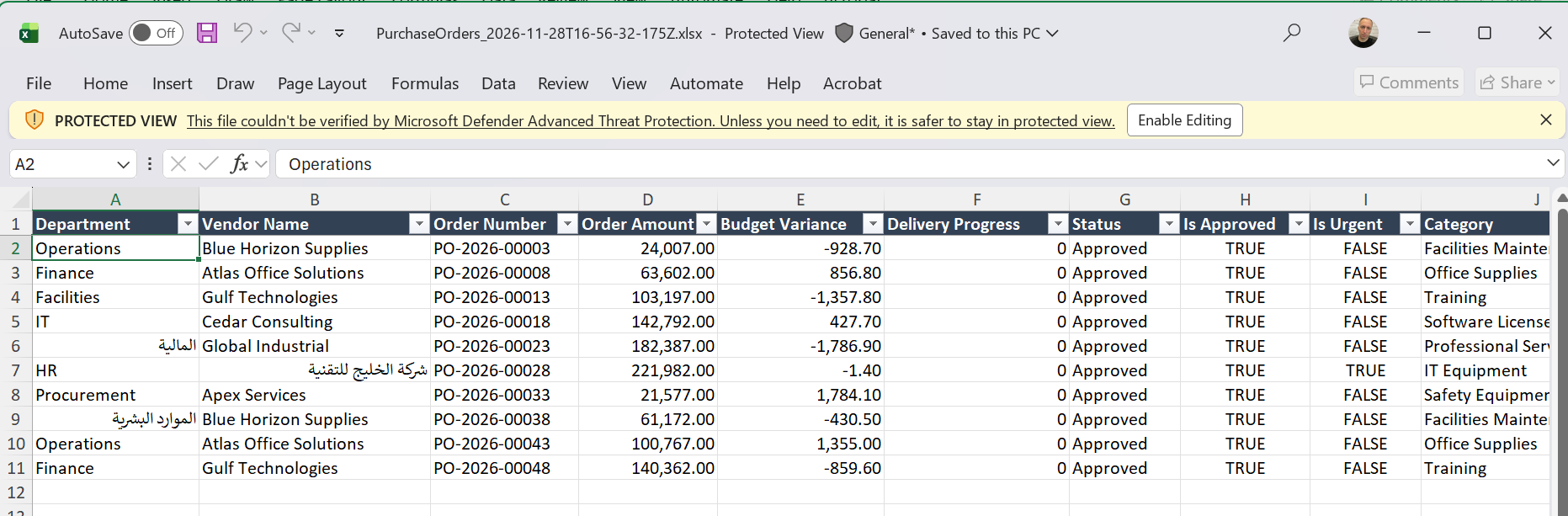
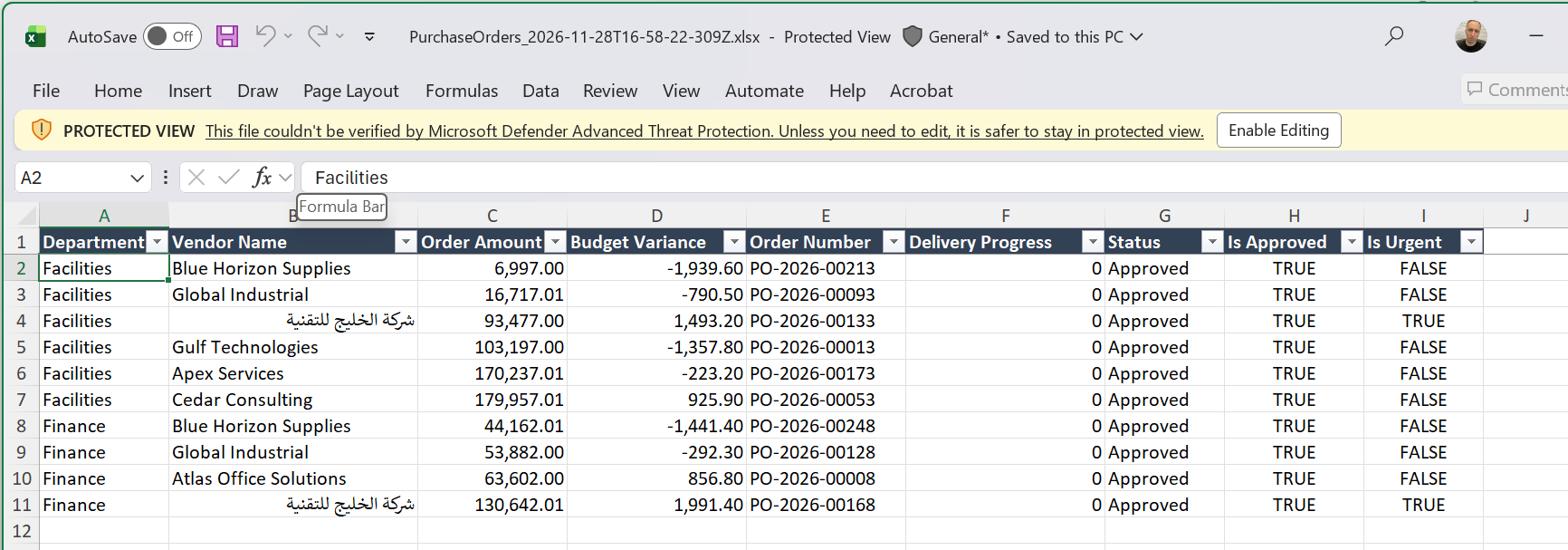
Visible columns only excludes hidden columns; All columns includes the underlying columns. The configured preserveColumnOrder option retains the current column order, including pinned zones. See Lesson 6 — Column management. Hidden columns are not a security boundary.
Figure 132 · Visible columns only (Excel example) · Actual test captureFigure 133 · All columns (Excel example) · Actual test captureFigure 134 · Reordered columns and sorted records (Excel example) · Actual test capture
5. Diagnostics
With Status = Overdue and page size 10, run this read-only diagnostic in the browser console. It uses the CSV builder without downloading a file.
{
  const ag = K2AdvancedGrids.instance;
  const id = ag.inspect()[0].id; // choose the target grid on multi-grid forms
  console.table(["loaded", "filtered", "page"].map(scope => {
    const data = ag.buildCSV(id, {scope, columns: "visible"});
    return {scope, records: data.records, columns: data.columns};
  }));
}
Figure 151 · Diagnostic: loaded 250, filtered 50, page 10; nine columns · Actual test capture
Knowledge check
Can you export all matching records while showing only ten rows? Can you export hidden columns? Does CSV retain worksheet formatting? Expected answers: yes, yes if All columns is selected, and no.
Lesson 14 · Part B — Generate native XLSX workbooks with typed values, summaries, group subtotals and optional formatting directly from the loaded K2 data.
Before you begin
Complete Lesson 14 — CSV export. Use the same basic configuration, then switch between the following complete examples.
Replace REPLACE_WITH_YOUR_AREAITEMID, save as purchase-orders.config.js, increment configVersion in the Data Label and reload. No engine replacement is required.
1. Native workbook and data types
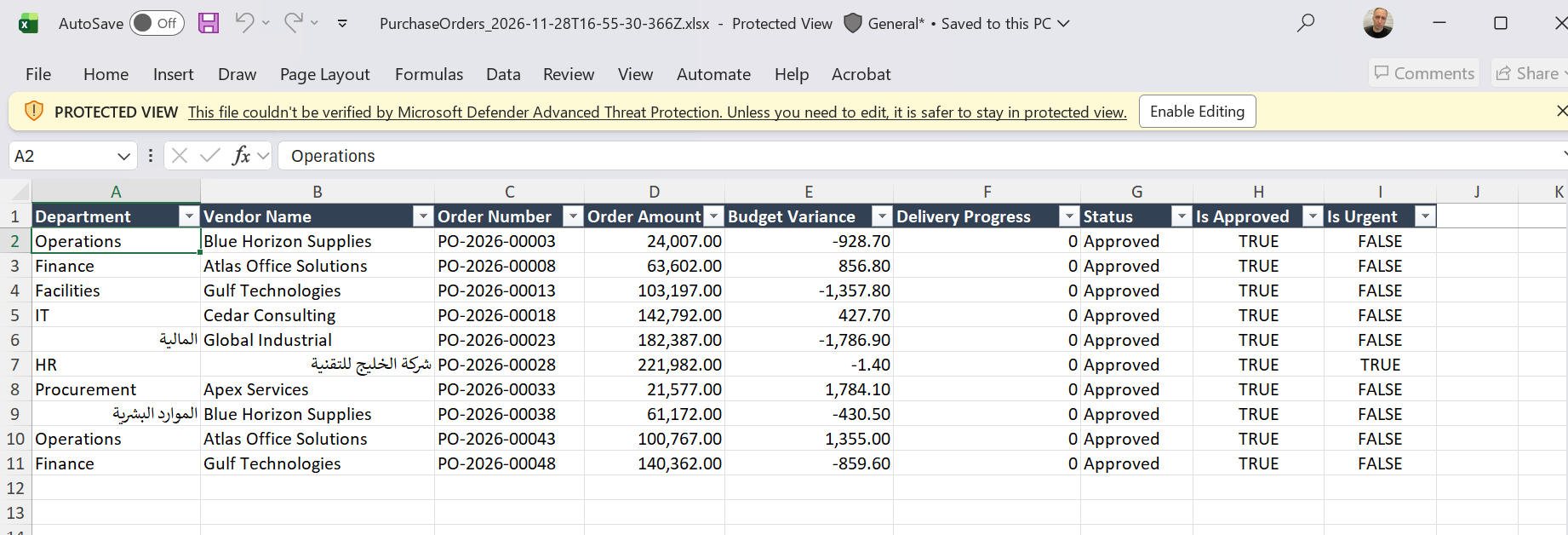
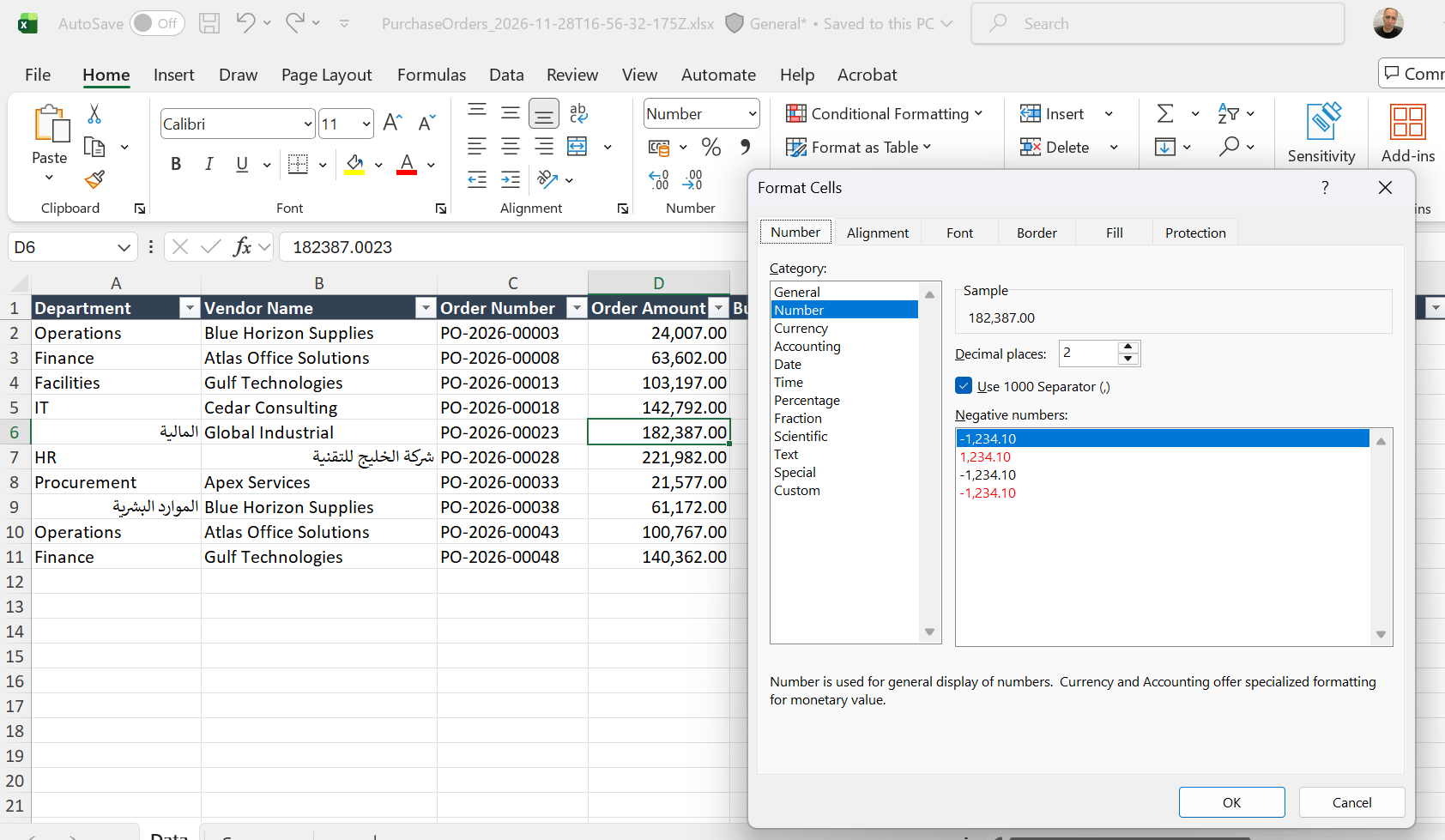
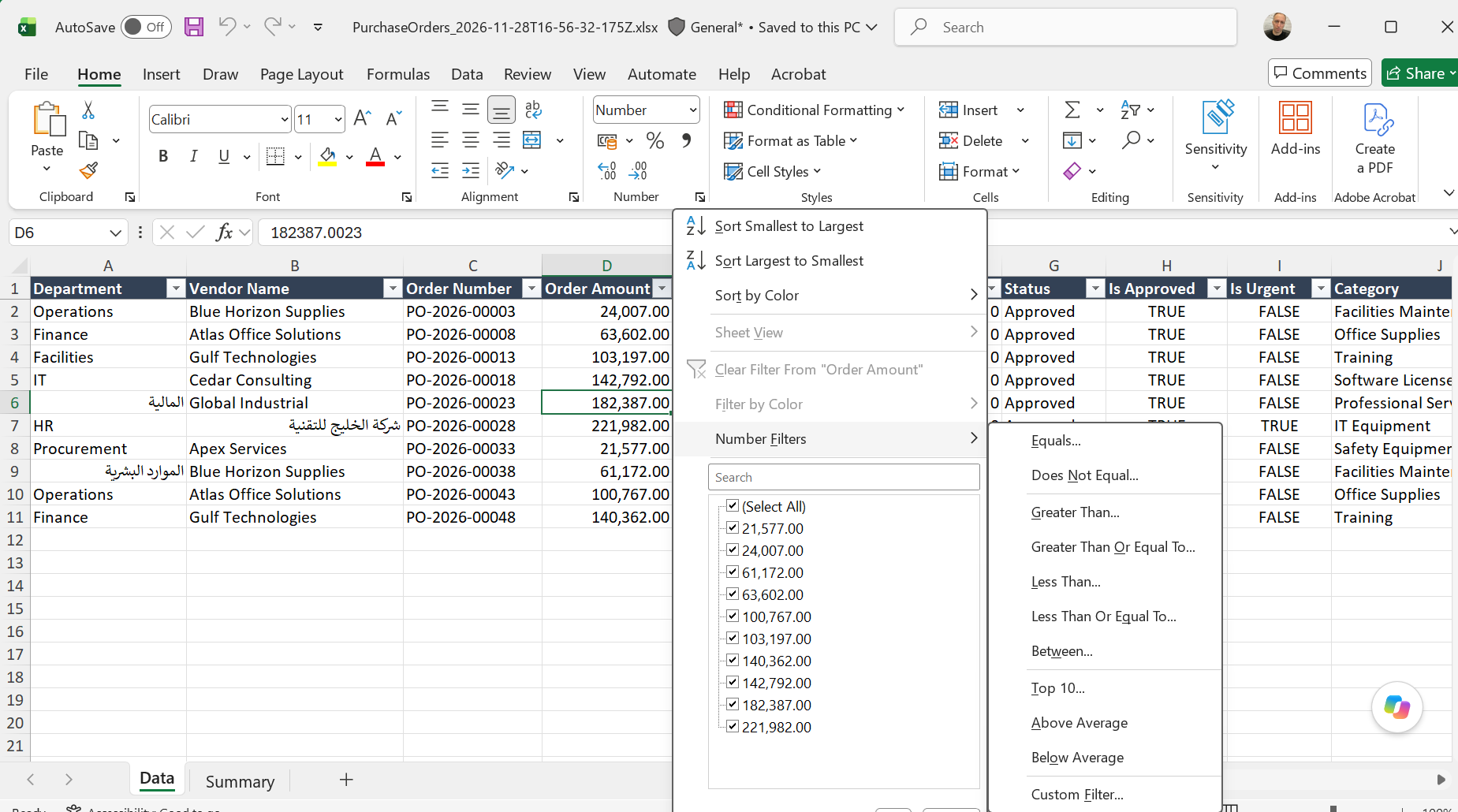
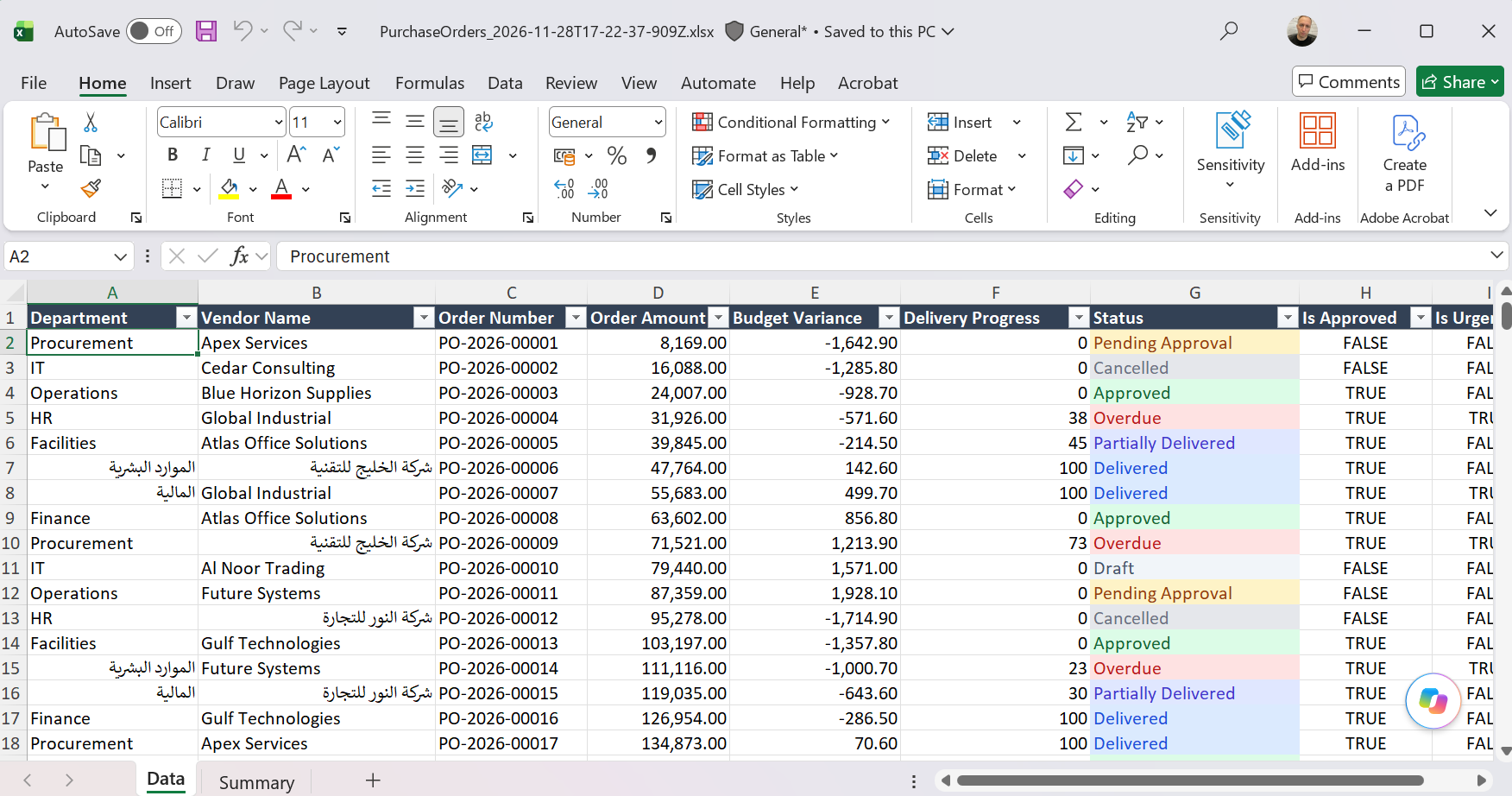
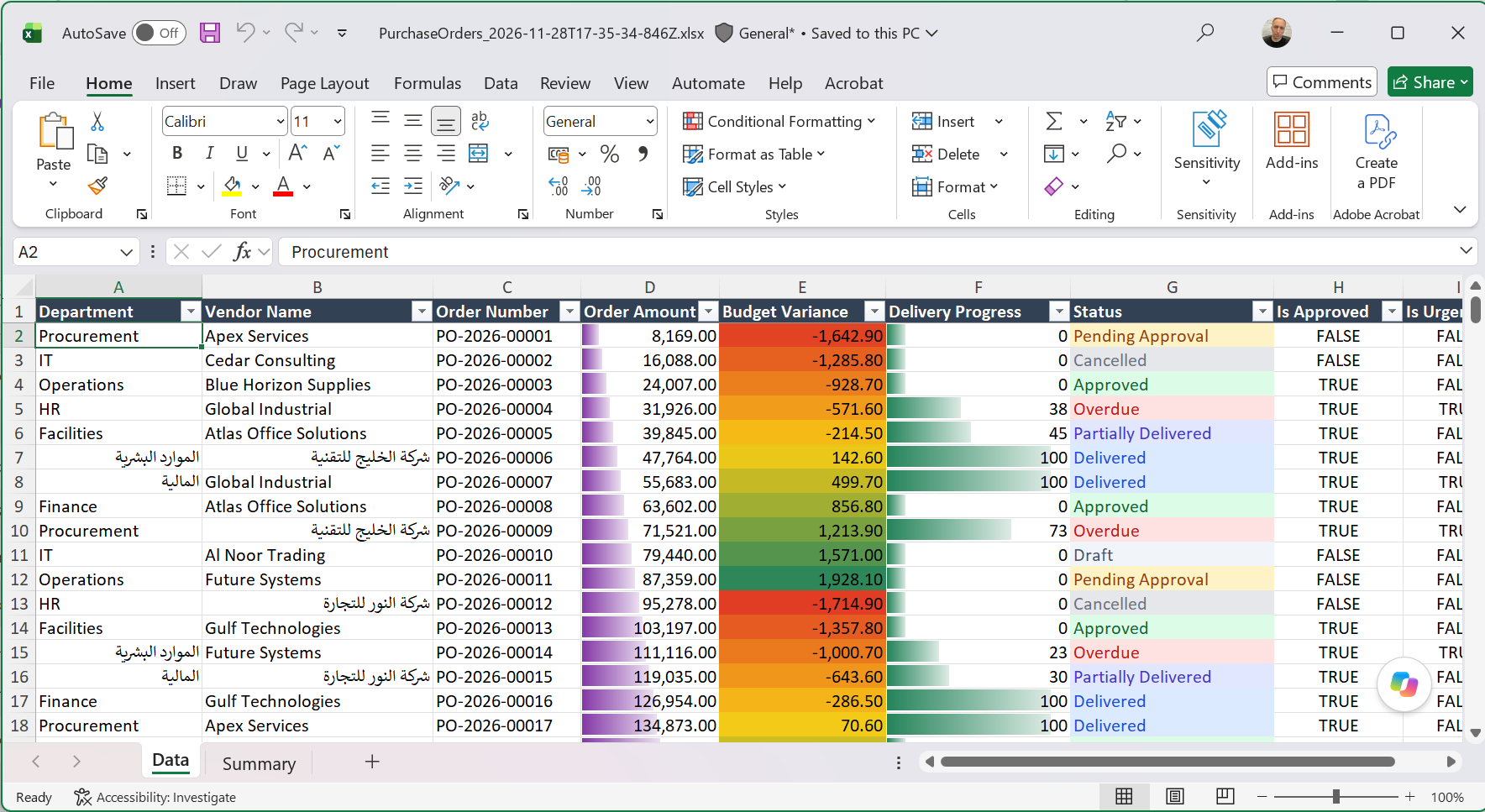
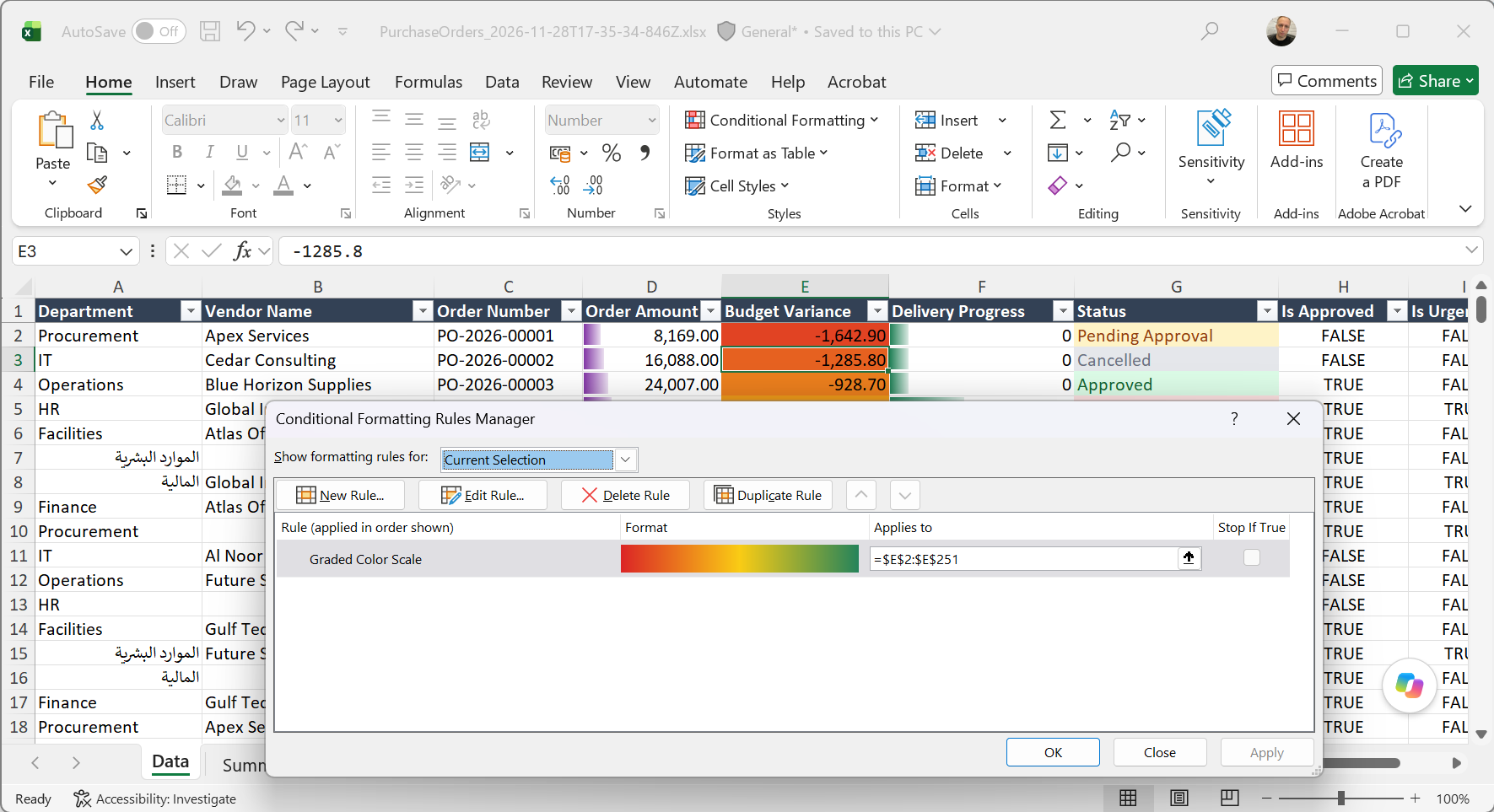
Select Excel (.xlsx), then download. The Data worksheet uses typed numeric and Boolean values where supported. Date and time values are converted when recognized; unrecognized values remain text. Number display precision is distinct from stored precision. The tested example displays two decimals while the formula bar retains 182387.0023. AutoFilter and frozen headers are native Excel features.
Figure 135 · Native Data worksheet · Actual test captureFigure 136 · Numeric format and underlying precision · Actual test captureFigure 137 · Native numeric AutoFilter · Actual test capture
2. Summary worksheet
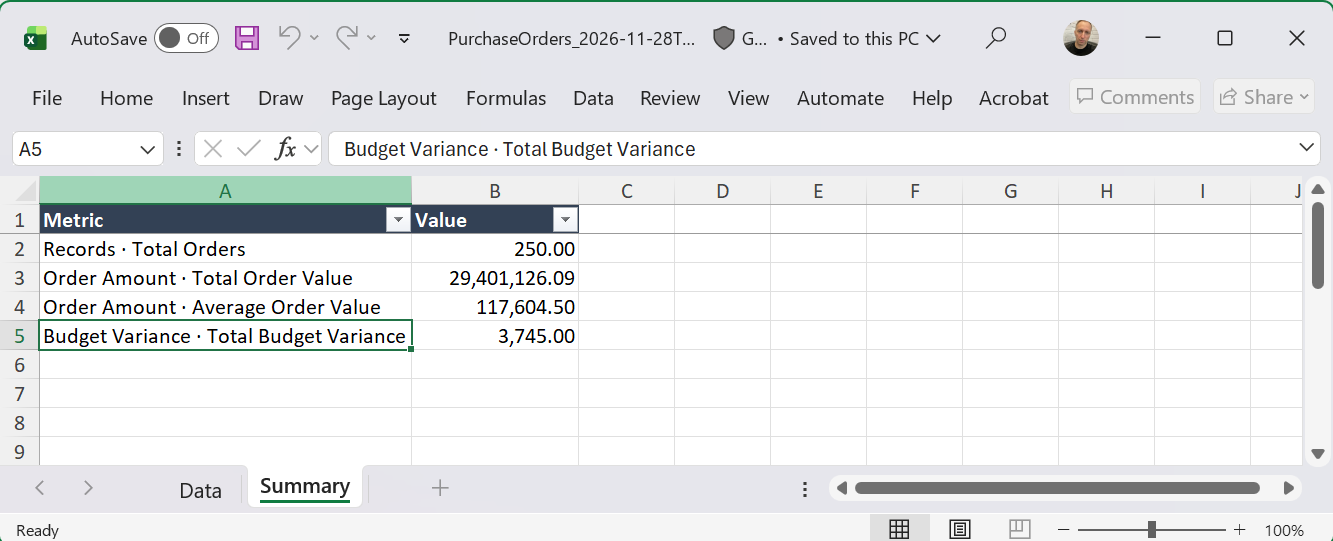
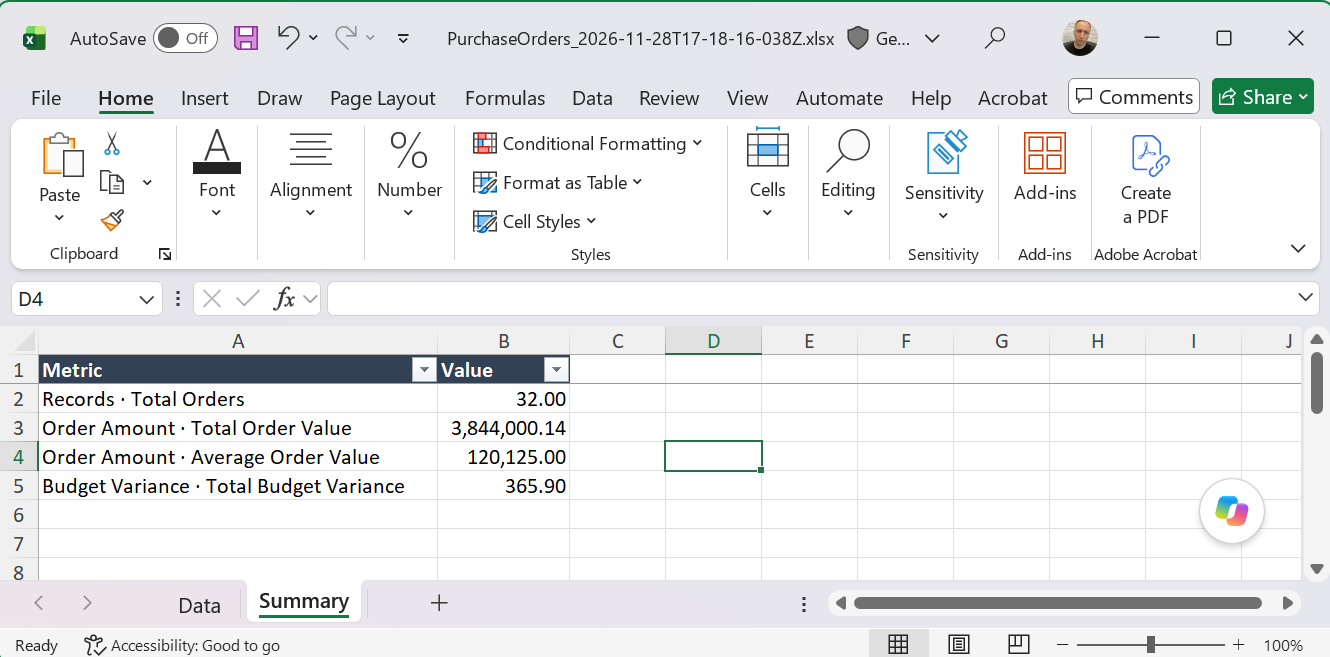
Enable Include summary. For all 250 records, Total Order Value is 29,401,126.09. Filter Department = Procurement and export filtered records: 32 records and 3,844,000.14 total. Summary calculations follow the selected export dataset. See Lesson 4 — Aggregation.
Figure 138 · Summary for loaded records · Actual test captureFigure 139 · Summary for filtered Procurement records · Actual test capture
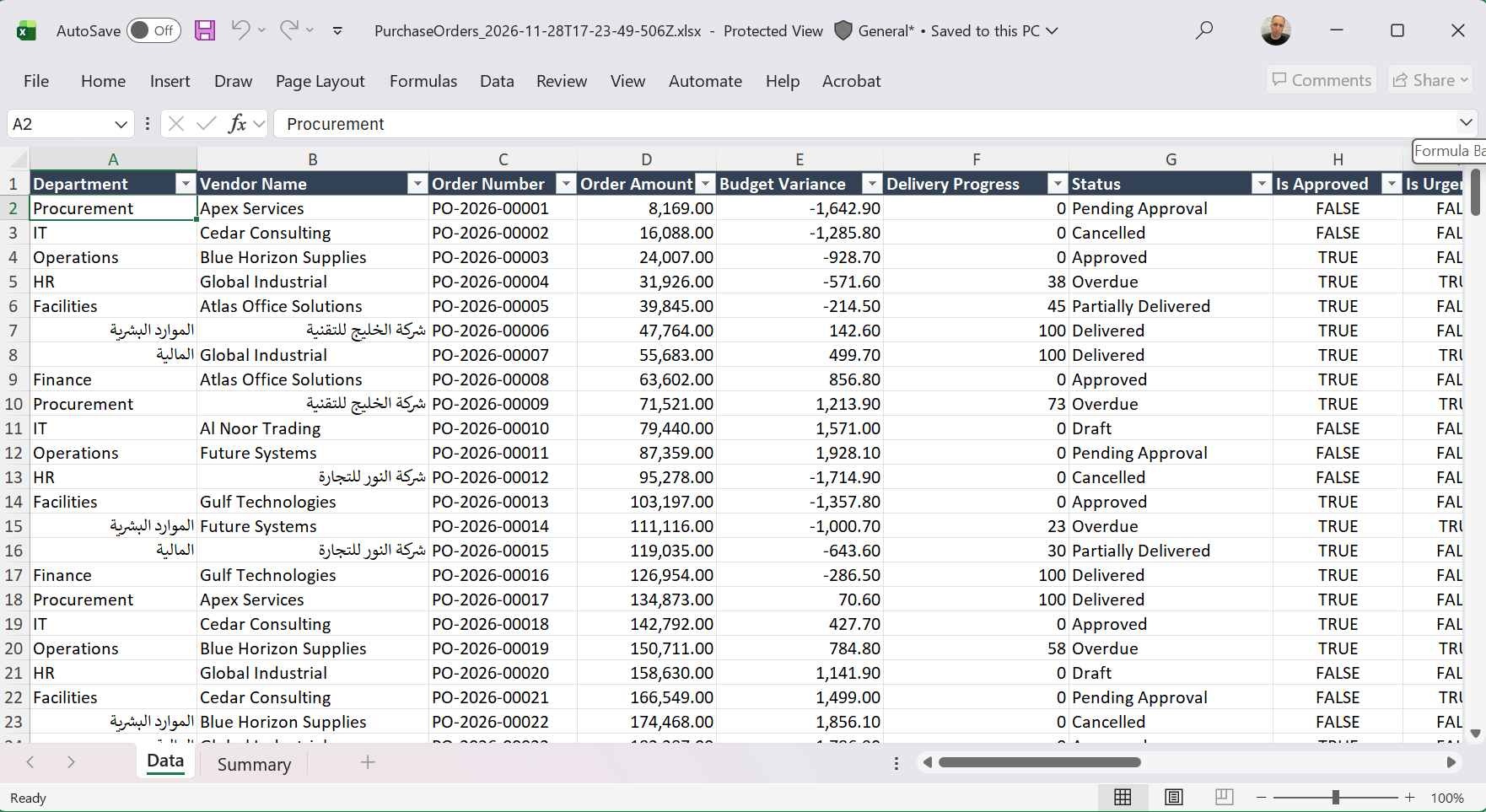
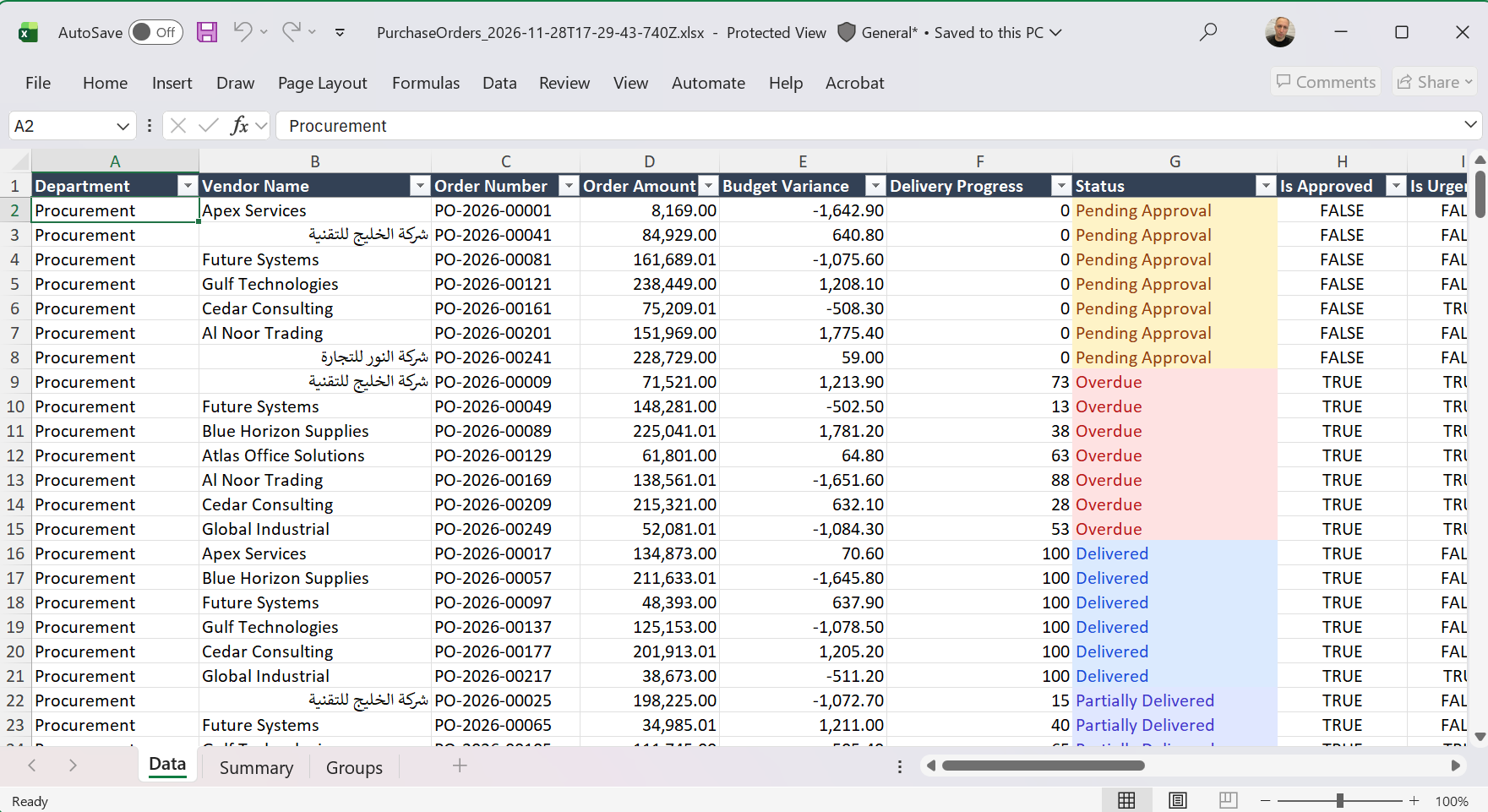
3. Conditional formatting
Load the formatted configuration. Export with Include formatting selected to transfer status background and font colors as cell styles. The browser badge shape is not reproduced as an Excel pill. Disable Include formatting and repeat to export without these colors. See Lesson 8.
Figure 140 · Status badges in K2 · Actual test captureFigure 141 · Status colors in Excel · Actual test captureFigure 142 · Export without optional formatting · Actual test capture
4. Groups and subtotals
Load the grouped configuration and group by Department and Status. Select Filtered records, Include summary, Include groups and subtotals, and Include formatting. The Data worksheet retains grouped record order; collapsed groups do not exclude matching records from a filtered export. The workbook includes separate Data, Summary and Groups sheets. See Lesson 11. The supplied capture confirms the Groups tab exists; its individual subtotal values have not been independently validated.
Figure 143 · Two-level grouping in K2 · Actual test captureFigure 144 · Grouped export options · Actual test captureFigure 145 · Grouped Data worksheet with Groups tab present · Actual test capture
5. Native data bars and color scales
Load the visualization configuration, which enables excel.nativeConditionalFormatting. Select Include formatting. Order Amount and Delivery Progress use native Excel data bars; Budget Variance uses a graded color scale. The rules can be inspected in Excel Conditional Formatting Rules Manager. See Lesson 9.
Figure 146 · Combined visualization and status formatting in K2 · Actual test captureFigure 147 · Native Excel data bars and color scale · Actual test captureFigure 148 · Excel Rules Manager: graded color scale E2:E251 · Actual test capture
Rendering differences
Excel uses its own gradients and scale rendering; opacity and zero-length bars may differ from the browser. Native conditional formatting is opt-in in the example configurations. Static status colors are exported as cell formatting, not dynamic status rules.
6. Export from Cards
Switch to Cards and filter Status = Overdue. Export filtered records. The workbook remains tabular and includes the same matching dataset, not screenshots or card layouts. The diagnostic in Part A confirms 250 loaded, 50 filtered and 10 current-page records.
Figure 149 · Overdue orders in Card View · Actual test captureFigure 150 · Excel export from Card View · Actual test capture
7. Limitations and final check
Export is client-side and limited to loaded data. Do not rely on hidden columns or export settings to enforce data access; apply authorization at the source. Excel may open downloaded files in Protected View according to organizational security policies. Validate results on your target environment before deployment. See the Disclaimer.
Congratulations — you have reached the final lesson. Mark both export articles complete to finish all 14 learning stages. The Developer Reference is a separate documentation workstream.
Technical reference for the frozen Engine 1.0.0-beta.1.0. Use this page to find configuration options without repeating the training course.
Values shown in lesson examples are not necessarily engine defaults. Modules normally require explicit enabled: true; filtering is enabled unless explicitly false. All settings apply to loaded Runtime records, not the entire database.
The first matching areaItemId wins, then the first matching runtimeName, then the first remaining matching entry. Entries are not combined. Defaults and the selected entry are shallow-merged, with explicit merges for each supported module. The following nested objects are also merged one level: export.csv, export.excel, cardView.layout, cardView.mapping, dataVisualization.columns, booleanFormatting.columns, horizontalScroll.columnWidths, columnManagement.visibility and pagination.labels. Individual column settings inside a merged map are replaced, not recursively merged. Arrays are replaced, not appended. Root defaults.columns is replaced as a whole by a grid-level columns object.
Prefer unique areaItemId selectors. For column references, use the stable discovered identifier where possible; many modules also accept column names or titles, but exact map lookups are case-sensitive. Avoid duplicate captions.
See Multiple ListViews and Grid discovery. Update the loader configVersion after saving a server configuration. Saved preferences can override initial layout settings; reset the relevant grid preferences to retest defaults.
Maximum category values displayed before abbreviated label
showRecordCount
Boolean / true unless false
Show counter when paging is disabled
showClearAll
Boolean / true unless false
Show clear-all action
autoDetectTypes
Boolean / true unless false
Infer type from K2 runtime metadata
textMode
category | text / category
Default mode for Text fields
columns[identifier].mode
category | text
Override Text field mode
columns[identifier].type
Supported normalized type name
Override detected type
columns[identifier].enabled
Boolean / true unless false
Exclude column from filter model
language (root)
auto | en | ar / auto
Choose built-in UI language
Supported normalized types: autoguid, autonumber, date, datetime, decimal, guid, memo, number, text, time, yesno. preserveOnRefresh: false at grid/defaults level clears filter state on detected refresh. filtering.enabled: false removes the filtering model and clears filters.
Provide stable user-specific identifier to separate users
saveVisibility
true
Store hidden columns
saveOrder
true
Store column order
savePinning
true
Store pins
saveWidths
true
Store resized widths
savePageSize
true
Store page size
Preferences require enabled: true and either userKey or allowBrowserScope: true. Storage is browser-local; key includes namespace, pathname, user/browser scope, area ID and definition ID. Grouping and card mode can also be persisted.
Ordered array of column titles; each entry adds a level
allowUserGrouping
Allows grouping commands in the header menu
collapsedByDefault
Initial collapsed state
showGroupingBar
Displays grouping chips and controls
showRecordCount
Displays the matching count per group
showExpandCollapseAll
Displays the global expand and collapse controls
aggregates
Array of aggregate definitions: column, operation, label and precision in these examples
preserveOnRefresh: false resets grouping on detected row replacement; preserveInPreferences: false excludes it from preference persistence. Active grouping suppresses cell merging. Group counts refer to matching records, not only the current page.
Ordered additional field definitions: column, label, format and precision where applicable
preserveInPreferences
Save selected mode when preferences are enabled
Default mode falls back to table. The card switch is hidden when allowUserSwitch or showToolbarButton is false. Table headers remain available in Cards for filtering in this beta.
Boolean; false downloads immediately using configured defaults.
defaultFormat
xlsx (fallback) or csv.
defaultScope
filtered (fallback), loaded, page.
defaultColumns
visible (fallback), all.
preserveColumnOrder
Boolean; unless false, uses current order and pin zones.
fileName
String; fallback Export.
appendTimestamp
Boolean; true unless false; UTC timestamp.
includeSummary
Boolean; Excel Summary worksheet option.
includeGrouping
Boolean; Excel Groups worksheet option.
includeFormatting
Boolean; Excel formatting option.
csv.delimiter
Comma (fallback), semicolon, tab or pipe.
csv.includeBOM
Boolean; true unless false.
excel.sheetName
String; Data fallback.
excel.freezeHeader
Boolean; freeze header option.
excel.freezePinned
Boolean; freeze leading pinned columns option.
excel.autoFitColumns
Boolean; calculated column widths option.
excel.autoFilter
Boolean; native Excel filter option.
excel.nativeConditionalFormatting
Boolean; explicitly enable native Excel bars and scales.
CSV produces a flat data file; formatting, summary worksheets and group worksheets are XLSX features. Native Excel visualizations are not pixel-identical to Runtime. Protected View is controlled by Office security settings.
Configuration examples and validation
Use the cumulative configurations from the training articles as working starting points, not as a schema that enables every feature automatically. The following complete examples include the required configuration alias and a placeholder grid identifier.
After changing configuration, verify that the selected grid is discovered, that its expected modules are active, and that there are no initialization errors. Do not treat client-side hiding or action availability as an authorization boundary. The underlying K2 rules and data access must enforce permissions.
Reference scope: this first reference consolidates the verified lesson options and audited configuration resolution in Beta 1.0. It is not an exhaustive formal schema for every internal or undocumented engine option; nested rule and card examples remain linked to their lessons. The remaining Developer Reference articles will extend the technical coverage.
This reference is intended for developers who want to control K2 Advanced Grids programmatically through their own JavaScript and build more advanced solutions on top of the component. Use it to integrate grid behavior with custom controls, application logic, reporting and existing K2 SmartForms.
Applies to Engine 1.0.0-beta.1.0. The API operates on the current browser Runtime and its loaded ListView records. It is not a server API, a SmartObject query interface or an authorization mechanism. See Configuration reference for module settings.
Entry points and initialization
Method / signature
Returns
Behavior and prerequisites
K2AdvancedGrids.version
string
Engine version.
K2AdvancedGrids.instance
object | null
Current instance; null before initialization or after destroy.
K2AdvancedGrids.discover()
Array
Returns discovered Runtime grids: areaItemId, runtimeName, viewDefinitionId; discovery does not imply enhancement is enabled.
K2AdvancedGrids.start(config)
object
Starts the engine with a configuration object; destroys any current instance first. Use only for deliberate initialization or restart.
The legacy global K2GridFiltersV2 refers to the same API object. The external loader already starts the engine; do not call start again on every K2 rule. Invoke custom code only after initialization and after the target ListView is registered.
{
  const api = window.K2AdvancedGrids;
  const ag = api?.instance;
  if (!ag) throw new Error('K2 Advanced Grids is not initialized');
  console.table(api.discover());
  console.table(ag.inspect().map(g => ({ id: g.id, rows: g.rows })));
}
Grid and column identifiers
Instance methods take the Runtime areaItemId as id, not the view definition ID or display name. Resolve the target explicitly when several ListViews share a form. Column methods generally accept a key, name or title; AutoFit accepts key or title. Use the actual key for ambiguous names. See Grid discovery and Multiple ListViews.
{
  const ag = K2AdvancedGrids.instance;
  const id = '9ec19162-70c7-1217-2d6c-fbe16e7f0afa'; // demo only
  const grid = ag.inspect().find(g => g.id === id);
  if (!grid) throw new Error('Target grid is not registered');
  console.table(grid.columns);
  console.table(grid.columnVisibility);
}
Lifecycle and diagnostics
Method / signature
Returns
Behavior and prerequisites
refresh()
undefined
Re-resolves configuration and re-renders registered grids. Does not execute a K2 List method or retrieve new database records.
inspect()
Array
Returns diagnostic objects for registered grids; do not mutate returned nested objects.
clear(id?)
undefined
Clears advanced filters for the specified grid, or all registered grids when id is omitted. Does not clear grouping, layout or native K2 filters.
destroy()
undefined
Disconnects observer and listeners, cleans up enhanced grids and clears the current instance. Restart explicitly or reload the form.
inspect() includes id, rows, columns (key, name, title, type, mode), filters (count), pagination, aggregation, layout, columnOrder, pinning, columnVisibility, preferences, conditionalFormatting, dataVisualization, cellMerging, rowGrouping and cardView. Some values may be absent when modules are disabled; layout may contain DOM references. Treat the diagnostic shape as Beta-specific.
Requires rowGrouping.enabled. keys is an array of column keys, names or titles; [] clears grouping. Resets expansion state and page; unknown keys are ignored by the resolver. true does not prove all keys matched.
setCardMode(id, mode)
boolean
Requires cardView.enabled. mode is table or cards. Reapplies presentation and saves preferences when enabled.
{
  const ag = K2AdvancedGrids.instance;
  const id = 'REPLACE_WITH_YOUR_AREAITEMID';
  ag.setGrouping(id, ['Department', 'Status']);
  ag.setCardMode(id, 'cards');
  // Return to a flat table when needed:
  // ag.setGrouping(id, []);
  // ag.setCardMode(id, 'table');
}
See Row grouping and Card view. There is no dedicated public API in this release for setting filter predicates, page index, group expansion, row selection or invoking arbitrary K2 rules. Use the existing UI and native K2 rules rather than private DOM manipulation.
Personal preferences
Method / signature
Returns
Behavior and prerequisites
savePreferences(id)
boolean
Writes supported layout settings to localStorage if configured and available; false when unavailable or not initialized.
resetPreferences(id)
boolean
Removes the stored preference key and resets layout, grouping, card mode and pagination state to configured defaults. Does not clear active filters.
Many layout operations save preferences automatically; a temporary Console experiment can therefore persist. Use a dedicated test configuration or disable preferences before experiments. See Personal preferences.
{
  const ag = K2AdvancedGrids.instance;
  const id = 'REPLACE_WITH_YOUR_AREAITEMID';
  console.log(ag.savePreferences(id));
  // Explicit user-requested reset only:
  // console.log(ag.resetPreferences(id));
}
CSV and native Excel export
Method / signature
Returns
Behavior and prerequisites
buildCSV(id, options?)
{text, records, columns} | null
Builds CSV in memory without downloading. text is the CSV string.
exportCSV(id, options?)
{fileName, records, columns} | false
Builds CSV and requests a browser download.
buildXLSX(id, options?)
{blob, records, columns} | null
Builds an XLSX Blob without downloading.
exportXLSX(id, options?)
{fileName, records, columns} | false
Builds XLSX and requests a browser download.
All four methods require export.enabled on the target grid. Build methods return null for an unknown or disabled grid; download methods return false. Invalid scope, column selection or CSV delimiter can throw. A returned file name indicates a download was requested, not that the file was saved successfully.
Options override the grid export settings for that call; nested csv and excel options are merged separately. Supported scopes: loaded, filtered, page. Columns: visible, all. Other shared options include fileName, appendTimestamp and preserveColumnOrder. CSV options: csv.delimiter (comma, semicolon, tab or pipe), csv.includeBOM. XLSX options: includeSummary, includeGrouping, includeFormatting; excel.sheetName, excel.autoFilter, excel.autoFitColumns, excel.freezeHeader, excel.freezePinned, excel.nativeConditionalFormatting. See Native Excel export and CSV export.
{
  const ag = K2AdvancedGrids.instance;
  const id = 'REPLACE_WITH_YOUR_AREAITEMID';
  console.table(['loaded', 'filtered', 'page'].map(scope => {
    const data = ag.buildCSV(id, { scope, columns: 'visible' });
    if (!data) throw new Error('Export unavailable');
    return { scope, records: data.records, columns: data.columns };
  }));
}
The page scope follows the engine’s current export dataset, not the number of DOM nodes visible in the viewport. Group collapse is a presentation state; filtered export can include collapsed records. Native Excel bars and scales are Excel rules, whereas exported status formatting is a cell-style snapshot; do not assume pixel-identical output.
Runtime configuration changes
The engine holds the configuration object passed to start. Mutate that existing object and call refresh to re-resolve settings. Reassigning the global variable alone does not replace the captured configuration. Per-grid overrides can take precedence over defaults. Some user state persists independently of configuration.
Call methods from custom application scripts only after the loader is ready. Check return values and catch export errors. Do not use destroy as a refresh shortcut. The exposed test object (matches, val, compare) is intended for internal diagnostics, not application integration. No stable event subscription API is documented for Beta 1.0. Client-side controls do not enforce access permissions; keep authorization and business validation in K2 and backend services. See Disclaimer.
Verification: signatures and return contracts were audited against the frozen engine source. Training screenshots verify representative Runtime and export scenarios; the complete set of API calls has not been independently exercised in a live K2 environment. The examples use the demo grid identifier or an explicit placeholder; replace it with your own.
Build multilingual K2 SmartForms with English and Arabic grid controls, mixed-language business data and direction-aware layouts. This reference explains what K2 Advanced Grids localizes itself, what remains the responsibility of the host application, and how to configure and validate localization in Engine Beta 1.0.
Three independent layers
Layer
Owner
Examples
Component UI
K2 Advanced Grids
Filter operators, pagination, column menus, summary scope and Boolean labels.
Vendor names, departments, descriptions, status values and identifiers.
Changing the component language does not translate business records, change the K2 culture, or mirror the entire form. An English grid can contain Arabic values and vice versa.
Language selection
Set the language at the root of the configuration, not inside an individual grid. The built-in dictionaries are en and ar.
Setting
Behavior
language: "auto"
Uses the value of #CurrentCulture, then the HTML lang attribute, then en.
language: "en"
Forces English component controls.
language: "ar"
Forces Arabic component controls and RTL for direction-aware component elements.
localization.language
Takes precedence over root language when nonempty.
localization.languages
Custom language entries keyed by lowercase language or culture code.
localization.defaultLanguage
Dictionary used when neither the exact nor base language matches; otherwise English.
localization.fallbackLanguage
Optional intermediate translation dictionary; not a replacement for the selected language.
// Apply BEFORE the engine is initialized, in the existing config file.
window.K2AdvancedGridsConfig.language = 'auto';
// Alternatives: 'en', 'ar', 'en-US', 'ar-SA'.
// Ensure localization.language is absent or set to the same choice.
Culture resolution lowercases the requested code, tries an exact entry (e.g. ar-sa), then its base language (ar), then defaultLanguage, then English. The original lowercased requested code is retained for locale-aware formatting. Translation merge order: English baseline → optional fallback dictionary → built-in Arabic for ar-* → selected entry translations. Later values win. Custom entries replace the corresponding language entry, so always declare direction explicitly; do not assume a partial English or Arabic entry preserves every property.
Custom dictionaries
Use a separate exact culture entry to customize wording without replacing the built-in base dictionary. Custom strings are application-owned; this example changes selected labels only.
Keep interpolation tokens unchanged. A custom non-Arabic dictionary inherits English for omitted keys unless a fallback supplies them. Use valid BCP 47 language tags to avoid failures in locale-aware comparisons. The Beta does not expose every UI string as a translation key: Cards and Export include direction-based English/Arabic labels, and other fixed strings or custom captions may remain unchanged. A third-language dictionary therefore does not imply complete translation.
Built-in translation keys
The following inventory is extracted from the frozen engine dictionaries. Use exact case-sensitive keys. It is not a list of every visible string in the application.
Key
English
Arabic
filter
Filter
تصفية
apply
Apply
تطبيق
clear
Clear
مسح
cancel
Cancel
إلغاء
all
Select all
تحديد الكل
search
Search values
البحث عن القيم
empty
(Empty)
(فارغ)
contains
Contains
يحتوي على
notcontains
Does not contain
لا يحتوي على
eq
Equals
يساوي
ne
Does not equal
لا يساوي
starts
Starts with
يبدأ بـ
ends
Ends with
ينتهي بـ
blank
Is empty
فارغ
notblank
Is not empty
غير فارغ
lt
Less than / Before
أقل من / قبل
le
Less than or equal
أقل من أو يساوي
gt
Greater than / After
أكبر من / بعد
ge
Greater than or equal
أكبر من أو يساوي
between
Between (inclusive)
بين قيمتين (شامل)
today
Today
اليوم
week
Last 7 days
آخر ٧ أيام
month
This month
هذا الشهر
value
Value
القيمة
invalid
Enter valid filter values
أدخل قيماً صالحة
reset
Clear all filters
مسح جميع عوامل التصفية
count
Showing {visible} of {total} loaded records
عرض {visible} من {total} سجل محمّل
none
No matching records
لا توجد سجلات مطابقة
yes
Yes
نعم
no
No
لا
page
Page {page} of {pages}
الصفحة {page} من {pages}
range
Showing {from}–{to} of {count} matching ({total} loaded)
عرض {from}–{to} من {count} سجل مطابق ({total} محمّل)
pageSize
Rows per page
عدد الصفوف لكل صفحة
first
First page
الصفحة الأولى
last
Last page
الصفحة الأخيرة
previous
Previous page
الصفحة السابقة
next
Next page
الصفحة التالية
loadMore
Load more...
تحميل المزيد...
allDisplayed
All matching records displayed
تم عرض جميع السجلات المطابقة
noRecords
No matching records
لا توجد سجلات مطابقة
activeFilters
Active filters
عوامل التصفية النشطة
removeFilter
Remove filter
إزالة عامل التصفية
selectedValues
selected values
قيم محددة
noValues
No values selected
لم يتم تحديد قيم
summary
Summary
الملخص
filteredScope
All matching records
جميع السجلات المطابقة
loadedScope
All loaded records
جميع السجلات المحملة
pageScope
Current page
الصفحة الحالية
countRows
Records
السجلات
countNonblank
Count
العدد
countDistinct
Distinct
عدد القيم الفريدة
sum
Sum
المجموع
avg
Average
المتوسط
min
Minimum
الحد الأدنى
max
Maximum
الحد الأقصى
manageColumns
Manage columns
إدارة الأعمدة
searchColumns
Search columns...
البحث عن الأعمدة...
visibleColumns
{visible} of {total} columns visible
{visible} من {total} أعمدة ظاهرة
showAll
Show all
إظهار الكل
hideAll
Hide all
إخفاء الكل
resetColumns
Reset
إعادة تعيين
hideColumn
Hide column
إخفاء العمود
requiredColumn
Required column
عمود إلزامي
sortAsc
Sort ascending
ترتيب تصاعدي
sortDesc
Sort descending
ترتيب تنازلي
clearFilter
Clear filter
مسح عامل التصفية
autoFit
AutoFit width
ضبط العرض تلقائياً
resetWidth
Reset width
إعادة تعيين العرض
groupedBy
Grouped by:
التجميع حسب:
expandGroups
Expand all
توسيع الكل
collapseGroups
Collapse all
طي الكل
groupBy
Group by this column
تجميع حسب هذا العمود
groupAdd
Add to grouping
إضافة إلى التجميع
groupRemove
Remove from grouping
إزالة من التجميع
groupClear
Clear all grouping
مسح التجميع
pinStart
Pin to start
تثبيت في البداية
pinEnd
Pin to end
تثبيت في النهاية
unpin
Unpin column
إلغاء تثبيت العمود
unpinAll
Unpin all
إلغاء تثبيت الكل
moveEarlier
Move toward start
نقل نحو البداية
moveLater
Move toward end
نقل نحو النهاية
resetOrder
Reset column order
إعادة تعيين ترتيب الأعمدة
RTL and logical positioning
Direction-aware component elements include filter and column dialogs, active filter bars, pagination, summary content, grouping controls and cards. Pagination arrows and data-bar direction adapt to the selected component direction. The host ListView itself is not globally mirrored by the language setting. Column pinning uses the computed CSS direction of the actual grid body, not the translation dictionary.
Logical setting
LTR host
RTL host
Pin to start / pinnedStart
Left edge
Right edge
Pin to end / pinnedEnd
Right edge
Left edge
Move toward start / end
Earlier / later logical order
Earlier / later logical order
Configure the native K2 form and ListView for the intended direction before testing pinning or reordering. Avoid global CSS overrides of all tables or cells. The column-aligned summary track uses an internal LTR coordinate system; do not override it to force RTL.
// Read-only direction diagnostic; run after initialization.
console.table(K2AdvancedGrids.discover().map(g => {
  const root = [...document.querySelectorAll('.grid[data-areaitemid]')]
    .find(n => n.dataset.areaitemid === g.areaItemId);
  const body = root?.querySelector('.grid-body');
  return {
    areaItemId: g.areaItemId,
    culture: document.querySelector('#CurrentCulture')?.value,
    htmlLang: document.documentElement.lang,
    gridDirection: body ? getComputedStyle(body).direction : null,
    componentDirection: root?.querySelector('.k2ag-cards, .k2ag-group-bar')?.dir || null
  };
}));
A null componentDirection simply means neither of the inspected elements is present. See Column pinning and Column reordering.
Mixed English and Arabic business data
Use the original SmartObject values in filter conditions, grouping and status mappings. Translating the visible caption does not translate the underlying value. Prefer stable Runtime column keys or control names where supported; title-based mappings must be revisited if K2 column captions are translated. Verify actual keys using JavaScript API (inspect).
Existing Purchase Orders Runtime capture: mixed Arabic and English values in an English interface. This demonstrates bilingual data, not a fully mirrored Arabic form.
Text comparisons normalize Unicode using NFKC, remove selected bidi marks, trim whitespace and lowercase text. Arabic-Indic and Eastern Arabic-Indic digits are normalized for typed comparisons. Category selection uses original values (except normalized Boolean categories); it does not automatically merge translated or differently spelled categories. Grouped text sorting uses localeCompare with the requested locale; category option sorting uses the browser default locale. Native ungrouped sorting remains subject to K2 behavior.
Numbers, dates and Boolean values
Type
Engine behavior
Recommendation
Number / Decimal
Typed comparisons accept ungrouped digits and decimal point or Arabic decimal separator. Grouping separators are not removed.
Use raw ungrouped values such as 1234.50 or ١٢٣٤٫٥٠; do not use 1,234.50 as a numeric filter value.
Summary
Numeric aggregate formatting uses Intl.NumberFormat with requested locale; count values are plain strings.
See Advanced filtering, Aggregation & Summary and Boolean formatting. Explicit labels in aggregation items, card mappings, conditional badges and row actions are configuration content: supply the language-specific captions yourself without changing the underlying business values.
CSV and Excel
CSV exports raw values and current column titles, using UTF-8 BOM by default. It does not store worksheet direction, visual formatting or cell types; Excel import may interpret dates and numbers according to local settings. XLSX preserves supported typed values, writes a rightToLeft worksheet flag based on component direction, and uses Excel number formats rather than copying K2 display strings. DateTime with a timezone is exported as an Excel serial representing UTC; Excel serials have no timezone metadata. Summary and group labels may include configured text; do not expect automatic translation of sheet names or all export captions.
Existing CSV test capture: Arabic characters are preserved alongside English data.
The preferred approach is to choose the language before initialization and reload the form when the application culture changes. There is no dedicated setLanguage API. Refresh re-evaluates configuration, but existing rendered controls can retain cached labels or layout; do not promise seamless live language switching.
// Diagnostic experiment on a test form, not a full K2 culture switch.
const cfg = window.K2AdvancedGridsConfig;
cfg.localization = { ...cfg.localization, language: 'ar-SA' };
K2AdvancedGrids.instance.refresh();
// For a consistent production experience, persist the choice in your
// application and reload with the selected culture/configuration.
Validation checklist
Repeat the following in each target culture and K2 environment before rollout. These are recommended acceptance tests, not claims of a new Runtime certification.
Scenario
Expected check
Auto / explicit en / ar
Correct filter captions, pagination arrows and Boolean labels after reload.
Custom dictionary
Exact culture entry and fallback labels; unchanged interpolation tokens.
Native RTL host
Start/end pinning and reordering, horizontal scrolling, sticky headers and summary alignment.
Mixed data
Arabic names remain legible; order IDs, signed amounts and mixed descriptions remain correct.
Typed filters
Arabic digits, decimal separator, ISO dates and Boolean selection.
DateTime boundaries
UTC / local midnight, relative date filters and export values.
Cards and row actions
Direction, configured labels, native K2 rules and correct record identity.
CSV / XLSX
Unicode round trip, worksheet direction, native types and exported values.
Preferences
Reopen under each language; check saved column keys, order, visibility and pinning.
Current limitations
Beta 1.0 is not a general-purpose internationalization framework. It does not translate K2 native controls, business data or configured captions; it does not convert calendars, guarantee arbitrary locale parsing, or provide complete third-language dictionaries. Full RTL behavior depends on native K2 layout and browser CSS. Existing screenshots verify mixed-language content, but this documentation release does not add a fresh end-to-end Arabic Runtime test. Validate the target form before production deployment.
Adapt K2 Advanced Grids to the visual identity of your SmartForms without modifying the engine. This reference distinguishes host styling, shared CSS tokens, and module-specific configuration in Beta 1.0.
Styling architecture
The engine injects its own CSS for extension controls. Native K2 headers, cells, toolbar controls and themes remain owned by the host application. CSS custom properties used by the extension resolve from the surrounding DOM; if absent, the engine uses local fallback values. These fallbacks are not a complete K2 theme.
Layer
Responsibility
K2 SmartForms theme
Native grid and form appearance
Shared CSS tokens
Extension surfaces, text, buttons and state colors
Module configuration
Boolean colors, conditional rules, data visualization, merging and sizing
Internal --k2ag-* properties
Runtime-generated geometry and rendering state; not a stable theme API
Shared CSS token reference
The following 31 tokens are referenced in the frozen engine. Multiple fallback values mean different controls use different defaults. A token only affects rules that reference it; it does not recolor the entire native K2 form.
CSS property
Purpose
Fallback(s) in engine
--k2ux-grid-bg
Pinned base, menus and popups
#f8fafc / #fff
--k2ux-grid-border
Borders across extension controls
#cbd5df / #cbd5e1 / #d1d5db / #d5dce5 / #dbe2e9
--k2ux-grid-divider
Dividers
#e3e8ed
--k2ux-grid-header-bg
Group headers
#e8edf3
--k2ux-grid-header-text
Group text and inactive icons
#334155 / #526171 / #64748b
--k2ux-grid-hover
Hover surface
#eef3f8
--k2ux-grid-radius
Summary metric radius
6px
--k2ux-grid-row-bg
Card background
#fff
--k2ux-grid-row-hover
Row/card hover and pinned overlay
#c9ebf7 / #f5f8fa / rgba(100,116,139,.12)
--k2ux-grid-row-selected
Selection overlay, chips and active filter icons
#00aeef / #e7f0fa
--k2ux-grid-row-text
Summary, pager and filter panel text
#243444
--k2ux-grid-shadow
Filter panel shadow
0 8px 30px #0003
--k2ux-grid-surface
Sticky header, summary and pager surfaces
#fff
--k2ux-grid-text
Card and menu text
#243449 / #334155
--k2ux-success
Automatic positive Boolean color
#26845b
--k2ux-danger
Automatic negative Boolean color
#b91c1c
--keds-font-family
Extension font family
Arial,sans-serif
--keds-font-size-md
Filter panel font size
14px
--keds-font-size-sm
Summary and pager font size
13px
--keds-radius-lg
Filter panel radius
8px
--keds-radius-md
Filter button radius
4px
--x-accent
Active controls and automatic resize indicator
#1765a5
--x-button-normal-bg
Normal button background
#fff
--x-button-normal-border
Normal button border
#cbd5df
--x-button-normal-text
Normal button text
#234
--x-button-primary-bg
Apply button background
#1765a5
--x-button-primary-text
Apply button text
#fff
--x-danger
Error text
#ad2535
--x-input-bg
Filter input background
#fff
--x-input-border
Filter input border
#bcc8d3
--x-input-text
Filter input text
#243444
Apply a custom palette
Place the following CSS in an application-owned stylesheet loaded by the SmartForm, or inject it through an approved custom styling mechanism. Do not modify the standard K2 theme files or the engine. The example uses :root so that overlays outside the grid also inherit the palette.
The engine does not provide its own application-wide theme switch. Integrate the token palette with your existing host theme. The example below assumes your application sets data-k2ag-theme on the HTML element; this is an example convention, not an engine configuration setting. Apply the light palette above first, then the dark override. The host must separately style native K2 controls.
These are static palette mockups, not screenshots or proof of dark-mode compatibility.
Light palette
Department · Procurement (32)
PO-2026-00001 · Apex Services
PO-2026-00009 · Gulf Technologies
Apply
Dark palette
Department · Procurement (32)
PO-2026-00001 · Apex Services
PO-2026-00009 · Gulf Technologies
Apply
Module-specific styling
Use configuration rather than CSS overrides when a module provides a styling option. Explicit colors may remain unchanged when the host theme switches. Review contrast in both themes.
Module
Configuration controls
Related lesson
Boolean Formatting
trueColor, falseColor, iconSize, alignment; auto uses mode-specific defaults
CSS variables can be scoped to a form or a grid for local changes, but not all extension elements are descendants of that grid. The filter panel is appended to the nearest runtime-form or document.body. Use a shared ancestor for consistent overlay colors. Test multiple grids and popups before narrowing the scope.
KEDS integration boundary
The engine consumes KEDS-compatible token names and listens for the document event keds-theme-changed. In Beta 1.0 the listener calls the filter panel positioning function, not a complete theme rebuild. CSS inheritance updates ordinary token-based styling; refresh the engine if runtime-calculated geometry or colors need to be recomputed. This is an integration hook, not a claim of completed KEDS product integration.
Replace the placeholder with your actual Area Item ID. Compare the computed token values on the grid and on an open filter panel. Empty values mean that the custom property is not defined at that element; the CSS rule may still use its fallback.
Check normal, hover, selection and pinned states, including text contrast.
Check filtering, pagination, summary, cards, grouping and menus in both themes and RTL.
Pinned cells combine computed backgrounds and state overlays; do not override their internal positioning or stacking styles.
Fixed business-rule colors and native Excel export are not a live reflection of a CSS theme.
Do not rely on internal CSS class names or --k2ag-* variables as a guaranteed public API.
The palette examples are source-based recommendations; full dark-theme and KEDS integration regression testing has not been performed in this reference release.
Design responsive, predictable K2 SmartForms by understanding the client-side processing model, measuring representative workloads and choosing features appropriate to each ListView. This reference applies to Engine 1.0.0-beta.1.0.
Client-side processing model
K2 retrieves and renders its native ListView records. The engine discovers matching Runtime grids, reads DOM rows and cell metadata, and enhances those records in the browser. Filtering, grouping, pagination, aggregation and export do not fetch additional SmartObject records. Native K2 sorting or rules may independently cause server activity.
Stage
Where work happens
Scaling consideration
K2 query and rendering
K2 server, data source and browser
Query duration, payload, native rendering
Grid discovery and type detection
Browser DOM
Loaded rows, columns and matching grids
Filtering and grouping
Browser
Loaded records, active filters, grouping depth and distinct values
Pagination and presentation
Browser
Existing rows are hidden, not unloaded
Export
Browser memory
Exported rows × columns, formatting and worksheets
Pagination is not virtualization
Classic paging and Load More operate on records already present in the native ListView. They limit the displayed subset, not the number of underlying DOM records. Card View builds a separate presentation of eligible rows while retaining the native table. Neither feature provides server-side paging or a virtualized data source. If K2 itself retrieves only one page, Advanced Grids can operate only on that loaded portion. See Lesson 3 — Pagination / Load More and Lesson 13 — Card View.
Cost drivers and practical optimizations
Feature
Cost driver
Recommendation
Filtering / type detection
Reading cell metadata across loaded records; category value enumeration
Restrict source query; use text filters where high-cardinality categorical lists are impractical.
Aggregation / grouping
Matching records, group tree and configured metrics
Use only needed metrics and grouping levels; avoid grouping by unique identifiers.
Conditional formatting / visualization
Rules, affected cells and scale calculation
Limit rules and visualization to relevant columns.
AutoFit
Measures text and styles across loaded rows
Use explicit widths where predictable; avoid repeated AutoFit calls.
Pinning / merging / resizing
DOM measurements and layout work
Pin only essential columns; merge only useful adjacent values.
Cards
Additional DOM and mapped fields
Keep cards concise; use modest display page size.
CSV / XLSX
Cell extraction and serialization; XLSX XML, styles and ZIP bytes
Export filtered records and necessary columns; disable optional sheets/formatting when not required.
Multiple ListViews
Combined DOM and processing workload
Load only needed views, scope configuration and measure the whole form.
Engine observers monitor Runtime DOM changes and coalesce scheduled rendering using requestAnimationFrame. This reduces duplicate scheduling within a frame but does not make processing asynchronous or free. Avoid calling refresh repeatedly in loops or after every minor change; allow K2 to finish updating the view first. Some work, including merge rendering, can occur in later frames.
Known evidence and workload boundaries
The training application demonstrates 250 loaded purchase orders, 17 source columns and a typical page size of 10. Export diagnostics recorded 250 loaded, 50 filtered and 10 page records with nine visible columns. These are functional validation results, not latency, throughput or memory benchmarks. No measured maximum supported row count, concurrency capacity or SLA has been established for this Beta.
Existing functional evidence: loaded, filtered and page export scopes. No timing measurement is implied.
Reproducible benchmark procedure
Use a non-production environment with representative data, columns, rules and browsers. Record K2 build, browser version, OS, hardware, configuration, dataset shape and network conditions. Compare a native baseline (extension not loaded) with basic and full configurations. Use identical queries and data; reload between configurations and separate cold and warm runs.
Loaded rows (proposed)
Baseline
Basic
Full
250
Native K2
Filtering + paging
Representative production modules
500
Repeat
Repeat
Repeat
1,000
Repeat
Repeat
Repeat
2,500
Repeat only if responsive
Repeat only if responsive
Repeat only if responsive
These are suggested test sizes, not certified capacities. Stop increasing the dataset if the browser becomes unresponsive or your application’s acceptance criteria are exceeded. Repeat each scenario at least five times after a warm-up; retain individual samples, median and worst observed time. Record errors and memory behavior. Use browser DevTools Performance and Network recordings to distinguish native data retrieval, scripting, layout and paint. For memory, use comparable heap snapshots before and after repeated interactions; avoid interpreting temporary allocation as a leak.
Detected columns are the engine's typed/filterable inventory, not necessarily every source or visible column. Inspect itself reads DOM metadata; do not include it inside a timed operation.
Measure synchronous refresh and export build
Run this in the browser console after the form is stable. Export must be enabled. The script benchmarks synchronous API calls only, without downloading files. It measures all configured grids for refresh, and the selected grid for exports. It does not measure deferred rendering, K2 server calls, download completion or Excel opening. Run separate tests for each scope and configuration. For large datasets start with a single iteration.
{
  const ag = K2AdvancedGrids.instance;
  const id = 'REPLACE_WITH_YOUR_AREAITEMID';
  const options = { scope: 'filtered', columns: 'visible' };
  const runs = 5;
  const results = [];
  const tests = [
    ['refresh (all grids)', () => ag.refresh()],
    ['CSV build', () => ag.buildCSV(id, options)],
    ['XLSX build', () => ag.buildXLSX(id, options)]
  ];
  for (const [operation, fn] of tests) {
    for (let i = 0; i < runs; i++) {
      const start = performance.now();
      const value = fn();
      const ms = performance.now() - start;
      if (value === null || value === false) {
        console.warn(operation, 'not available'); break;
      }
      results.push({ operation, run: i + 1,
        ms: Number(ms.toFixed(2)),
        records: value?.records,
        columns: value?.columns,
        bytes: value?.blob?.size ?? (typeof value?.text === 'string'
          ? new TextEncoder().encode(value.text).length : undefined)
      });
      await new Promise(resolve => setTimeout(resolve, 250));
    }
  }
  console.table(results);
}
The delay separates samples but does not guarantee browser idle state. Use a Performance trace for end-to-end user interaction timings (filter, group, page, cards, resize), including subsequent layout and paint. Record the time from user action to stable visible output. See JavaScript API.
Benchmark recording template
Scenario
Rows / columns
Median ms
Worst ms
Notes
Native initial load
—
—
—
Not measured
Enhanced initial load
—
—
—
Not measured
Filter apply
—
—
—
Not measured
Page change
—
—
—
Not measured
Grouping
—
—
—
Not measured
Table → Cards
—
—
—
Not measured
CSV build
—
—
—
Not measured
XLSX build
—
—
—
Not measured
Production design and security boundaries
Apply server-side search criteria and authorization before returning data to K2. Never use hidden columns, client filtering, disabled actions or card visibility as security controls.
When large reports are required, use a server-side reporting/export solution rather than loading all records into a browser solely for export.
Exports are built in memory; XLSX uses generated OOXML and an uncompressed ZIP package. Large workbooks can increase memory and processing time; formatting and additional worksheets may add cost.
Summary and group calculations describe the loaded/exported scope, not necessarily the full database. Validate numerical precision, date handling and Excel compatibility for the target data.
Preferences are browser-local; they are not a central profile service. Test representative refresh/reload behavior.
Validate each supported K2 build, browser, theme and module combination before rollout. No blanket compatibility or performance guarantee is implied.
Acceptance checklist
Define application-specific response-time and memory budgets with stakeholders. Validate native and enhanced configurations on representative end-user devices, including slow devices and multiple grids. Confirm that filtering, counts, actions and exports remain correct under load. Retain test results and a rollback plan. See Configuration reference, Native Excel export and Disclaimer.
Use this evidence-based compatibility reference to choose feature combinations and validate the target K2 environment before production deployment. Applies to Engine 1.0.0-beta.1.0, not to the Nintex platform as a whole.
How to read this matrix
Verified means a specific scenario was demonstrated in the training application, not that every permutation is certified. Limited means a known boundary or incomplete validation. Code / documented behavior is not independent runtime evidence. Not verified means no dedicated test is recorded; it does not mean incompatible. Excluded by design and Not applicable identify explicit boundaries. Reported compatible identifies versions confirmed as compatible by the project owner without a separate regression record in this portal.
Platform, browser and deployment compatibility
Environment
Status
Evidence / qualification
Native non-editable K2 SmartForms ListView
Verified
Purchase Orders register; standard SmartObject-backed list.
Nintex Automation K2 5.9.1
Verified
Training environment confirmed by the project tester; exact build and Fix Pack not recorded.
Nintex Automation K2 5.8, 5.8.1, 5.9, 5.10
Reported compatible
Compatibility reported by the project owner; no separate version-specific regression record included in this portal.
Other K2 releases / future updates
Not verified
Other versions have not been tested by the project owner; repeat regression after upgrades.
Microsoft Edge
Verified
Baseline documented in Prerequisites; exact build not recorded.
Google Chrome 158.0.8127.89
Verified
Explicitly tested and confirmed by the project owner.
Firefox / Safari
Not verified
No independent browser-specific test recorded.
Mobile browsers / touch
Not verified
Responsive card layout demonstrated by narrowing desktop viewport; not device certification.
Outside the standard walkthrough; do not assume support.
Multiple ListViews
Code / documented behavior
Configuration model documented; combined workload requires regression.
Desktop Microsoft Excel
Verified
Workbook, filters, numeric values and native conditional formatting shown; exact version not recorded.
Excel Online / LibreOffice / other readers
Not verified
Workbook rendering and rules may differ.
English and mixed Arabic data
Verified
Runtime and export captures.
Fully Arabic RTL Runtime / custom themes / KEDS
Not verified
Implementation and configuration documented; end-to-end environment testing pending.
Feature interaction matrix
Selected meaningful pairs are listed below. This is not an exhaustive Cartesian product; unlisted pairs are not verified by this reference.
Visual compatibility matrix
Selected eight core features, based on the detailed table below. Hover over a cell for its evidence or boundary. Unlisted combinations are marked not verified, not incompatible. For export, the chart refers to XLSX; see the table for CSV-specific behavior.
V Verified · L Limited · X Excluded by design · ? Not verified · D Code / documented behavior · — Same feature
Feature A
Feature B
Status
Boundary / evidence
Filtering
Pagination
Verified
Filtered results and page reset; loaded records only · Training reference
Diagnose deployment, configuration and Runtime issues systematically before changing the engine. This guide applies to Engine 1.0.0-beta.1.0 and preserves native K2 behavior as the baseline.
Start with the native ListView
Reproduce in a non-production form. Record K2 release/build/Fix Pack, browser version, engine version, configuration URL and the exact steps. Confirm that the native ListView loads the expected records and that its rules work with the loader disabled. If the native issue persists, investigate K2 or the data source independently.
Deployment and initialization
Use DevTools Network and Console. Confirm both hosted JavaScript requests return HTTP 200 and actual JavaScript, not a sign-in page. Check the config loads before the engine, the Data Label is Literal, and only one loader exists on the form. Review CSP, access rights, IIS path and web-node consistency if loading fails. See Installation & deployment.
Quick health check
{
 const api = window.K2AdvancedGrids;
 console.log({version: api?.version, initialized: !!api?.instance,
   configLoaded: !!window.K2AdvancedGridsConfig});
 if (api) console.table(api.discover());
 if (api?.instance) console.table(api.instance.inspect().map(g => ({id:g.id, rows:g.rows, filters:g.filters, preferences:g.preferences?.status})));
}
Grid discovery and configuration
If the engine exists but no grid is registered, compare discovery output with the configuration selector. Replace the placeholder with the actual Runtime Area Item ID, not the View Definition ID. Check that the ListView has loaded and is enabled in configuration. For multiple grids identify each independently. See Grid discovery and Configuration reference.
{
 const id = 'REPLACE_WITH_YOUR_AREAITEMID';
 const api = window.K2AdvancedGrids;
 console.table(api?.discover() || []);
 const grid = api?.instance?.inspect().find(g => g.id === id);
 if (grid) console.table(grid.columns);
 else console.warn('Target grid not registered', id);
}
Common symptoms and remedies
Symptom
Checks / action
Changes not visible
Increase configVersion in the loader, reopen Runtime and verify the actual response in Network. Keep engineVersion unchanged for configuration-only edits.
Duplicate toolbar or controls
Ensure only one deployment per form; remove duplicate embedded/external loaders and reload.
No records / incorrect count
Verify native SmartObject list result and filters. Advanced Grids processes only loaded records.
Page size or columns revert
Check preferences status and reset the affected grid if appropriate.
Pinning or ordering fails
Check enabled modules, visible columns, pin zones and actual column keys.
Cell merging disappears
Active grouping suppresses merging; decorated cells and page boundaries also limit merging.
Card action fails
Verify source K2 button name, selection, enabled state and native rule; test the same record in Table mode.
Date or Boolean formatting differs
Inspect actual source value and type, culture and column configuration; test representative values.
Excel output differs from grid
Check export scope, formatting flags and native Excel rules; card markup is not exported.
Arabic labels or layout differ
Check language selection and native ListView direction separately.
Preferences and safe resets
Saved browser preferences may override developer defaults. Reset only the affected grid after recording its user layout; the reset removes saved preferences for that scope. Do not clear all browser storage. Filters can be cleared separately. See Personal preferences.
// Run only when intentionally resetting the selected grid.
const id = 'REPLACE_WITH_YOUR_AREAITEMID';
K2AdvancedGrids.instance.resetPreferences(id);
// Optional separate operation: clear advanced filters.
// K2AdvancedGrids.instance.clear(id);
Export diagnostics
Check the loaded, filtered and page scopes, visible/all columns, and whether Export is enabled. CSV is plain text: Excel may infer types or display #### when columns are narrow. For XLSX, distinguish Protected View from a repair warning. If Excel repairs a workbook, preserve a sanitized sample, disable native conditional formatting and extra sheets one at a time, and repeat on the same records. Do not claim a repair-free result until verified. See Native Excel export.
{
 const id = 'REPLACE_WITH_YOUR_AREAITEMID';
 const ag = K2AdvancedGrids.instance;
 console.table(['loaded','filtered','page'].map(scope => {
   const r = ag.buildCSV(id,{scope,columns:'visible'});
   return {scope,records:r?.records,columns:r?.columns};
 }));
}
Performance and visual issues
Compare against native K2, reduce the loaded dataset, and disable optional modules individually. Client pagination does not reduce the loaded DOM. Inspect computed styles, host scroll containers and direction; do not overwrite internal geometry variables. See Performance & limitations, Styling & themes and Localization & RTL.
Rollback and incident evidence
Back up the form Expression and hosted files. In a controlled environment remove or disable the loader, save the form and reopen Runtime. Verify native selection, rules and data retrieval. For a temporary console-only test, destroy the instance; reload to restore the configured deployment. Do not delete shared server files while other forms use them. The rollback procedure requires validation in the target environment.
Collect a sanitized Console error and stack trace, Network status and script URLs (remove credentials/tokens), exact versions, minimal configuration, discovery and inspect summaries, expected versus actual behavior, and a screenshot or sanitized export. Never share confidential records or secrets. See Compatibility matrix and Disclaimer. This independent extension is not supported by Nintex Support; reproduce native issues without it.
Portal 0.23 · MIT Licensing Edition: software license, downloadable packages, copyright notices and scope clarification. Engine functionality unchanged. Public launch pending clearance.
Portal 0.22 · Distribution Edition: centralized Downloads, direct home-page access, evaluation runtime and training archives, SHA-256 checksums, footer Disclaimer link and updated SEO manifest. Engine unchanged.
Portal 0.21 · Public publishing SEO preparation: article URLs, descriptive metadata, structured data and deployment-time sitemap generation. Engine unchanged.
Portal 0.20 · DR-07 Troubleshooting and updated DR-06: K2 5.9.1 and Chrome test evidence, reported compatible releases, visual feature matrix and practical diagnostic procedures. All seven Developer Reference articles available. Engine unchanged.
Portal 0.19 · DR-06 Compatibility matrix: evidence-based platform, browser, deployment, data type and feature-interaction compatibility; regression acceptance checklist. Documentation only; engine unchanged.
Portal 0.14 · Developer Reference begins with Configuration reference: configuration structure, selector precedence, inheritance, consolidated module options and export settings. Documentation only; engine, loader and training configurations unchanged.
Portal 0.13 · Complete 14-stage training course. Lesson 14 CSV and Native Excel export: 27 actual test captures and four downloadable configurations. Engine Beta 1.0 unchanged. Developer Reference remains a separate planned workstream.
Portal 0.12 · Lesson 13 Card View: 16 actual Runtime captures, five cumulative configurations, and a dedicated Disclaimer. Engine Beta 1.0 unchanged.
Portal 0.11 · Row Context Menus and Actions: eight Runtime captures and four configurations. Engine unchanged.
Portal 0.9 · Cell Merging: seven actual Runtime captures, four complete configurations, hierarchical and independent diagrams, clean Data Label loader. Engine unchanged.
Portal 0.8 · Data Visualization: ten new Runtime captures, six configuration files, scope and opacity playgrounds, and replacement date-formatting capture. Engine unchanged.
Portal 0.7 · Boolean & Conditional Formatting: two lessons, 12 Runtime captures, five cumulative configurations and offline playgrounds. The date scenario was initially pending; verified in isolation in Portal 0.8. Engine unchanged.
Portal 0.6 · Column Management & Personal Preferences: four lessons, 16 Runtime captures, four cumulative configurations, offline interactive examples and compact Introduction hero. Engine unchanged.
Portal 0.5 · Grid Layout & Column Sizing: three lessons, ten Runtime captures, three complete configurations, offline simulations, Introduction hero and author contact links. Engine unchanged.
Portal 0.4 · Aggregation & Summary: ten Runtime captures, three downloadable configurations, interactive scope comparison and explicit configVersion reminders. Engine unchanged.
Portal 0.3 · 27 November 2026 · Engine 1.0.0-beta.1.0.
Third cumulative release: Pagination & Load More, eight new Runtime screenshots, two downloadable configurations, personal learning progress, purple download buttons and hidden Data Label guidance. The engine is unchanged. Designer captures, full Discovery, Studio and performance testing remain planned.
Previous releases: v0.1 introduced the portal and filtering; v0.2 refined learning outcomes, installation and cross-references.
K2 Advanced Grids is an independent, privately developed extension for Nintex K2 SmartForms. It is not an official Nintex product, component or supported feature.
Independent development and support
The extension and this documentation are provided independently of Nintex. They are not endorsed, certified or maintained by Nintex. Nintex Support is not responsible for supporting, troubleshooting or fixing this extension. For native platform issues, reproduce the issue without the extension before contacting Nintex Support.
As-is provision
The extension, examples and documentation are provided AS IS and AS AVAILABLE, without warranties of any kind, express or implied, including fitness for a particular purpose, merchantability, non-infringement, accuracy, reliability or uninterrupted operation, to the extent permitted by applicable law. Compatibility with every K2 version, configuration, browser or future update is not guaranteed.
Deployment and responsibility
Evaluate in a non-production environment, review scripts and configuration, back up relevant assets, and validate security, accessibility, performance and business rules before production use. The deploying organization is responsible for its own change management, testing and ongoing maintenance. Client-side presentation features do not replace server-side authorization or validation.
Limitation of liability
To the extent permitted by applicable law, the author is not liable for losses, damages, interruptions or data loss arising from use of or inability to use the extension. Nothing here excludes liability that cannot lawfully be excluded.
Third-party trademarks
Nintex and K2 names and marks belong to their respective owners and are used for identification and interoperability. Their use does not imply sponsorship or endorsement.
License scope and voluntary support
MIT applies to original software in engine/, config/, deployment/, tools/ and database/ and the software files in the downloadable packages. The portal HTML, CSS, UI scripts, course text, screenshots and illustrations are not licensed under MIT. Third-party names, trademarks and materials remain subject to their owners’ rights. No rights to Nintex software are granted. Independently developed; not an official Nintex product. No obligation to provide support, maintenance or updates.
The standard MIT License governs the software. This disclaimer does not add restrictions to the rights granted under MIT.
K2 Advanced Grids software is licensed under the MIT License.
Scope
MIT applies to original software in engine/, config/, deployment/, tools/ and database/ and the software files in the downloadable packages. The portal HTML, CSS, UI scripts, course text, screenshots and illustrations are not licensed under MIT. Third-party names, trademarks and materials remain subject to their owners’ rights. No rights to Nintex software are granted. Independently developed; not an official Nintex product. No obligation to provide support, maintenance or updates.
Free for commercial and non-commercial use, modification and redistribution, including commercial redistribution, subject to retaining the copyright and permission notice.
Full license text
MIT License

Copyright (c) 2026 Andrey Kholinov

Permission is hereby granted, free of charge, to any person obtaining a copy
of this software and associated documentation files (the "Software"), to deal
in the Software without restriction, including without limitation the rights
to use, copy, modify, merge, publish, distribute, sublicense, and/or sell
copies of the Software, and to permit persons to whom the Software is
furnished to do so, subject to the following conditions:

The above copyright notice and this permission notice shall be included in all
copies or substantial portions of the Software.

THE SOFTWARE IS PROVIDED "AS IS", WITHOUT WARRANTY OF ANY KIND, EXPRESS OR
IMPLIED, INCLUDING BUT NOT LIMITED TO THE WARRANTIES OF MERCHANTABILITY,
FITNESS FOR A PARTICULAR PURPOSE AND NONINFRINGEMENT. IN NO EVENT SHALL THE
AUTHORS OR COPYRIGHT HOLDERS BE LIABLE FOR ANY CLAIM, DAMAGES OR OTHER
LIABILITY, WHETHER IN AN ACTION OF CONTRACT, TORT OR OTHERWISE, ARISING FROM,
OUT OF OR IN CONNECTION WITH THE SOFTWARE OR THE USE OR OTHER DEALINGS IN THE
SOFTWARE.
Already familiar with K2 Advanced Grids? Get the runtime package and individual development resources without completing the training course.
Use, modify and redistribute the software under the MIT License. Retain the copyright and license text when distributing copies or substantial portions, including the standalone loader. Download license text. No registration or subscription required.
Runtime package
Engine 1.0.0-beta.1.0 · Beta preview · MIT License
Free and open-source software for commercial and non-commercial use under the MIT License. Public launch remains pending rights and privacy clearance.
The package contains the unchanged engine, starter configuration, Purchase Orders advanced example, DataLabel loader, grid discovery script and installation instructions. The advanced example is tailored to the training schema, not a universal configuration.
Individual files remain available in each lesson. Review SQL scripts in a non-production database before executing them. CSS examples are available in Styling & themes.
Configuration catalog
Choose a configuration matching your lesson. Replace the Area Item ID, adapt column identifiers where needed and increment configVersion after saving.